The 5:30 PM Question
It’s 5:30. You’re standing in the kitchen. You haven’t thought about dinner because you were handling homework, a work call, and a mysterious smell coming from the laundry room. And then it comes:
“What’s for dinner?”
Not from one person. From all of them. Like a chorus.
The frustrating part isn’t the question itself. It’s that you’re the only one who ever has to think about the answer. You plan the meals. You check what’s in the fridge. You decide, shop, prep, and cook. Everyone else just shows up hungry at 6 and asks what’s happening.
This isn’t a food problem. It’s a system problem. And like most household system problems, you can fix it with a plan, a shared list, and something visible so people stop asking you.
Pick an Approach That Fits How Your Family Actually Works
Meal planning doesn’t have to mean a spreadsheet and a Sunday afternoon of recipe research. There are simpler ways in, and the right one depends on how your household operates.
The Sunday batch plan. You sit down once a week (Sunday morning is common, coffee in hand), plan all five weeknight dinners, write a grocery list, and shop once. This works well if your family’s weeknights are predictable. You do the thinking once, then execute on autopilot. The downside: if plans change mid-week, you’ve got ingredients for a meal nobody’s home to eat.
The rolling 3-day plan. Plan just three dinners at a time, and shop twice a week. This is more flexible. You’re never planning more than a few days ahead, so changes don’t wreck everything. I landed on this one after two failed attempts at the full-week plan. With three kids and activities that shift constantly, planning five dinners on Sunday felt like fiction by Wednesday.
Theme nights. Monday is pasta. Tuesday is tacos. Wednesday is soup. You’re not planning meals from scratch. You’re picking which pasta dish, which taco filling. It sounds rigid, but it actually cuts the hardest part of meal planning: deciding what category of food to make. My neighbor swears by this and her kids love knowing what to expect. We borrow it selectively. Taco Tuesday is non-negotiable in this house.
Any of these works. What doesn’t work is no system at all, which is what most families are running: one person carrying a running mental list of what’s in the fridge, what expires tomorrow, who won’t eat what, and whether there’s enough pasta for four.
Set Up a Shared Meal Plan Everyone Can See
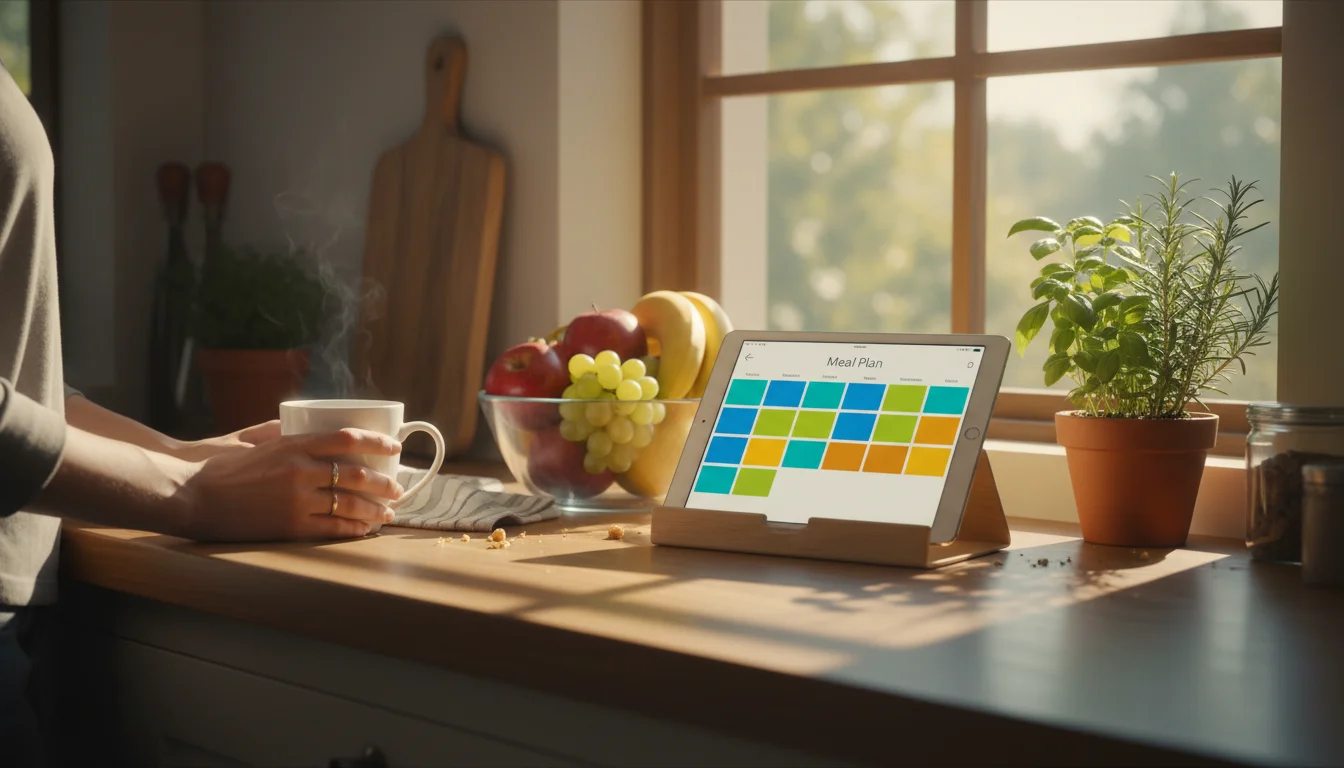
The system matters more than the app. What you need is a place where this week’s dinners are written down, visible to the whole family, and accessible to whoever might need to shop or cook.
The Shared Note Approach (Simplest)
Open Apple Notes,  Google Keep, or whatever note app your family already uses. Create a shared note called “This Week’s Meals.” List Monday through Friday with what’s planned. Share it with your partner. (If your old iPad can’t run the latest Google Keep app, just open keep.google.com in Safari. Works the same way.)
That’s it. That’s a meal planning system. It’s not fancy, but it works because it’s visible. Anyone can open the note and see what’s for dinner tonight without asking you.
Dedicated Meal Planning Apps
If you want more structure, a few apps are built for this:
Mealime (free, Pro $2.99/month) suggests recipes based on dietary preferences and generates a grocery list from your selections. The meal plan view shows the whole week at a glance. It’s particularly good if you’re stuck in a rut and want new ideas without browsing Pinterest for an hour. One catch: Mealime requires iOS 15.6 or later, so it won’t install on older iPads. If your tablet is stuck on iOS 12-14, use Mealime on your phone for planning and put a simpler option on the tablet for display.
Paprika ($4.99, one-time) is better known as a recipe manager, but its meal planner lets you drag saved recipes onto a weekly calendar. If you already have Paprika for recipes (and if you cook from a tablet, you should), the meal planning feature is right there.
 AnyList (free, or $9.99/year for premium) combines meal planning with its grocery list. Plan the week’s dinners, and the ingredients from each recipe feed into a shared shopping list. This is the tightest loop between “what are we eating” and “what do we need to buy.”
If you need detailed app recommendations for your specific tablet, the kitchen assistant guide covers Paprika, AnyList, and Mealime in detail, including what works on older devices.
Put It on the Kitchen Tablet
Whatever you use, put it on the kitchen tablet. The meal plan should be one tap from the home screen. When someone walks into the kitchen and wonders what’s for dinner, the answer is right there on the counter or wall. No asking required.
If your tablet runs a dashboard like  DAKboard or a calendar display, you can add a shared note widget or bookmark. If it’s a dedicated kitchen tablet, just keep the meal planning app front and center.
The kitchen display setup guide covers how to configure an old tablet as an always-on display if you haven’t set that up yet.
Set Up a Shared Grocery List That Goes With You
A meal plan creates the shopping list. But the list needs to live somewhere everyone can access it, both at home and at the store.
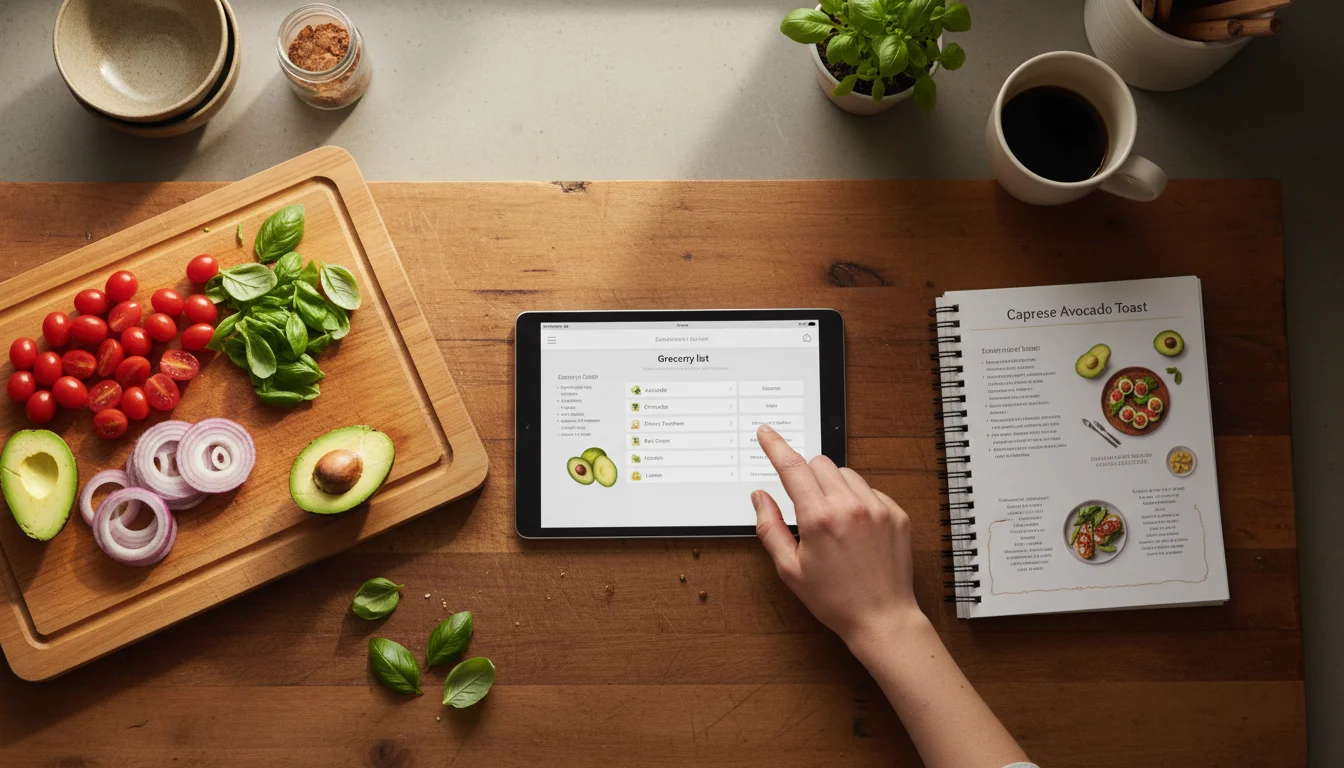
The kitchen tablet is the natural place to add items. You’re cooking and notice you’re almost out of olive oil? Walk over, tap it onto the list. The pasta box is empty? Add pasta before you forget. The key is that the list is right there where you notice things running low, not on a piece of paper stuck to the fridge that you can’t read from the cereal aisle.
AnyList is the best option here. Shared lists sync instantly between the kitchen tablet and everyone’s phones. Items auto-categorize by store aisle, which sounds like a small thing until you’re speed-walking through Costco trying to find “that thing we needed.” The free version handles basic lists. Premium ($9.99/year) ties recipes directly into the shopping list. AnyList needs iOS 16 or Android 5.0+, so it runs on most tablets that aren’t ancient (though iPad Air 2 and iPad mini 4, which max out at iOS 15, can’t install it).
Apple Reminders works if your whole family is on iPhones. Create a shared Reminders list, and everyone can add and check off items. It’s already on every Apple device, so there’s nothing to install on the old iPad.
Google Keep works across both platforms. Create a shared note with checkboxes, and it syncs everywhere. The app needs iOS 17 on iPads, but you can use keep.google.com in the browser on older tablets. Less purpose-built than AnyList, but if your family already uses Keep for other things, it’s one less app to adopt.
The point is: pick one, share it with your household, and make it the default. The kitchen tablet is where items go on the list. Your phone at the store is where they come off. We covered grocery list apps in more detail in the kitchen assistant guide.
Who Does What (and How to Not Be the Only One Planning)
Here’s where a meal planning system becomes a family meal planning system instead of just moving one person’s mental load into an app.
The planner. Someone has to plan the meals. In most households, this defaults to one person, and it stays that way forever. Try alternating weeks. One week you pick the meals, the next week your partner does. It doesn’t have to be elaborate. “I planned burgers, stir fry, and pasta this week” is a perfectly good plan. The point is that both adults know what it takes to think about five dinners.
The shopper. A shared grocery list means either parent can shop. You don’t need to hand over a piece of paper or explain what you meant by “the good cheese.” The list is on their phone. If one person always shops because they enjoy it, fine. But if it’s always one person because nobody else knows what to get, the shared list solves that.
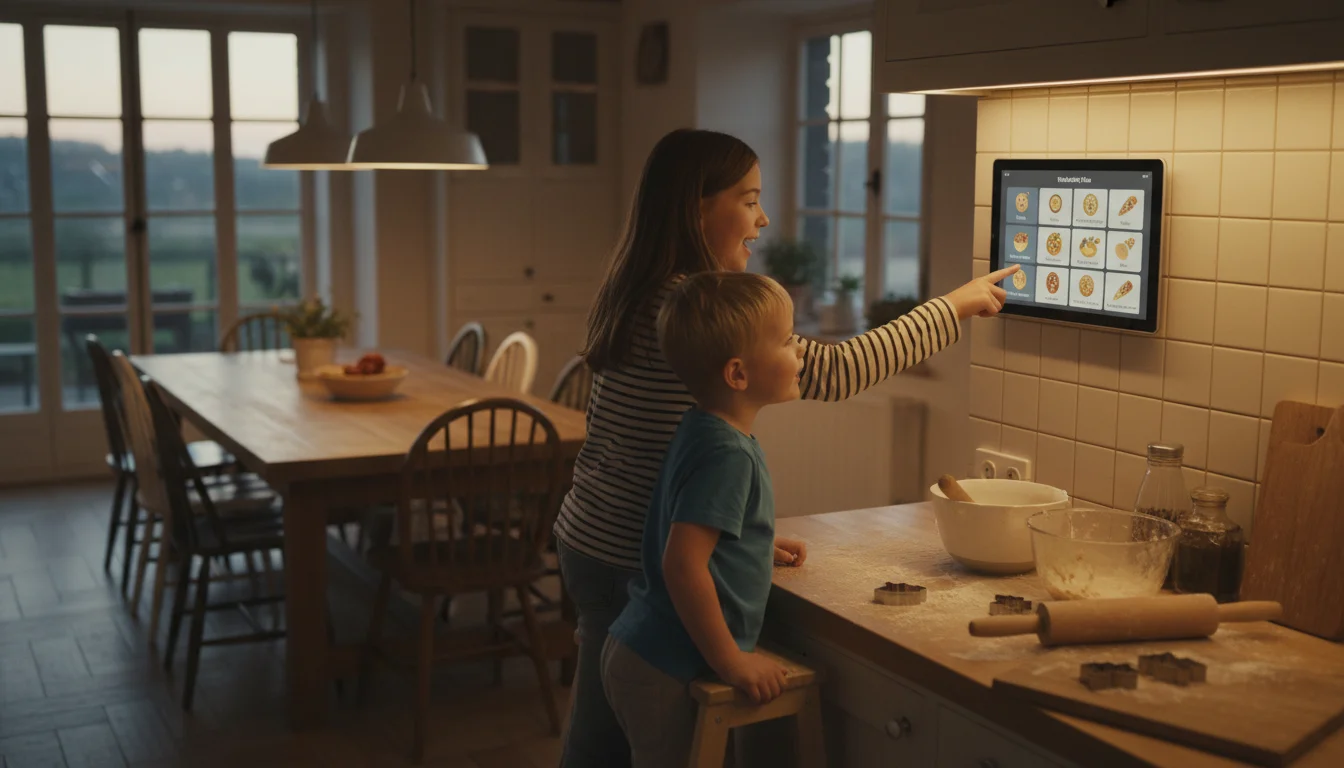
The kids. Let them pick one dinner a week. Even a 5-year-old can choose between tacos and mac and cheese. Put their pick on the plan and they’ll spend the rest of the week telling everyone about it. Older kids can add things to the grocery list on the tablet. It’s a small responsibility, but it’s real participation in how the house runs.
When the planner is done. This is the part nobody talks about. What happens when the person who usually plans the meals is sick, traveling, or just burned out on deciding? If the system only lives in one person’s head, the family starves (or orders pizza for a week). If it lives in a shared plan and a shared list, someone else can step in without a briefing. That’s the real value of making it visible.
Making It Stick: The First Two Weeks
Don’t try to plan breakfast, lunch, dinner, and snacks in week one. Start with just weeknight dinners. Five meals. That’s it.
Your first planning session takes 10 minutes. Sit down with your partner (or alone if you’re starting this solo). Look at the week ahead. Any nights out? Any late activities? Plan around those. Write down five dinners. Add the ingredients to the shared grocery list. Done.
The first week feels like extra work. You’re adding a new step (planning) to a process that used to be improvised. That’s normal. You’ll look at the plan and think “I could have just figured it out day-of.” Keep going.
The second week feels like less work. You already know the routine. Planning takes five minutes now instead of ten. And the daily 5:30 decision is just gone. You look at the plan, you start cooking. Nobody asks.
By week three, your family starts checking the plan themselves. Not because you trained them. Because it’s right there on the tablet. The 8-year-old reads it and announces “it’s taco night!” at 4 PM. Your partner checks the list before stopping at the store on the way home. The system works because it’s visible, shared, and requires zero effort to check.
The tablet shows tonight’s dinner. The grocery list is on your phone. And nobody asked what’s for dinner.