The 3:30 PM Problem
The bus drops off at 3:27. By 3:29 there are backpacks on the floor, shoes kicked into the hallway, and someone is already asking for a snack while someone else has vanished into the couch. Homework? Not happening. Chores? Absolutely not. Dinner is in three hours and the window between now and bedtime is a free-for-all unless I physically stand in the kitchen directing traffic.
I already had a morning routine board running on an old iPad on the kitchen counter. The mornings had gotten better. But the afternoons were still chaos, and honestly worse because everyone was tired – the kids from school, me from a day with the 3-year-old.
So I set up a second board. Same iPad, different checklist. The after-school routine board covers everything from door to evening wind-down. It took 15 minutes to build and it handles the three things I used to repeat on a loop: chores, homework, and what’s happening tonight.
Why the Tablet Beats the Paper Chart (and the $700 Display)
We tried paper. Laminated checklist on the fridge. Sticker chart. Whiteboard with dry-erase markers that got used as regular markers on the wall exactly once. They all worked for about a week before becoming wallpaper.
The alternative everyone pushes online is a dedicated smart display. Here’s what they cost:
| Display | Price | Chore features |
|---|---|---|
 Skylight Calendar Skylight Calendar |
$279.99 | +$79/year for chore chart |
| Hearth Display | $699 | +$9/month Family Membership |
| ApoloSign displays | $279-$799 | Included |
For a checklist.
The old tablet in your drawer does this for free. You can update it from your phone in 30 seconds when the routine changes for soccer season or summer break. And if the 5-year-old knocks it off the counter, it’s a device you already wrote off, not a $700 purchase.
Pick Your Board App
Half the chore apps people recommend need iOS 17+ or current Android, which rules out most old tablets. Here’s what actually works.
 Google Keep is what runs our boards. Free, dead simple, and it works in Safari on any old iPad because the app itself requires iOS 17+. Make a checklist, add emoji next to each item for the younger kids, pin it, and open it full-screen in the browser. On Android 8+ tablets, the app installs directly. Edit the list from your phone and it syncs instantly.
 Apple Reminders is built into every iPad ever made. No install, works on iOS 7 and up. Create a list called “After School” with each task as an item. The limitation: no images or emoji inline on older iOS versions, so it’s text-only. Fine for readers. Not great for the pre-readers.
 Cozi Family Organizer has checklists that work through cozi.com in the browser (the app needs iOS 17+). The family account lets everyone edit from their own devices. If you’re already using Cozi for shared family calendar duties, adding an after-school checklist keeps everything in one place.
For Android tablets: Google Keep installs directly.  Fully Kiosk Browser (~$11 one-time) locks the screen to your checklist and keeps the display on. It also blocks the navigation bar so nobody can accidentally (or intentionally) switch to YouTube.
Not sure what still installs on your specific tablet? Our tested list of free apps by OS version saves you the guesswork.
Build the After-School Routine
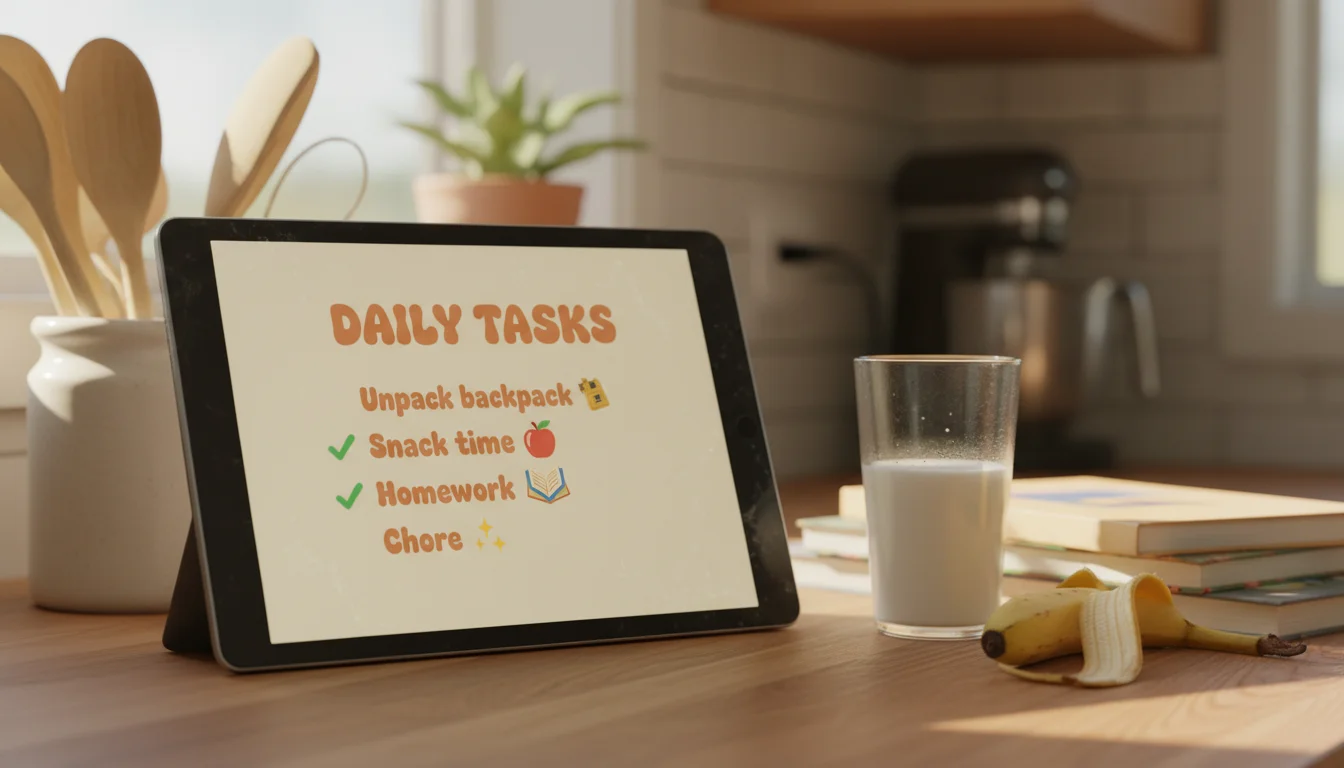
The tablet shows the list. The list is the actual work. Ours has seven items for school days:
- Backpack unpacked (lunchbox to kitchen, folder to the table)
- Snack (15 minutes, at the counter, not the couch)
- Homework (at the table, timer set for the grade-appropriate amount)
- One chore (assigned for the day – more on this below)
- Free time (earned after 1-4 are done)
- Dinner prep helper (set the table, fill water glasses)
- Evening wind-down (bath stuff out, tomorrow’s clothes picked)
The order matters. Snack comes right after unpacking because a hungry kid after school is not a cooperative kid. Homework comes before free time because reversing that order has never worked in the history of parenting. A visual timer on the tablet helps here – the kid can see exactly how long the homework block lasts instead of asking “am I done yet?” every three minutes. The chore is singular – one thing, not a list of five. And free time is explicitly on the board so the kids can see it coming. That’s the carrot.
The chore chart lives on its own tablet if you want points and a leaderboard; here I keep chores dead simple. I put a different chore for each day on a separate Google Keep note that I update on Sunday night:
- Monday: recycling
- Tuesday: wiping the table
- Wednesday: sorting laundry into piles (not folding – we’re realistic)
- Thursday: sweeping the kitchen
- Friday: picking up toys in the living room
One chore per day, age-appropriate, done in 10 minutes or less.
Age-Specific Boards That Work
The same board doesn’t work for every age. Here’s what we landed on.
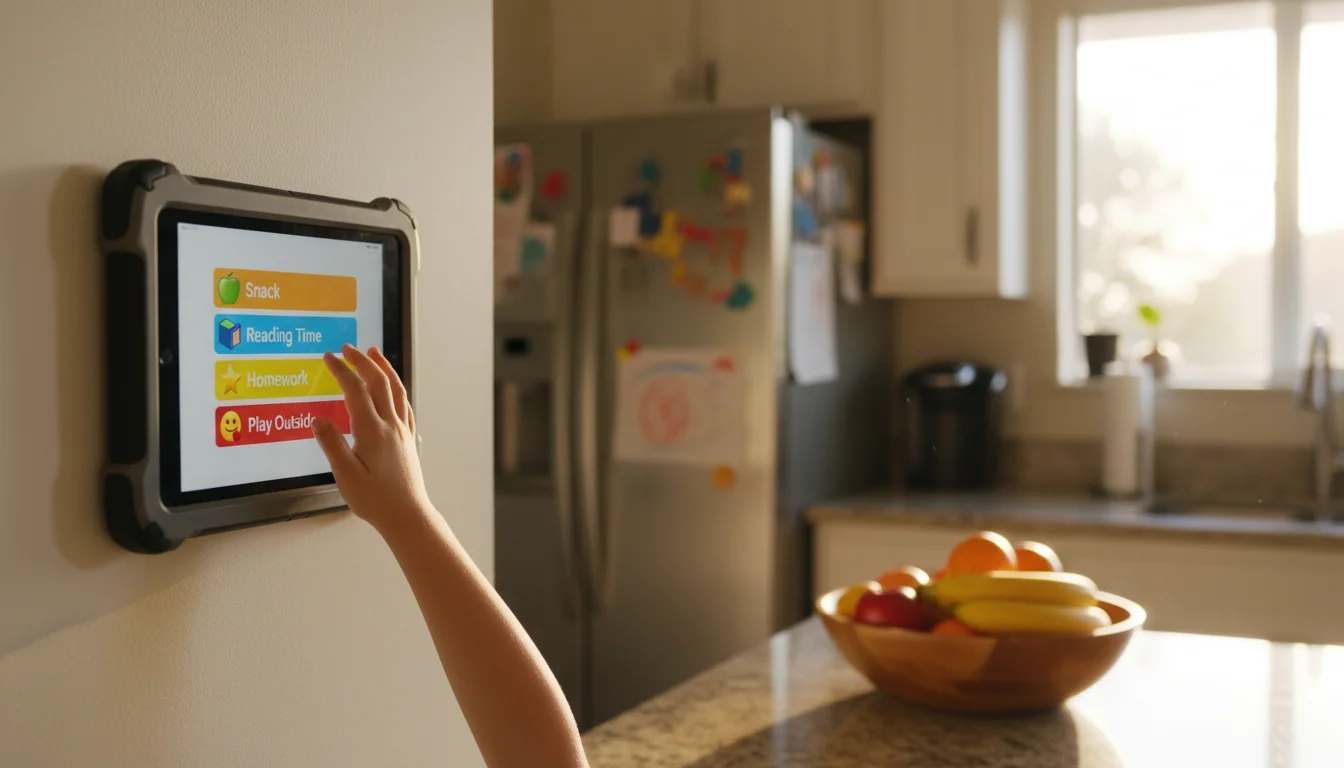
Ages 5-7: The picture board. Younger kids need visual cues, not words. Each item gets an emoji: a backpack for “unpack,” an apple for “snack,” a book for “homework” (even if homework at this age is just 10 minutes of reading), a broom for “chore.” Keep it to five items maximum. At this age, the board is a sequence reminder – they know what to do, they just forget what comes next.
Ages 8-10: The standard list. The sweet spot for an after-school routine board. Kids can read, they understand order, and they’re old enough for a real chore. Seven items works. The list can include specific homework expectations like “math worksheet” or “read 20 minutes.” My 8-year-old checks the board and mostly handles it himself. Mostly.
Ages 11+: The time-blocked board. Older kids can handle time awareness. Instead of listing tasks, add times: “3:30 – unpack and snack, 4:00 – homework, 5:00 – chore, 5:15 – free time.” This is also the age where you can give them editing access. Let them propose their own order (within reason). Ownership over the schedule reduces the pushback.
Multiple ages on one tablet: We run two pinned notes in Google Keep – one for the 8-year-old, one for the 5-year-old with emoji. Scrolling between two notes works better than cramming everyone into a single list.
| Age group | Items | Format | Key difference |
|---|---|---|---|
| 5-7 | 5 max | Emoji per item | Sequence reminder, not reading |
| 8-10 | 7 | Text checklist | Specific homework expectations |
| 11+ | 5-6 | Time-blocked | Kid gets editing access |
Make the Tablet Part of the Furniture
The board only works if nobody has to turn it on or find the right app. It needs to be showing the checklist when the kids walk through the door.
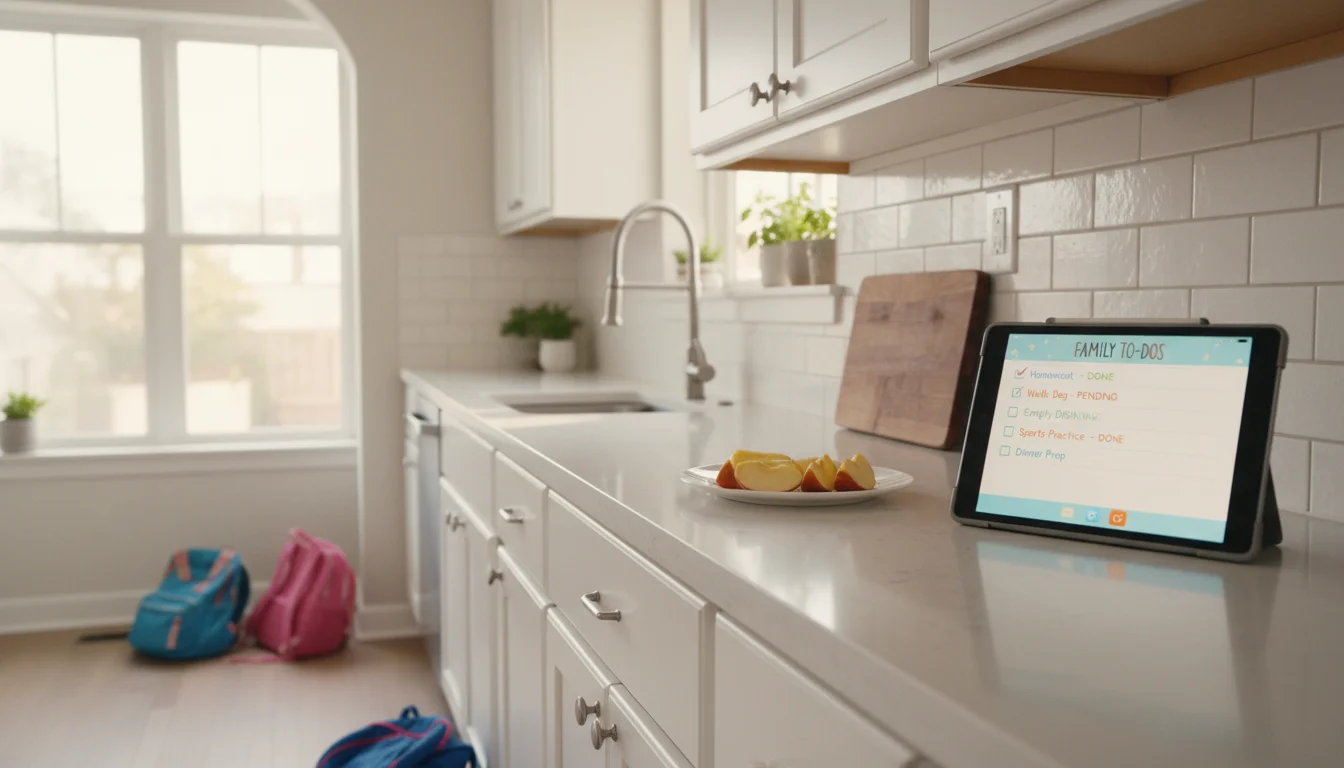
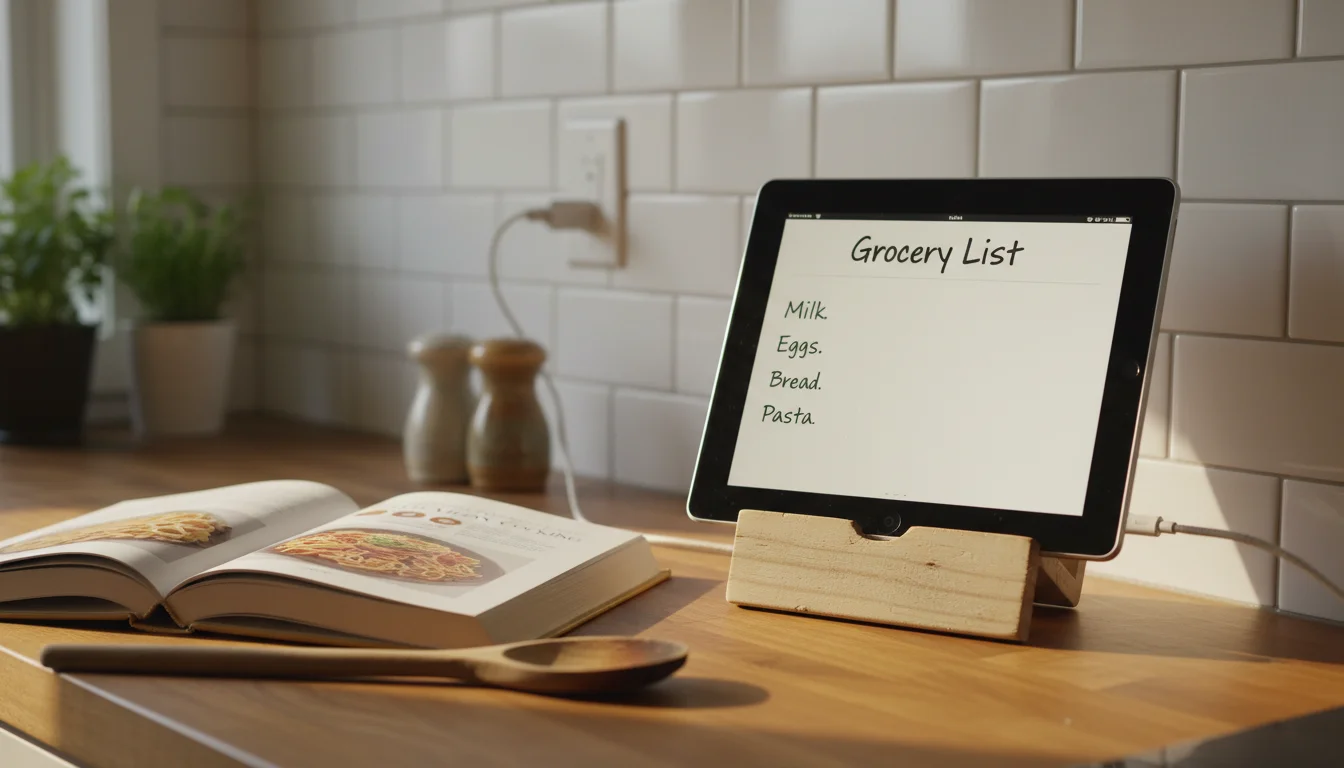
Placement: Counter height, wherever the kids dump their bags and eat snack. Not across the room. If they have to walk to it, they won’t. Ours is propped against the backsplash – our mounts and stands guide has wall-mounted and countertop options.
Always on: Disable auto-lock (iPad: Settings > Display & Brightness > Auto-Lock > Never) and keep it plugged in. On Android, Fully Kiosk keeps the screen on and locks to the browser. The complete setup guide covers always-on settings for every tablet generation.
Lock it down: Kids will close the checklist. On iPad, Guided Access locks the device to one app – triple-click the home button to enable, and it stays locked until you enter the passcode. On Android, Fully Kiosk does the same through kiosk mode.
Switch lists by time of day: If you use the same tablet for morning and after-school boards, change the pinned Google Keep note before pickup. Three taps. Or keep two browser tabs open and switch between them.
When the Board Stops Working
Around week two or three, your kid will walk right past the tablet and ask “what am I supposed to do?” This is the test, and it’s the same test from the morning board.
The answer is always:
“Check the board.”
Not “do your homework.” Not “unpack your backpack.” Just “check the board.” You’re redirecting them to the system instead of being the system. It’s harder in the afternoon because everyone is tired. Post-school fatigue makes kids default to asking you instead of looking at the screen.
After about a week of “check the board” on repeat, the habit locks in. They’ll glance at the tablet and start working through the list. Not perfectly. Not every day. But enough that you’re not narrating the afternoon like a sports commentator.
The other thing that kills the board is inconsistency. If the routine changes every week, or you skip the board on Fridays, the kids stop trusting it. Pick a routine, put it up, and leave it alone for a month.
The Evening Transition
This is the part no after-school routine guide covers. The kids finish homework and chores, earn free time, and then at 5:30 I’m yelling about dinner and bath time because the transition from “done with responsibilities” to “evening routine” has no signal.
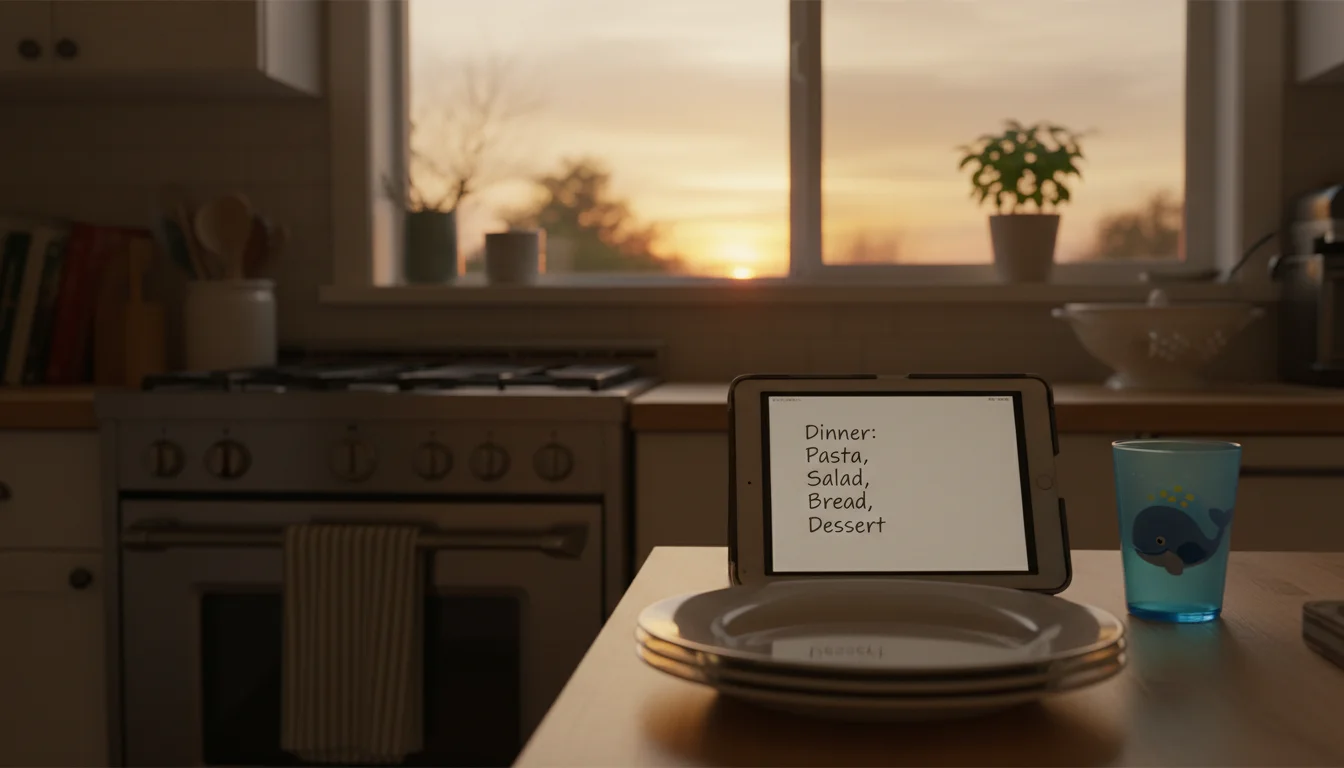
The fix is putting the evening on the same board. Items 6 and 7 on our checklist – dinner prep helper and evening wind-down – bridge the gap. The kids can see that free time isn’t the last item. There’s still dinner help and getting ready for tomorrow. When free time ends, they don’t check in with me. They check the board.
The evening section is deliberately short. Two items, not five. “Help with dinner” means set the table and fill glasses. “Wind-down” means get bath stuff ready and pick tomorrow’s clothes. If “what’s for dinner” is part of the chaos, our meal planning guide handles that question separately.
By 7:30 on a good night, the board is done. Every item checked off, physically or mentally. The tablet goes into morning mode (I switch the Google Keep note), and it’s ready for tomorrow. The whole day has a rhythm now – morning board, school, after-school board, bed. A weekly check-in on Sunday ties the boards to the calendar and meal plan so the whole week stays in sync. The system isn’t perfect, but it runs itself more days than it doesn’t. And on the days it falls apart, I only need two words instead of twenty: “Check the board.” If you’re looking for more ways to put that old tablet to work around the house, we have a full list of family tablet uses worth browsing.
Frequently Asked Questions
What apps work for an after-school chore chart on an old iPad?
Google Keep works best because it runs in Safari on any iPad, even those stuck on iOS 12. You don’t need to install anything. Apple Reminders is built-in and works on all iOS versions but doesn’t support images, so it’s text-only. Cozi works through the browser too at cozi.com. Avoid apps like OurHome that require iOS 15+ since they won’t install on most old iPads.
How many chores should a kid have after school?
One. Seriously, just one per day. After school, homework, and snack, kids have limited energy and patience. Assign a different chore each day of the week and rotate. Each chore should take 10 minutes or less. Five short chores across the week adds up to more done than three chores assigned daily and never completed.
How do I keep kids from closing the checklist app?
On iPad, use Guided Access (Settings > Accessibility > Guided Access on iOS 13+, or Settings > General > Accessibility > Guided Access on iOS 12). It locks the tablet to a single app, and the home button stops working until you enter a passcode. On Android tablets, Fully Kiosk Browser (~$11 one-time) does the same thing through its kiosk mode, plus it keeps the screen on permanently. Our kid-proofing guide has the full setup steps.
What’s the best after-school routine for a 7 year old?
Five steps, with emoji or picture cues on each one: unpack backpack, snack, homework (10-15 minutes of reading or a worksheet), one small chore (wiping the table, sorting laundry), and free time. Keep the list on a tablet at counter height where they eat snack, so they see it without being told to look. The routine should take about 60-90 minutes total with natural breaks built in.