The Short Answer: No
CarPlay is an iPhone-only feature. Always has been. Apple built CarPlay as a protocol between your iPhone and your car’s head unit, and they’ve never extended it to the iPad. Not the newest iPad Pro, not your old iPad Air 2, not any iPad ever made.
If you’ve been searching “how to use old iPad as CarPlay display,” you’ve probably already found a dozen articles recommending workaround apps or jailbreaking. I’ll save you the trouble: the workarounds aren’t worth it for most people, especially on an older iPad.
But that doesn’t mean your old iPad is useless in the car. It’s actually pretty great for the things you’d use CarPlay for – you just set them up differently.
The Workarounds (And Why I’d Skip Them)
You’ll find two main approaches floating around online. Neither one is something I’d recommend.
Jailbreaking used to work on iPads running iOS 8 through iOS 12 via a tool called Ignition. But jailbreak support for newer iPadOS versions is spotty at best, it voids your warranty (not that an old iPad has one), and it can make an already-slow device even less stable. If your iPad is old enough to jailbreak easily, it’s probably too old to run the resulting CarPlay interface smoothly.
Simulation apps like InCar claim to recreate the CarPlay interface on iPad. The catch: InCar isn’t available on the App Store. You’d need to sideload it from a third-party site, which means trusting unknown developers with access to your device. For a tablet you might use around your kids, that’s a no from me.
The honest truth is that CarPlay’s value comes from its deep integration with your car’s stereo, steering wheel controls, and Siri. An app pretending to be CarPlay on an iPad screen doesn’t give you any of that.
What Your Old iPad Actually Does Well in the Car
Forget trying to replicate CarPlay. Your old iPad already handles the three things people use CarPlay for most: maps, music, and entertainment.
Navigation
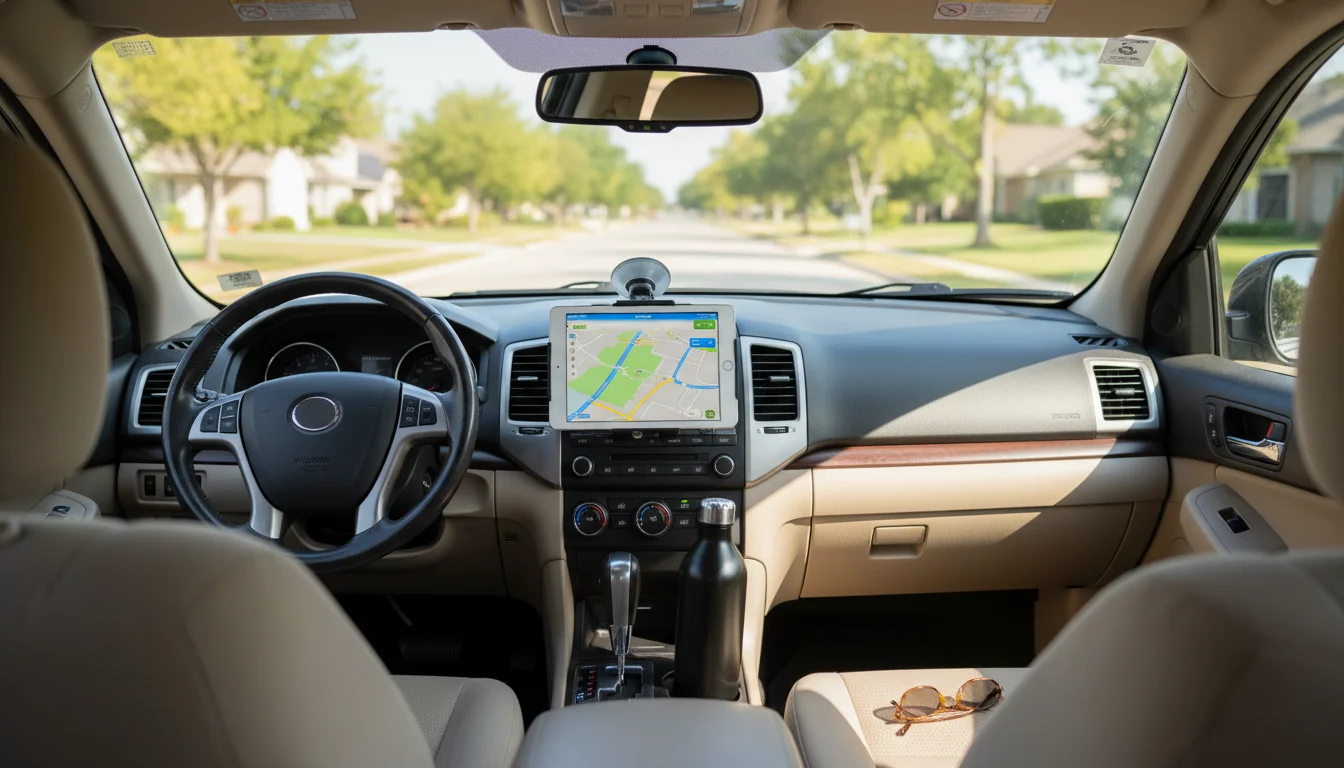
This is where the iPad screen size really shines. A 9.7-inch display showing a map is genuinely better than squinting at your phone. On an RV dash, that upgrade matters even more since the trips are longer.
There’s one big catch: most old iPads are Wi-Fi only. Wi-Fi-only iPads don’t have a GPS chip, which means they can’t track your location without a connection. You’ll need to tether to your phone’s hotspot for both location data and map loading.
If your iPad happens to be a cellular model (check for a SIM tray on the side), you’re in better shape. Cellular iPads have real GPS hardware and will track your location even without an active data plan, though you’ll still need a connection to load map tiles unless you download them ahead of time.
For the apps themselves:
 Apple Maps comes pre-installed and works on every iOS version. It supports offline maps on iOS 17+, which won’t help most old iPads, but it handles basic navigation fine over a hotspot.
 Google Maps requires iOS 16 for the app, but the web version at maps.google.com works in Safari on older iPads. Not as smooth, but functional.
- Waze also requires iOS 16, same as Google Maps. Its crowd-sourced traffic and speed trap alerts make it the favorite for commuters, but you’ll need at least an iPad 5th gen (2017) or newer to run it. iPad Air 2 and earlier are stuck on iPadOS 15 or below.
Music and Podcasts
This is the easiest win. Connect your iPad to your car’s stereo via Bluetooth or a 3.5mm aux cable, and you’ve got a dedicated music player with a big screen for browsing.
Apple Music works on every iPad ever made – it’s built in. If you have a subscription, all your playlists and library are right there. Apple Podcasts is also built in on iOS 12 and up, and you can download episodes over Wi-Fi before you leave the house.
 Spotify is trickier. The app requires iOS 16.1, which cuts out most old iPads. The web player at open.spotify.com doesn’t always cooperate with older Safari versions either. If Spotify is your thing and your iPad can’t run it, this might be the one area where your phone stays the better option.
For road trips, download everything you need before you leave. Streaming over a phone hotspot eats through data fast, and coverage gets spotty outside of cities.
Kids’ Entertainment
This is honestly the strongest use case for an old iPad in the car. Mount it on the back of a headrest and the kids have their own screen for long drives – without you handing over your phone.
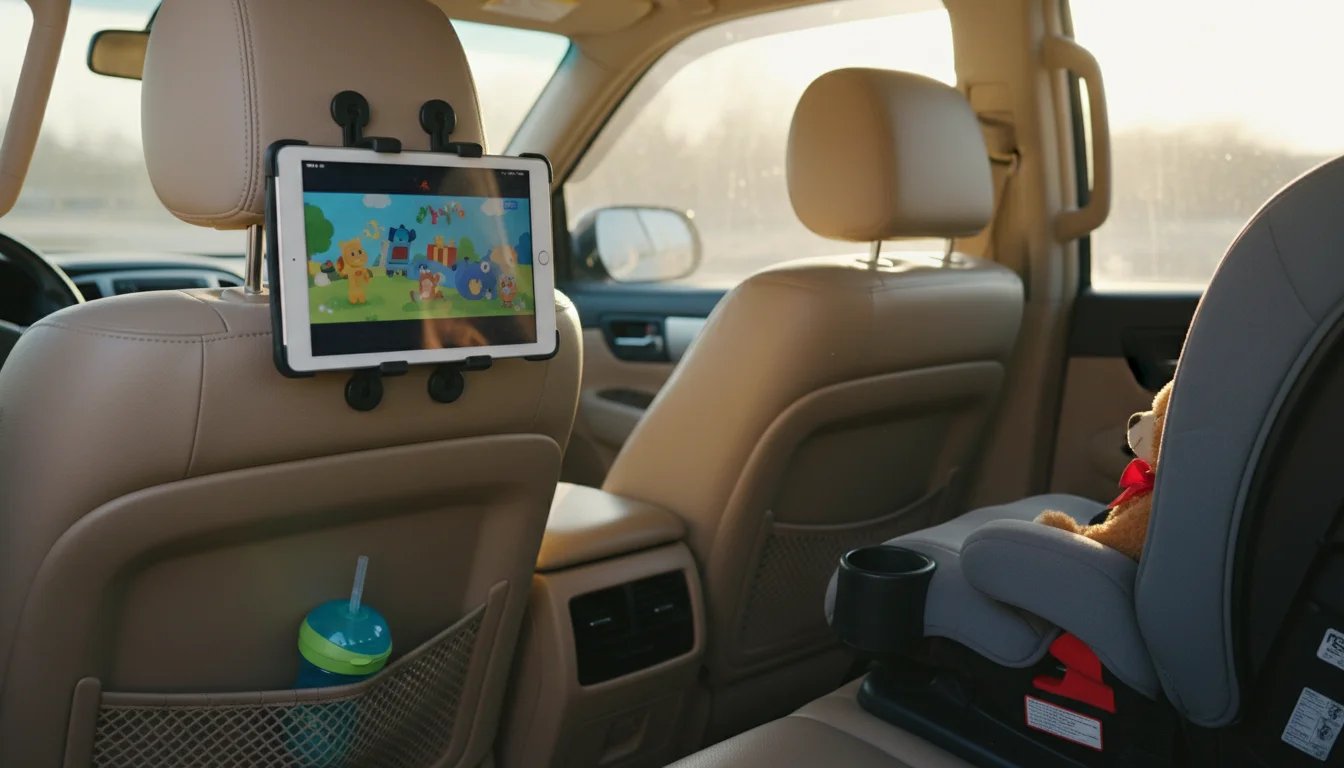
We have a whole guide on setting up an old iPad for car entertainment with app recommendations, headrest mounts, and tips for locking kids into a single app using  Guided Access. Short version: download movies and shows before you leave, get a decent headrest mount for $15-25, and turn on Guided Access so nobody “accidentally” calls your boss.
Setting Up Your iPad for the Car
A few practical things to sort out before you mount it on the dashboard.
Power. Old iPad batteries don’t last like they used to. Get a car charger with at least 12W output (2.4A at 5V) and a Lightning cable you can leave in the car permanently. A cable that’s too short is annoying; 6 feet (1.8 meters) gives you enough slack.
Mounting. For dashboard use, a CD slot mount or suction cup mount works for most iPads. The iPad mini fits standard phone-sized mounts. Full-size iPads need a tablet-specific mount. Check our mount and stand guide for specific recommendations – some work better in cars than others.
Overheating. This is the one nobody warns you about clearly enough. Old iPads in direct sunlight on a dashboard get hot. Fast. If the screen dims or you see a temperature warning, move it off the dash or angle the vents toward it. A phone mount on the vent helps keep it cooler than a suction cup on the windshield. In summer, never leave it mounted when you park.
Auto-lock. Go to Settings > Display & Brightness and set Auto-Lock to “Never” while you’re using it for navigation. Just remember to change it back, or the battery will drain overnight if you forget to turn it off.
Do Not Disturb. Turn on Do Not Disturb or Driving Focus mode so notifications don’t pop up over your map mid-turn.
If You Really Want CarPlay, Try an Android Tablet
Here’s something most articles won’t tell you: if you have an old Android tablet sitting in a different drawer, it can actually run a CarPlay-like interface. An app called  Headunit Reloaded works on Android 5.0 and up (per current Play Store listing), costs about $5, and mirrors a real Android Auto interface to the tablet screen.
It’s not CarPlay (it’s Android Auto), but the experience is remarkably similar – large icons, voice control, Google Maps integration. We wrote a full step-by-step guide to setting up Android Auto on an old tablet if you want to go that route.
Skip the Workarounds, Use What Works
Your old iPad won’t be a CarPlay display. But it can be a dedicated navigation screen, a road trip music player, or the thing that keeps the kids entertained on the drive to grandma’s house. Those are the things you actually wanted CarPlay for anyway – and unlike the jailbreak-and-sideload crowd, this approach works on whatever iOS version your iPad is running.
Find a good mount, keep it charged, and download your maps and music before you leave the driveway. That’s it. If your old iPad is too far gone for even that, check out our full list of ideas for what else you can do with it.