Every Morning Was the Same
Someone would yell from the kitchen: "Do we need jackets today?" Then the scramble. My husband checking his phone for the weather while buttering toast. Me pulling up the school calendar on mine while the 3-year-old grabbed for it. The 8-year-old asking what time soccer practice starts, even though we told her last night.
Three phones, one kitchen, five people, zero coordination.
Then I opened a drawer to find a charging cable and there it was: our old iPad mini 2. Too slow for apps the kids wanted. Too old for anything fun. But the screen still worked fine.
That was six months ago. Now, when that iPad occasionally goes dark, my family panics. It went from "cute weekend project" to the thing everyone checks before they leave the house.
What I Wanted on the Screen
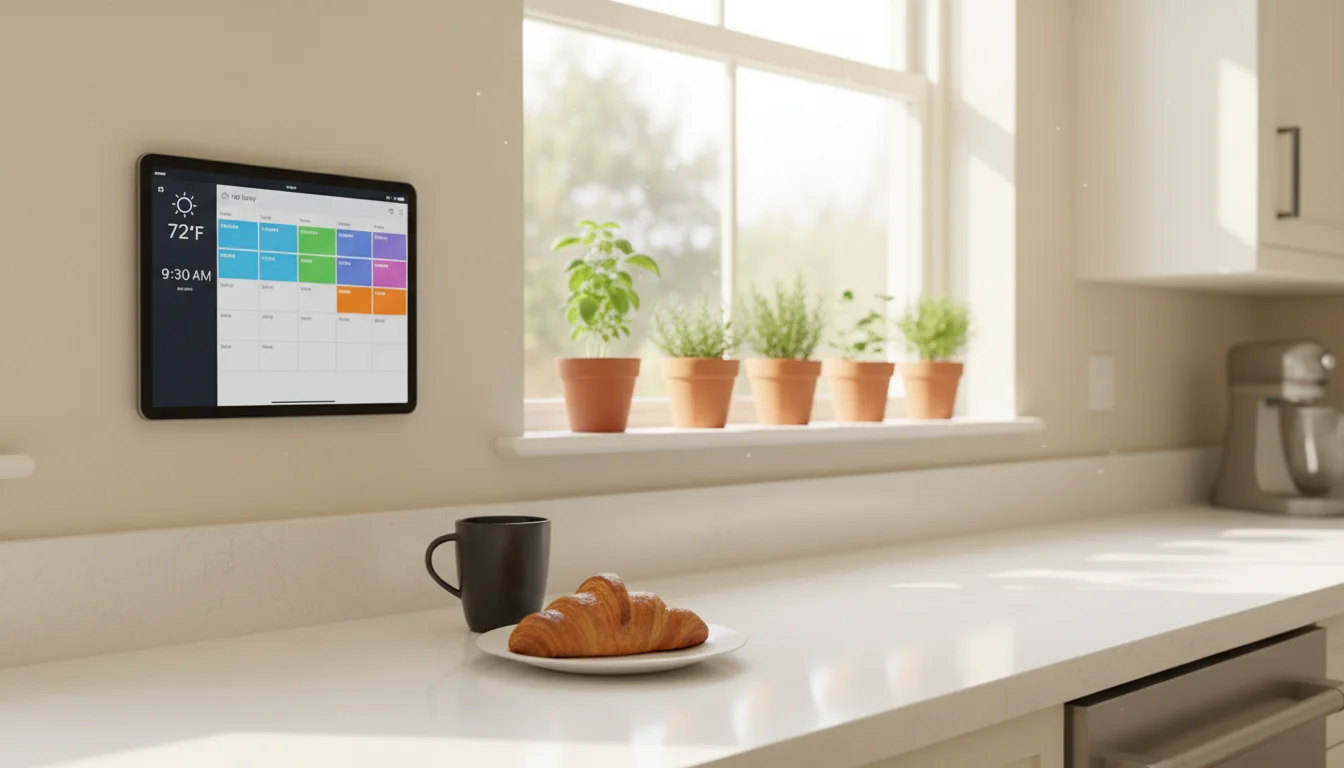
I had a very specific list. Not a dream dashboard with stock tickers and smart home controls. Just the five things we actually check twenty times a day:
- The weather. Current temp, today’s forecast, whether the kids need rain boots.
- The family calendar. Pulled from our shared Google Calendar. Soccer, dentist, play dates, early dismissals.
- The time. Digital, because my kids complained about analog. Fair enough.
- Next train times. My husband catches the Metro-North into the city three days a week. Knowing the next departure saves him checking his phone every morning.
- A grocery list. So anyone in the kitchen can add "eggs" when they see we’re running low.
That’s it. No fancy widgets, no news feeds, no smart home toggles. Just the stuff we were already looking up on our phones, but bigger, always visible, and in one place. We’ve since added a weekly meal plan to the routine, and that killed the biggest daily question in our house.
My Husband Did the Technical Part
I should be honest about this: I told him what I wanted on the screen, and he made it happen. He’s the developer in this household. I’m the one who decides what goes on the display and whether it’s actually useful.
He set up a simple WordPress dashboard – a single webpage the iPad loads in full screen. Weather from a free plugin. Calendar pulling from our shared Google Calendar. Train times from the MTA feed. Nothing exotic, just a handful of data sources stitched together on one page.
The whole thing took him a weekend afternoon while the kids were at my parents’. He said the hardest part was getting the calendar to refresh on schedule without hitting rate limits. I said the hardest part was convincing him the grocery list needed to be bigger than the train times. (We compromised.)
If you want to build something similar and you’re comfortable with a bit of WordPress setup, our kitchen display guide walks through the whole process step by step. And if you’re not technical at all, that guide also covers app-based setups that don’t need any coding.
The Stand Situation
We started with a $12 aluminum tablet stand from Amazon, propped up on the counter next to the fruit bowl. It worked. The iPad sat at a readable angle, and you could glance at it while making coffee.
But after a month of it getting bumped, splashed, and nearly knocked off the counter by an enthusiastic 5-year-old, we mounted it on the wall next to the fridge. A simple adhesive tablet mount, around $17, took five minutes.
Two things I’d tell you about placement:
Keep it away from the stove. Steam and grease are not friends of old electronics. Ours is on the opposite wall, near the fridge and the door to the garage. You can read it from across the kitchen.
Put it near a power outlet. The iPad stays plugged in all day. We ran a white cable along the wall – not pretty, but nobody notices anymore. The battery is old enough that unplugging it means it dies within an hour, so permanent power was the only real option.
The Kiosk App Made It Work
The single most important piece of this setup isn’t the dashboard. It’s the kiosk app.
Without it, the iPad dims after two minutes. Then the screen locks. Then someone has to walk over, tap it, swipe, and wait for Safari to reload. Within a week, nobody bothers, and the iPad goes back to the drawer.
A kiosk app (we use one from the App Store – there are several free options) keeps the screen on, locks the display to a single webpage, and prevents the kids from accidentally swiping into YouTube. It turns the iPad from a tablet into a dedicated display.
I wouldn’t have thought to install this myself, but once my husband set it up, everything clicked. Before the kiosk app, the project felt fragile. After, it felt permanent.
Things I Worried About That Didn’t Matter
"Won’t keeping it plugged in all day ruin the battery?" Probably, eventually. But it was sitting in a drawer doing nothing. If the battery degrades after two years of daily use, that’s two years of value from something that was otherwise e-waste. We’ve written a whole piece on tablet battery safety if you want the details.
"What about screen burn-in?" LCD screens are resistant to burn-in. And even if it happened – this iPad is a dedicated display now. It’s not going back to being a regular tablet.
"Isn’t this overkill for showing basic info?" Ask my family when the display goes black. The collective disorientation suggests it’s exactly the right amount of kill.
"What about security?" It’s displaying a webpage. No banking apps, no personal photos, no stored passwords. If someone hacks into our grocery list and finds out we need oat milk, they’re welcome to pick some up.
The Real Test
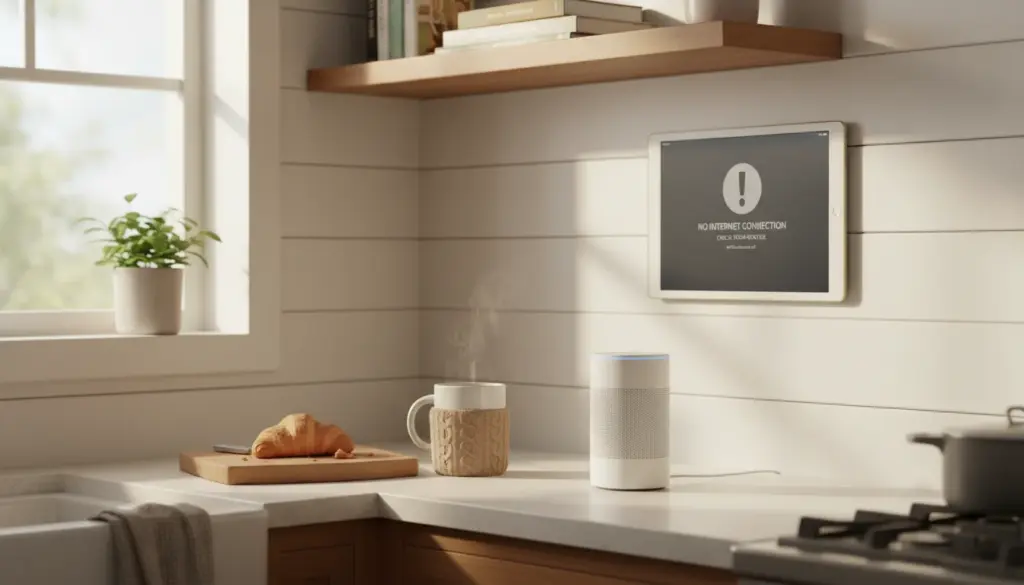
You know something’s actually useful when it breaks. Every few weeks, the dashboard goes black for whatever reason – Wi-Fi hiccup, an iOS update, the cat somehow – and suddenly:
- "Do we need jackets today?"
- "What time is it?"
- "Is there anything on the calendar?"
- "When do we need to leave?"
All directed at me, personally, like I’m the backup display.
That old iPad mini went from forgotten drawer junk to mission-critical kitchen infrastructure. Not bad for a device Apple stopped supporting years ago.
Want to Build Your Own?
If you’re sitting on an old tablet and thinking about trying this, we put together a full guide that covers everything:
Turn Your Old iPad Into a Kitchen Display – from picking the right tablet to choosing apps, mounting options, and settings. It covers both the technical route (for households with a Weekend Tinkerer) and the app-only route (no coding, no server, just download and go).
You don’t need a developer husband. You just need an old iPad and about an hour.