Put Your Phone in Another Room
You set the alarm. Then you check one email. Then Instagram “for a second.” Then it’s midnight and you’re reading comments from strangers arguing about parking. In the morning, the alarm goes off and you immediately start scrolling before your feet touch the floor.
Your phone is a terrible alarm clock because it’s a terrible thing to have next to your bed.
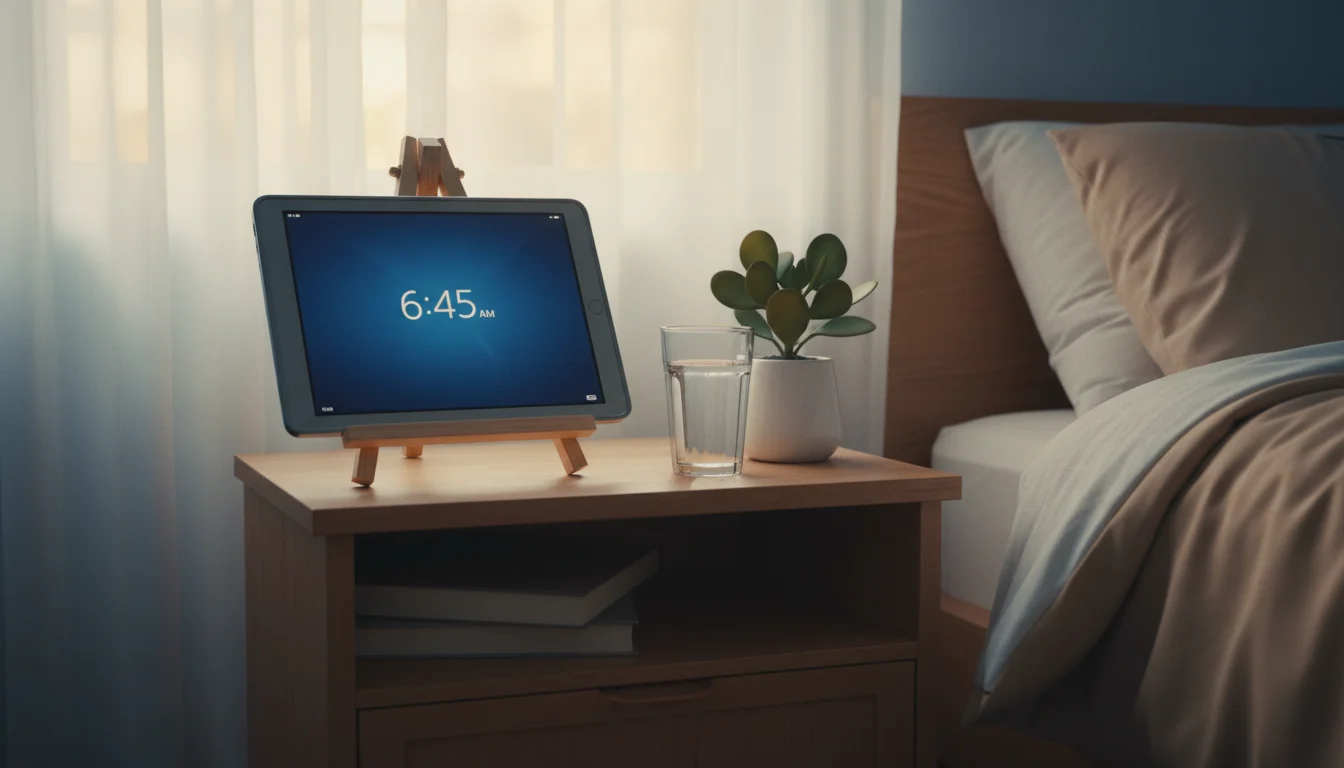
An old Android tablet fixes this. Put it on the nightstand, set the alarm, and leave your phone charging in another room. The tablet does alarm, weather, time. That’s it. No social media, no email, no rabbit holes. Mark dug our old Galaxy Tab out of a drawer for exactly this reason, and I haven’t touched my phone in bed since.
If you have an old iPad instead, we’ve got a separate guide for that. This one is for Samsung Galaxy Tabs, Fire tablets, and other Android devices.
The Five-Minute Setup
You don’t need to install anything to get started.
- Open the Clock app (it’s preinstalled on every Android tablet)
- Tap Alarm and set your wake-up time
- Go to Settings > Display > Screen timeout and set it to 30 minutes (or “Keep screen on” if your tablet supports it)
- Settings > Display > Night Light (or Blue Light Filter on Samsung) – turn it on and schedule it from sunset to sunrise
- Drop brightness to minimum before bed
That’s a working bedside alarm clock. For something smarter, keep reading.
Best Alarm Clock Apps for Android Tablets
Google Clock (Free)
Already on your tablet. Simple, reliable, does what you’d expect. Set multiple alarms, choose from built-in sounds or pick a Spotify playlist as your alarm tone. It also has a Bedtime tab for setting sleep and wake schedules.
Already installed on most Android tablets. If yours doesn’t have it, the current  Play Store install needs Android 10 or later; older devices keep the version that shipped with them.
Sleep as Android ($50/year or $85 lifetime, 14-day free trial)
This is the one that makes an old Android tablet genuinely better than a dedicated alarm clock. Sleep as Android tracks your sleep and wakes you during a light sleep phase within a 30-minute window before your alarm. The theory: waking during light sleep means less grogginess.
The standout feature is sonar tracking. The app sends ultrasonic pulses from the tablet’s speaker and listens for reflections with the microphone – detecting your breathing and movement without any wearable or sensor pad. Just set the tablet on your nightstand facing the bed. It works surprisingly well.
It also records sleep talk, detects snoring, plays nature sound alarms, and syncs with Google Fit and Samsung Health. Requires Android 7.0+.
Alarmy (Free with Premium at $60/year)
If your problem isn’t scrolling but actually getting out of bed, Alarmy is aggressively effective. To dismiss the alarm, you have to complete a task: take a photo of your bathroom sink, solve math problems, shake the tablet 30 times. You can’t cheat it.
The free version includes basic alarms and a few dismiss challenges. Premium adds sleep tracking and more challenge types, but the free tier is plenty for most people. Requires Android 9.0+.
Nightdream (Free with Pro unlock)
A dedicated always-on clock display. Nightdream by firebirdberlin shows large, readable digits with auto-brightness, battery level, and optional weather. It runs as a standalone app or as a Daydream screensaver, and the digits shift position slowly to help protect against AMOLED burn-in.
Open source and actively maintained. Basic features are free; a Pro unlock adds extras like internet radio and additional themes. Works on older Android versions (Daydream screensaver mode goes back to Android 4.2), which suits the “old tablet from a drawer” use case.
The Bedside Dashboard
A bedside tablet works best when it shows you two things: what you need to know before you fall asleep, and what you need to know when you open your eyes.
Before bed: Tomorrow’s weather (do the kids need jackets?), first appointment, current time.
When you wake up: Weather, today’s schedule, time.
 DAKboard handles this well. Open it in Chrome, set up a dark-background layout with weather and today’s calendar. The free tier works for a basic setup (two calendars, weather, time). The Essential plan ($6/month) adds more calendar sources and scheduling so the display dims at bedtime and brightens at your wake-up time. You can also set DAKboard as your tablet’s screensaver so it launches automatically.
For a simpler approach, use Android’s home screen widgets. Add a large clock widget, a weather widget, and a calendar widget to one screen. Set this as your default home screen, and your bedside display is done without any extra apps. We’ve got a full breakdown of turning old tablets into smart displays if you want to go deeper.
Night Mode Settings
A bedside display that lights up the room at 2 AM defeats the purpose. Get these right.
Brightness
- Adaptive brightness on – the sensor dims the screen in a dark room
- Manually drop to minimum before bed if adaptive doesn’t go dim enough
- Most clock apps have their own dimming controls on top of the system brightness
Blue Light Filter
- Samsung: Settings > Display > Blue Light Filter > Schedule (sunset to sunrise)
- Other Android: Settings > Display > Night Light > Schedule
- Fire tablets: Settings > Display > Blue Shade > Schedule
- This reduces blue light, which can mess with your melatonin and sleep quality
Bedtime Mode (Android 10+)
This is the underrated feature. If your tablet runs Android 10 or later, go to Settings > Digital Wellbeing > Bedtime Mode. It does three things at once: turns the screen grayscale (removing the visual appeal of scrolling), activates Do Not Disturb, and dims the wallpaper. Schedule it for your bedtime and it handles everything automatically.
On older Android versions without Bedtime Mode, set Do Not Disturb manually: Settings > Sound > Do Not Disturb > Schedule. Alarms still ring during DND.
Screen Burn-In: Do You Need to Worry?
If you’re leaving a clock display on all night, burn-in is worth thinking about. The answer depends on your screen type.
LCD tablets (most old tablets): Burn-in is rare. LCD panels can show temporary image retention after hours of static content, but it fades when you display something else. You’re fine running an always-on clock on an LCD.
AMOLED tablets (some Samsung Galaxy Tabs): Burn-in is real. Static elements can permanently mark the screen over months. Samsung’s Always On Display has built-in pixel shifting to prevent this, but third-party clock apps might not.
Prevention tips:
- Use a clock app with burn-in protection (Nightdream and Always On AMOLED both shift the display periodically)
- Set the screen to turn off after 30 minutes instead of “always on” – the alarm still rings with the screen off
- Use a screen saver (Settings > Display > Screen Saver) with a moving clock face
- Keep brightness low – brighter pixels burn faster on AMOLED
The simplest approach: let the screen turn off and just use the tablet as an alarm. You don’t need to see the time at 3 AM anyway.
Samsung Galaxy Tab Tips
Samsung tablets have a few extras that make bedside use smoother.
Always On Display: On newer Galaxy Tabs with AMOLED screens, go to Settings > Lock Screen > Always On Display. You get a clock visible even when the screen is “off,” with minimal battery drain and built-in burn-in protection.
Bixby Routines: Set up an automatic routine – when you plug the tablet in after 9 PM, it activates Do Not Disturb, drops brightness to minimum, and opens your clock app. Unplug in the morning and it switches back to normal mode.
Edge Panel: Swipe in from the edge to quickly check weather or calendar without leaving your clock app.
Fire Tablet Tips
Amazon’s Fire tablets are some of the cheapest old tablets out there, and they work fine as bedside clocks with a couple of caveats.
Show Mode: Some Fire tablets have Show Mode, which turns the tablet into an Echo Show-style display with clock, weather, and Alexa voice commands. Toggle it from the notification shade or say “Alexa, turn on Show Mode.” If your Fire tablet supports it, this is the easiest bedside setup – just enable it and dock the tablet. (Recent Fire OS updates may not include Show Mode – check the notification shade or Settings > Display before relying on it.)
Alexa alarms: “Alexa, set an alarm for 7 AM” works without installing anything. You can also say “Alexa, set a wake-up alarm” for a gradual-brightening sunrise effect.
The catch: Fire tablets don’t have a native always-on clock display outside of Show Mode, and sideloading clock apps from the Play Store can be hit-or-miss. If Show Mode isn’t available on your model, use the built-in Clock app and let the screen timeout normally. The alarm still fires.
Old Tablet vs. a Dedicated Smart Alarm
| Feature | Old Android Tablet |  Echo Show 5 ($90) Echo Show 5 ($90) |
|---|---|---|
| Screen size | 7-10″ | 5.5″ |
| Always-on clock | Yes (with app) | Yes |
| Sunrise alarm | Via Sleep as Android | Via Alexa |
| Sleep tracking | Via Sleep as Android (sonar) | No |
| Calendar display | Full calendar view | Basic schedule |
| Weather | Full forecast | Basic |
| Smart home control | Full app support | Alexa only |
| Cost | $0 | $90 (often $65-70 on sale) |
The tablet wins on screen size, sleep tracking, and cost. The Echo Show wins on compactness, always-on voice response, and simpler setup. If the tablet is already in a drawer, it’s hard to justify spending $90 on something that does less.
Quick Setup Checklist
- Pick a clock app (Google Clock for basic, Sleep as Android for tracking, Alarmy for heavy sleepers)
- Set your alarm(s)
- Schedule Blue Light Filter from sunset to sunrise
- Set up Do Not Disturb or Bedtime Mode on a schedule
- Drop brightness to minimum at bedtime
- Put the tablet on a small stand on your nightstand
- Remove social media and email from this tablet
- Put your phone in another room
- Sleep better
The whole point is that this tablet does less. Clock, weather, alarm. Maybe tomorrow’s schedule. Your phone goes somewhere else, and you stop starting and ending every day staring at a screen full of other people’s problems.
If you’re looking for more ideas for old Android tablets, we’ve got 15 projects that keep them useful. And if the kids need their own bedtime help, a bedtime routine display is worth setting up too.
Is it safe to leave the tablet plugged in overnight? Short answer: yes, with modern charging circuits. We’ve got the longer answer if you want it.