Your Phone Is a Terrible Music Player
Not because it can’t play music. Because it does everything else too. A phone call kills the playlist. A group chat notification steals the audio. Your kid borrows your phone for five minutes and the kitchen goes silent.
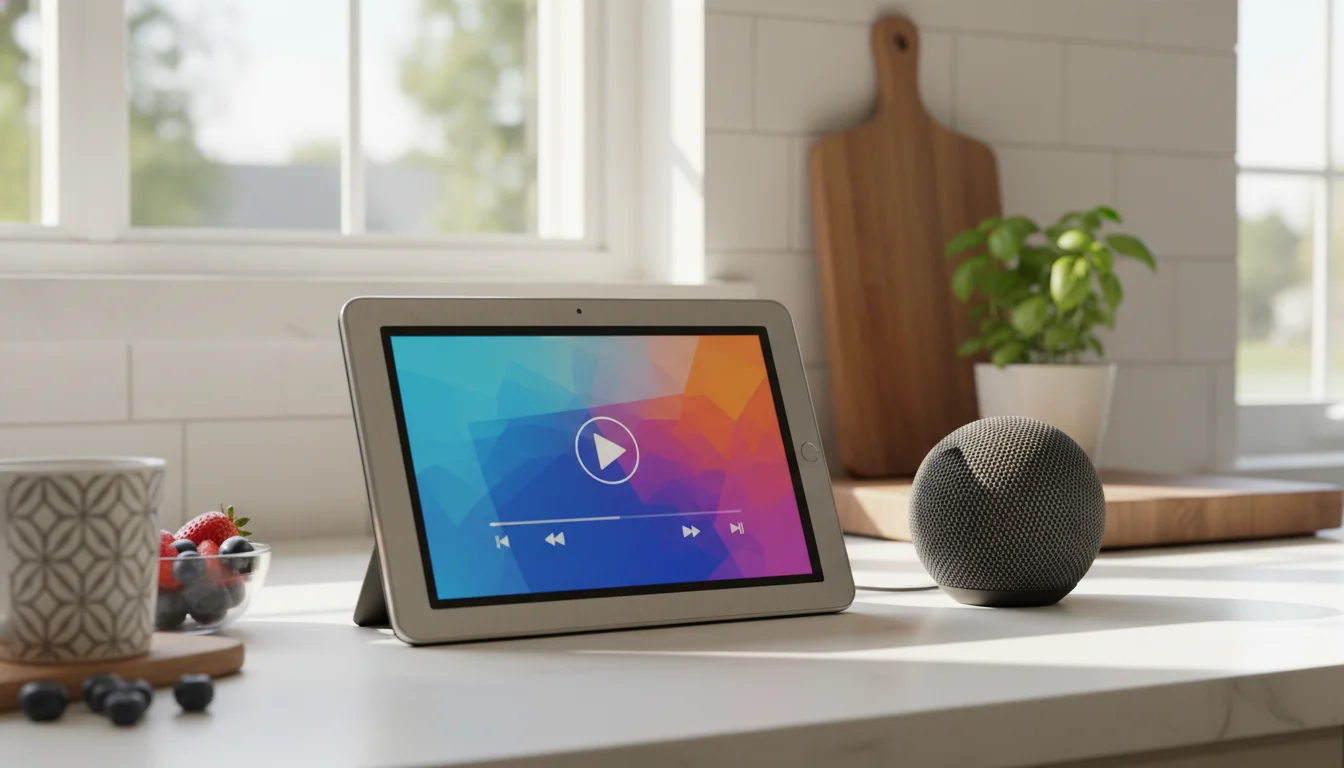
An old Android tablet connected to a speaker doesn’t have those problems. No SIM card, no calls, no interruptions. It sits on the counter and does one job: play music. And Android tablets are genuinely better at this than iPads, for reasons that surprised me.
Why Android Is Better for This
Android lets you put full music widgets on the home screen. Not the locked-down, tiny widgets iOS gives you. Actual playback controls, album art, and playlist browsing, right there when you pick up the tablet.
You also get Google Cast built in, which means any Google or Nest speaker in your house is one tap away. Samsung tablets have Routines that can auto-launch Spotify when you plug in the charger. And Android launchers let you strip the tablet down to basically a single-purpose music device.
iPads are fine for this too – we have a separate guide for iPad music setups. But if you have an old Android tablet in the drawer, it has real advantages here.
The 5-Minute Setup
- Connect the tablet to a speaker via Bluetooth (Settings > Connected devices > Pair new device) or a 3.5mm AUX cable
- Install
 Spotify, YouTube Music, or your preferred service
 - Download a few playlists for offline listening (saves bandwidth and avoids buffering on slow Wi-Fi)
- Set screen timeout to 5 minutes (Settings > Display > Screen timeout) – the music keeps playing when the screen goes dark
- Leave it where you listen to music most
That’s a working dedicated music player. The screen doesn’t need to stay on like a photo frame or calendar display – it’s background audio. Pick it up when you want to change the song, set it back down.
Home Screen Widgets
This is where Android pulls ahead. Long-press the home screen, tap Widgets, and drag on a music widget. Spotify’s widget shows album art, track info, and playback controls. YouTube Music has a similar one.
Resize the widget to fill most of the screen. Add a small clock widget in one corner. Now the tablet shows you what’s playing, with big tap targets for play/pause/skip, and the time. One glance, no app to open.
Spotify’s 2026 tablet redesign added a split-panel layout with Now Playing on the right and browsing on the left. On a tablet propped up in the kitchen, this is a noticeably better experience than the old phone-sized UI stretched to fit.
For even more control, try adding a home screen shortcut to your most-played playlist. Long-press the playlist in Spotify > Add to Home screen. One tap from the home screen and it starts playing.
Streaming Services on Old Android Tablets
Most music streaming apps now require Android 7 or 8 – that still covers tablets from around 2016-2017. For an older Android 5/6 tablet, stick with local-library players (VLC, Poweramp) or use the web player in Chrome. Here’s the compatibility picture:
| Service | Min Android | Free Tier? | Offline? |
|---|---|---|---|
| Spotify |
7.0 | Yes (ads) | Premium ($12.99/mo) |
| YouTube Music |
8.0 | Yes (ads) | Premium |
| Amazon Music |
10 | With Prime | Some |
The Amazon Music tier that ships with Prime is shuffle-limited on most tracks now. If you want unrestricted on-demand playback, that’s  Amazon Music Unlimited – free for 30 days, then $10.99/month ($8.99 with Prime). Fits well if you already use Alexa or have an Echo in the same room; skip it if you’re already paying for Spotify.
| Pandora | 7.0 | Yes (ads) | Premium |
Amazon Music Unlimited – free for 30 days, then $10.99/month ($8.99 with Prime). Fits well if you already use Alexa or have an Echo in the same room; skip it if you’re already paying for Spotify.
| Pandora | 7.0 | Yes (ads) | Premium |
If you already pay for one of these on your phone, you’re set. Most plans let you play on multiple devices. The free tiers work fine for background kitchen music – you just get occasional ads.
If the tablet can’t run the app (very old Android versions or not enough storage), try the web player in Chrome.  open.spotify.com and
  music.youtube.com both work in a browser without installing anything.
Having trouble installing apps? Our Android app troubleshooting guide covers the common fixes.
Your Own Music Library
If you have MP3s, ripped CDs, or purchased music sitting on a hard drive somewhere, an old Android tablet plays them without any streaming subscription.
Poweramp ($3.99 one-time) is the best local music player on Android. Equalizer, gapless playback, library management, and it handles every audio format. The 15-day free trial lets you test before buying.
VLC (free) plays anything – MP3, FLAC, AAC, OGG, whatever format your collection is in. No frills, but it works on basically any Android version.
Musicolet (free) is worth knowing about if your tablet is really struggling. It’s a tiny, lightweight offline player that barely uses any resources. On a tablet with 1 GB of RAM that chokes on Spotify, Musicolet runs fine.
Transfer your music files via USB cable, or copy them to a microSD card and slot it in. Most old Android tablets have a card slot – another advantage over iPads.
Lock It Down
The biggest complaint on forums about using old tablets for music: “It’s too slow and I keep accidentally opening other stuff.” The fix is to strip the tablet down to just the music apps.
Quick cleanup:
- Go to Settings > Apps and disable everything you don’t need (bloatware, Samsung’s extra apps, old games)
- Turn off animations: Settings > Developer Options > Window/Transition/Animator animation scale > set all to 0.5x or Off
- Remove home screen clutter – keep only the music widget and one or two app icons
Launcher approach (optional): Install a minimal launcher like Niagara Launcher (Android 5+). It uses fewer resources than Samsung’s One UI or the stock launcher, and you can set it to show only your music apps. The tablet starts feeling less like a slow tablet and more like a dedicated device.
Mark tried this with an old Galaxy Tab A and the difference was noticeable. Disabling animations alone made it feel twice as fast.
Speaker Options
Bluetooth is the simplest. Pair once, auto-connect after that. The  JBL Go 3 ($40) is compact and sounds decent for a kitchen. The
  Anker Soundcore 2 ($30-35 on sale) has better battery life if you move it around.
AUX cable ($5) from the headphone jack to a speaker or stereo. Zero latency, no Bluetooth pairing issues. Most old Android tablets still have headphone jacks.
Google Cast is the real reason to use Android for this. If you have Google Nest speakers or a Chromecast, tap the cast icon in Spotify or YouTube Music and the audio goes to any speaker in the house. The tablet becomes a remote control for your whole-home audio. For the bigger setup, the tablet can pull double duty as a media remote and streaming hub too.
Sonos users: The  Sonos app on Android lets you pick which rooms are playing, manage the queue, and adjust volume across speakers. The tablet’s bigger screen makes this way easier than squinting at your phone.
For stands and mounts to hold the tablet, our tablet mounts guide has specific picks for different spots in the house.
Where to Put It
Kitchen counter – the most popular spot. Prop it on a stand next to the coffee maker, connect a small Bluetooth speaker, leave Spotify open. Background music while cooking, easy to change with wet hands because the screen is big enough to tap without precision.
Home office – next to your laptop as a music controller, or double it up as a second monitor when you need the screen space instead.
Workshop or garage – mounted on a shelf with an AUX cable running to a decent speaker. Put the tablet in a cheap silicone case (it will get dusty). Android tablets in cases handle workshop conditions better than iPads.
Bedroom nightstand – sleep sounds, wind-down playlists, or soft music. Set a sleep timer in Spotify (tap the timer icon during playback) so it stops after 30 or 60 minutes.
Keep it plugged in wherever you put it. Old batteries drain fast, and a music player that dies every few hours isn’t useful. Check the battery periodically though – our tablet battery safety guide covers what to watch for with always-on charging.
Podcasts and Audiobooks Too
A dedicated music tablet naturally handles spoken audio:
- Pocket Casts (free) – smart speed, voice boost, downloads for offline. The best podcast app on Android.
- Libby (free) – audiobooks from your public library. No subscription needed, just a library card.
- Audible ($14.95/month, first 30 days free) – works on Android tablets without the iOS version restrictions the iPad app has. The trial gets you one credit plus Audible Originals to see whether the catalog fits before you commit.
Connect to a speaker while you cook, clean, or work in the garage. Audio playback is not demanding – even a tablet that can barely run a browser handles it smoothly.
Quick Reference
| Setup | Best For | Cost | Needs App? |
|---|---|---|---|
| Spotify + Bluetooth speaker | Most people | Free (ads) or $12.99/mo | Yes |
| YouTube Music + Google Cast | Nest/Chromecast homes | Free (ads) | Yes |
| Poweramp + local files | No subscription, own library | $3.99 one-time | Yes |
| Web player in Chrome | Very old tablets | Free | No |
| Musicolet + microSD | Slow tablets, offline only | Free | Yes |
Press Play
If you have an old Android tablet and any speaker, you have a dedicated music player. Put it where you spend time, connect it to something with decent sound, and stop letting your phone play DJ.
You’ll notice the difference the first time someone calls your phone and the music keeps going.
For more ways to use that old tablet, our Android tablet ideas guide has 15 other options. And if you have an old tablet you can use as a macro pad for music shortcuts, that’s worth a look too.