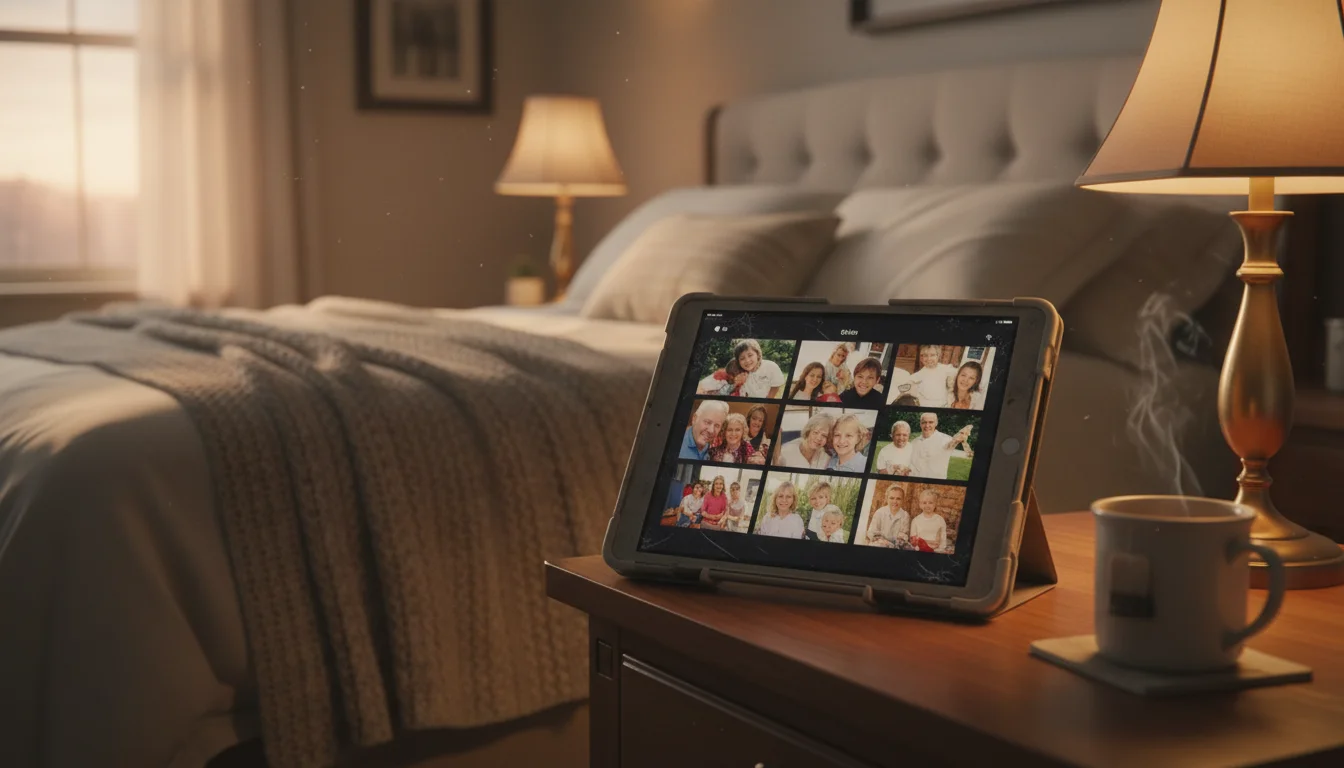
Why This Is the Whole Point
A photo frame that shows the same 50 photos on repeat gets boring fast. You stop noticing it after a week. But a photo frame that shows yesterday’s photos – the ones your partner took at the park, the ones grandma took at her house, the ones from this morning’s school drop-off – that’s something you actually look at.
This is what makes an iPad photo frame better than a traditional one. Everyone in the family takes photos like they normally do. The frame updates itself. Nobody has to email, AirDrop, or transfer anything. It just works – and I don’t say that about many things.
Option 1: iCloud Shared Albums (Apple Families)
If your household is mostly iPhones and iPads, this is the easiest path.
Setting It Up
This takes about five minutes. On your iPhone, open Photos, go to Albums, tap +, and create a New Shared Album. I called ours “Family Frame” because I am nothing if not literal. Invite everyone you want contributing – partner, older kids, grandparents (they’ll need an Apple ID). Make sure you turn on Subscribers Can Post so it’s not just your photos showing up.
On the iPad, the album appears under Photos → Albums → Shared Albums. Point your slideshow or frame app at it and you’re done.
What Actually Happens
Here’s what I like about this setup: nobody has to learn anything new. Your family already takes photos on their phones. Now they just open Photos, pick the good ones, tap share, and send them to the Family Frame album. That’s it. The photos show up on the iPad within minutes.
I tried setting up a Shortcut to auto-copy new photos to the shared album. It worked, but it also sent a blurry photo of my shoe to grandma’s frame. Manual curation is better. People naturally pick better photos when they know it’s going on a display in the kitchen.
Limits to Know
- iCloud Shared Albums max out at 5,000 photos and 200 albums per account
- Photos are compressed slightly (not full resolution, but more than good enough for a frame display)
- You can have up to 100 subscribers per shared album
- Shared Albums don’t count against your iCloud storage
That 5,000 photo limit sounds like a lot, but if you’ve been adding photos for a couple years, you’ll want to occasionally remove older ones. A rolling collection of the last few months feels fresher anyway.
Option 2: Google Photos Shared Albums (Mixed Families)
If your family uses a mix of iPhones and Android phones – or if grandma has an Android –  Google Photos is the better choice. It works across everything.
Getting Started
Open Google Photos on your phone, tap Collections → Albums → New Album, and add family members as collaborators. If anyone in the family doesn’t have Google Photos yet, now’s the time. It’s free and works on both iPhone and Android.
The iPad side has one catch: Google Photos now requires iOS 18+, so the app won’t install on most old iPads. Not a dealbreaker. Open Safari, go to photos.google.com, and sign in. The web version works fine for viewing, and you can add it to your home screen for quick access.
The Live Album Trick
Google Photos has a feature called Live Albums that’s perfect for this. Instead of manually adding photos, you tell it to automatically include photos of specific people or pets.
- Create a new album
- Choose “Select people & pets”
- Pick the faces you want (Google Photos identifies them automatically)
- The album auto-populates with every photo containing those people
So if you create a Live Album for your kids, every photo you take of them – from any device, by any family member – appears on the frame automatically. Nobody has to remember to share anything.
Google Photos vs. iCloud Shared Albums
| Feature | iCloud Shared | Google Photos |
|---|---|---|
| Cross-platform | Apple only | Everything |
| Auto-add by face | No | Yes (Live Albums) |
| Storage cost | Free (doesn’t count) | Free (15 GB shared) |
| Photo limit | 5,000 per album | No per-album limit |
| Compression | Moderate | Moderate |
| Setup difficulty | Easy | Easy |
My take: if everyone in the family has an iPhone, iCloud is slightly simpler and requires zero extra apps. If there’s even one Android user – and in our case, that’s Mark’s dad and his ancient Samsung – go Google Photos. The Live Albums feature alone makes it worth using. We ended up using Google Photos for exactly this reason.
The full family photo frame walkthrough also covers Amazon Photos and iCloud Shared Photo Library if you want more options.
The Grandparent Setup
We set one of these up for Mark’s parents last Thanksgiving. His mom calls it “the picture thing” and it’s her favorite object in the house. Every time we take a photo of the kids, it shows up on their kitchen counter an hour later. She’s mentioned specific photos to us on the phone – ones we’d already forgotten about. That’s the thing about this project: it costs nothing and it makes people genuinely happy.
How to Set It Up for Them
- Charge the iPad and connect it to their Wi-Fi
- Sign it into their Google account (or set up an Apple ID if they don’t have one)
- Join the shared album – accept the invitation on their device
- Set Auto-Lock to Never – Settings → Display & Brightness → Auto-Lock → Never
- Turn off all notifications – they don’t need email alerts on this device
- Open the slideshow – photos.google.com in Safari, the Photos app, or a frame app pointed at the shared album
- Put it on a stand – somewhere they’ll see it often. Kitchen counter, living room shelf, hallway table.
- Plug it in – they’ll never need to charge it manually
The Rules for Grandparents
- They don’t have to touch it. Ever. New photos just appear.
- If the screen goes black, they can tap it once. Or just wait – it might be dimming overnight.
- If it “stops working,” unplugging it and plugging it back in fixes almost everything.
Keep it dead simple. The whole point is that they see photos of the grandkids without learning anything new. You take photos. The photos appear. That’s the entire product. Mark’s mom has never once opened an app on that iPad, and she doesn’t need to.
Privacy Notes
A shared album means everyone with access can see every photo in it. A few things to keep in mind:
- Create a dedicated album for the frame. Don’t point it at your entire camera roll.
- Curate what goes in. Not every photo is frame-worthy. A dedicated album naturally encourages better selection.
- Kids’ photos on display. If the frame is in a visible spot (kitchen, hallway), consider whether visitors can see the display. This probably isn’t a concern in most homes, but it’s worth thinking about once.
- Google Photos face recognition uses data stored in your Google account. If that bothers you, stick to manually-curated albums instead of Live Albums.