It Won’t Charge When Plugged In. Now What?
You dug your old iPad out of the drawer, plugged it in, and… nothing. No charging icon. No screen. Maybe a brief flash of the battery symbol and then black again. You’re two minutes away from throwing it back in the drawer permanently.
Hold on. Most iPads that won’t charge when plugged in have a fixable cause. The cable, the adapter, the port, or a drained battery that just needs more time. Let me walk through what actually works.
Start With the Cable and Adapter
This is the fix about 40% of the time, and it’s the easiest to rule out.
Check your cable. Old Lightning cables fray, crack, and develop internal breaks you can’t see. If you’re using the cable that came with the iPad five years ago, it’s probably damaged. Bend it gently near the connector – if the charging icon flickers on and off, the cable is shot.
Try a different cable. Use one you know works with another device. Don’t grab the one from the junk drawer that “might work.” Use a cable that’s currently charging something else successfully.
Check your adapter. This one catches people. Old iPads came with 10W or 12W adapters. If you’re plugging into a 5W iPhone charger (the tiny cube), your iPad may charge extremely slowly or not at all. The iPad needs more power than a phone charger delivers.
Grab a 10W+ adapter. The 12W iPad adapter or any 20W USB-C adapter with a USB-C to Lightning cable will work. If you’re using a computer’s USB port, try a wall adapter instead – computer USB ports often don’t supply enough power.
Clean the Charging Port
Grab a flashlight and look into the Lightning port on the bottom of your iPad. See lint, dust, or dark gunk packed in there? That’s your problem.
Old iPads that have been in drawers, bags, and pockets collect debris in the port. It compresses against the contacts and blocks the connection. The cable clicks in and feels normal, but it’s not making contact.
How to clean it:
- Power off the iPad
- Use a wooden or plastic toothpick (not metal – you’ll damage the contacts)
- Gently scrape along the bottom and sides of the port
- You’ll be surprised how much comes out
- Blow gently into the port to clear loose debris
- Try charging again
A dry, soft-bristle toothbrush works too. The key is avoiding metal tools that could short or scratch the contacts inside.
The Deep Discharge Problem
If your iPad has been sitting in a drawer for months (or years) without being charged, the battery may have drained below the threshold where the iPad can boot. This looks like the iPad is dead, but it usually isn’t.
What to do:
- Plug it into a known-good cable and a wall adapter (not a computer USB port)
- Leave it alone. Don’t press any buttons. Don’t try to turn it on.
- Wait at least 30 minutes. Sometimes an hour.
- After 30-60 minutes, try pressing the Home button or the power button
A deeply drained battery needs time to accumulate enough charge to power the screen. If you keep pressing buttons trying to wake it, you’re using the trickle of power it’s receiving. Just let it sit.
If after an hour there’s still nothing on the screen, leave it plugged in overnight. Batteries that have been at zero for a long time can take several hours to recover enough to show the charging screen.
If Yours Is an iPad 1, 2, or 3 (the 30-Pin Ones)
The original iPad (2010), iPad 2, and iPad 3 use the wide 30-pin dock connector, not Lightning. If yours has that flat rectangular port on the bottom, you’re in this group, and the standard advice needs a few adjustments. These tablets have been sitting in drawers for a decade or more, and they fail in ways the newer troubleshooting doesn’t cover.
The battery may genuinely be past saving. Lithium-ion cells that sat at zero charge for years can drop below the voltage where the iPad’s charging circuit will even try to wake them up. An overnight charge on a real wall adapter is your one shot. If nothing shows on the screen after 12 hours, the cell is chemically done. Not a software problem, not a cable problem. It physically cannot hold charge anymore.
Check the dock pins for oxidation. Look inside the port with a flashlight. Old 30-pin connectors collect green or grey crust on the exposed pins, especially if the iPad lived in a humid drawer or a basement box. A cotton swab lightly damp with 91%+ isopropyl alcohol will lift most of it. Let it dry completely before you plug anything in. If a pin is visibly bent or missing, that’s a repair job, not a clean.
Third-party 30-pin chargers often don’t push enough current. The iPad 1, 2, and 3 shipped with Apple’s 10W adapter (5V at about 2A). Plenty of the no-name cables and gas-station cubes people bought back in the day put out closer to 500mA, which is fine for an iPod and nowhere near enough for an iPad. If yours won’t wake on a generic charger, dig out the original Apple 10W cube if you still have it, or use a modern 12W USB-A adapter with a genuine Apple 30-pin cable.
Multimeter check (if you have one). Set it to DC voltage. On the USB-A end of the cable, probe the two outer pins – you should read close to 5V (4.75-5.25V is in spec). Then check continuity from the USB power pin through to pin 23 on the dock connector, and from ground to pin 16. A break in either line kills the charge. Mark runs this check on every “dead” tablet before he agrees it’s dead; about a third of the time it turns out to be the cable.
Force Restart
Sometimes the iPad isn’t dead – it’s frozen on a black screen. The battery may be fine, but the software has locked up.
For iPads with a Home button (most old iPads): Hold the Home button and the Power button together for 10 seconds. Keep holding past the Apple logo until it restarts.
For iPads without a Home button: Press and release the Volume Up button, then Volume Down, then hold the Top button until the Apple logo appears.
If the iPad restarts and shows a battery icon, it was a software freeze, not a charging problem. Plug it in and let it charge normally. If it restarts but gets stuck on the Apple logo, that’s a different issue – a boot loop, not a charging one.
Temperature Check
iPads refuse to charge if they’re too hot or too cold. If your iPad has been in a hot car, a cold garage, or sitting in direct sunlight, bring it to room temperature before trying again. Apple’s comfortable range is 32-95°F (0-35°C), and the iPad will show a temperature warning if it’s outside that range.
When It’s Actually the Battery
If you’ve tried everything above and the iPad still won’t charge – or it charges to 10% and dies within minutes – the battery itself is probably degraded.
Old iPad batteries degrade whether you use them or not. A lithium-ion battery sitting at zero charge for a year or two can lose significant capacity permanently. If the iPad was fully drained and stored for a long time, the battery may not recover.
Check battery health (if the iPad turns on): Unfortunately, iPad Battery Health only exists on iPadOS 17.5+ for newer iPads (M-series chips, A16, and A17 Pro) – old iPads don’t have this setting. If you have a Mac, the free app  coconutBattery can read your iPad’s battery health over USB. Otherwise, if the iPad charges to full but dies within an hour of normal use, the battery is significantly worn.
Your options:
Apple battery replacement: $99+. It’s $99 for iPad 9th gen and earlier, $119 for 10th gen and up. Apple replaces the battery in most iPad models, but they won’t service “obsolete” iPads. The iPad Air 2 was moved to obsolete status in 2025, so the cutoff for Apple service is now roughly iPad 5th gen (2017) or newer. Anything older, and Apple will turn you away.
Third-party repair: $50-100. Local repair shops and mail-in services will do it for less. Quality varies. Ask if they use genuine or equivalent cells, and whether there’s a warranty on the work.
Is it worth it? Be honest with yourself. If your iPad is stuck on iOS 12 or older, spending $100+ on a battery for a device with shrinking app support doesn’t make much financial sense. If it’s an iPad 5th gen or newer (running iPadOS 16+), the repair extends a device that still has real useful life.
It Charges, But the Battery Dies Fast
Different problem, easier solution. If your old iPad charges fine but drains in an hour or two, you might not need to fix the battery at all. Just keep it plugged in.
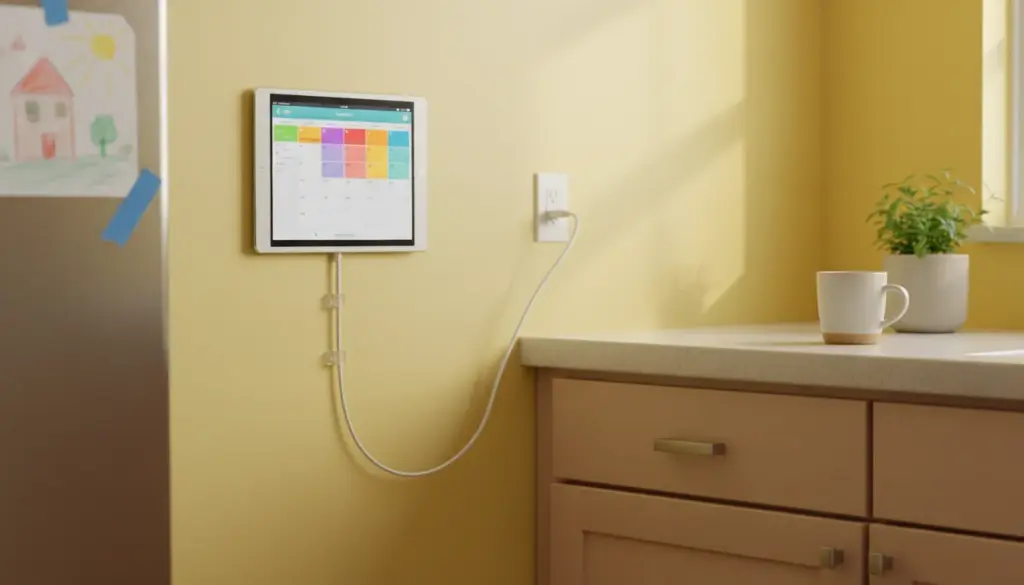
Most of the best uses for an old iPad – a kitchen display, a digital photo frame, a weather station – work perfectly on constant power. Mount it on the wall, run a cable to it, and the battery condition stops mattering.
Follow basic battery safety practices: don’t cover the iPad (it needs airflow), keep it out of direct sunlight, and use an Apple-certified charger. A worn battery that’s always topped up is safe for years of continuous use.
When to Let Go
Sometimes an iPad genuinely can’t be saved. If the screen is cracked, the port is physically damaged, or the battery is so far gone that an overnight charge produces nothing, it may be time.
Don’t throw it in the trash. iPads contain lithium batteries that shouldn’t go in landfills.
Recycling options:
- Apple Trade In: Apple recycles any iPad for free, even with zero trade-in value. Drop it at an Apple Store or request a mail-in kit at apple.com/trade-in.
- Best Buy: Accepts old tablets for recycling at any store.
- Local e-waste: Most towns have electronics recycling. Check earth911.com for drop-off locations near you.
Quick Troubleshooting Checklist
- Try a different cable (one you know works)
- Use a 10W+ wall adapter, not a computer USB port
- Clean the Lightning port with a toothpick
- Leave it plugged in for 30-60 minutes without touching it
- Force restart (Home + Power for 10 seconds)
- Bring it to room temperature if it’s been in extreme heat or cold
- If it charges but drains fast, just keep it plugged in and give it a new job
Most old iPads that “won’t charge” actually will. It’s usually a bad cable, a dirty port, or a battery that needs patience. Try the cheap fixes first. The drawer can wait.
If charging wasn’t the only issue, our tablet troubleshooting hub covers everything from WiFi problems to apps that won’t install. Got a Samsung or Android tablet instead? Same page – the fixes are similar across devices.