They Will Find a Way. Your Job Is to Slow Them Down.
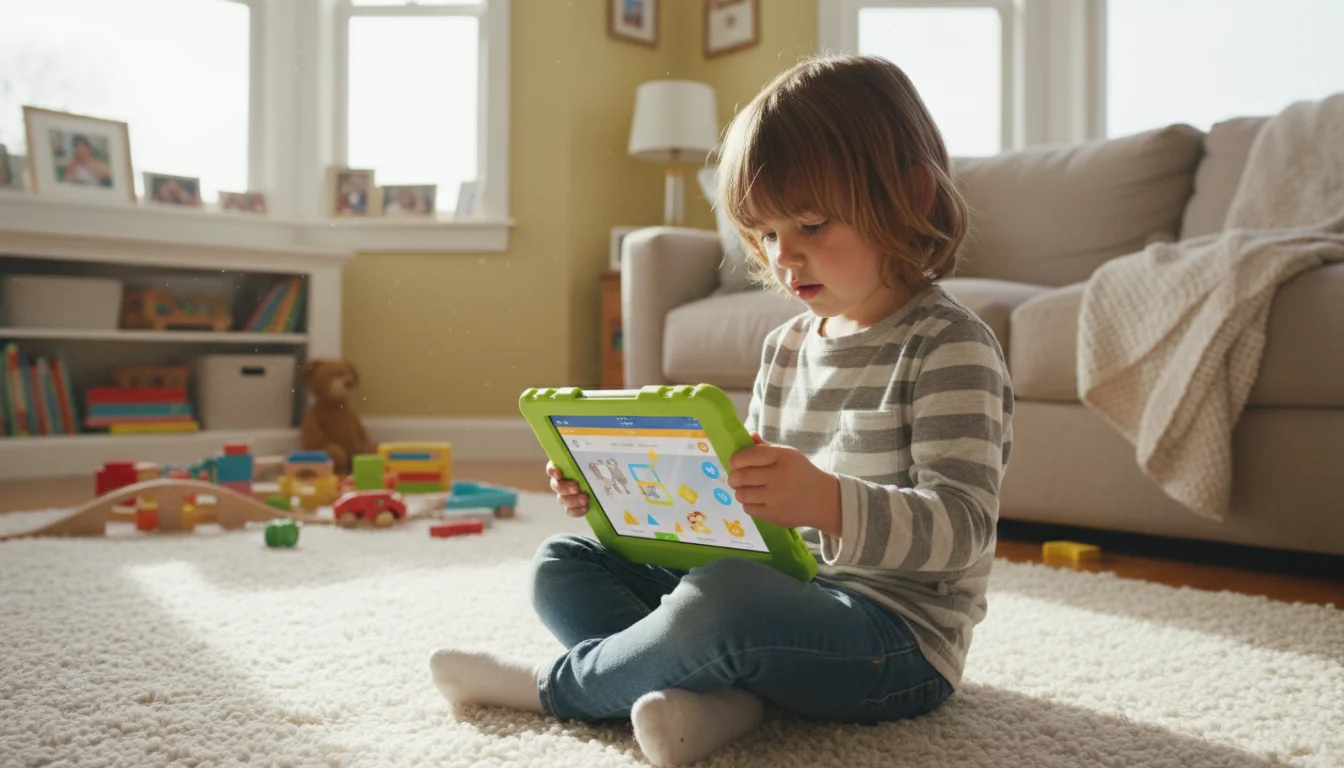
You’ve decided to hand your old tablet to the kids. Smart move. An old iPad or Android tablet that’s too slow for you is perfectly fine for a 5-year-old watching Bluey or a 7-year-old doing math games. Free entertainment device, no new purchase required. There are more family uses than you’d expect.
But if you just hand it over with your accounts still signed in, no screen time limits, and the full App Store available, you will regret it within 48 hours. Ask me how I know.
Kid-proofing isn’t about locking everything down until the tablet is useless. It’s about setting up guardrails so the tablet does what you want it to do, and nothing else. Here’s how, for both iPads and Android tablets.
Step 1: Factory Reset It First
Before anything else, wipe the tablet clean. Your old photos, saved passwords, email accounts, and credit card info should not be on a device your child is going to hand to their friend at a playdate.
On iPad: On iOS 15+, go to Settings > General > Transfer or Reset iPad > Erase All Content and Settings. On older iPads (iOS 12-14), the path is Settings > General > Reset > Erase All Content and Settings. If it asks for your Apple ID password, enter it. Set it up as a new device afterward, not from a backup.
On Android: Settings > General Management > Reset > Factory Data Reset. Remove your Google account first (Settings > Accounts) so the device doesn’t get stuck on factory reset protection.
Our reset guide walks through this in more detail if you hit snags.
Step 2: Create a Kid’s Account (Not Yours)
This is the step that saves you the most headaches long-term.
On iPad: For kids under 13, you can create a child Apple ID through Family Sharing (iOS 12-15: Settings > your name > Family Sharing > Add Member; iPadOS 16+: Settings > Family > Add Member; then Create Child Account). This gives them their own App Store access with “Ask to Buy” enabled, so every purchase or free download needs your approval. Kids 13 and older can create their own Apple ID independently. Either way, use Screen Time to restrict what they can access on the device.
On Android: Create a Google account for your child through  Google Family Link. This is free, works on any Android tablet, and gives you remote control over the device from your own phone. You can approve app installs, set screen time limits, and see what they’re using. It’s genuinely good. Download Family Link on your phone first, then follow the setup on the tablet.
On Amazon Fire tablets: Amazon has Amazon Kids (free parental controls) built in. Set up a child profile through Settings > Profiles & Family Library. It creates a completely separate, age-filtered environment. If you want a curated content library of books, videos, and games, subscribe to Amazon Kids+ ($5.99/mo with Prime, $7.99/mo without) — it’s a separate paid service from the free profile system. This is actually one of the things Amazon gets right.
Step 3: Set Screen Time Limits
You will forget to tell them to put it down. Every single time. Automated limits save you the argument.
On iPad (Screen Time):
- Settings > Screen Time > Turn On Screen Time
- Set a Downtime schedule (e.g., 7 PM to 7 AM – the tablet just stops working)
- Set App Limits for categories (e.g., 1 hour per day for Games, 30 minutes for Entertainment)
- Set a Screen Time passcode. Make it different from your unlock code. Your 8-year-old knows your unlock code. You know they do.
On Android (Family Link or Digital Wellbeing):
- Open Family Link on your phone > select your child > Daily limit
- Set per-day limits (weekdays vs. weekends is a nice feature)
- Set a bedtime when the tablet locks automatically
- You can also set per-app limits if, say, YouTube is eating 90% of the screen time
The real talk: Screen time limits only work if you don’t override them every time your kid complains. The tablet will show a “time’s up” screen, they will bring it to you looking heartbroken, and you’ll want to type in the passcode. Don’t. The whole point is that the tablet enforces the rule so you don’t have to be the bad guy. Let it do its job.
Step 4: Lock Down the App Store
Unrestricted App Store access on a kid’s tablet is how you end up with 200 apps, three accidental subscriptions, and a $47 in-app purchase for virtual gems in a game you’ve never heard of.
On iPad:
- Settings > Screen Time > Content & Privacy Restrictions > turn it on
- iTunes & App Store Purchases > Installing Apps > Don’t Allow (for young kids) or set to “Ask” via Family Sharing
- In-App Purchases > Don’t Allow. This one is non-negotiable.
On Android (Family Link):
- Parent approval is on by default for child accounts
- In Family Link, go to Controls > Google Play > Require approval for all content
- Also set content ratings (e.g., “Rated for 7+” or “Everyone 10+”)
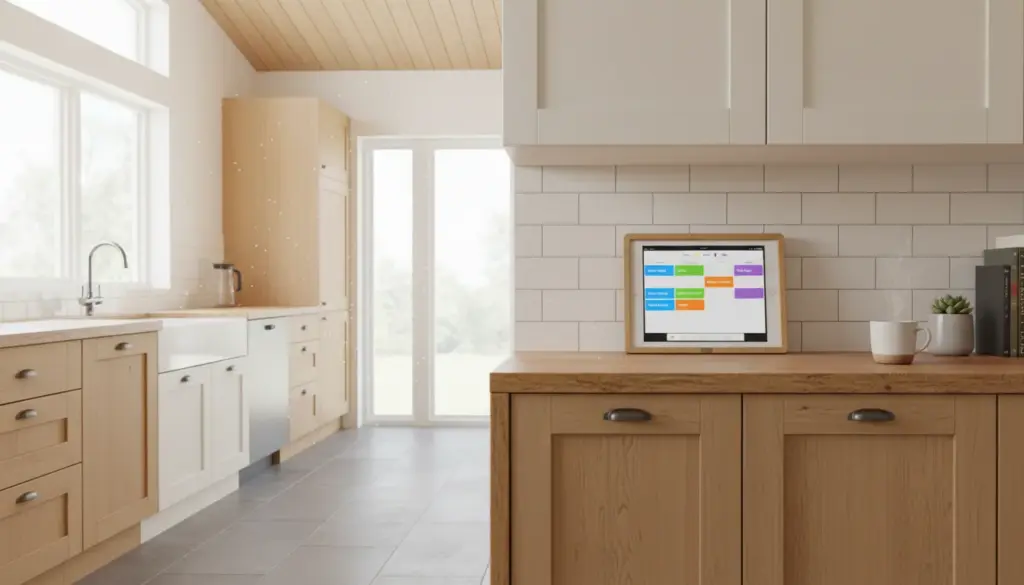
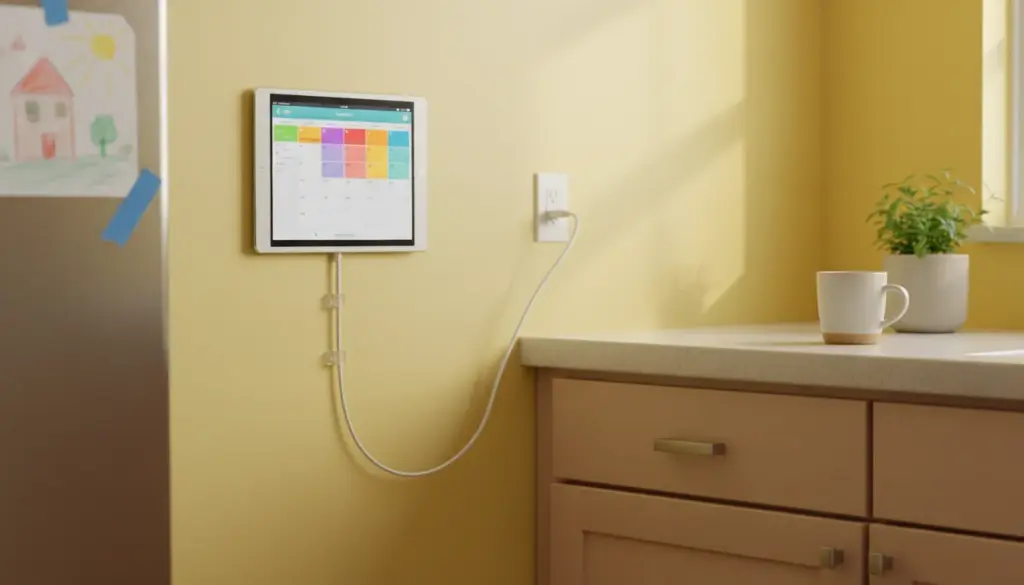
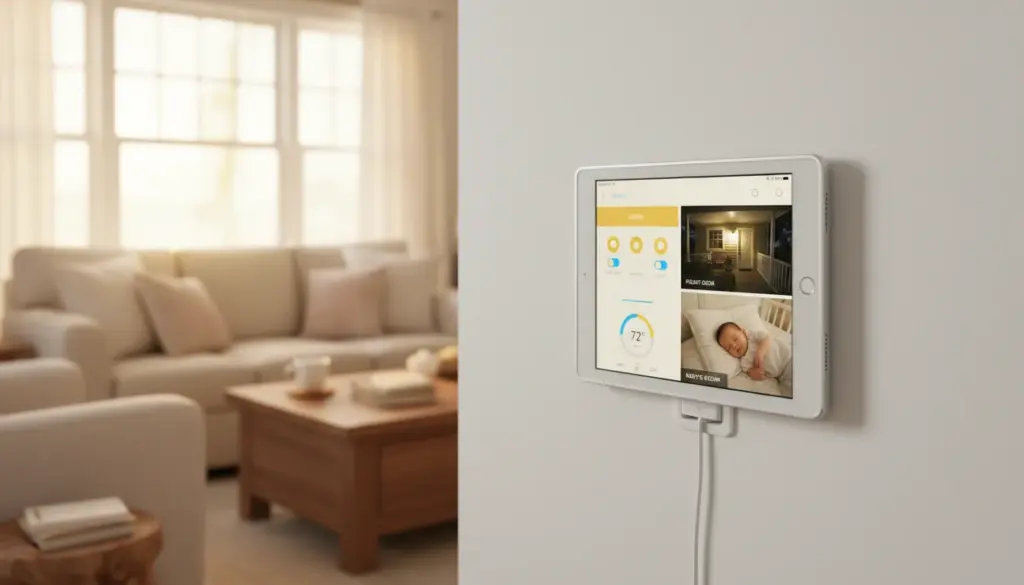
Install the apps you want them to have before you lock it down. Our apps that still work on old tablets list has recommendations sorted by device age. Most of the good ones are free. For educational apps specifically, the kids’ learning station covers the best ones. A spare tablet also works well as a baby monitor for naptime, a morning routine board on the kitchen counter, or an after-school chore board so you’re not repeating yourself all afternoon.
Step 5: Filter Web Content
Kids will find YouTube rabbit holes and weird websites faster than you thought possible. Some basic content filtering goes a long way.
On iPad:
- Settings > Screen Time > Content & Privacy Restrictions > Content Restrictions > Web Content
- Choose “Limit Adult Websites” (blocks known adult sites, lets everything else through) or “Allowed Websites Only” (nuclear option – only sites you whitelist)
- For YouTube specifically:
 YouTube Kids is much safer than the main app, but it requires iOS 16+ and won’t install on old iPads running iOS 12-15. If your iPad is too old for the app, use “Allowed Websites Only” in Content Restrictions and add youtube.com/kids as a permitted site, or just leave YouTube off entirely.
On Android:
- Family Link > Controls > Content restrictions > Google Chrome > try to block mature sites
- For YouTube: YouTube Kids works on Android 5.0+, so old Android tablets are fine here. Install it instead of regular YouTube.
- SafeSearch: Family Link enables this automatically on child accounts
Step 6: Put a Case on It
Software guardrails protect the tablet from your kids. A case protects the tablet from physics.
Old tablets are going to get dropped. Stepped on. Left face-down on a Lego. Sat on. Thrown across the couch with slightly too much enthusiasm.
You don’t need to spend much. A basic foam case with a handle runs $10-15 on Amazon for most iPad models and popular Samsung tablets. Look for:
- Thick foam or rubber bumpers (not a slim hard shell – those crack)
- A raised lip around the screen so it doesn’t shatter face-down
- A built-in stand or handle (kids carry tablets by whatever they can grab)
A screen protector is worth the $8 too. Tempered glass, not the thin film kind. One cracked screen and the “free” tablet becomes a $0 tablet because you’re not paying to repair a device that was already old.
Step 7: Turn Off Notifications
A 6-year-old does not need push notifications. From anything.
On iPad: Settings > Notifications > go through each app and turn off “Allow Notifications” for everything except the essentials (if any).
On Android: Settings > Notifications > App notifications > toggle off everything non-essential.
This also prevents your child from accidentally tapping a notification and ending up in your email, a news app, or somewhere else they shouldn’t be.
The “Done” Checklist
When you’re finished, the tablet should:
- Have only the apps you chose, with no way to install more without your permission
- Automatically shut off at bedtime
- Have daily screen time limits that enforce themselves
- Block inappropriate websites and YouTube content
- Be wrapped in a case that can survive a 3-foot drop onto hardwood
- Have no access to your email, payment info, or personal accounts
If all six are true, hand it over. They’re going to love it. And you’re going to get 45 minutes of peace while they’re using it, which is the real reason any of us do this.