The Most Common Tablet in America, and Nobody Knows What to Do With It
Amazon has sold more Fire tablets than anyone can count. For years they were the default “cheap tablet,” the one you grabbed on Prime Day for $30 because why not? Your kids used it until they got phones, and now it’s sitting in a drawer, a junk basket, or propping up a wobbly table leg.
But old Kindle Fires can still do real work. Yes, Fire OS is weird. Yes, the App Store is limited. But that same tablet that feels slow and useless for general browsing can do very specific jobs around your house surprisingly well.
First: What Are You Working With?
Kindle Fire tablets run Fire OS, which is Amazon’s fork of Android. This means they can run Android apps, but they ship with the Amazon Appstore instead of Google Play. The Amazon Appstore has a smaller selection, and some popular apps are missing entirely.
How to check your Fire OS version: Settings > Device Options > System Updates. The number that matters is the Fire OS version. Fire OS 5 (based on Android 5.1) is getting very old. Fire OS 6 or 7 will run most things you’d want. Fire OS 8 is reasonably current.
How much storage do you have? Settings > Storage. Most old Fires came with 8 GB or 16 GB, which fills up fast. If yours has a microSD card slot, grab a cheap 32 GB or 64 GB card. It makes a genuine difference.
1. A Dedicated Kids’ Tablet
This is the most natural second life for a Fire tablet, because Amazon basically designed them for it. FreeTime (now Amazon Kids) creates a walled-off environment with age-appropriate content, screen time limits, and no access to your accounts.
Setup takes about five minutes: Settings > Profiles & Family Library > Add a Child Profile. If you’re willing to pay for  Amazon Kids+ ($7.99/month, or $5.99 with Prime), it gives them access to thousands of books, games, and videos curated by age.
Our kid-proofing guide covers the parental controls side in more detail.
2. An E-Reader (Obviously)
This is literally what the original Kindle Fire was built for, and it’s still one of the best uses. The  Kindle app comes preinstalled. Your existing Amazon book library is already there.
Old Fire tablets are actually good e-readers. The screen size is right, the Kindle app’s reading modes reduce eye strain, and the relatively slow processor doesn’t matter when you’re just turning pages.
If you want books from other sources, install the Libby app from the Amazon Appstore – it connects to your local library’s digital collection. Free books, legally. Got a non-Amazon Android tablet instead? Our Android tablet ebook reader setup covers apps and settings for those.
3. A Kitchen Display
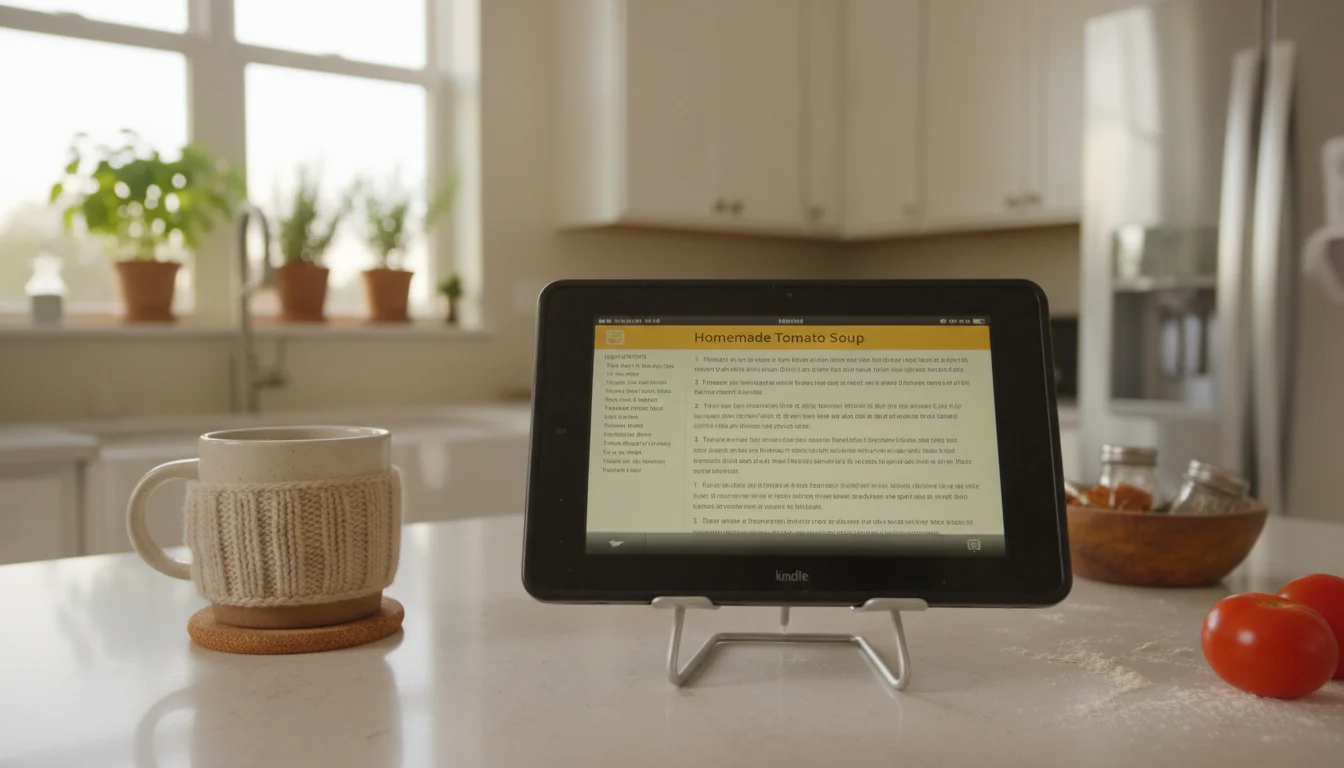
Prop it on the counter with a stand, set up a recipe app, and you’ve got a dedicated cooking companion. The Fire’s screen size (usually 7-8 inches on older models) is perfect for counter space without being enormous.
For recipes: The Kindle app works great for digital cookbooks. The Allrecipes app was discontinued in early 2023, but  allrecipes.com works fine in the Silk browser. And Silk can pull up any recipe website.
For timers and lists: Alexa is built into Fire tablets. “Alexa, set a timer for 12 minutes” works without touching the screen. You can also pull up your Alexa shopping list while you’re cooking and add items by voice.
We’ve got a full kitchen display guide with wall-mounting tips and app recommendations if you want to go further.
4. A Bedside Alarm Clock
Fire tablets have Show Mode (on older Fire OS versions) or Alexa’s clock face display that turns the tablet into a bedside clock. Set it on a small stand, keep it plugged in, and you’ve got a smart alarm with weather, time, and gentle wake-up options.
Swipe down from the top and toggle Show Mode in Quick Actions, or find it at Settings > Show Mode. Note that Show Mode only works on 8-inch and 10-inch Fire tablets, not the 7-inch models, and recent Fire OS updates may have removed it. On Fires without Show Mode, use the built-in Clock app or download a full-screen clock app from the Amazon Appstore.
The dim night mode is important here. Go to Settings > Display > set brightness to minimum, and turn on Blue Shade (Fire’s blue light filter) for nighttime. Our Android tablet alarm clock guide covers sleep tracking apps and sunrise alarms that work on Fire tablets too.
5. A Digital Photo Frame
Load photos into Amazon Photos (free unlimited photo storage with Prime), open the slideshow feature, and prop it on a shelf. The screen quality on even old Fire tablets is decent enough for photos, and the 7-8 inch size works well on a bookshelf or side table.
If you want more control over what photos display and how, check out our digital photo frame guide for app recommendations and setup tips that work across tablet brands.
6. A Podcast and Audiobook Station
Keep it in the kitchen, the workshop, or wherever you spend time doing hands-free tasks. Fire tablets have decent speakers for their size, and all the audio apps you’d want are available: Audible (preinstalled – and the 30-day trial gets you one credit plus Audible Originals if you haven’t been a member in the past year), Amazon Music, Spotify, and most podcast apps.
Pair it with a cheap Bluetooth speaker if the built-in speakers aren’t loud enough. A $15 speaker makes a real difference in a kitchen or garage.
7. A Smart Home Controller
If you use any Alexa-compatible devices (smart plugs, lights, cameras, thermostats), the Fire tablet becomes a control panel. The Alexa app is built in, and you can control everything by voice or by tapping through the Alexa home screen.
This works especially well wall-mounted near the front door or in a hallway. Quick glance at the camera, tap a light on or off, check if the garage door is closed.
8. A Video Calling Device
Fire tablets support Alexa calling and Drop In, which means grandparents or other family members with Echo devices or Fire tablets can video call with one voice command: “Alexa, call Grandma.”
You can also install Zoom from the Amazon Appstore. Google Meet is not officially available, but it works through the Silk browser.
If you’re setting this up for an older family member, our grandparent tablet setup guide walks through the full process.
9. A Kids’ Reading Nook
Different from a general kids’ tablet. Set this one up with just Kindle, Libby, and maybe Audible. No games, no YouTube, no distractions. Put it on a shelf next to their bed or in a reading corner.
Amazon’s Reading Insights feature (through the parent dashboard) can show you how much they’re reading and what they’re into. It’s surprisingly motivating for kids who are competitive about tracking things.
For kids who tear through books faster than the library holds refresh, Kindle Unlimited has a big middle-grade and YA catalog and a free 30-day trial. Handy for a summer where the Libby holds queue has become the bottleneck.
10. A Garage or Workshop Companion
The old Fire you don’t care about damaging is perfect for the workshop. Pull up YouTube tutorials for that repair job. Play music. Keep a running shopping list of supplies you need.
The Silk browser handles YouTube fine. Pair it with a Bluetooth speaker, prop it somewhere visible, and don’t worry about the sawdust. This is one scenario where having an old, expendable tablet is genuinely better than using your phone.
11. A Portable Entertainment Screen
Old Fires still handle video well. Download shows and movies from Prime Video (offline downloads work on all but the oldest Fires), load up Netflix or Disney+ if they’re still supported on your Fire OS version, and hand it to the kids for road trips.
Not a Prime member and want to use Prime Video? Amazon still runs a 30-day free Prime trial – useful specifically to test whether the Fire tablet still plays modern Prime Video downloads before you commit for a year.
For very old Fires where streaming apps have dropped support: Prime Video will always work (it’s Amazon’s own ecosystem), and you can sideload older versions of other apps if you’re willing to tinker. If you want a full home media setup, see our guide to turning an old tablet into a streaming hub.
12. Sideload Google Play (The Tinkerer’s Option)
You can install the Google Play Store on most Fire tablets without rooting or any permanent modification. It takes about 10 minutes and gives you access to every Android app, not just the Amazon Appstore’s limited selection.
You’ll need to download four APK files (Google Account Manager, Google Services Framework, Google Play Services, and the Google Play Store itself) and install them in order. The specific versions depend on your Fire OS version.
A word of caution: This works and it’s stable, but it’s not officially supported by Amazon. Some apps may not work perfectly. And if you do a factory reset, you’ll need to reinstall the Google Play files. For a device you’re just using as a kitchen display or kids’ tablet, the Amazon Appstore is usually enough. But if you want the full app library, this is how you get it.
Which Old Fire Is Worth Keeping?
Fire HD 8 (2018 or later): The best all-rounder. 8-inch screen, decent performance, usually runs Fire OS 6 or later. Worth keeping and repurposing.
Fire HD 10 (any generation): The bigger screen makes it better for kitchen displays, photo frames, and video. Heavier, though.
Fire 7 (2017 or earlier): Honestly, these struggle. The 1 GB of RAM makes everything sluggish. They’re fine as alarm clocks or e-readers, but don’t expect much beyond that.
Original Kindle Fire (2011-2012): Too old for almost everything. The operating system can’t update, the app store won’t install modern apps, and the hardware can’t handle current video streams. Recycle it. Our guide for tablets that don’t work anymore covers your options.
One Tablet, One Job
The secret to making an old Kindle Fire useful is giving it a single purpose. Don’t try to make it do everything. Pick one job from this list, set it up for that, and let it live there. A Fire tablet that’s a dedicated kitchen display is useful every day. A Fire tablet that’s a general-purpose tablet is just a slow, frustrating version of your phone.
Pick the job. Set it up. Forget about it. That’s when old tech actually starts earning its keep.