You Don’t Need to Buy a Nest Hub. You Already Have One.
A  Google Nest Hub costs $100. An
  Amazon Echo Show runs $90 to $400 depending on size, from the 5.5-inch Show 5 to the 11-inch Show 11 on the counter and the wall-mountable Show 15 and Show 21. Both lines do the same basic thing: sit on your counter and show you the time, weather, calendar, and photos.
Your old iPad or Android tablet already has a bigger screen, better speakers, and a touchscreen. It just needs the right setup. Fifteen minutes of configuration and you’ve got a smart display that does everything a Nest Hub does, for free.
What Makes a Good Smart Display Tablet
Not every old tablet works well for this. The good news is the bar is lower than you’d think.
What you need:
- A tablet that turns on and holds a WiFi connection. That’s the baseline.
- A charging cable and a stand or mount. This thing is going to live in one spot, always plugged in.
- iOS 12+ for iPads, Android 8+ for Android tablets. Older than that and you’ll struggle with app compatibility.
What you don’t need:
- Speed. A smart display mostly shows static information. Even a sluggish tablet can display weather, a clock, and a calendar without breaking a sweat.
- Storage. You’re not installing 50 apps. You need one or two.
- A great camera. Nobody’s video calling from the hallway display.
- A good battery. This thing’s going to be plugged in 24/7 anyway.
The ideal candidate is that old tablet that’s too slow to use as a regular tablet but still works fine. That’s exactly this use case. (Not sure a smart display is the right fit? Check our full list of old iPad ideas for more options.)
Option 1: The Quick Setup (Under 5 Minutes)
If you just want weather, time, and photos without any fuss:
On iPad:
- Set a beautiful clock wallpaper or use the built-in Clock app
- Add widgets to the Today View (swipe right from the home screen): Weather, Calendar, Reminders
- Settings > Display & Brightness > Auto-Lock > Never
- Plug it in, prop it up, done
On Android:
- Add home screen widgets: Clock, Weather,
 Google Calendar
 - Settings > Display > Screen timeout > 30 minutes (or install a keep-screen-on app)
- Plug it in, prop it up, done
This is basic but it works. You get a glanceable display with the info most people actually check a smart display for. If this is enough, stop here.
Option 2: Fully Kiosk Browser (The Power Move)
This is the setup that makes people go “wait, that’s not a Nest Hub?” Fully Kiosk Browser is an Android app that turns any tablet into a locked-down, always-on display. It’s the tool that Home Assistant people use, but you don’t need Home Assistant to get value from it.
What it does:
- Displays any webpage, dashboard, or web app in full screen
- Auto-starts when the tablet boots up
- Dims the screen on a schedule (bright during the day, dim at night)
- Motion detection using the front camera (screen turns on when you walk by, sleeps when you leave)
- Locks the tablet so nobody accidentally exits the display
How to set it up:
- Install
 Fully Kiosk Browser from the Google Play Store (free trial, around $11 for the full version)
 - Point it at a dashboard URL (more on this in a minute)
- Enable “Start on Boot” in Fully settings
- Enable motion detection for automatic wake/sleep
- Set the screensaver to a photo slideshow from your
 Google Photos
What dashboard to display: This is where it gets fun. A few options:
- A simple weather page –
 Weather.com or
  Windy in full screen looks great
 - Google Calendar – open calendar.google.com in Fully and you’ve got a wall calendar
- A custom dashboard – sites like
 DAKboard (free tier) combine weather, calendar, photos, news, and to-do lists into one screen designed for wall displays
 - A family photo slideshow – Fully’s built-in screensaver mode cycles through your Google Photos albums when nobody’s interacting with the display
Fully Kiosk Browser is Android only. iPad doesn’t have an equivalent with the same level of control, which is one of the rare cases where an old Android tablet is the better choice.
Option 3: DAKboard (Best All-in-One Dashboard)
If you want the Nest Hub experience without building anything yourself, DAKboard is what you want.
DAKboard is a web-based dashboard designed specifically for displays like this. You sign up, connect your Google Calendar, choose a layout, and point your tablet’s browser at your personal DAKboard URL.
The free tier gives you one screen with weather, a calendar, and time. That’s enough to test whether you even like having a dashboard on the wall. I ran the free version for two weeks before deciding it was worth paying for.
DAKboard added TouchHub in July 2026 – the base interactive layer and Home Assistant control run on the free tier, while the shared chore chart with points, child lock, and a family leaderboard sits on Essential ($6/month) or Plus, with a meal planner coming soon. If chores are the reason for the tablet, our family chore chart on a tablet guide covers that setup.
The Essential plan ($6/month, or $5/month yearly) is where it gets useful for a family. You build your own layouts, pull in Google Photos for the background, add a to-do list or news feed, and connect up to 5 calendars with color coding. If you want different-colored calendars for each kid’s activities plus yours plus your partner’s, this is the tier that handles it.
If you’re setting up multiple displays or want different dashboards for different times of day, the Plus plan ($10/month, or $8/month billed annually) adds screen rotation and scheduling. Most families won’t need this unless you’ve caught the bug and started mounting tablets in every room.
Setup:
- Go to dakboard.com on your computer and create an account
- Connect your Google Calendar and photo source
- Customize the layout
- On the tablet, open the browser and go to your DAKboard URL
- Bookmark it, make it full screen, and set the browser as the default launch app (or use Fully Kiosk Browser to keep it locked there)
If you’re specifically setting up an iPad as a dashboard, our iPad dashboard guide covers Guided Access, widget layouts, and settings that keep it running long-term.
Option 4: Google Home App (The Google-Ecosystem Play)
If your household is already in the Google ecosystem (Nest speakers, Chromecast, Google Calendar), the Google Home app on an Android tablet gives you a surprisingly good smart display experience.
Open the Google Home app, and the main screen shows your connected devices, cameras, and controls. It’s not a dedicated dashboard mode like a real Nest Hub, but it gives you quick access to everything Google.
On older Fire tablets, you can also use Show Mode, which turns the tablet into an Echo Show equivalent with Alexa’s visual interface. (Recent Fire OS updates may not include it.) If you’ve got old Fire tablets, our Kindle Fire uses guide covers this setup.
For households already running on Amazon (Echo speakers, Ring cameras, Fire TV), the Alexa app on any Android or iOS tablet still gives you announcements, timers, smart home controls, and routines. It’s not full Show Mode, but the tablet slots into the same ecosystem an Echo Show 5, Show 8, or Show 11 would, with a bigger screen.
If you came in specifically pricing the tablet against Amazon’s Echo Show line – the 5.5-inch Show 5, 8-inch Show 8, 11-inch Show 11, or the wall-mountable 15.6-inch Show 15 and 21-inch Show 21 – the Echo Show alternative breakdown walks through every model and the three costs the reviews tend to skip.
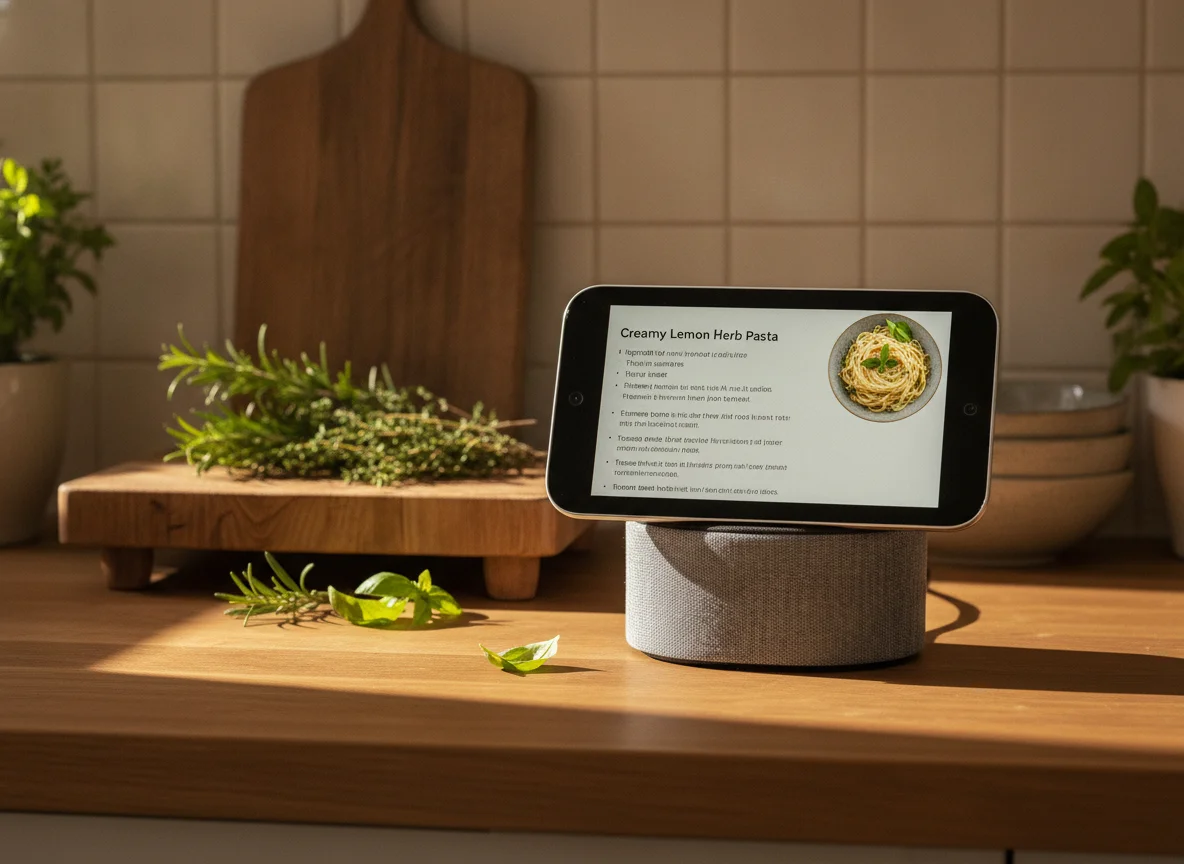
If the DIY route doesn't stick and you'd rather pay for tighter Alexa integration, the Show 8 is the size most families end up on. Skip the Show 5 – the screen's too small to actually glance at.
Check price on Amazon →If photos are the main reason you’re considering any of this (kids’ faces in the kitchen, vacation pictures on the side table), a dedicated digital photo frame is the other product the old tablet competes with. Aura’s lineup starts at $134 for the 10-inch Carver, but the Carver screen tops out at 1280×800. Your old iPad has more than twice the pixel count. The Aura Frame alternative breakdown makes the case in detail.
Where to Put It
The spot matters as much as the software.
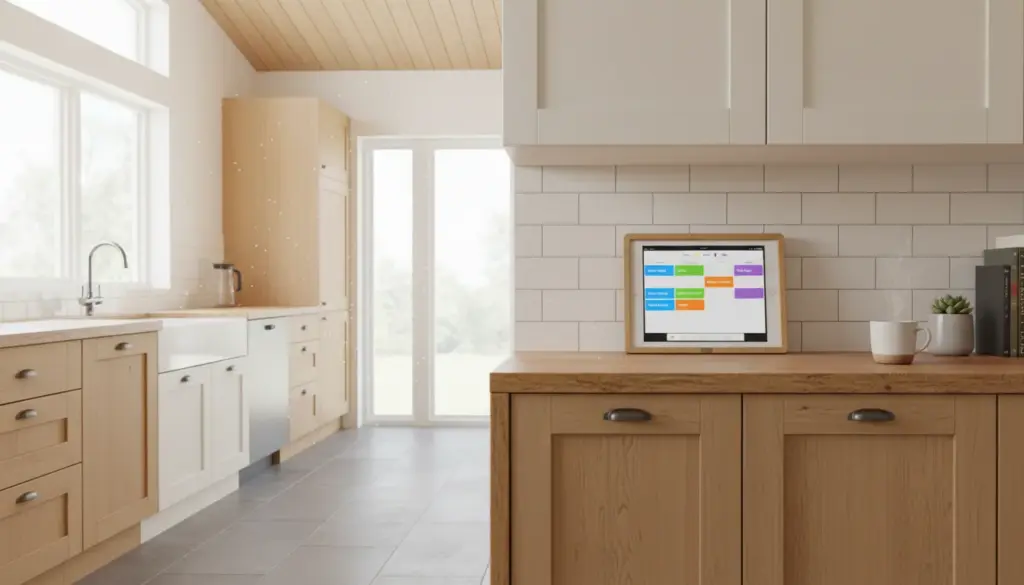
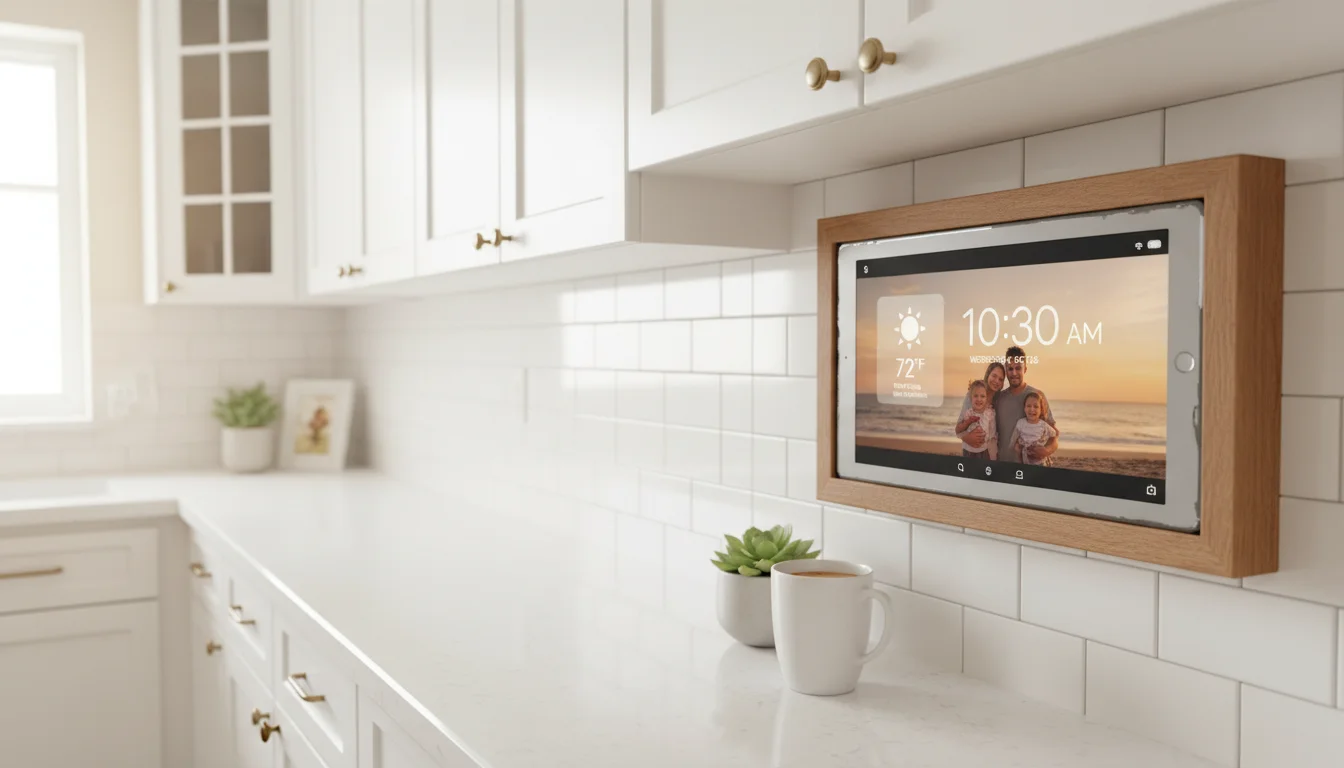
Kitchen counter: The most popular spot. Prop it on a small stand next to the coffee maker. You check the weather while making breakfast, glance at the calendar while packing lunches, and put on background music while cooking dinner. Ours has been on the counter for six months and I’ve stopped pulling my phone out in the kitchen entirely.
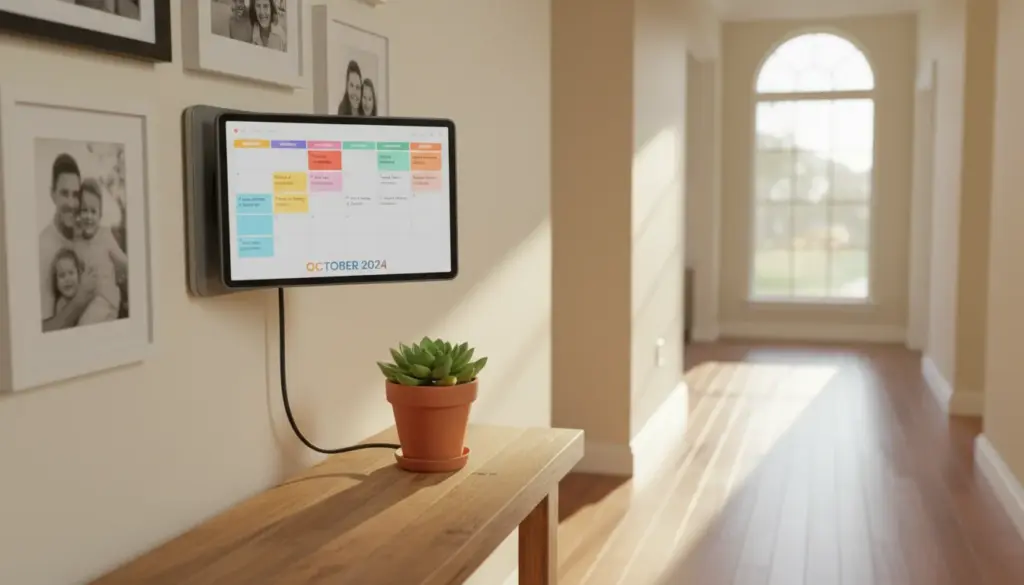
Hallway or entryway: Mount it on the wall near the front door. Weather and time visible as you’re heading out. Our mounts and stands guide has wall mount options; the wall-mount setup guide linked at the end handles the full install.
Living room: On the coffee table or a side table, showing weather and your calendar at a glance. Between checking the forecast it works as a streaming remote for the TV and speakers.
Nightstand: Weather, time, and a dim photo slideshow. Set the brightness schedule to go very dim after 9 PM. That same nightstand tablet doubles as a bedside Plex player for watching shows before sleep.
Home office: Calendar and weather at a glance without checking your phone. Some people add a second display showing a to-do list or pomodoro timer.
The Settings That Make or Break It
These small tweaks make the difference between “neat project” and “thing I actually use every day.”
Auto-brightness off, manual brightness set. Auto-brightness reacts to room light and the screen keeps changing. Pick a brightness that works for the room and leave it.
Do Not Disturb on. No notification sounds, no pop-ups interrupting your weather display with a spam email notification.
Auto-lock disabled. The screen needs to stay on. iPad: Settings > Display & Brightness > Auto-Lock > Never. Android: Settings > Display > Screen timeout > 30 minutes (or use Fully Kiosk’s always-on setting).
WiFi set to never disconnect. Some tablets disconnect from WiFi when the screen is off or when “optimizing battery.” Turn off any battery optimization for the display app. On Android: Settings > Apps > [your app] > Battery > Unrestricted.
Night mode on a schedule. If the display is in a room you sleep in or walk through at night, dim it dramatically after sunset. Fully Kiosk does this automatically. On iPad, you can use the Shortcuts app to schedule a brightness change.
Smart Display vs. Buying a Nest Hub: The Honest Comparison
Where the old tablet wins:
- Bigger screen (most old tablets are 9-10 inches vs. 7 inches on a Nest Hub)
- Free
- More customizable – you pick the dashboard, the layout, the apps
- Better speakers on most tablets
Where a Nest Hub wins:
- Voice control is more polished (Google Assistant on a Nest Hub is better integrated than on a random tablet)
- Always-on ambient display is designed for the hardware
- Automatic routine integration (morning briefing, evening wind-down)
- It just works, no setup needed
If you already own the tablet, try it first. You might not need to buy anything. If you find yourself wanting better voice control or tighter smart home integration, that’s when a dedicated display makes sense. But for weather, calendar, and photos? The old tablet is genuinely better. We wrote a full old tablet vs smart display comparison covering cost, privacy, and sustainability if you want the detailed breakdown.
Which Option Is Right for You
The short version of the four setups:
| Option | Setup time | Polish | Best for |
|---|---|---|---|
| Quick widgets (iPad/Android) | 5 min | Basic | You just want to see if you like it |
| Fully Kiosk (Android/Fire) | 30 min | High | Countertop or wall panel that stays locked in place |
| DAKboard | 20 min | High | Family dashboard with calendar, weather, photos in one polished layout |
| Google Home / Alexa | 10 min | Medium | Household already runs on Google or Amazon smart home |
Get Started This Weekend
Grab a stand (bamboo for the counter or a Koala Mount for the wall), plug in the charger, and set it up. The worst that happens is you spend 15 minutes and decide it’s not for you. The best is that you stop reaching for your phone 30 times a day to check the weather.
If you’re going for a wall install rather than a countertop stand, the wall-mounted tablet dashboard setup guide walks through the mount, cable routing, always-on lockdown by OS, and the battery-bulge problem that shows up on tablets left permanently plugged in.