The Fridge Notepad Problem
Every family has a communication system. The notepad on the fridge. The whiteboard by the door. The group text that nobody reads. The sticky note that falls behind the counter and resurfaces three weeks later, long after the dentist appointment it was reminding you about.
The problem isn’t writing things down. It’s that nobody sees them at the right time. A note on the fridge only works if someone looks at the fridge. A group text only works if someone checks the thread.
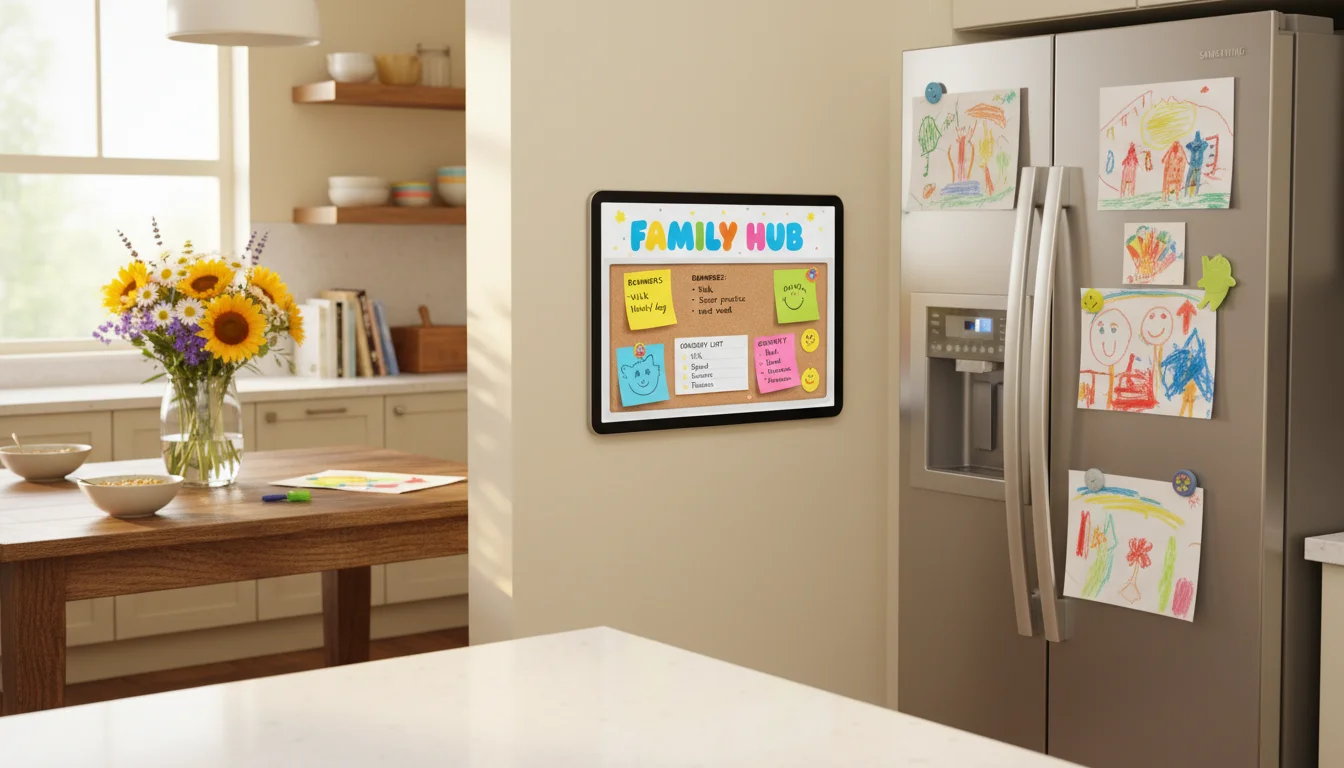
An old tablet mounted in the hallway or kitchen, always on, showing today’s notes and reminders? That actually gets seen. It’s in the line of sight. It’s glowing. It’s hard to miss.
What You Need
- An old iPad or Android tablet (iOS 12+ or Android 8+)
- A stand or wall mount
- A charging cable (this stays plugged in)
- A shared app that everyone in the family can post to from their phones
That last part is the key. The tablet is the display. Your family’s phones are the input. People post notes from wherever they are, and the tablet shows them in the kitchen. No gathering around the fridge to write things down.
The Best Apps for a Family Message Board
Google Keep (Free, Cross-Platform)
 Google Keep is the easiest option if your family uses a mix of iPhones and Android devices. Everyone installs Google Keep on their phone, you share a note or label, and anything posted shows up on all devices.
One catch for old iPads and older Android tablets: The Google Keep app now requires iOS 18+ (so it won’t install on any old iPad) or Android 10+ (so Android 8-9 tablets are out too). The workaround is the same on both: open  keep.google.com in Safari or Chrome and add it to the home screen. You get the same shared notes, just through the browser. On Android 10+ tablets, the app installs directly.
How to set it up as a message board:
- Create a Google account for the family (or use an existing shared one)
- Sign into Google Keep on the old tablet (app on Android, Safari on old iPads)
- Create a pinned note called “Family Board” or similar
- Share it with every family member’s Google account
- Anyone can add, edit, or check off items from their phone
Why it works: Color-coded notes, checkboxes for tasks, and the ability to pin important notes to the top. Open Keep on the tablet and the most recent notes are right there.
The catch: Keep doesn’t have an always-on display mode. The tablet will lock after a while. You’ll need to disable auto-lock (Settings > Display > Screen timeout) or use a keep-screen-on app.
Cozi Family Organizer (Free, Cross-Platform)
Cozi is built for exactly this. It’s a family organizer with shared calendars, to-do lists, grocery lists, and a family journal. The tablet becomes the family’s central display.
The grocery list feature is the star. Anyone adds items from their phone. The list updates on the tablet in real time. When you’re at the store, check items off from your phone. No more “I forgot what we needed” calls.
Important for old iPad users: The Cozi app now requires iOS 17+, so it won’t install on most old iPads. You can use  cozi.com in Safari instead – the web version has the same grocery lists and calendar. On Android tablets (8+), the app works fine.
How to set it up:
- Create a Cozi account and invite family members
- Install Cozi on the old tablet (app on Android, cozi.com in Safari on old iPads)
- Open the app or site, log in, and leave it on the grocery list or to-do list view
- Family members add items from their phones throughout the day
Cozi is free. The Gold plan ($39/year) removes ads and adds a birthday tracker, which honestly isn’t necessary for the message board use case. If you want to take the grocery list further and build a full family meal planning system around it, the meal planning guide covers that whole workflow.
Microsoft To Do (Free, Cross-Platform)
If your family is in the Microsoft ecosystem (Outlook, Microsoft accounts), shared lists in Microsoft To Do work well. Create a shared list, invite family members, and leave the tablet open to that list.
It’s cleaner-looking than Google Keep for a single list view, but less flexible for mixed content (notes + lists + reminders). Best for families who primarily need a shared to-do or grocery list.
A Simple Whiteboard App (For Free-Form Notes)
Sometimes the best message board is a blank canvas. A whiteboard app lets anyone pick up the tablet and scribble a note, draw a picture, or write “SOCCER PRACTICE MOVED TO 4 PM” in big letters.
Whiteboard apps that work on old tablets:
- Microsoft Whiteboard (free) – clean, simple, syncs to Microsoft accounts. Requires iOS 17+ on iPad, so old iPads are out. Works on Android.
- Noteshelf 3 (free with limits, $29.99/year for premium) – prettier, supports handwriting and typed text. Available on iPad (iPadOS 17+) and Android.
Mark pointed out that the whiteboard options for old iPads have basically dried up. Google Jamboard shut down in December 2024, and both Microsoft Whiteboard and Noteshelf now need iOS 17+. If your old iPad is stuck on iOS 12-15, your best bet is the built-in Notes app with a shared iCloud folder, or just use Google Keep’s drawing feature through Safari.
Old Android tablets have it easier here – both Microsoft Whiteboard and Noteshelf install fine on Android.
The downside of whiteboard apps in general is that you can’t add to them from your phone easily. They’re better for “walk up to the tablet and write something” use cases than for remote note-adding.
Setting Up the Display
Placement
Put it where people can’t avoid seeing it. The three best spots:
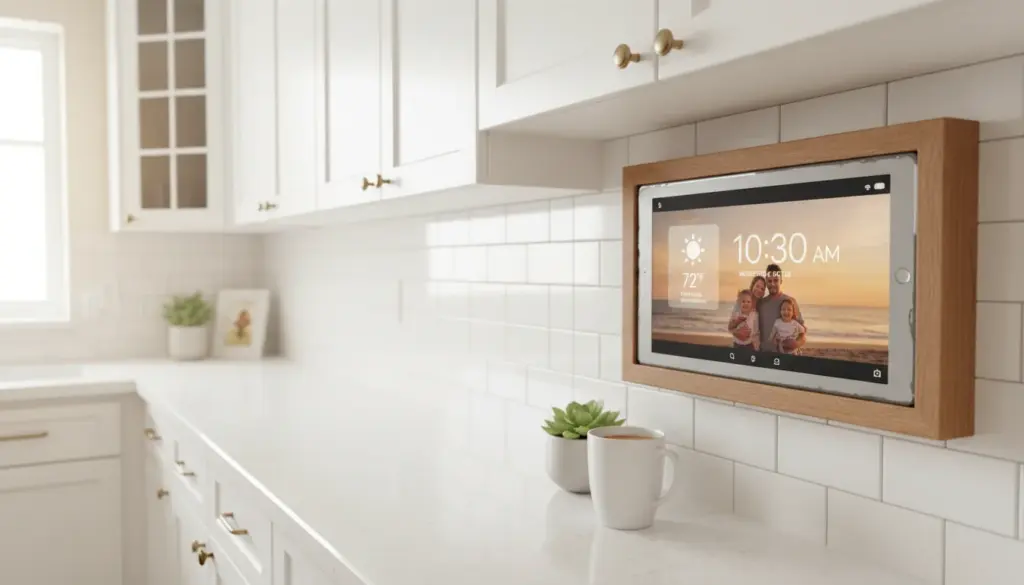
Kitchen counter or wall. Near the coffee maker or stove. First thing seen during breakfast, last thing checked before bed. If you’re mounting on the wall, our mounts and stands guide has options that keep the tablet flush and accessible.
Hallway near the front door. Visible on the way in and out. Good for “don’t forget” reminders and grocery lists you check before heading to the store.
Family room or living room entry. The spot everyone passes through. Less targeted than the kitchen but higher foot traffic.
Keep the Screen On
A message board that goes to sleep is a message board nobody checks.
On iPad: Settings > Display & Brightness > Auto-Lock > Never. If the screen burn-in worries you, use a screensaver app that activates after 10 minutes of no touch, but wakes instantly on tap.
On Android: Settings > Display > Screen timeout > set to the longest available (usually 30 minutes). For truly always-on, install an app like “Keep Screen On” from the Play Store, or use  Fully Kiosk Browser‘s always-on mode.
Dim It at Night
An always-on screen at 3 AM in the kitchen is annoying. Set a brightness schedule.
On iPad: Use the Shortcuts app to create automations that lower brightness at 9 PM and raise it at 6 AM. Or just turn on Night Shift and let it go warm and dim automatically.
On Android: Fully Kiosk Browser has a built-in scheduling feature. Or use the  Tasker app ($4.49) for automated brightness changes on a schedule.
Making It Actually Work (the Human Part)
The technology is the easy part. The hard part is getting your family to use it. Some honest advice:
Start with one thing. Don’t launch with a shared calendar AND a grocery list AND a to-do list AND a notes board. Pick the grocery list. Get everyone adding to it for two weeks. Then add another feature.
Make it the default. When someone says “we need milk,” point at the tablet. When someone asks “what time is the game,” point at the tablet. After a few weeks of redirecting, people start going to it first.
Let kids use it. A 7-year-old who can add “more goldfish crackers” to the grocery list from her own tablet feels included. An 11-year-old who can check off “clean room” from the to-do list feels responsible. The message board works better when the whole family owns it, not just the parent who set it up.
Don’t police it. If your kid draws a smiley face on the whiteboard app between grocery items, leave it. If your partner adds “buy me chocolate” to the grocery list, buy the chocolate. The message board should feel friendly, not formal.
The Combined Setup (Calendar + Notes)
If you want the tablet to do double duty as both a family calendar display and a message board, here’s the easiest approach:
Use Cozi. It has a calendar view AND a grocery list AND a to-do list, all in one app. Swipe between views on the tablet, and it covers both use cases without juggling multiple apps.
Or if you’re using the tablet as a smart display with  DAKboard, the Plus plan ($10/month, or $8/month yearly) lets you add a to-do list widget alongside the calendar and weather. One screen, everything visible.
Worth the Setup?
A digital message board sounds like a small thing. And it is. But it replaces the daily friction of “did you see my text?” and “I told you about that” and “the note was right there on the counter.” It puts information where people actually look. And if you’re looking for more ways to put that old tablet to work, we’ve got a full list of ideas.
One tablet. One app. Always on. And the next time someone says “we’re out of eggs,” they can add it themselves.