Your Old Tablet Isn’t Useless. The App Store Just Makes It Feel That Way.
The most frustrating thing about an old iPad or Android tablet isn’t the hardware. It’s opening the App Store and seeing “This app requires iOS 16” on half the things you try to install. Or watching the Google Play Store silently refuse to show you apps your tablet can’t run.
The tablet still works. The screen still works. The speakers still work. You just need to know which apps haven’t abandoned older devices yet.
A reality check for old iPads: Mark sat down recently and checked every major app in this list against current App Store requirements. The results were rough.  YouTube, Spotify, Kindle, Plex, Google Photos, OneNote – they’ve all jumped to iOS 16 or higher. If your iPad is stuck on iOS 12 through 15, most of the big-name apps simply won’t install anymore. Android tablets are in much better shape – most apps still support Android 5 or 8.
I’ve updated every listing below with current requirements and noted web workarounds where they exist. The “When an App Won’t Install” section at the bottom has become the most important part of this article.
This list is current as of early 2026. I’ll note the minimum OS version for each app where it matters. If something gets dropped after this was published, check our full app compatibility guide for updates.
Video and Entertainment
The good news: your old tablet can still handle video and music just fine. The bad news: most of the big-name apps have moved on from older iOS.
YouTube is the one everybody asks about first. The app needs iOS 16 now, which rules out a lot of old iPads. But youtube.com in Safari actually works well on older hardware, and on some devices it runs smoother than the app ever did. Android tablets are fine – the app still supports Android 8 and up.
If you’ve got movies or shows saved as files (vacation videos, downloaded shows, anything ripped from a DVD), VLC plays basically every format without conversion. Free, works on iOS 12+, Android 4.2+. One of the few major apps that still runs on truly ancient tablets.
For background music while cooking or cleaning, Spotify‘s free tier (ads, limited skipping) does the job. It needs iOS 16.1+ though, so old iPad users are stuck with the web player at open.spotify.com through Safari. Not as smooth, but it plays music.
Plex is worth mentioning if you already have a Plex server at home. The free app streams your library to old tablets, and you don’t need the paid Plex Pass ($6.99/month) for basic streaming. The web player at app.plex.tv works through Safari on older iPads.
For podcasts: Apple Podcasts comes built into every iPad and works on iOS 12+. On Android, Google Podcasts has been discontinued, but Pocket Casts (free tier, Android 7+) picked up the slack nicely.
Reading
Old tablets are genuinely great e-readers. The screen is bigger than a phone, the battery lasts long enough for a reading session, and you probably aren’t using the thing for anything else at bedtime anyway.
Kindle (free, iOS 16+, Android 10+) has your Amazon book library, plus free samples and public domain titles even if you’ve never bought a Kindle book. On older iPads, the current app won’t install, but try this: go to the App Store > your profile > Purchased and look for it there. Sometimes it offers to download “the last compatible version.” Failing that, read.amazon.com in Safari works.
Libby is the one I recommend most. Free ebooks and audiobooks from your local library – all you need is a library card (most libraries let you sign up online in five minutes). The real win: Libby still supports iOS 10, which makes it one of the few quality apps that works on even the oldest iPads.
Apple Books is already on your iPad – no install needed, thousands of public domain titles. On Android,  Google Play Books (Android 7+) does the same thing, and you can upload your own EPUBs too.
Productivity and Notes
This category is where the “use the web version” advice really starts earning its keep. Most of the big note-taking apps have pushed their iOS requirements way up.
Google Keep needs iOS 17 now, which puts it out of reach for old iPads. But Keep is a simple enough app that the web version at keep.google.com works perfectly fine in Safari. Quick notes, checklists, voice memos – it all syncs across every device. We use it as a visual morning routine checklist on the kitchen counter and the kids actually follow it.
Microsoft OneNote has jumped all the way to iOS 18, so it’s Android-only for old tablets at this point. If you want structured note-taking with notebooks, sections, and pages, use onenote.com in Safari on iPad. The free version is fully functional either way.
Don’t overlook Apple Notes, though. It’s already on your iPad, works on every iOS version, and syncs through  iCloud. People underestimate it, but it handles checklists, tables, drawings, and shared notes. For a quick grocery list on the kitchen counter, it’s honestly all you need.
Google Docs and Sheets (iOS 17+, Android 8+) round things out for document editing. Older iOS versions can use docs.google.com and sheets.google.com through Safari. Not as smooth as the apps, but they work.
Weather
Here’s one that catches people off guard: Apple didn’t add a built-in Weather app to iPad until iPadOS 16. So if your iPad is on iOS 12 through 15, there’s nothing there by default. Use  Windy.com or weather.gov in Safari, or grab one of these. For more options, see our weather apps roundup.
Weather Underground (free, iOS 14+, Android varies) gives you hyper-local forecasts pulled from personal weather stations in your neighborhood. Way more granular than the default weather sources.
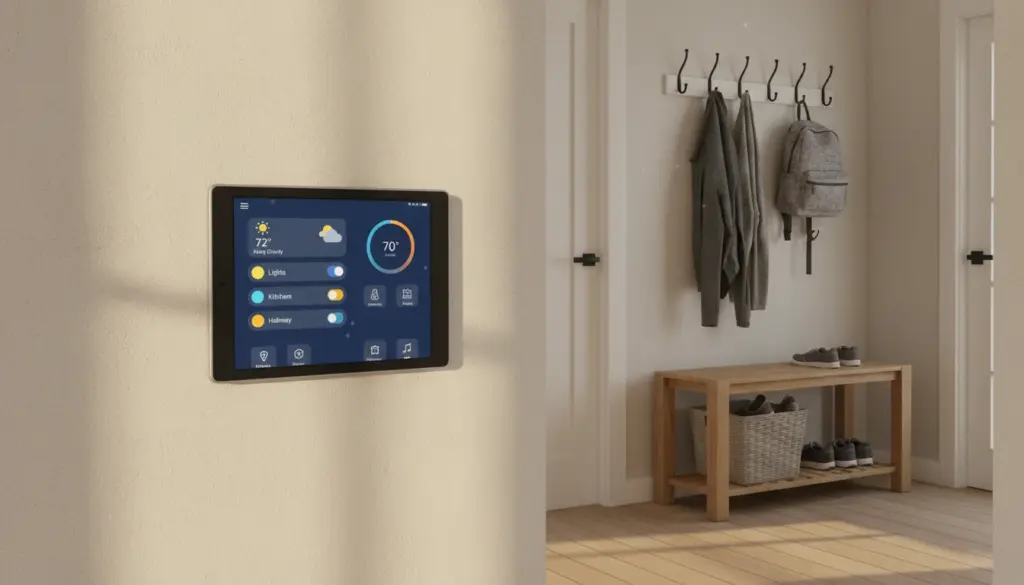
Windy (free, iOS 16.6+, Android 12+) is the one I’d pick for a wall-mounted weather display. The maps and radar visualizations actually look impressive on a bigger screen, which is not something you can say about most weather apps. Older Android tablets that can’t run the current app should just point Chrome at windy.com – the web version is honestly close to the app experience.
Photos and Camera
Google Photos (free, iOS 18+, Android 8+) is the real workhorse here. 15 GB of free storage, automatic backup, and solid search. The “shared albums” feature is what makes it work so well for family photo frames and grandparent setups. The app needs iOS 18 now, so old iPad users should bookmark photos.google.com in Safari instead. It works well enough for browsing and sharing.
For photo editing, Snapseed (free, iOS 17+, Android 12L+) punches well above its price tag. Exposure, color, detail adjustments – it handles all of it better than a lot of paid alternatives. Needs iOS 17 and Android 12L, so it won’t run on most old tablets at this point. For basic edits, the built-in Photos app on iPad or Google Photos on Android can handle cropping and filters.
Kids and Education
If you install one kids’ app on an old tablet, make it Khan Academy Kids. Educational games and activities for ages 2-8, completely free – no ads, no in-app purchases, no subscription. And it still supports iOS 12, which makes it one of the very few quality apps that works on even the oldest iPads. My kids actually ask to use it, which says something.
PBS Kids Games (free, iOS 15.6+, Android 5+) is another safe bet for younger kids. Daniel Tiger, Curious George, the familiar PBS characters. Free, no ads, no purchases.
Duolingo (free tier, iOS 17+, Android 10+) works for kids and adults alike – the gamification keeps kids engaged, and it’s genuinely useful for picking up a language during coffee breaks. It needs iOS 17 now, though, so it’s off the table for old iPads.
YouTube Kids (free, iOS 16+, Android 5+) is a filtered version of regular YouTube. Not perfect, but significantly better than handing a child unrestricted YouTube access. If your iPad is too old for the app (iOS 16+), you can set up youtube.com with restricted mode in Safari as a partial substitute. Our kid-proofing guide walks through how to do that safely.
Communication
Video calling is one of the best uses for an old tablet. The screen is big enough that you can prop it up on the kitchen counter and actually see the person you’re talking to.
FaceTime is already on every iPad and works on every iOS version. Set up favorites so your kids (or grandparents) can call with one tap.
For cross-platform calls, Google Meet (free, iOS 18+, Android 5+) and Zoom (free tier, iOS 15+, Android 9+) both work. Zoom’s free tier has a 40-minute limit on group calls, but one-on-one calls are unlimited. Older iPads can use meet.google.com in Safari for Meet.
WhatsApp (free, iOS 15.1+, Android 5+) is the one to grab if your family is international or if iMessage isn’t an option. Messaging and video calls, all in one app.
Utilities
Google Maps (free, iOS 16+, Android 8+) is useful on a tablet for planning trips or looking up nearby restaurants. Not a daily-use app for most people, but nice to have. On old iPads, maps.google.com in Safari covers the basics.
Cozi Family Organizer (free, iOS 17+, Android 6+) does shared family calendars, grocery lists, and to-do lists. It works really well as a family message board app on a wall-mounted tablet. Needs iOS 17, so old iPad users should try the web version at cozi.com.
And don’t forget the built-in Clock app. Timers, alarms, world clock – it’s solid for a bedside alarm clock setup, and it’s already on your tablet.
When an App Won’t Install: Three Workarounds
1. Download a Previous Compatible Version
On iPad: when the App Store says “this app requires a newer version,” check if it offers to download “the last compatible version.” This happens automatically for apps you’ve previously downloaded. Go to the App Store > your profile > Purchased and try downloading from there.
2. Use the Web Version
This has become the most important workaround for old iPads. Many apps have web versions that work in Safari or Chrome:
- YouTube → youtube.com (honestly works fine on most old tablets)
- Spotify → open.spotify.com
- Google Keep, Docs, Sheets, Photos → use their .google.com URLs
- Google Meet → meet.google.com
- Kindle → read.amazon.com
- Plex → app.plex.tv
- Microsoft OneNote → onenote.com
3. Sideload an Older Version (Android Only)
On Android tablets, you can download older APK files from sites like APKMirror and install them manually. This works well for apps that recently dropped support for your Android version. Enable “Install from unknown sources” in Settings > Security first.
A caution: Only download APKs from trusted sources like APKMirror. Random APK sites can distribute modified apps with malware.
Where to Start
If the length of this list is making your eyes glaze over, here’s what I’d actually do.
Android tablets have it easy. Install YouTube, a weather app, Google Photos, Google Meet, and Google Keep. Five apps, five minutes, and the tablet is useful again. Set it on a  $10 bamboo stand on the counter and it doubles as a hands-free kitchen display.
Old iPads (iOS 12-15) take more work because so many apps have dropped support. Start with what still installs: VLC, Libby, Khan Academy Kids, and FaceTime. Apple Notes is already there. Then open Safari and bookmark youtube.com, open.spotify.com, and photos.google.com. Between the built-in apps and those browser bookmarks, you’ve got a tablet that covers music, video, reading, photos, and video calls. Not bad for something that was sitting in a drawer.
If your iPad is stuck on iOS 10 or below, this list shrinks to almost nothing. At that point, a refurbished Fire HD 8 in the $30-50 range gives you years more of working apps – Android 8+ means the apps above mostly just install, no workarounds needed.
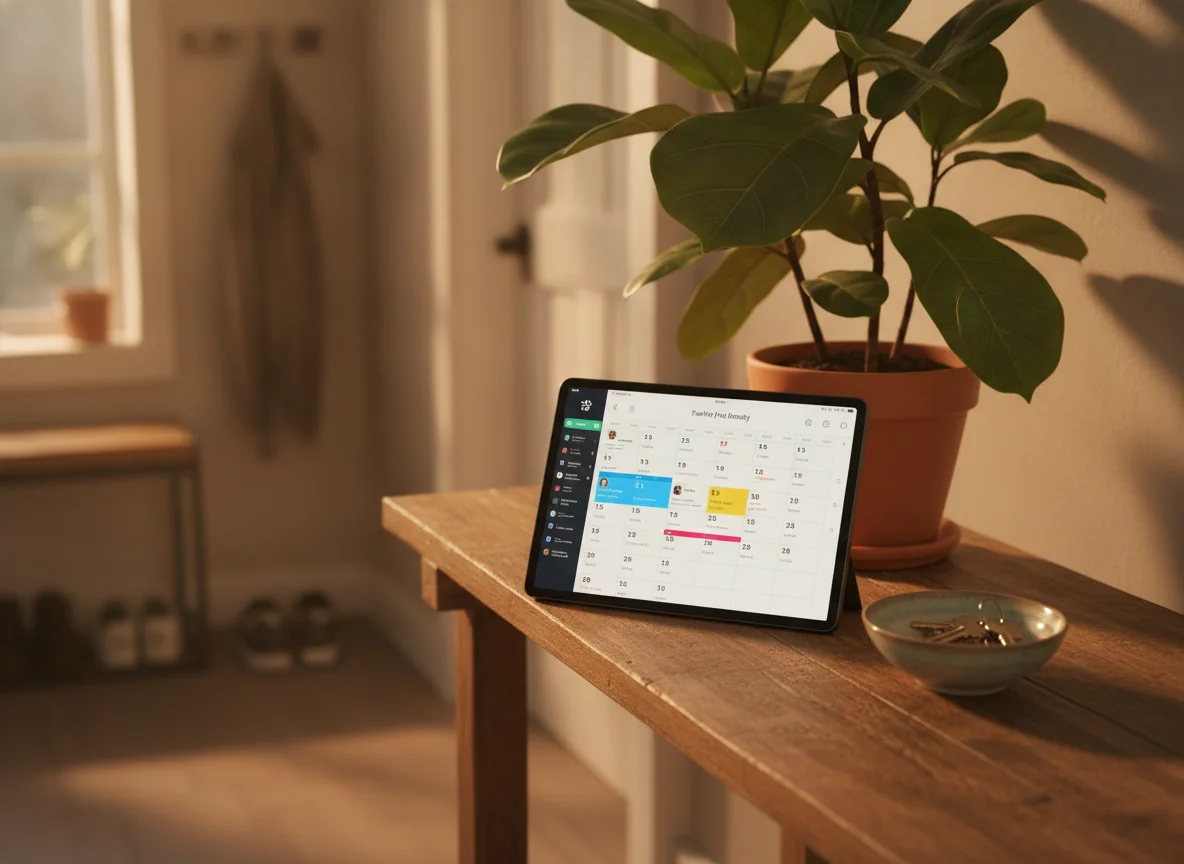
If the old iPad is genuinely too far behind to run anything useful, this is the cheapest entry point back into a functional tablet. Android, so the app compatibility picture is much better than old iOS.
Check price on Amazon →Once you’ve got the apps sorted, the next question is what to actually do with the tablet. Our old iPad ideas hub walks through the projects that work best on older hardware – from kitchen displays to bedside clocks to security cameras.