Skip the Kindle. You Already Own a Reader.
Your old Android tablet has a bigger screen than a Kindle Paperwhite. It reads every ebook format – ePub, PDF, MOBI, whatever you throw at it. It connects to your public library for free books. And it’s sitting in a drawer doing nothing.
A Kindle has one real advantage: the e-ink screen is easier on your eyes in direct sunlight. If you read at the beach every day, buy a Kindle. For everywhere else – the couch, bed, the kids’ carpool line, the back porch after dinner – an old Android tablet does the job and then some.
And Android has a couple of things going for it that iPads don’t: a microSD card slot on most tablets (hundreds of books offline without filling up storage), and native ePub support without being locked into Amazon’s ecosystem.
Quick Setup
- Install a reading app (see below for picks)
- Set screen timeout to 5 minutes: Settings > Display > Screen timeout
- Turn on the blue light filter: Settings > Display > Eye Comfort Shield (Samsung) or Night Light (stock Android)
- Lower brightness to 30-40% for indoor reading
- Turn off notifications for everything except messages
Done. Download a book and start reading.
The Best Reading Apps
Android has better ebook app options than you might expect. Here’s what actually works on older tablets:
 ReadEra (Free)
This is the one I’d install first. No account required, no ads in the free version, and it reads everything: ePub, PDF, MOBI, DJVU, FB2, DOC, and more. The interface is clean, it remembers your place across books, and it runs well on older hardware.
ReadEra also handles PDFs better than most readers – it reflows text so you’re not constantly pinching and zooming on a small screen. That matters for textbooks or recipe PDFs.
Kindle App (Free)
Even without a Kindle device, Amazon’s app gives you their entire ebook store. Purchases sync across devices – start on the tablet, pick up on your phone. The reading experience is polished: adjustable fonts, warm background colors, X-Ray for character references in novels, and Whispersync for audiobook switching.
Works on Android 9.0 and newer. If you already buy Kindle books, just install it.
If you’re a heavy reader:  Kindle Unlimited is free for the first 30 days, then $11.99/month for unlimited access to about 4 million titles plus magazines and a rotating set of audiobooks. The trial is a fair way to see whether the catalog covers what you actually want to read. For lighter reading, Libby (below) is free forever through your library.
Google Play Books (Free)
Probably already installed on your tablet. Syncs with your Google account, competitive pricing with Amazon, and it handles uploaded ePubs and PDFs alongside purchased books. The night mode is solid.
Moon+ Reader (Free / $11.99 Pro)
The power user’s choice. Custom fonts, page turn animations, reading statistics, OPDS catalog support (for downloading from free ebook libraries), and deep customization for margins, line spacing, and colors. The free version has ads; Pro removes them and adds PDF support.
If you want the reading experience tuned exactly the way you like it, Moon+ Reader is worth the $12.
Lithium (Free)
A lightweight ePub reader with a clean Material Design interface. It auto-detects ebooks on your device and organizes them on a digital shelf. No ads, no bloat. Good for someone who just wants to read without fiddling with settings. ePub only though – if you need PDF or MOBI support, go with ReadEra.
FBReader (Free)
Been around since 2005 and still going. Lightweight, runs on Android 5.0+, and supports OPDS catalogs for browsing free ebook libraries directly in the app. If your tablet is really old and struggling, FBReader is the lightest option that still works well.
Quick Compatibility
| App | Min Android | Formats | Offline? | Cost |
|---|---|---|---|---|
| ReadEra | 4.1 | ePub, PDF, MOBI, FB2, DJVU, DOC | Yes | Free |
| Kindle | 9.0 | Kindle formats (AZW, MOBI) | Yes | Free |
| Google Play Books | 7.0 | ePub, PDF | Yes | Free |
| Moon+ Reader | 5.0 | ePub, PDF (Pro), MOBI, FB2 | Yes | Free / $11.99 |
| Lithium | 4.1 | ePub only | Yes | Free |
| FBReader | 5.0 | ePub, FB2, MOBI, HTML | Yes | Free |
If your tablet can’t install any of these, our app troubleshooting guide covers the common fixes.
Free Books From Your Library
This is the part most people don’t know about.
Libby connects to your local public library and lets you borrow ebooks and audiobooks for free. Not “free trial” free. Actually free, because it’s your tax-funded library.
- Install Libby (requires Android 7.1+)
- Find your local library
- Sign in with your library card number
- Browse and borrow – books download directly to the app
- They auto-return after the lending period (usually 21 days)
The selection is broader than you’d expect. Bestsellers, popular series, classics, kids’ books. If a book has a hold queue, you can place a hold and Libby notifies you when it’s available.
Don’t have a library card? Most US libraries let you sign up online for free. Takes about 5 minutes. Your old tablet just became the gateway to thousands of free books.
If Libby won’t install (Android 7.0 or older), borrow books through your library’s website and read them in ReadEra or another ePub reader. The older OverDrive app was discontinued in January 2025, so Libby is the only option now.
The MicroSD Advantage
Most old Android tablets have a microSD card slot. iPads don’t. Kindles don’t.
A 32 GB microSD card costs about $8 and holds roughly 10,000-15,000 ebooks. That’s a lifetime of reading, stored offline, no cloud sync needed. Buy the card, load your books, and you have a library that works without Wi-Fi.
This is especially useful if you have a collection of ePubs, PDFs, or DRM-free books from Humble Bundle, Project Gutenberg, or Standard Ebooks. Copy them to the SD card, open ReadEra or FBReader, and they show up automatically.
Tip: Organize books into folders on the card (Fiction, Non-Fiction, Kids, Reference). Most reader apps will let you browse by folder.
Making It Comfortable
Eye Strain
The biggest objection to reading on a tablet instead of e-ink. Fair point – but manageable.
- Blue light filter: Every Android tablet made after 2017 has one. Samsung calls it Eye Comfort Shield, stock Android calls it Night Light. Schedule it to turn on in the evening, or leave it on all the time for reading.
- Dark mode in your reader app: White text on a dark background cuts the total light hitting your eyes dramatically. ReadEra, Kindle, and Moon+ Reader all have dark/sepia modes.
- Lower the brightness. You don’t need full brightness indoors. Drop it to 30-40%.
- Matte screen protector ($8-12): Reduces glare and makes the screen feel slightly more paper-like under your finger. It won’t turn your tablet into a Kindle, but it does reduce that glossy-screen fatigue.
I read on a tablet for an hour most evenings with dark mode and low brightness. It’s fine. If you’re reading for 4+ hours straight, yes, e-ink is genuinely more comfortable. But for normal reading sessions, the settings above make a real difference.
Font and Layout
Every reading app lets you adjust:
- Font size – go bigger than you think you need
- Font family – serif (like Georgia) is traditional for long reading, but use whatever feels right
- Line spacing – a little extra space between lines reduces the “wall of text” feeling
- Margins – wider margins mean fewer words per line, which some people find easier
Moon+ Reader gives you the most control here. ReadEra is good too. The Kindle app has fewer options but the defaults are well-chosen.
Get a Case
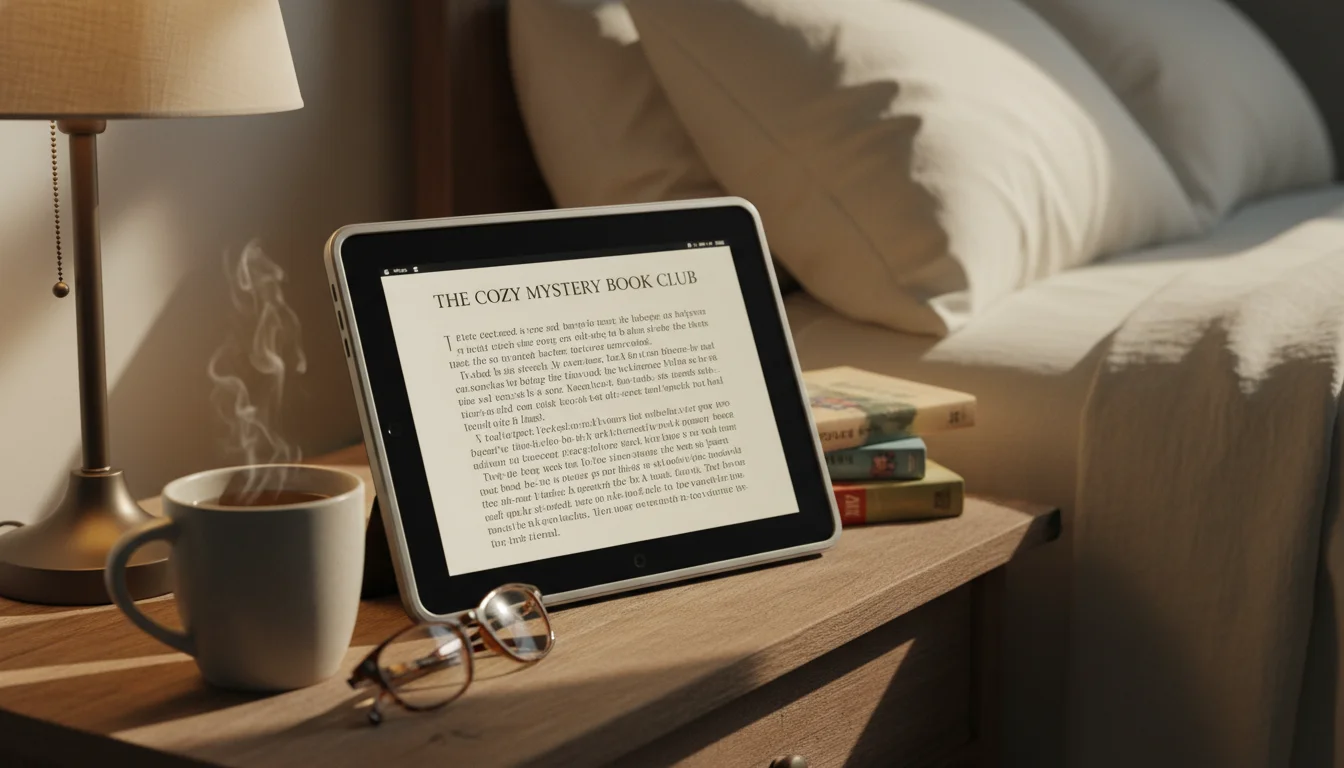
A case with a stand makes a real difference. Holding a tablet for an hour gets tiring. Prop it on a stand at a slight angle on your nightstand or coffee table. Your hands are free, and you’re reading at a comfortable distance.
A thin, lightweight case works better than heavy rugged ones if you’re holding it. Save the armor for the kids’ tablet.
Comics and Graphic Novels
This is where an old Android tablet genuinely beats a Kindle. Full color screen, 8-10 inches of display, and you can pinch to zoom on panels.
 Mihon (free, open source) is the go-to manga reader for Android. It’s the successor to Tachiyomi (which stopped development in 2024) and connects to multiple manga sources with offline reading support.
Perfect Viewer handles CBZ/CBR comic files – the standard format for digital comics. If you have a collection of comic files, this is the app.
Kindle and Google Play Books both sell graphic novels and comics that look great on a tablet. The color screen and larger size make it a noticeably better experience than reading comics on a phone.
Old tablets with 10-inch screens are actually ideal for comic page layouts. The aspect ratio of most tablets closely matches a comic page.
Old Android Tablet vs Kindle: Honest Comparison
| Feature | Old Android Tablet | Kindle Paperwhite |
|---|---|---|
| Screen size | 7-10″ depending on model | 7″ |
| Screen type | LCD (backlit, color) | E-ink (reflective, B&W) |
| Reading in sunlight | Harder (screen glare) | Great (reads like paper) |
| Reading in the dark | Great (backlit) | Good (front-lit) |
| Battery life (reading) | 4-8 hours | Weeks |
| ePub support | Yes (native, any reader app) | No (Amazon formats only) |
| Library access (Libby) | Yes | Yes (send-to-Kindle) |
| Comics/color content | Yes | No (grayscale) |
| Storage expansion | MicroSD on most models | No |
| Audiobooks | Built-in speaker + Bluetooth | Bluetooth only |
| Weight | 300-500g | 211g |
| Cost | $0 (already own it) | $160-200 |
| App ecosystem | Kindle + ReadEra + Libby + dozens more | Kindle store only |
If you read text novels for hours daily and want the lightest, longest-lasting device, a Kindle is better. For everything else – library lending, comics, PDFs, audiobooks, format flexibility, and the fact that you already own the tablet – the Android tablet wins on versatility and price (free).
And if you have an old Kindle Fire in a drawer too, that’s one of its best second lives – the Kindle app comes preinstalled and your entire library is already there.
Quick Checklist
- Install ReadEra (for ePub/PDF) and/or the Kindle app (for Amazon books)
- Install Libby and sign in with your library card
- Turn on blue light filter and dark mode
- Adjust font size – bigger than you think
- Get a case with a stand (or a thin case for hand-holding)
- Insert a microSD card if you have a large book collection
- Download a few books for offline reading
- Read
Your old Android tablet just replaced a $160 Kindle and gave you free library access, comic book reading, and format freedom. Not bad for something that was collecting dust.
For more ideas, check our Android tablet ideas guide. And if you also have an old iPad, we have a separate ebook reader guide for iPads too.