The Problem Nobody Warns You About
You decided to turn your old tablet into a weather station. Great idea. You pull it out of the drawer, get it charged up, open the App Store or Play Store, search “weather,” and… half the results won’t install. The other half want iOS 16 or Android 12 minimum.
The app ecosystem has moved on from your tablet. But the good news: enough weather apps still support older devices that you have real options. I went through the major ones and checked which actually install and run on the tablets most of us have sitting around – iPads on iOS 12 through 15, and Android tablets on version 8 through 11.
Here’s what works.
For Old iPads (iOS 12-15)
One thing to know upfront: Apple didn’t add a built-in Weather app to iPad until iPadOS 16. If your iPad is stuck on iOS 12, 13, 14, or 15, there is no native weather app. You need a third-party one.
Weather Channel – No Longer Works on Old iPads
The  Weather Channel app used to support iOS 12, which made it a top pick for old iPads. Mark went to verify this recently and found they’ve bumped the minimum to iOS 18.0. If your iPad is on iOS 12 through 15, it won’t install anymore.
The Android version still works (requires Android 9 now – see below). But for old iPads, skip this one and use NextWeather, WhatWeather, or the browser trick instead.
NextWeather (iOS 12+)
NextWeather is a smaller app that has stuck with older iOS support. It’s clean, shows current conditions plus a multi-day forecast, and doesn’t bombard you with news articles.
It’s not the prettiest app. The interface looks a bit dated. But if your iPad is on iOS 12 and you just want weather information without the circus, it does the job.
WhatWeather (iOS 13+)
If your iPad is on iOS 13 or newer, WhatWeather is worth a look. It’s specifically designed as a weather station display – always-on, auto-refreshing, with a layout that’s meant to be read from across a room.
That “across the room” part matters. Most weather apps are designed to be held in your hand. WhatWeather actually considers that your tablet might be on a wall or propped on a shelf.
AccuWeather – Also Gone from Old iPads
AccuWeather used to need iOS 14, but they’ve bumped the minimum to iOS 17.0. If your iPad is on iOS 12 through 15, this one’s off the table too.
The MinuteCast feature (hyperlocal precipitation for the next two hours) is still great if you have a newer device. For old iPads, Windy.com in the browser gives you solid radar without needing to install anything.
If Your iPad Is on iOS 12: The Browser Trick
Can’t install anything? Open Safari and go to  weather.gov or
  Windy.com. Bookmark it, add it to the home screen, and you have a weather app that works on literally any tablet with a web browser.
Windy.com in particular looks great on a tablet screen. Full radar maps, wind patterns, precipitation forecasts. It pulls data from multiple weather models and the interface scales well to larger displays. No install required.
For Old Android Tablets (Android 8-11)
Android tablets generally have better luck with weather apps. The Play Store’s backward compatibility is more forgiving, and several excellent weather apps still target Android 5 or higher. Got a Fire tablet? That’s a different situation since Fire OS uses Amazon’s Appstore instead of Google Play.
Weawow (Android 5+)
 Weawow is the one I’d install first. It’s free, genuinely ad-free (they fund it through photographer credits instead of ads), and pulls from multiple weather data sources. The interface is customizable – you pick which data points to show, how they’re arranged, and what size.
For an always-on display, Weawow is strong. Clean layout, no pop-ups, no news articles hijacking your screen. It has a 4.9-star rating with over 690,000 reviews, which is almost unheard of for a free app.
YoWindow (Android 5+)
YoWindow takes a different approach. Instead of showing numbers, it shows an animated landscape that reflects the actual weather outside. Sunny? The landscape is bright. Raining? You see rain. The time of day matches too – sunrise, sunset, nighttime.
It sounds gimmicky, but on a wall-mounted tablet it’s actually lovely. You glance at it from across the room and instantly know the weather without reading a single number. Kids love it too – they can tell you what the weather is doing just from the animation.
The free version is solid. The paid upgrade ($10) adds more locations and removes the small banner ad.
Today Weather (Android 7+)
Today Weather is clean and information-dense. Current conditions, hourly breakdown, 7-day forecast, air quality, UV index. It lets you pick your data source (AccuWeather, Weather.com, and others) and the interface is modern without being heavy.
The free version shows a small banner ad. The premium ($5/year) removes it and adds a few extra features. Either way, it’s light enough to run smoothly on older hardware.
Weather Channel (Android 9+)
Same app, same ads, same decent data. The Android version now requires Android 9 or newer. It has a tablet-optimized layout that makes better use of the larger screen than most competitors.
Best for an Always-On Wall Display
If the whole point is mounting this tablet on a wall and having it show weather all day, here’s what actually works:
WhatWeather (iOS 13+) is purpose-built for this. Large fonts, auto-refresh, designed to be read from a distance.
Weawow (Android 5+) is the best Android option. Clean, ad-free, stays on the weather screen instead of drifting to other content.
Fully Kiosk Browser (Android only) is a different approach entirely. Instead of a weather app, you use Fully Kiosk to lock the tablet into a web page. Point it at Windy.com, weather.gov, or a custom weather dashboard, and it stays there. It prevents the screen from timing out, blocks navigation away from the page, and auto-refreshes on a schedule you set.
This is the setup I’d recommend for anyone who wants a true always-on weather display. Pick your favorite weather website, lock the tablet to it, and forget about it.
One thing to plan for: any tablet running 24/7 needs to be plugged in. Old batteries drain fast and degraded ones can swell over time. We have a full guide on tablet battery safety if you’re going the wall-mount route.
What About Widgets?
On Android, weather widgets work well on old tablets. Weawow and YoWindow both have large, attractive widgets you can put on the home screen instead of opening the full app. Set the tablet to never sleep (Settings > Display > Screen timeout > Never, or 30 minutes if you’re worried about burn-in), and the home screen becomes your weather display.
On iPad, widgets depend on your iOS version. iOS 14 added home screen widgets, but most weather apps (including Weather Channel and AccuWeather) now require iOS 17 or higher to install. iOS 12 and 13 only have Today View widgets, which require swiping right from the home screen. For old iPads, the browser trick (Windy.com or weather.gov bookmarked to the home screen) is more reliable than hunting for a compatible widget.
Quick Reference
| App | iOS Minimum | Android Minimum | Free | Best For |
|---|---|---|---|---|
| NextWeather | iOS 12 | – | Yes | Oldest iPads |
| WhatWeather | iOS 13 | – | Yes | Always-on display |
| Weawow | – | Android 5 | Yes (no ads) | Best Android option |
| YoWindow | – | Android 5 | Yes | Visual/glanceable |
| Today Weather | – | Android 7 | Yes (small ad) | Clean + customizable |
| Weather Channel | iOS 18 | Android 9 | Yes (ads) | Android only now |
| AccuWeather | iOS 17 | – | Yes (ads) | Won’t install on old iPads |
| Fully Kiosk + web | – | Android 5 | ~$8 one-time | True kiosk display |
| Browser (Windy/weather.gov) | Any | Any | Yes | Works on anything |
Start Simple
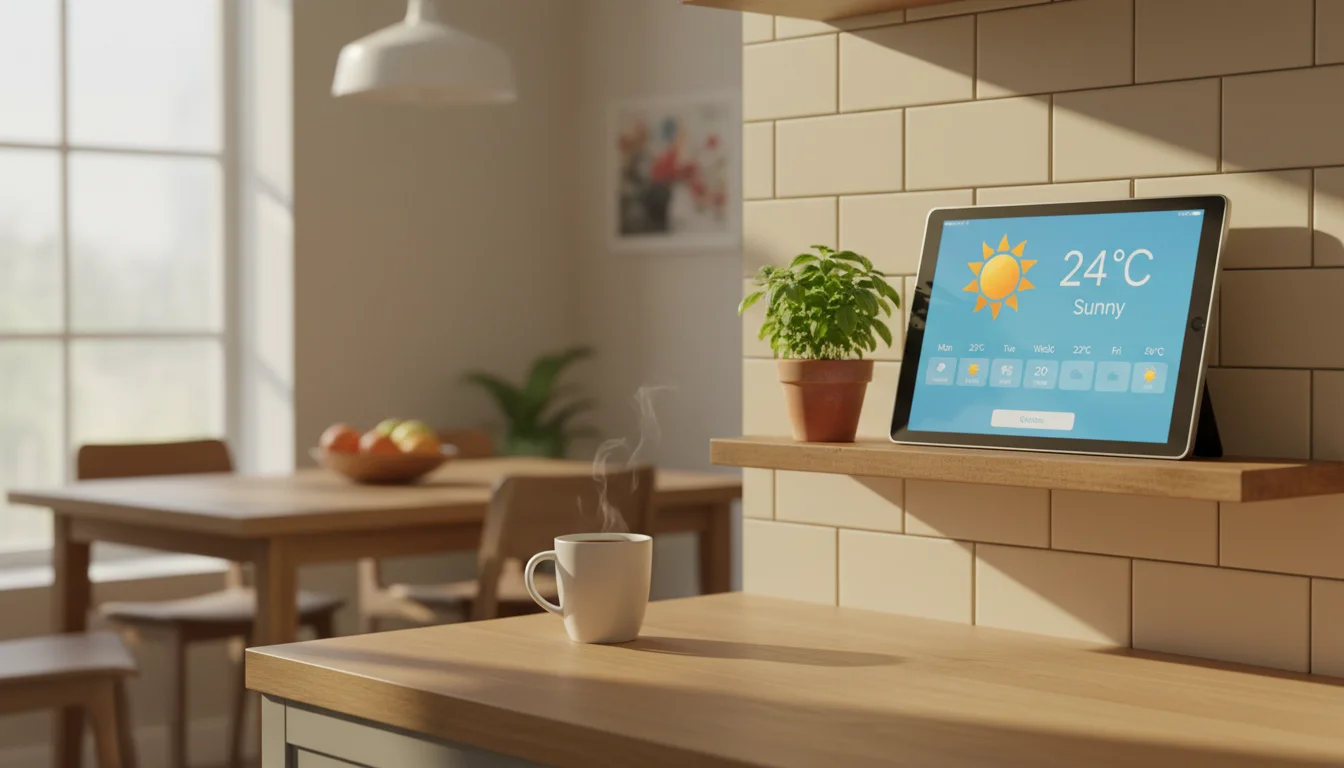
If you’re not sure where to begin: install Weawow (Android) or NextWeather (iPad), prop the tablet on your kitchen counter, and see if you actually look at it. Most people do. There’s something about having weather visible at a glance – no phone to pull out, no app to open – that makes it part of your routine fast.
Once you’re hooked, that’s when you start thinking about wall mounts and the always-on setup. But the app is the easy part. Pick one from this list, and you’re five minutes from a working weather station.
For the full setup walkthrough – including mounting, power, and keeping it running long-term – check out our complete weather station guide.