The App Makes or Breaks It
The difference between a photo frame that actually runs and one that crashes every few hours comes down to the app. You need something that plays a slideshow continuously, pulls from a cloud album, and doesn’t eat through memory on a device that doesn’t have much to spare.
I’ve tested a bunch. Some are clearly built for newer devices and just don’t hold up on an older iPad. Here’s what actually works.
The Quick Setup: No App Needed
If you just want a slideshow right now, your iPad already has one built in.
- Open Photos
- Go to Albums – pick the one you want (or "Favorites")
- Tap the first photo → tap … → Slideshow
- Set transition to "Dissolve" and speed to 5 seconds
Done. It works. The problem: it stops after cycling through the album once, and it won’t pull new photos from a shared album in real time.
For an always-on, auto-updating frame, you need an app.
iPad Apps
Google Photos (Free) – Best for Most People
If your family uses Google Photos – and most families do, even Apple households – this is the path of least resistance.
There’s no dedicated "frame mode," but you don’t need one. Open Google Photos, go to your shared album, start a slideshow (swipe up on any photo, then cast or slideshow depending on your version). Combine this with setting Auto-Lock to Never, and it just runs.
The real selling point is that new photos from shared albums appear automatically. My mother-in-law adds vacation photos, the grandkids’ school portraits show up from my sister, and the frame in the hallway just quietly updates itself. Nobody has to think about it.
The tradeoff: slideshow controls are bare-bones. No weather overlay, no clock, no motion detection. And on really old iPads (iPad Air 1), it can get sluggish after a few hours.
Smart Photo Widget + Photo Slideshow (Free)
A lightweight slideshow app that does exactly one thing well: rotate through photos from your camera roll or selected albums. It runs continuously without crashing on older iPads. That’s it. That’s the whole pitch.
The catch is it only pulls from local photos. So if you want cloud sync, your iCloud or Google Photos library needs to download to the device first. Not a dealbreaker, just something to set up once.
Fotoo (Free / $20 Premium) – Best Dedicated App
Fotoo was built specifically for this use case, and you can tell. It connects to Google Photos, Dropbox, OneDrive, or local storage, and turns your tablet into something that genuinely feels like a dedicated photo frame rather than a repurposed slideshow.
The free version gets you continuous slideshow, a clock and weather overlay, and a motion sensor – which is the feature that sold me on it. The screen dims when nobody’s around and wakes back up when you walk past. No schedule to configure, no remembering to turn it off at night. Premium ($20 one-time) removes the Fotoo logo and adds scheduling if you want finer control.
The settings screen is a bit overwhelming the first time you open it. Budget five minutes to get it dialed in, and then you won’t touch it again.
Note: Fotoo is primarily an Android app. On iPad, it may not be available or may have limited features. Check the App Store before planning around it.
DAKboard (Free / $6/month Premium)
DAKboard is the odd one out here because it’s not really a photo frame app. It’s a web-based dashboard that happens to show your photos alongside calendar events, weather, and custom widgets. You open it in Safari, set it to full-screen, and it runs as a web app.
For a kitchen tablet or a hallway display, that hybrid approach actually makes a lot of sense. You get the family photos cycling in the background with today’s schedule overlaid on top.
Two things to know: the free tier is fairly locked down on customization, and because it runs in Safari rather than as a native app, it’s hungrier on memory. On an iPad Air 1 or iPad mini 2, expect some lag. iPad Air 2 or newer handles it fine.
Android Apps
Fotoo (Free / $20 Premium)
Same app as above, but this is where it really belongs. On Android, Fotoo gets full cloud integration, motion detection, clock overlay, and it handles the always-on display behavior that Android supports natively. Everything just works the way it should.
If you’re setting up an Android tablet as a photo frame, install Fotoo, spend 5 minutes in the settings, and you’re done. It’s the best option on this platform by a wide margin.
Google Photos Ambient Mode
On some Android tablets, you can set Google Photos as the screen saver (Settings, then Display, then Screen saver, then Google Photos). It cycles through your selected albums whenever the tablet is docked or charging. No app to install, nothing to configure beyond that one setting.
The limitation: not all tablets support ambient mode, and the screen saver only kicks in when the device goes idle rather than starting immediately. So there’s always a delay before your photos appear. For a dedicated frame that’s always plugged in, that delay gets old fast.
The Settings That Matter
Whichever app you choose, change these settings on the tablet itself:
Auto-Lock / Screen Timeout → Never. This is the single most important setting. Without it, the screen turns off after a few minutes.
- iPad: Settings → Display & Brightness → Auto-Lock → Never
- Android: Settings → Display → Screen timeout → 30 minutes (or install a "Stay Alive" app for truly never)
Turn off all notifications. Nothing ruins a sunset photo like a spam email banner.
- iPad: Settings → Notifications → turn off for everything
- Android: Settings → Apps → Notifications → disable for all apps
Enable Night Shift / Blue Light Filter. Photos look better in warm tones, and the screen won’t blast you with blue light at 2 AM.
- iPad: Settings → Display & Brightness → Night Shift → Scheduled
- Android: Settings → Display → Night Light → Scheduled
Turn on Do Not Disturb on a schedule. Dim the screen at night even if you forget to set Night Shift.
What I’d Actually Do
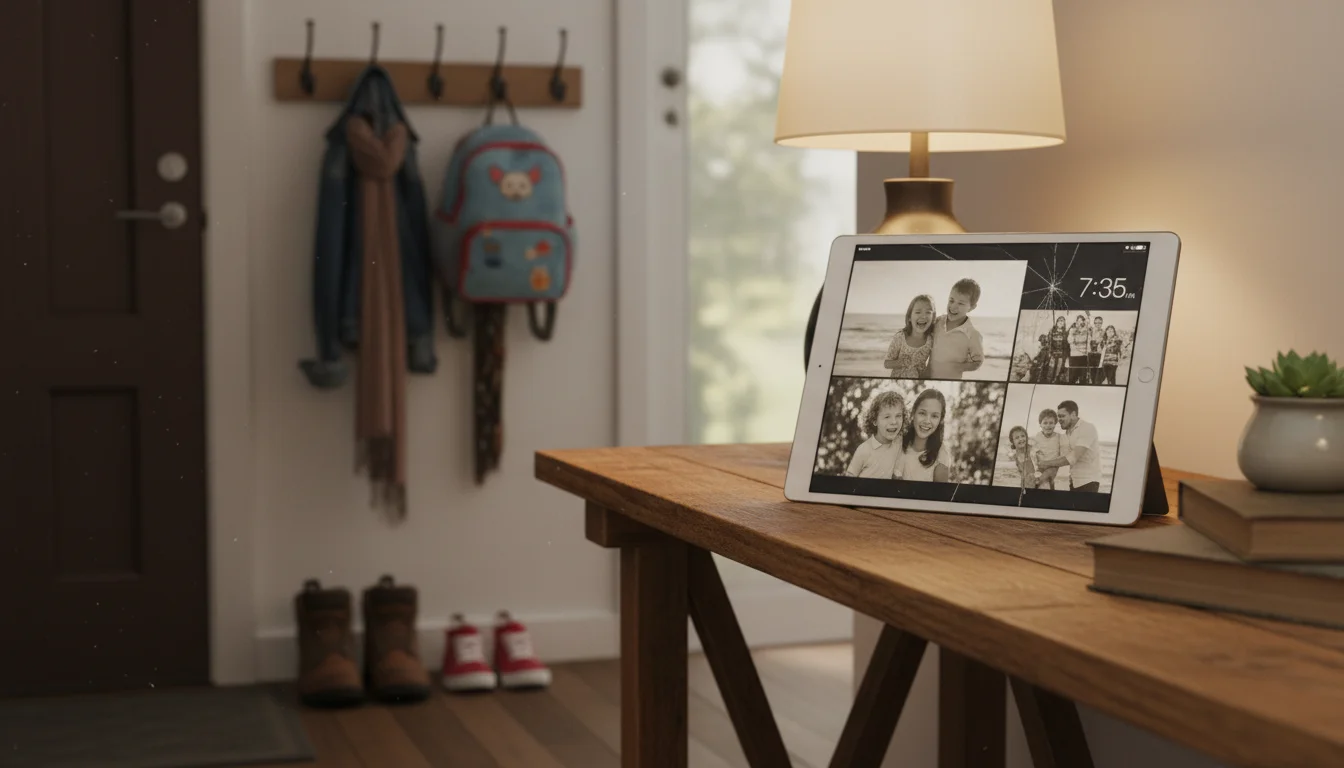
We have two photo frames running in our house right now. The hallway iPad uses Google Photos with a shared family album – it took about three minutes to set up, and it’s been running for months without me touching it. That’s the one I’d recommend to anyone who just wants photos cycling on a screen.
The kitchen Android tablet runs Fotoo, mostly because I wanted the motion detection. The kitchen is where you walk past it 30 times a day, and having the screen wake up as you approach feels more like a real frame and less like a forgotten device. If you’re on Android, it’s worth the setup time.
This is part of our digital photo frame guide. Start there for the full picture, from why your iPad beats a dedicated frame to getting shared albums working.