Your Old Tablet Isn’t Useless. The App Store Just Makes It Feel That Way.
The most frustrating thing about an old iPad or Android tablet isn’t the hardware. It’s opening the App Store and seeing “This app requires iOS 16” on half the things you try to install. Or watching the Google Play Store silently refuse to show you apps your tablet can’t run.
The tablet still works. The screen still works. The speakers still work. You just need to know which apps haven’t abandoned older devices yet.
This list is current as of early 2026. I’ll note the minimum OS version for each app where it matters. If something gets dropped after this was published, check our full app compatibility guide for updates.
Video and Entertainment
YouTube (free, iOS 12+, Android 5+) – Still works on almost everything. The interface might feel sluggish on very old tablets, but it plays video fine. One tip: go to Settings > General in the YouTube app and turn on “Limit mobile data usage” even on WiFi if the tablet struggles with high-resolution playback.
VLC (free, iOS 12+, Android 4.2+) – Plays almost any video file format without conversion. If you’ve got movies or shows saved as files, VLC handles them. It’s also one of the few apps that works on truly ancient tablets.
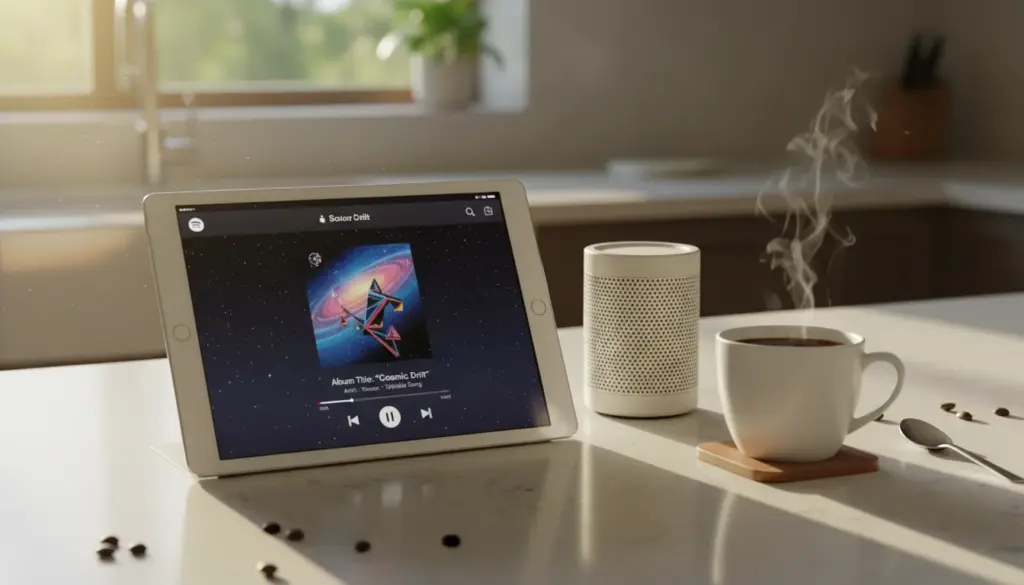
Spotify (free tier, iOS 14+, Android 8+) – The free tier has ads and limited skipping, but it works for background music. If your tablet is running iOS 12 or 13, Spotify has dropped support. Try the web player through Safari instead.
Plex (free, iOS 14+, Android 5+) – If you have a Plex server at home, the free Plex app streams your library to old tablets. The paid Plex Pass ($5/month) isn’t required for basic streaming.
Podcasts – Apple Podcasts (built into iPad, works on iOS 12+). On Android, Google Podcasts has been discontinued, but Pocket Casts (free tier, Android 8+) is excellent.
Reading
Kindle (free, iOS 14+, Android 8+) – Your Amazon book library, always available. Even if you never buy a Kindle book, the free samples and public domain titles are worth having. On older iOS versions where the current Kindle app won’t install, check if you have a previous version in your purchase history under “My Purchases” in the App Store.
Libby (free, iOS 14+, Android 5+) – Free ebooks and audiobooks from your local library. All you need is a library card. If you don’t have one, most libraries let you sign up online in five minutes.
Apple Books (built into iPad) – Free with thousands of public domain books. Already on your iPad, no installation needed.
Google Play Books (free, Android 5+) – Same idea. Upload your own EPUBs or browse the free section.
Productivity and Notes
Google Keep (free, iOS 15+, Android 8+) – Quick notes, checklists, voice memos. Syncs across every device. If your iPad is on iOS 12-14, Keep won’t install from the App Store anymore, but the web version at keep.google.com works in Safari.
Microsoft OneNote (free, iOS 15+, Android 8+) – More structured note-taking than Keep. Notebooks, sections, pages. The free version is fully functional and syncs through a Microsoft account.
Apple Notes (built into iPad) – Already there, works on every iOS version, syncs through iCloud. Surprisingly capable for a built-in app – it supports checklists, tables, drawings, and shared notes.
Google Docs/Sheets (free, iOS 15+, Android 8+) – Full document editing. On older iOS versions, use the web versions through Safari. They’re not as smooth as the apps but they work.
Weather
Weather (built into iPad) – Apple’s built-in weather app works on all iOS versions. It’s simple and reliable.
Weather Underground (free, iOS 14+, Android varies) – Hyper-local forecasts based on personal weather stations in your neighborhood. More detailed than the built-in app.
Windy (free, iOS 13+, Android 5+) – Beautiful weather maps and radar. Great for a wall-mounted weather display because the maps look impressive on a bigger screen.
Photos and Camera
Google Photos (free, iOS 15+, Android 8+) – 15 GB free storage, automatic backup, excellent search. The “shared albums” feature is what makes it work for family photo frames and grandparent setups. On older iPads where the app won’t install, photos.google.com works in Safari.
Snapseed (free, iOS 14+, Android 6+) – Photo editing from Google. Surprisingly powerful for a free app – it handles exposure, color, and detail adjustments better than most paid alternatives.
Kids and Education
Khan Academy Kids (free, iOS 14+, Android 8+) – Educational games and activities for ages 2-8. No ads, no in-app purchases, no subscription. If you install one kids’ app, make it this one.
PBS Kids Games (free, iOS 14+, Android 5+) – Games featuring Daniel Tiger, Curious George, and other PBS characters. Free, no ads, no purchases. Good for younger kids.
Duolingo (free tier, iOS 15+, Android 8+) – Language learning. The free tier is fully functional with ads between lessons. Kids enjoy the gamification. Adults can use it during coffee breaks.
YouTube Kids (free, iOS 14+, Android 5+) – A filtered version of YouTube for children. Not perfect, but significantly better than giving a child access to regular YouTube. See our kid-proofing guide for more on setting this up safely.
Communication
FaceTime (built into iPad) – Works on every iOS version. The simplest way to video call between Apple devices. Set up favorites so calling is one tap.
Google Meet (free, iOS 15+, Android 8+) – Cross-platform video calling. On older tablets, use meet.google.com in the browser instead of the app.
Zoom (free tier, iOS 15+, Android 8+) – The app everyone knows. 40-minute limit on free group calls, but one-on-one calls are unlimited.
WhatsApp (free, iOS 14+, Android 5+) – Messaging and video calls. Common in international families where iMessage isn’t an option.
Utilities
Google Maps (free, iOS 14+, Android 8+) – Navigation, location sharing, and local business lookup. Useful on a tablet for planning trips or finding nearby restaurants.
Cozi Family Organizer (free, iOS 14+, Android 8+) – Shared family calendar, grocery lists, to-do lists. Works well as a family message board app.
Clock (built into both platforms) – Timers, alarms, world clock. The built-in clock apps on iPad and Android are solid for bedside alarm clock setups.
When an App Won’t Install: Three Workarounds
1. Download a Previous Compatible Version
On iPad: when the App Store says “this app requires a newer version,” check if it offers to download “the last compatible version.” This happens automatically for apps you’ve previously downloaded. Go to the App Store > your profile > Purchased and try downloading from there.
2. Use the Web Version
Many apps have web versions that work in Safari or Chrome:
- Google Keep, Docs, Sheets, Calendar → use their .google.com URLs
- Spotify → open.spotify.com
- YouTube → youtube.com (sometimes works better than the app on old tablets)
- Google Meet → meet.google.com
3. Sideload an Older Version (Android Only)
On Android tablets, you can download older APK files from sites like APKMirror and install them manually. This works well for apps that recently dropped support for your Android version. Enable “Install from unknown sources” in Settings > Security first.
A caution: Only download APKs from trusted sources like APKMirror. Random APK sites can distribute modified apps with malware.
The Short List
If you’re setting up an old tablet and want the minimum viable app set, here’s what to install:
- YouTube – entertainment
- A weather app – the built-in one is fine
- Google Photos or Apple Photos – photo viewing
- FaceTime or Google Meet – video calling
- One notes app – Keep, Apple Notes, or OneNote
Five apps. That covers 90% of what people actually use an old tablet for. Everything else is optional.