Find Your iPad Model in 30 Seconds
You found an iPad in the back of a closet. Or your kid just inherited one. Or you’re staring at the one on your nightstand wondering if it’s worth keeping. The first question is always the same: how old is this thing?
Here’s the fastest way to find out.
If the iPad turns on: Go to Settings > General > About. Look for Model Name (it’ll say something like “iPad Air 2”) and Software Version (the iOS or iPadOS version it’s running). That’s your answer right there. The Model Name tells you exactly which iPad you have.
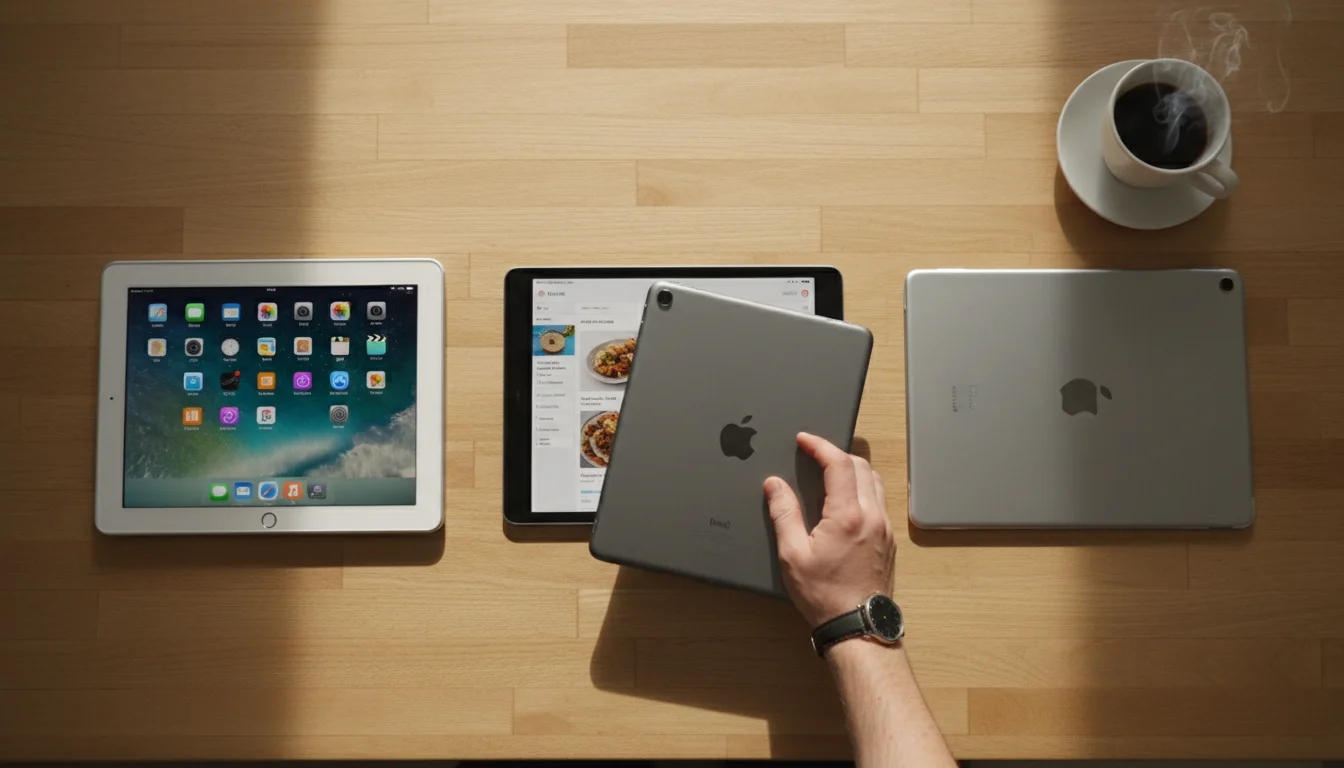
If you can’t unlock it: Flip it over. On the back, near the bottom, you’ll see tiny text that says “Model” followed by a letter-number code like A1893 or A2316. Search that code on  Apple’s Identify your iPad model page and it’ll tell you exactly what you have.
If the text is too small to read: On older iPads, the model number is often worn off or hard to see. Try the serial number instead (also on the back, or on the SIM tray for cellular models). Enter it at Apple’s Check Coverage page and it’ll show you the model and purchase date.
Every iPad, Ranked by Age
Here’s every iPad generation, when it came out, the maximum software it can run, and an honest verdict on whether it’s still useful. Find your model in the list and check its row.
Ancient (2010-2012) – Limited Use
| iPad | Year | Max iOS | Verdict |
|---|---|---|---|
| iPad (1st gen) | 2010 | iOS 5.1.1 | Too old. Can’t run any modern apps. Recycle it. |
| iPad 2 | 2011 | iOS 9.3.6 | Almost nothing works. Safari barely loads modern sites. |
| iPad (3rd gen) | 2012 | iOS 9.3.5 | Same as iPad 2. The Retina screen is nice but iOS 9 is a dead end. |
| iPad (4th gen) | 2012 | iOS 10.3.4 | Slightly better. Can still play downloaded music and videos. |
| iPad mini (1st gen) | 2012 | iOS 9.3.6 | Too slow even for basic browsing. |
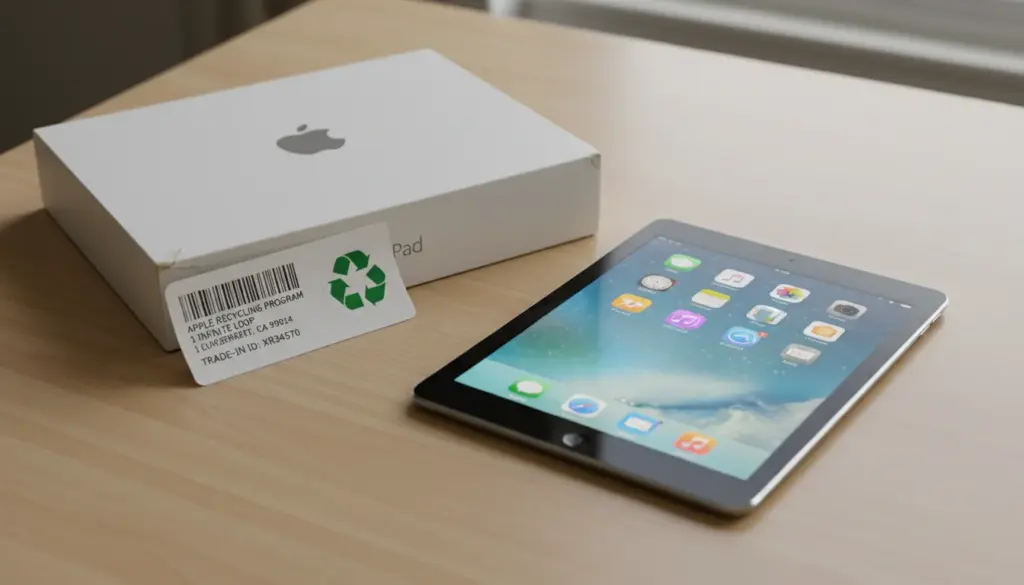
These iPads are past the point of running useful apps. If yours is in this group, our guide on what to do with a tablet that doesn’t work anymore covers your options, including where to recycle or sell it.
Old but Capable (2013-2015) – Good for Dedicated Use
| iPad | Year | Max iOS | Verdict |
|---|---|---|---|
| iPad Air | 2013 | iOS 12.5.7 | Can still run many apps. Great photo frame or kitchen display. |
| iPad mini 2 | 2013 | iOS 12.5.7 | Same as iPad Air but smaller. Good bedside clock or recipe viewer. |
| iPad mini 3 | 2014 | iOS 12.5.7 | Identical to mini 2 performance. Touch ID is a nice bonus. |
| iPad Air 2 | 2014 | iPadOS 15 | The sweet spot for repurposing. Runs most apps and still feels responsive. |
| iPad mini 4 | 2015 | iPadOS 15 | Compact and capable. Good for kids or small display use. |
| iPad Pro 12.9″ (1st gen) | 2015 | iPadOS 16 | Huge screen, still powerful. Excellent smart display or dashboard. |
This is where repurposing gets interesting. These iPads can’t keep up as daily drivers, but they’re perfectly good for a single dedicated job. Khan Academy Kids still works on iOS 12. Paprika Recipe Manager ($4.99) runs fine for kitchen use. And the built-in Photos app makes any of these a beautiful digital photo frame.
Still Useful (2016-2019) – Plenty of Life Left
| iPad | Year | Max iOS | Verdict |
|---|---|---|---|
| iPad Pro 9.7″ | 2016 | iPadOS 16 | Solid all-rounder. Still handles most apps. |
| iPad (5th gen) | 2017 | iPadOS 16 | The budget iPad that keeps going. Very capable for repurposing. |
| iPad Pro 10.5″ / 12.9″ (2nd gen) | 2017 | iPadOS 17 | Still genuinely fast. Most apps work fine. |
| iPad (6th gen) | 2018 | iPadOS 17 | Apple Pencil support. Great for kids’ drawing or note-taking. |
| iPad Air (3rd gen) | 2019 | iPadOS 17 | Feels nearly modern. Overkill for a display, but why not. |
| iPad mini (5th gen) | 2019 | iPadOS 17 | Compact powerhouse. Runs everything from 2019-era apps. |
| iPad (7th gen) | 2019 | iPadOS 17 | First 10.2-inch model. Totally fine for daily use or dedicated display. |
If your iPad is from this era, it’s not really “old” yet. It just feels slow compared to the latest model. These run the vast majority of apps and make excellent dedicated displays, kids’ tablets, or smart home dashboards. Our complete setup guide covers turning them into permanent home displays.
How to Check What iOS Version You’re Running
If you found your iPad in the table above, you know what the maximum iOS version is. But what version is it actually running right now?
Go to Settings > General > About and look at Software Version. If the number is lower than the maximum listed in the table, you can update. Go to Settings > General > Software Update and install whatever’s available. Getting to the maximum supported version gives you the best app compatibility and security patches.
If it says “iPadOS is up to date” and the version matches the max in the table, you’re already as far as it goes. No amount of wishing will get iOS 17 onto an iPad Air from 2013.
What Can Your Old iPad Still Do?
The honest answer depends on which era your iPad falls into.
iOS 9 or lower (2012 and earlier): Very little. Safari struggles with modern websites. Almost no apps still support iOS 9. These are best used as dedicated music players (with downloaded files) or digital picture frames running a simple slideshow. Or just recycle or sell them.
iOS 10-12 (2012-2015 era): Quite a bit, actually. Safari works reasonably well. Many apps still support iOS 12, including some genuinely good ones. These iPads make excellent kitchen displays, digital photo frames, weather stations, and kids’ tablets. You won’t get the latest version of Netflix or YouTube, but for a tablet doing one specific job, iOS 12 is plenty.
iPadOS 15-17 (2014-2019 era): Almost everything. Most apps still support iPadOS 15. These iPads feel slow next to a new one, but they’re genuinely capable devices. You can repurpose them, sure, but you can also just keep using them as a secondary tablet, a dedicated ebook reader, or a drawing tablet for the kids.
If you’re not sure which apps will actually install on your specific model, our app compatibility guide has the full breakdown.
What If It Won’t Turn On?
If the iPad is completely dead, try plugging it in and waiting 15 minutes before pressing any buttons. Old batteries that have been sitting uncharged for months need time to wake up. If the Apple logo appears, you’re in business. If nothing happens after 30 minutes of charging, try a force restart (hold the Home button and the top button together for 10 seconds).
Still nothing? Our guide on old iPads that won’t charge covers the common causes and fixes.
So Is It Worth Keeping?
Most iPads from 2013 onward still have real, practical use. They’re too slow for Fortnite but plenty fast enough to show you the weather, play music, display family photos, or keep your kids busy with educational apps. The iPad you found in the closet is probably worth setting up rather than selling for $40.
Pick what you want it to do, and we’ll show you how to set it up. Our old iPad ideas guide is a good place to start.