More Screen Space for $0
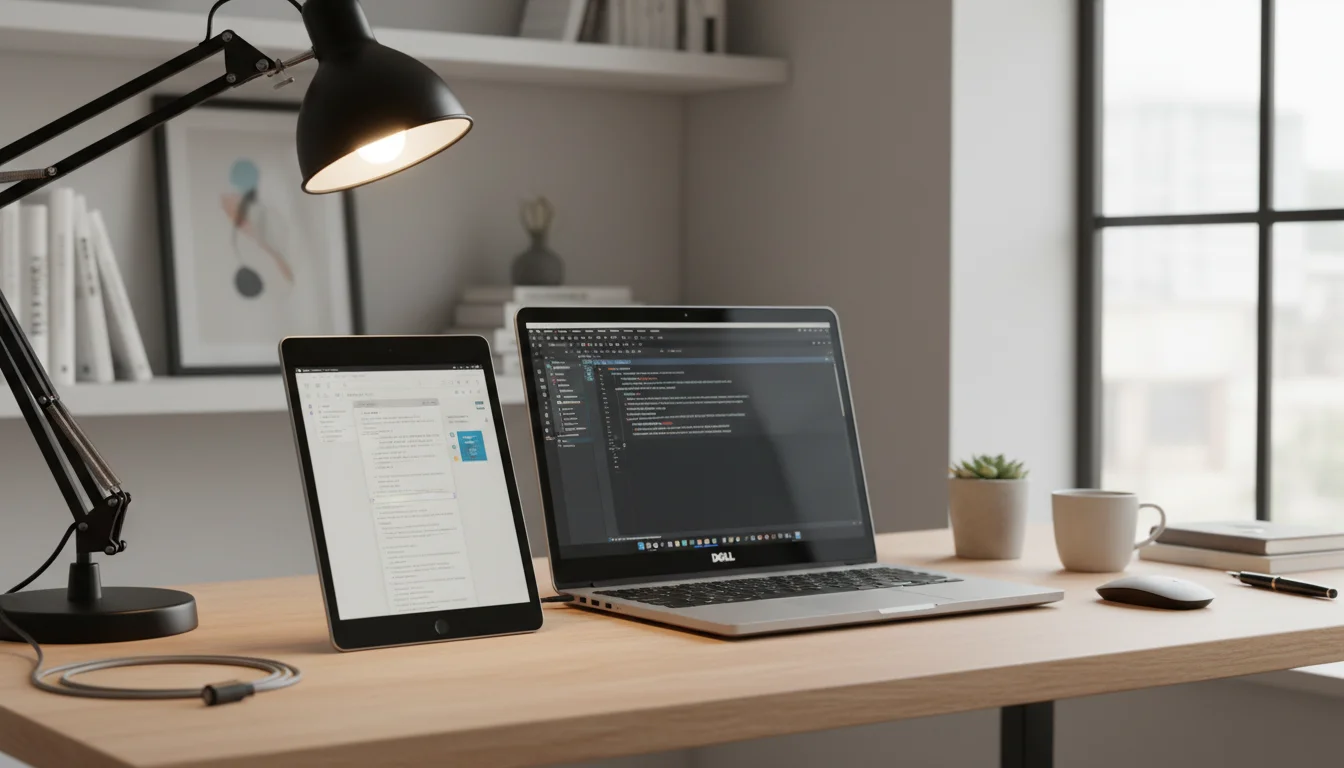
I started working from the kitchen table when my youngest was born. One laptop screen, a dozen tabs, and I kept losing track of which window had my notes. Then Mark dug an old iPad out of the drawer and said, “Just use this.”
A decent standalone monitor runs $150-300. Your old iPad does the same job for free. Apple built it right into macOS, and if you’re on Windows or have an older iPad, there are solid third-party options that work just as well.
How well your iPad performs as a second screen comes down to one thing: how old it is. A 2018 iPad on Sidecar feels native. A 2014 iPad on Spacedesk is fine for Slack and reference docs. An iPad 2 from 2011 is a different conversation, and I’ll get to that one at the end of the article so you don’t waste 20 minutes finding out the easy options don’t apply to you.
Option 1: Sidecar (Mac + iPad) – Free, Built In
If you have a Mac and a reasonably modern iPad, Sidecar is the answer. It’s built into macOS and iPadOS, it’s free, and it just works.
Requirements:
- Mac running macOS Catalina (10.15) or later
- iPad running iPadOS 13 or later
- Both signed in to the same Apple ID
- Both on the same Wi-Fi network (or connected via USB cable)
Supported iPads:
- iPad Pro (all models)
- iPad Air (3rd gen / 2019 and newer)
- iPad (6th gen / 2018 and newer)
- iPad mini (5th gen / 2019 and newer)
How to set it up:
- On your Mac, click the Control Center icon in the menu bar (or go to System Settings → Displays)
- Click Screen Mirroring
- Select your iPad
- Choose “Use as Separate Display” (not “Mirror”)
That’s it. Your iPad is now a second monitor. Drag windows to it, adjust the arrangement in Display settings, and work.
If Sidecar isn’t finding your iPad, the usual culprits, in order:
- Two-factor authentication off on your Apple ID. Sidecar requires it. Turn it on in System Settings → your Apple Account → Sign-In & Security. This is the one that catches people who haven’t logged in to a new Apple device in years.
- Bluetooth off on either device. Sidecar uses Bluetooth for the initial handshake even when you’re connecting over Wi-Fi. Turn it on on both.
- Wi-Fi that’s flaky. Sidecar wants both devices on the same network with a strong signal. If the wireless side is unreliable, connect the iPad to the Mac with a USB cable instead.
- iPad locked. Both devices need to be unlocked. Sounds obvious, easy to miss when the iPad is sitting on a stand.
What about older iPads? If your iPad is too old for Sidecar (iPad Air 2, iPad mini 4, or anything earlier), skip to Option 2 or 3 below. Those work with older devices.
Option 2: Duet Display – $49.99/year
 Duet Display works with older iPads and Android tablets that Sidecar doesn’t support. It also works with Windows PCs.
Requirements:
- iPad running iOS 12+ or Android tablet running Android 7+
- Mac or Windows PC
- Duet Display subscription ($49.99/year for Air, $79.99/year for Pro) plus the companion app on your computer
- USB cable or Wi-Fi connection
Setup:
- Download Duet Display from the App Store or Google Play
- Download the Duet companion app on your Mac or PC (duetdisplay.com)
- Connect via USB cable (most reliable) or Wi-Fi
- Your tablet appears as a second display
Why Duet over free alternatives: Lower latency, better color accuracy, and it supports touch input – you can tap and interact with your computer through the tablet screen. The responsiveness is noticeably better than the free options, especially over USB.
The pricing situation: Duet used to be a one-time $10 purchase, then briefly $4/year, and has since jumped to $49.99/year (Air) or $79.99/year (Pro with drawing features). That’s a significant cost. If you bought it years ago, your old license may still work on an older iPad – worth checking. Otherwise, try the free alternatives below first.
Option 3: Spacedesk (Windows 10 or 11 + Any Tablet) – Free
If you’re on Windows and don’t want to pay for Duet,  Spacedesk is the one to try. It works on Windows 10 and Windows 11, treats your iPad as a true second display (not a mirror), and costs nothing.
Setup on Windows 11 or Windows 10:
- On your PC, download the Spacedesk Driver from spacedesk.net and run the installer. It registers as a virtual display adapter in Device Manager, which is how Windows recognizes the iPad as an actual second monitor.
- On the iPad, install the free Spacedesk app from the App Store (works on iOS 9.3+, so it installs on essentially every iPad in the field – the practical limit is whether the hardware can render a usable second display, not whether the app runs).
- Open the iPad app. It scans your local network and shows your PC.
- Tap your PC, and the iPad becomes a second screen.
- In Windows 11, right-click the desktop → Display settings, drag the iPad’s display to match where it actually sits next to your laptop, and set it to Extend (not Duplicate).
It’s not as snappy as Duet over USB, and the interface looks like it was designed in 2012. But it’s genuinely free with no feature gates, and it runs on tablets old enough to have a headphone jack. If all you need is Slack, Teams, or a document visible on a second screen, Spacedesk does the job without asking for your credit card. If you have an old Android tablet instead of an iPad, our Android second monitor guide compares the best options for that side.
Option 4: Deskreen (Any Computer + Any Tablet) – Free, Open Source
 Deskreen turns any device with a web browser into a second screen for any computer. Mac, Windows, Linux, doesn’t matter.
Setup:
- Download Deskreen on your computer (deskreen.com)
- Open a browser on your tablet
- Scan the QR code or enter the URL that Deskreen provides
- Pick whether to share your whole screen or just one window
One thing to know upfront: Deskreen on its own mirrors your computer to the tablet, it doesn’t extend the desktop. Your tablet will show the same thing as your main screen, which is useful for sharing one app or reference material, but it’s not the “drag a window to the second display” experience you get with Sidecar or Spacedesk.
If you want a true extended desktop, you need to give Windows or macOS a second monitor to talk to. The two easy ways:
- Software: install a free virtual display driver like the
 Virtual Display Driver on Windows. It creates a fake monitor that Deskreen can then capture and send to the iPad.
 - Hardware: plug a $5
 HDMI dummy plug into a spare port on your computer. Your computer sees a “real” second display, and Deskreen sends it to the iPad.
It’s free, open source, and works with literally any tablet that has a modern browser (iPadOS 13+ for the cleanest experience). The latency is higher than the other options, so it’s better for static content (documents, chat, reference material) than for video or fast-moving visuals.
Which Option Should You Pick?
The right choice depends on your computer, how old your iPad is (what iPadOS version it can run), and whether you care about latency or touch.
| Situation | Best Option | Cost |
|---|---|---|
| Mac + iPad on iPadOS 13+ (iPad 6th gen, Air 3, mini 5, any Pro) | Sidecar | Free |
| Windows 10 or 11 + iPad on iOS 9.3+ (basically any iPad) | Spacedesk | Free |
| Any computer + iPad on iPadOS 13+ | Deskreen | Free |
| Want the lowest latency | Sidecar or Duet | – |
| Want touch input on the tablet | Duet Display | $49.99/yr |
| Mac + Air 1 / mini 2/3 (iPadOS 12 ceiling) | Duet or Spacedesk via Windows | Free or $49.99/yr |
| iPad 2, 3, 4, or original mini (stuck on iOS 9) | See below | – |
What If My iPad Is Really Old? (iPad 2, 3, 4, Original Mini)
This is the question I get most often, and I’d rather be honest than pretend.
The iPad 2 (2011), iPad 3, and original iPad mini all top out at iOS 9.3.5 or 9.3.6; the iPad 4 goes one step further to iOS 10.3.4. Sidecar requires iPadOS 13. Duet Display requires iPadOS 12. Spacedesk’s iPad app will install on these devices (iOS 9.3+), but whether an A5- or A6-era iPad has the horsepower to render a usable second display is a separate question – expect noticeable latency and stuttering with anything but the most static content.
What actually works on iOS 9 hardware:
- Spacedesk, with tempered expectations. The app installs and runs, and for glancing at Slack, a document, or a reference PDF, it’s usable. Fast scrolling and video will show lag and artifacts on this old hardware.
- Deskreen via Safari, with low expectations. Deskreen runs in any web browser, so in theory you can open it on an iPad 2 and use the iPad as a mirrored screen. In practice, iOS 9 Safari is missing the WebRTC features Deskreen relies on, and the connection often won’t establish. If you want to try, you’ll know within 60 seconds whether it works on your specific device.
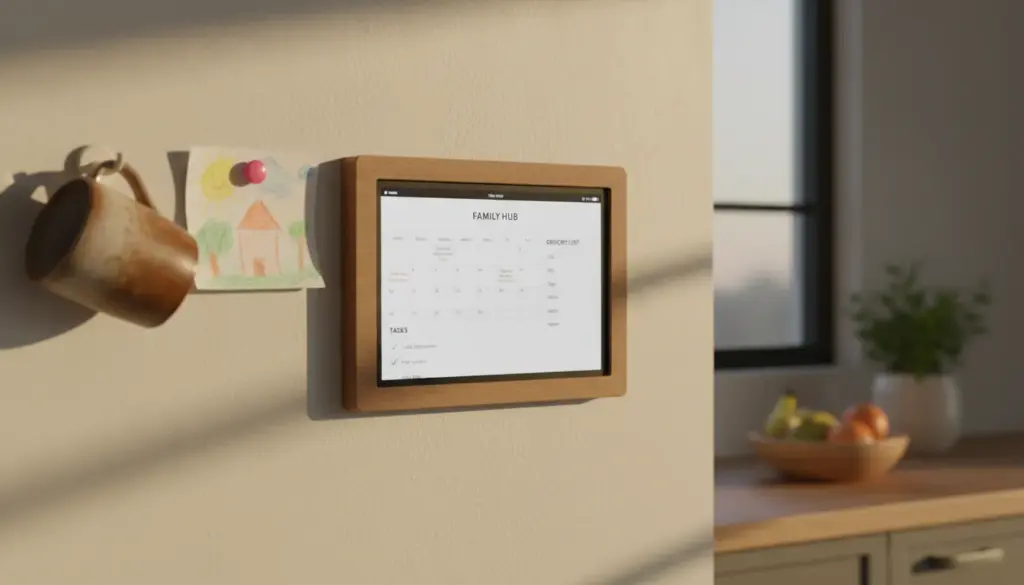
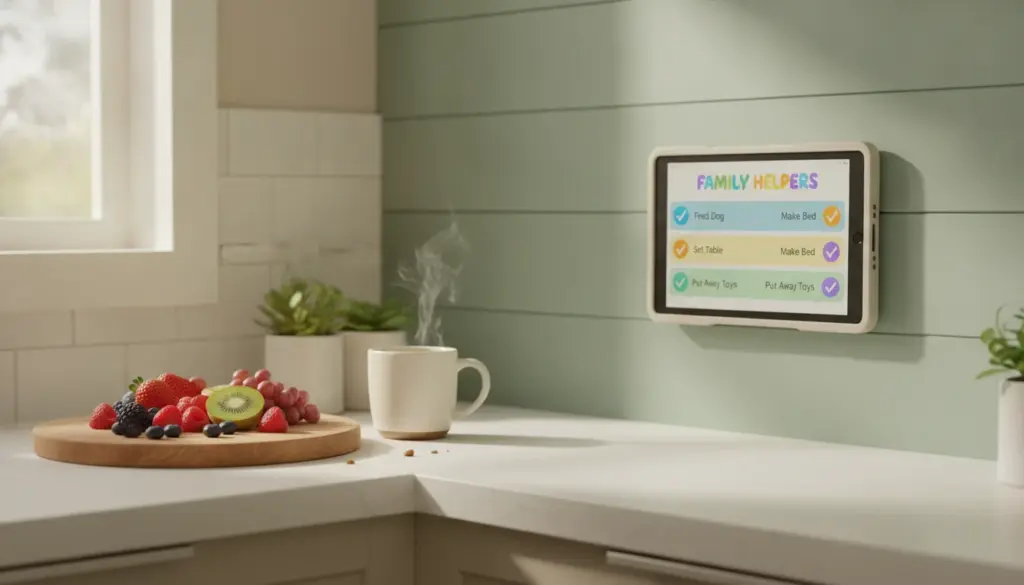
Honest take: an iPad 2 is more useful as a kitchen calendar, a recipe screen, or a smart display for the family room than as a monitor. The hardware is fine; the software ecosystem just left it behind. If you want a second monitor today and your only iPad is an iPad 2, you’ll get further buying an Amazon Renewed Fire HD 10 (around $60-80, warrantied) and pairing it with Spacedesk than trying to force the iPad to do something its OS won’t allow.
For iPad Air 1, iPad mini 2, and iPad mini 3 (iOS 12 ceiling): Duet Display, Spacedesk on Windows, and Deskreen on Mac/Windows/Linux all still work. You’re not stuck. Just expect the latency to be higher than on newer hardware.
Getting the Most Out of Your Second Screen
Once you have the second display working, a few tips to make it actually useful:
What to Put on the Tablet Screen
- Email or Slack – keep communication visible without it stealing your main screen
- Reference material – documentation, specs, PDFs, the spreadsheet you’re cross-checking
- Music or podcast controls – Spotify on the tablet, work on the main screen
- Video calls – put the call on the tablet, your work on the main display
- Calendar – keep your schedule visible all day
- Budget tracker – your spending, always visible
Arrange Your Displays
In your display settings (System Settings → Displays on Mac, Settings → Display on Windows), drag the tablet display to match its physical position. If the iPad is to the right of your laptop, put it to the right in settings. This makes dragging windows between screens feel natural.
Use a Stand
If the iPad is lying flat on the desk, you’ll be craning your neck down all day. A basic stand works, but a Lamicall gooseneck arm mount (~$30) is what I’d actually spend money on here – it clamps to the desk edge, lifts the tablet to laptop-screen height, and lets you swing it out of the way when you don’t need it. You don’t have to buy one to use your iPad as a second screen; you’ll just notice your neck stops complaining after a week.
Wired vs. Wireless
A USB cable (Anker Powerline MFi Lightning or the equivalent USB-C cable for newer iPads) gives you less latency and doesn’t depend on your Wi-Fi being stable. If you’re doing anything where speed matters (design work, coding with fast scrolling), use the cable. For static content like email or documents, wireless is fine.
What About Using the iPad as a Drawing Tablet?
If you have an Apple Pencil-compatible iPad and Sidecar, yes – you can use it as a drawing tablet for your Mac. Sidecar supports Apple Pencil input, which means your iPad becomes a Wacom-style drawing surface for Photoshop, Illustrator, or any Mac drawing app. You can also skip Sidecar entirely and draw directly on the iPad in apps like  Procreate (iPadOS 16.3+) or the free
  Sketchbook (iOS 14+).
For older iPads without Pencil support, Duet Display supports basic stylus input, but it’s not as precise. We have a full guide on setting up an old iPad as a drawing tablet if that’s what you’re after.
Performance on Old Tablets
The honest answer: it depends on the app.
Sidecar on supported iPads: Smooth. Apple optimized this well. Even an iPad 6th gen (2018) handles it without lag.
Duet on older iPads (iPad Air 1, iPad mini 2): Works, but there’s noticeable lag when scrolling quickly or moving windows. Fine for email, documents, and chat. Not great for video or design work.
Spacedesk and Deskreen on old tablets: Similar story. Static content is fine. Fast motion shows artifacts and delay.
So: if you mostly need a second screen to glance at things (Slack, email, reference docs), any old tablet works well. If you need to click around and interact with it constantly, you want a newer iPad with Sidecar or Duet over USB.
Quick Setup Checklist
- Check your devices against the requirements above
- Pick the right option for your combination
- Install the software on both devices
- Connect via cable or Wi-Fi
- Arrange displays in your settings
- Put the tablet on a stand at eye level
- Drag a window over – you now have two screens
Total time: 5-10 minutes. Total cost: $0 if you use the free options (Sidecar, Spacedesk, or Deskreen).
Five minutes of setup. 50% more screen space. And that old iPad finally has a daily job again.
Not sure a second monitor is the right fit? Our old iPad ideas page covers every project we’ve tested, from kitchen displays to retro gaming.