Two Approaches: Dashboard App vs. Individual Apps
Before we get into specific apps, you need to make one decision: do you want a single dashboard that shows everything on one screen, or do you want to set up individual apps and switch between them?
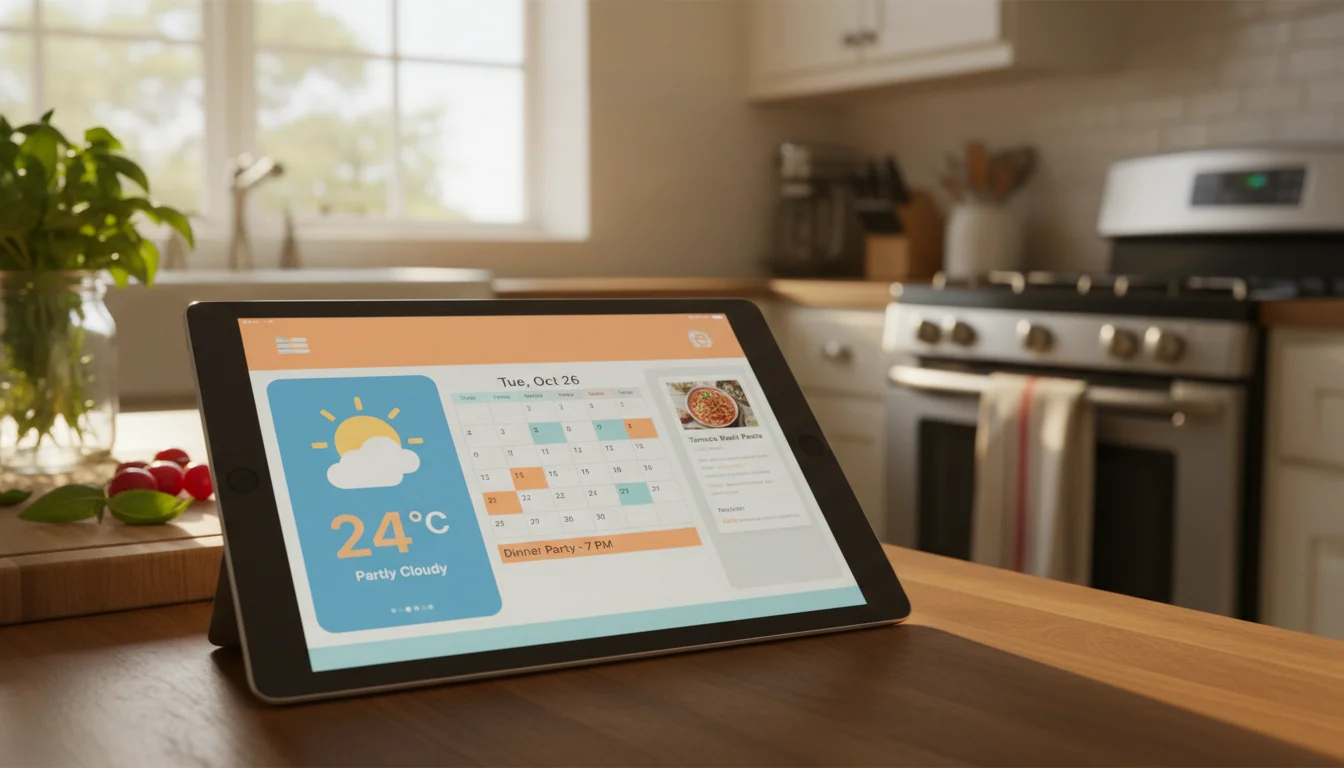
Dashboard apps put weather, calendar, lists, and more on a single screen. They’re purpose-built for this. The trade-off is that each widget gets less space, and you’re limited to what the dashboard app supports.
Individual apps let you pick the best app for each job (your favorite weather app, your preferred calendar). You can use iOS or Android’s built-in split-screen, or just leave one app running full-time. The trade-off is that you only see one thing at a time unless you set up rotation.
Most people start with a dashboard app and never look back. That’s what we’ll focus on, but we’ll mention the best individual apps too.
Dashboard Apps (The All-in-One Option)
DAKboard – Best Overall
Platform: iPad, Android, any browser | Price: Free tier available, $6/mo for Essential
DAKboard is the most popular kitchen display dashboard for good reason. The free tier gives you weather, calendar (syncs with Google Calendar, Apple Calendar, or Outlook), and a photo background. Paid plans add to-do lists, multiple screens, and custom layouts.
Setup (5 minutes):
- Open Safari (iPad) or Chrome (Android) and go to dakboard.com
- Create a free account
- Connect your Google or Apple calendar
- Set your location for weather
- Choose a layout – "Digital Wall Display" works well for kitchens
- Bookmark the page and add it to your home screen
Why it works on old tablets: DAKboard runs in the browser. It doesn’t need a native app, so it works on almost any device with a screen and Wi-Fi.
The catch: The free tier shows a small DAKboard watermark. The Essential plan at $6/month removes it and adds features. For a kitchen display, the free tier is honestly fine.
Fully Kiosk Browser – Best for Android
Platform: Android only | Price: Free (with ads), around $8 one-time for Plus
Fully Kiosk Browser isn’t a dashboard itself – it’s a full-screen browser that can display any webpage (like DAKboard) and adds features specifically designed for always-on displays: motion-activated screen, scheduled brightness, screensaver mode, and device management.
Why you’d want it: If you’re using DAKboard or any web dashboard on an Android tablet, Fully Kiosk Browser keeps the screen from timing out, prevents notifications from covering the display, and lets you set the screen to dim at night.
MagicMirror – Best for Tinkerers
Platform: Any browser (runs on a Raspberry Pi or any server) | Price: Free, open source
If you have a spare Raspberry Pi or a computer that’s always on, MagicMirror lets you build a completely custom dashboard. It’s originally designed for smart mirrors, but it works perfectly as a kitchen display.
Fair warning: This is a technical project. You’ll need to be comfortable with the command line. If that sounds fun, go for it. If it sounds like homework, stick with DAKboard.
Calendar Apps
If you skip the dashboard approach and just want a great calendar on your display:
Google Calendar (Free)
The most practical option if your family already uses Google Calendar. Open it in Safari or Chrome, switch to "Day" or "Schedule" view, and you’re done. The web version works well on old iPads.
Fantastical (Free tier / $5 per month)
Better-looking than Google Calendar, with natural language event creation. The free tier shows one calendar – upgrade if you need multiple family calendars merged. One catch: Fantastical now requires iOS 17.6, so it won’t install on older iPads. If your iPad is stuck on iOS 12-15, Google Calendar in the browser is your best bet.
Apple Calendar (Free, iPad only)
Already on your iPad. If your family uses iCloud calendars or subscribes to shared calendars, this just works with zero setup.
Weather Apps
Weather Underground (Free)
Shows hyperlocal weather from nearby personal weather stations. The forecast is usually more accurate than the default weather apps for specific neighborhoods.
Your Built-In Weather Option (Free)
On Android tablets, Google’s weather is a search away – just type "weather" in Chrome. On newer iPads (iPadOS 16+), Apple Weather comes preinstalled. But something my husband pointed out: old iPads on iOS 12-15 don’t have a weather app at all. Apple didn’t add one to iPad until iPadOS 16. For older iPads, open weather.com or wunderground.com in Safari and bookmark it to your home screen.
Lists & To-Do Apps
AnyList (Free / $10 per year)
A grocery list app that lets multiple people add items from their phones. The list updates on the kitchen display in real time. Tap "milk" and it shows up on your spouse’s phone too.
Todoist (Free / $4 per month)
If you want a shared family task list (not just groceries). "Pick up dry cleaning," "call dentist," "sign permission slip." Shared projects keep everyone on the same page.
Apple Reminders / Google Keep (Free)
Already on your device. Shared lists work well if everyone’s on the same ecosystem.
Recipe Display
Paprika ($5, one-time)
Saves recipes from any website, strips out the life stories and ads, and shows just the ingredients and steps. Perfect for a kitchen display – big text, easy to read while cooking.
Allrecipes (Free)
The web version works fine on old tablets. Search a recipe, prop up the tablet, and cook.
Setting Up Your Display
Once you’ve picked your apps, here’s the quick setup:
For iPad
- Turn off Auto-Lock: Settings → Display & Brightness → Auto-Lock → Never
- Turn off notifications: Settings → Notifications → turn off alerts for everything except what you want on-screen
- Reduce brightness at night: Settings → Display & Brightness → Night Shift → Schedule
- Set up Guided Access (optional): Settings → Accessibility → Guided Access → turn on. This locks the iPad into a single app so nobody accidentally swipes away your dashboard
For Android
- Turn off screen timeout: Settings → Display → Screen timeout → 30 minutes (or install Fully Kiosk Browser to keep it on indefinitely)
- Turn off notifications: Settings → Apps & notifications → minimize distractions
- Pin the app (optional): Open your dashboard, then tap the recent apps button and tap the pin icon. This keeps the app front and center
For Any Tablet (Web Dashboard)
If you’re using DAKboard or another web dashboard:
- Open the dashboard URL in the browser
- Add it to your home screen (Share → Add to Home Screen)
- Open it from the home screen – it’ll run full-screen without browser bars
- Set Auto-Lock to Never
My Recommendation
If you want this done in 15 minutes: DAKboard free tier on whatever tablet you have. Connect your Google Calendar, set your zip code for weather, and you’re 80% of the way there.
If you want to get fancier later, you always can. But don’t let perfect be the enemy of good – a basic kitchen display that works today is better than a perfect one you never finish setting up.
This is part of our complete kitchen display guide. Head there for the full overview, from choosing your spot to keeping it running long-term.