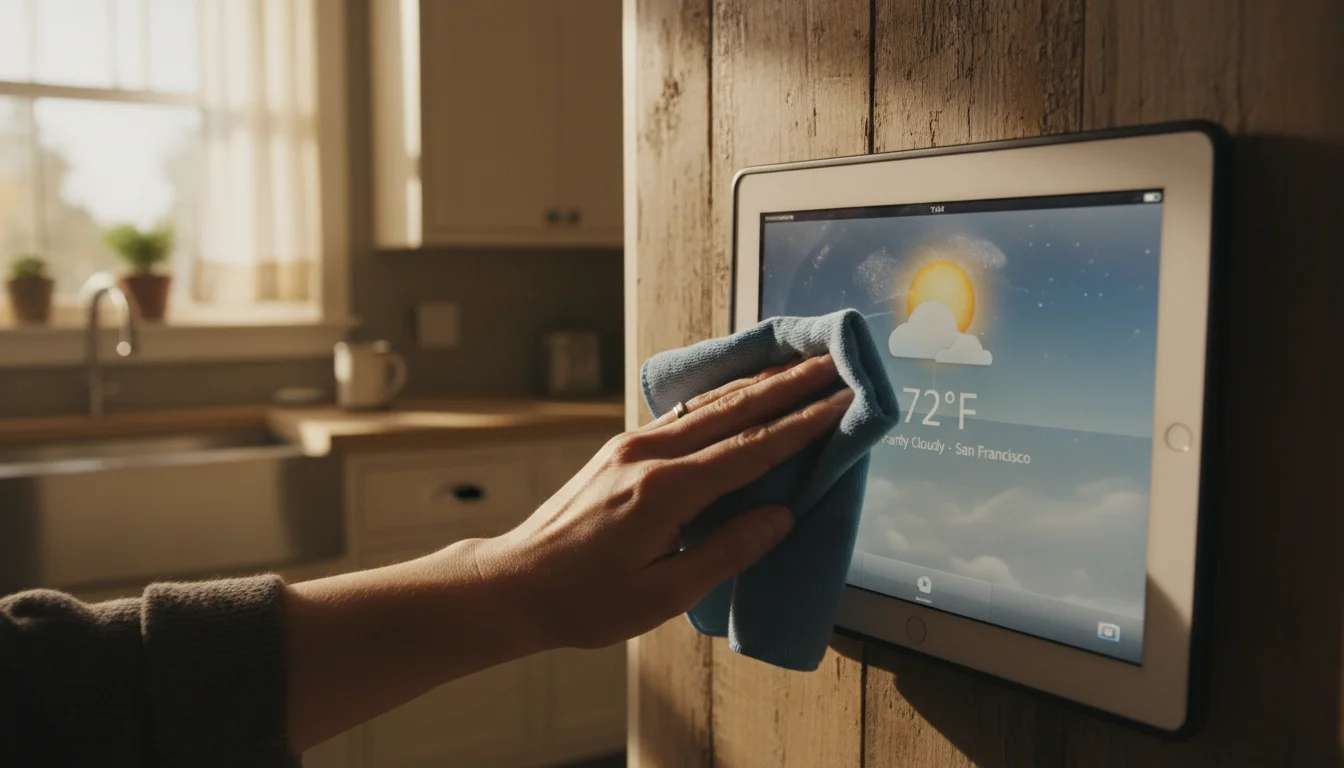
The Good News: This Mostly Just Works
If you’ve followed the earlier parts of this guide, your kitchen display is probably running fine right now. Most of the "keeping it running" work happens in the first week as you dial in the settings. After that, it’s genuinely set-and-forget.
That said, there are a handful of things that will trip you up if you don’t know about them. Here’s everything I’ve learned from running a kitchen display for over a year.
Screen and Display Settings
Auto-Brightness
Leave auto-brightness on. Your kitchen gets different light throughout the day, and you want the display readable at noon and not blinding at midnight. The ambient light sensor handles this better than any fixed brightness level.
On iPad: Settings → Accessibility → Display & Text Size → Auto-Brightness → On On Android: Settings → Display → Adaptive brightness → On
Night Mode
If your kitchen display is in your line of sight from a living area, a bright screen at 10 PM is annoying. Set up a schedule to dim or sleep the display at night.
On iPad: Settings → Display & Brightness → Night Shift → Schedule → set your times With DAKboard: The Plus tier ($8/mo) has a built-in screen schedule. Free tier? Use iOS’s "Do Not Disturb" focus mode to dim the screen on a schedule. On Android with Fully Kiosk Browser: Settings → Motion Detection → Screen Off Timer → set to turn off at night, wake on motion during the day
The motion-detection approach is clever: the screen stays off until someone walks into the kitchen, then lights up automatically. Saves power and avoids the always-on glow.
Guided Access / Screen Pinning
If you have young kids, lock the display to your dashboard app so nobody accidentally swipes to YouTube or starts rearranging your home screen.
iPad – Guided Access:
- Settings → Accessibility → Guided Access → turn on
- Set a passcode (something you’ll remember, not the same as your device unlock)
- Open your dashboard app
- Triple-click the Home button → Start Guided Access
- Now the tablet is locked to that one app. Triple-click again and enter the passcode to exit.
Android – Screen Pinning:
- Settings → Security → App pinning → turn on
- Open your dashboard app
- Tap the recent apps button, then tap the pin icon
- The app is now pinned – it can’t be swiped away without the PIN
Battery Health
The Reality
Your old tablet will be plugged in 24/7. This does affect battery health over time – lithium-ion batteries prefer being between 20% and 80%, not sitting at 100% indefinitely.
But here’s the practical truth: it doesn’t matter for this use case. The tablet is permanently on the wall. You’re not going to take it hiking. If the battery capacity drops from 100% to 40% over two years, the tablet still works fine because it’s always plugged in.
When to Actually Worry
Battery swelling is the one real concern. This is rare (especially in tablets made after 2015), but if you notice:
- The screen is lifting away from the frame
- The tablet wobbles on a flat surface when it didn’t before
- The back case is bulging
Then unplug it, take it off the wall, and recycle it properly. Do not puncture a swollen battery. This isn’t a "keep using it" situation.
Charging Management (iPad)
iPads don’t have a user-visible "Optimized Battery Charging" toggle like iPhones do. But they do manage charging automatically behind the scenes – iOS includes charge management that reduces wear on the battery over time. You don’t need to enable anything. For a kitchen display that’s plugged in 24/7, the iPad handles it without your input.
Wi-Fi Reliability
A kitchen display is useless if it can’t connect to Wi-Fi. Old tablets have older Wi-Fi radios, which can drop connections more easily.
Keep It Connected
- Use 2.4 GHz, not 5 GHz. Your old tablet’s 2.4 GHz radio has better range and wall penetration. If your router broadcasts both as the same network name, the tablet will usually pick the right one, but if you have separate SSIDs, choose the 2.4 GHz one.
- Set a static IP (optional but helpful): If your tablet keeps losing its connection, assigning it a static IP in your router settings can help. This is a router-level change, not a tablet setting.
- Restart the tablet weekly: A weekly restart clears memory and reconnects Wi-Fi cleanly. Set a reminder on your phone for Sunday mornings.
If the Dashboard Goes Blank
Nine times out of ten, it’s a Wi-Fi drop. The fix:
- Tap the screen to see if the browser is showing an error
- Pull down the notification shade and check Wi-Fi status
- If disconnected, toggle Wi-Fi off and on
- If still stuck, restart the tablet
If this happens frequently, your tablet might be too far from the router. A Wi-Fi extender or mesh node near the kitchen solves this for $25-40.
App and Dashboard Maintenance
DAKboard and Web Dashboards
Web-based dashboards handle their own updates on the server side – you don’t need to do anything. But occasionally:
- The browser crashes: Old tablets have limited RAM. If Safari crashes, it’ll usually restart itself, but you might need to manually reopen the dashboard. This is more common on tablets with 1 GB RAM (iPad Air 1, iPad mini 2).
- The browser updates: When iPadOS or Android updates the browser, occasionally bookmarks or home screen shortcuts break. Check your dashboard after any system update.
- Sessions expire: If your dashboard requires a login, you might get logged out after a while. DAKboard’s display URLs don’t require login, which is one reason I recommend them.
Native Apps
If you’re running a native calendar or weather app:
- Allow background refresh: Settings → General → Background App Refresh → turn on for your display apps
- Check for updates monthly: Old tablets may stop getting app updates eventually, but while they’re still supported, keep them current
Common Problems and Fixes
"The screen keeps going to sleep"
You didn’t set Auto-Lock to Never. Go to Settings → Display & Brightness → Auto-Lock → Never.
On Android, the default screen timeout is usually 30 minutes. Some manufacturers cap it. Install Fully Kiosk Browser to override this.
"The dashboard shows yesterday’s weather"
Your Wi-Fi dropped overnight and the page didn’t refresh. Tap the screen, check the connection, and reload the page.
To prevent this: DAKboard refreshes content automatically, but how often depends on your plan – every 30 minutes on Essential ($5/mo), every 15 minutes on Plus ($8/mo). The free tier only refreshes hourly. If you’re using a browser bookmark, you can’t auto-refresh natively, but Fully Kiosk Browser (Android) can.
"The screen is too dim / too bright"
Check that auto-brightness is on. If your kitchen is very bright (south-facing windows), the screen on an older iPad might not compete with direct sunlight. Reposition the tablet to avoid direct light, or angle it away from the window.
"Someone changed the app and now it shows Minecraft"
Set up Guided Access (iPad) or Screen Pinning (Android). See the section above.
"The tablet is hot"
An always-on tablet in a warm kitchen will get warm. That’s normal. If it’s too hot to comfortably hold, it’s too hot – reduce screen brightness, move it away from any heat source (toaster, oven, direct afternoon sun), and make sure air can circulate around the back.
"The tablet updated itself and everything broke"
This is frustrating. Automatic updates on old tablets can sometimes remove features or break apps. Consider turning off auto-updates:
iPad: Settings → General → Software Update → Automatic Updates → turn off Android: Settings → System → System update → check for manual-only options (varies by manufacturer)
For app updates: Settings → App Store (iPad) or Play Store (Android) → turn off auto-update, then manually update when you’re ready.
The Low-Maintenance Routine
Once everything is dialed in, your weekly maintenance is:
- Sunday: Glance at the display. Is it showing current info? Good. Move on.
- Monthly: Wipe the screen. Check for app updates. That’s it.
- If something breaks: Restart the tablet. This fixes 90% of issues.
I spend maybe 2 minutes a month on maintenance. The rest of the time, it just works – showing the weather, the calendar, and the grocery list while I make breakfast.
What’s Next?
You now have a working kitchen display. An old tablet that was doing nothing is now the most-glanced-at screen in your house.
If you want to go deeper:
- Our original kitchen display build article covers building a completely custom dashboard with APIs, code, and WordPress. It’s a bigger project, but the result is a display that’s uniquely yours.
- Turn Your Old iPad Into a Digital Photo Frame – another great use for that old tablet (or a second one).
Got a kitchen display running? We’d love to hear what you put on it – drop us a note and we might feature your setup.