You Already Own a Camera. Two of Them, Actually.
Somewhere in your house is an old iPad or Android tablet with a perfectly good camera, a screen, a speaker, and a microphone. Sitting in a drawer. Meanwhile, you’re looking at $80-200 baby monitors and wondering if you really need another gadget.
The short answer: an old tablet can work as a baby monitor. I’ve done it. But it comes with trade-offs that the “life hack” posts on social media conveniently leave out. So here’s the honest version.
What You Need (and What You Probably Already Have)
The setup is simple. You need two devices:
- The camera device – your old tablet, propped up or mounted in the nursery
- The viewer device – your phone, or another tablet, wherever you are in the house
Both devices need to be on the same WiFi network (for most apps), and the camera device needs to be plugged in. Battery-powered monitoring drains an old tablet in a couple of hours, and a dead monitor is worse than no monitor.
Minimum specs:
- iPad running iOS 12 or later, or Android tablet running Android 8 or later (note: some apps like
 Alfred Camera need iOS 14+; Cloud Baby Monitor works on iOS 12)
 - A working rear camera (the front camera works too, but rear cameras are usually sharper)
- Stable WiFi throughout the house
The Best Apps for Old Tablet Baby Monitors
There are dozens of baby monitor apps. Most are ad-filled garbage. Here are the ones actually worth installing.
Alfred Camera (free with ads, $4/month for premium) – This is the one most people end up using, and for good reason. It works on both iOS and Android, the free tier includes live video and motion alerts, and it runs reliably on older devices. The ads in the free version are annoying but not deal-breaking. Premium removes them and adds longer video history.
 Camy (free) – Simpler than Alfred, works well for basic video and audio monitoring. No account required for local network use. The interface is clean and it doesn’t try to upsell you constantly. Works on older Android tablets where some other apps won’t install.
Cloud Baby Monitor ($5, no subscription) – Available on both iOS and Android. One-time purchase, no ads, no subscription. The cleanest option if you don’t want to deal with accounts and upsells. The audio is particularly good, and it has a white noise feature built in. Also the best choice for very old iPads on iOS 12, since Alfred Camera requires iOS 14+.
FaceTime or Google Meet – Here’s the low-tech option nobody talks about: just start a video call between two devices and leave it running. FaceTime on two Apple devices, or Google Meet on anything. No special app needed. The downside is no motion alerts and it ties up both devices for phone calls. But for naptime monitoring where you just want to glance at the screen? It works.
Setting Up the Nursery Camera
Placement matters more than the app you pick.
Where to put it:
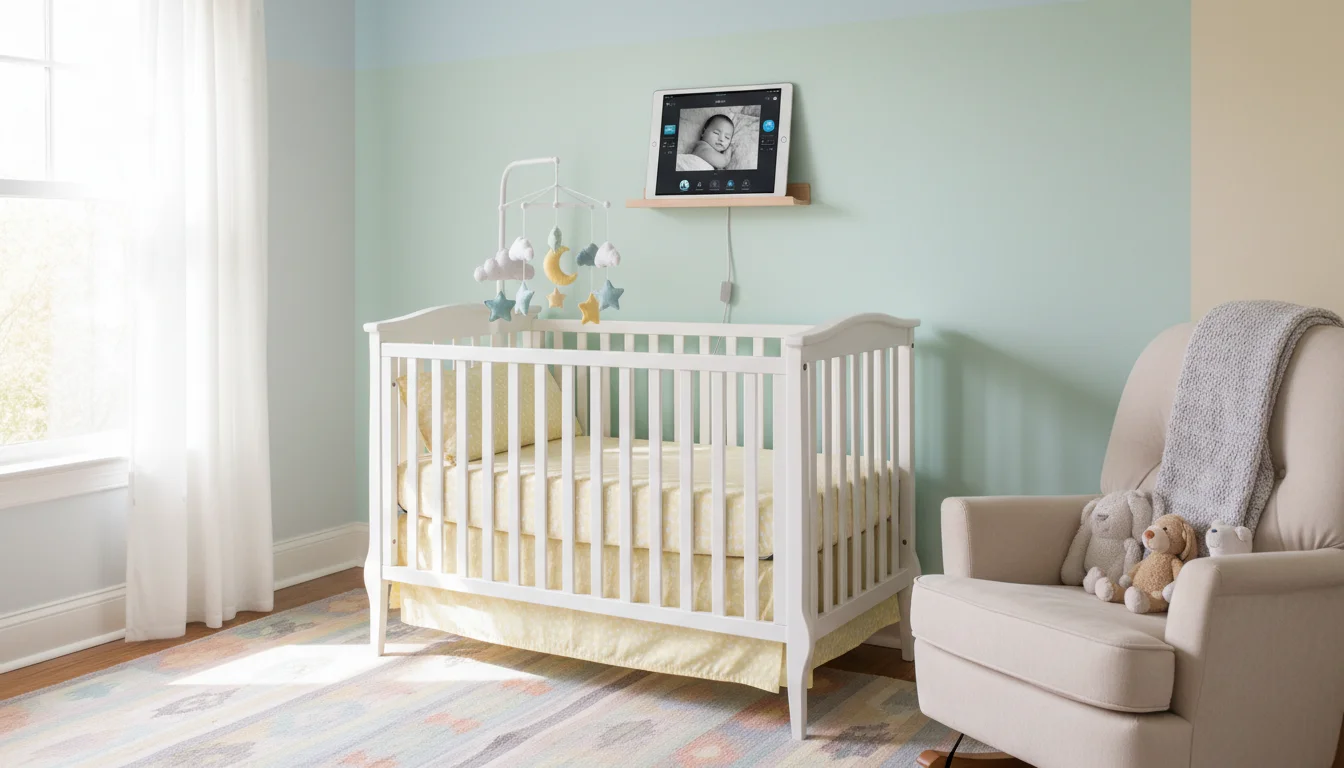
- Mount it high, angled down toward the crib. A shelf works. So does a wall mount with a tablet holder. Our mounts and stands guide has options that work for this.
- Keep the charging cable routed away from the crib. This is not optional. Loose cables near a crib are a strangulation hazard. Run the cable along the wall, behind furniture, and use cable clips to keep it flat.
- Test the camera angle from the viewer device before you commit to a spot. You want to see the whole crib without weird shadows from the night light.
Camera settings:
- Turn on Do Not Disturb so incoming calls or notifications don’t blast sound into the nursery at 2 AM.
- Set screen brightness to minimum (or turn the screen off entirely if the app supports background camera mode). The glow from a bright screen can keep a baby awake.
- Turn off auto-lock. The camera needs to stay active. On iPad: Settings > Display & Brightness > Auto-Lock > Never. On Android: Settings > Display > Screen timeout > 30 minutes (or use a “keep screen on” app).
- Make sure the tablet is plugged in. Always.
What Works Well
I’ll be honest about what old-tablet monitoring is actually good for:
Naptime checks. Baby goes down at 1 PM, you’re in the kitchen or the living room, you want to glance over and see if they’re still asleep. Perfect use case. You don’t need crystal-clear night vision for this. You need a picture and sound.
Audio monitoring. Most baby monitor apps have surprisingly good audio pickup, even on older tablets. You’ll hear crying, fussing, and those weird baby sleep noises that make you check whether they’re breathing (they are). The same apps work for general security camera duty once the kids outgrow the crib.
Multi-room visibility. If you already have the tablet set up as a kitchen display or photo frame, some apps let you quick-switch to camera mode when the baby goes down. Dual-purpose.
Travel. Packing an old tablet for hotel stays means you don’t need to bring a separate monitor. Install the app before you leave, test it at home, and you’re set.
What Doesn’t Work Well (The Honest Part)
Night vision. Old tablet cameras don’t have infrared. In a dark room, you see nothing. You can leave a dim night light on, but the image quality in low light is poor compared to a dedicated monitor with IR LEDs. If your baby sleeps in a pitch-dark room, this is a real limitation.
Reliability over long stretches. Dedicated baby monitors just… work. They turn on and stay on. Old tablets running baby monitor apps can crash, disconnect from WiFi, or freeze after running for hours. You’ll learn to check the connection periodically, which partly defeats the purpose.
Range. WiFi-based monitoring works throughout your house. But if your WiFi drops in the backyard or the garage, so does your monitor. A dedicated unit with DECT or proprietary radio signal doesn’t care about your router.
Two-way talk quality. The apps that offer two-way audio work, but there’s noticeable delay. If you’re trying to soothe a baby by talking through the tablet, the lag can be confusing for both of you.
When to Just Buy a Real Monitor
If any of these apply to you, skip the DIY approach and spend the money:
- Your baby’s room is very dark and you need to see them clearly at night
- You need monitoring for overnight sleep (8+ continuous hours of reliability)
- Your WiFi is spotty or your house has dead zones
- You want temperature and humidity sensors (some dedicated monitors include these)
- You’re a first-time parent and the peace of mind of a purpose-built device is worth the cost
The  Eufy SpaceView E110 (~$160) or the
  VTech DM221 ($35 for audio-only) are solid options that do one thing well. There’s no shame in buying the right tool for the job.
The Setup Checklist
Before you declare it done:
- Install the same app on both devices
- Test the video and audio from different rooms in your house
- Route the charging cable safely away from the crib
- Set Do Not Disturb on the nursery tablet
- Lower screen brightness or turn off the screen
- Disable auto-lock
- Test what happens when WiFi drops briefly (does the app reconnect automatically?)
- Show your partner how to check the feed on their phone too
That last one matters. If only one person knows how to use it, it’s not actually helping.
Good Enough Is Good Enough
A dedicated baby monitor is better than an old tablet at being a baby monitor. That’s just true. But an old tablet you already own, running a free app, checked during naptime? That’s plenty. Especially for a second or third kid, when you’ve relaxed a bit about the whole thing and just want to know if they’re awake.
The best monitor is the one you actually use. And if that’s the old iPad that was collecting dust in the kitchen drawer, that works. It’s one of several family-friendly uses we’ve found for old tablets that would otherwise sit in a drawer.