We have three old tablets in this house. One is mounted on the kitchen wall. One lives in the playroom. One floats between the kids depending on who needs it and who lost screen time privileges that week.
None of them cost us anything. They were all “too slow” or “too old” at some point, and now they’re some of the most-used devices in the house. If you have an old tablet for kids sitting in a drawer, you’re sitting on more than a hand-me-down Netflix machine. Here’s what it can actually do for your whole family.
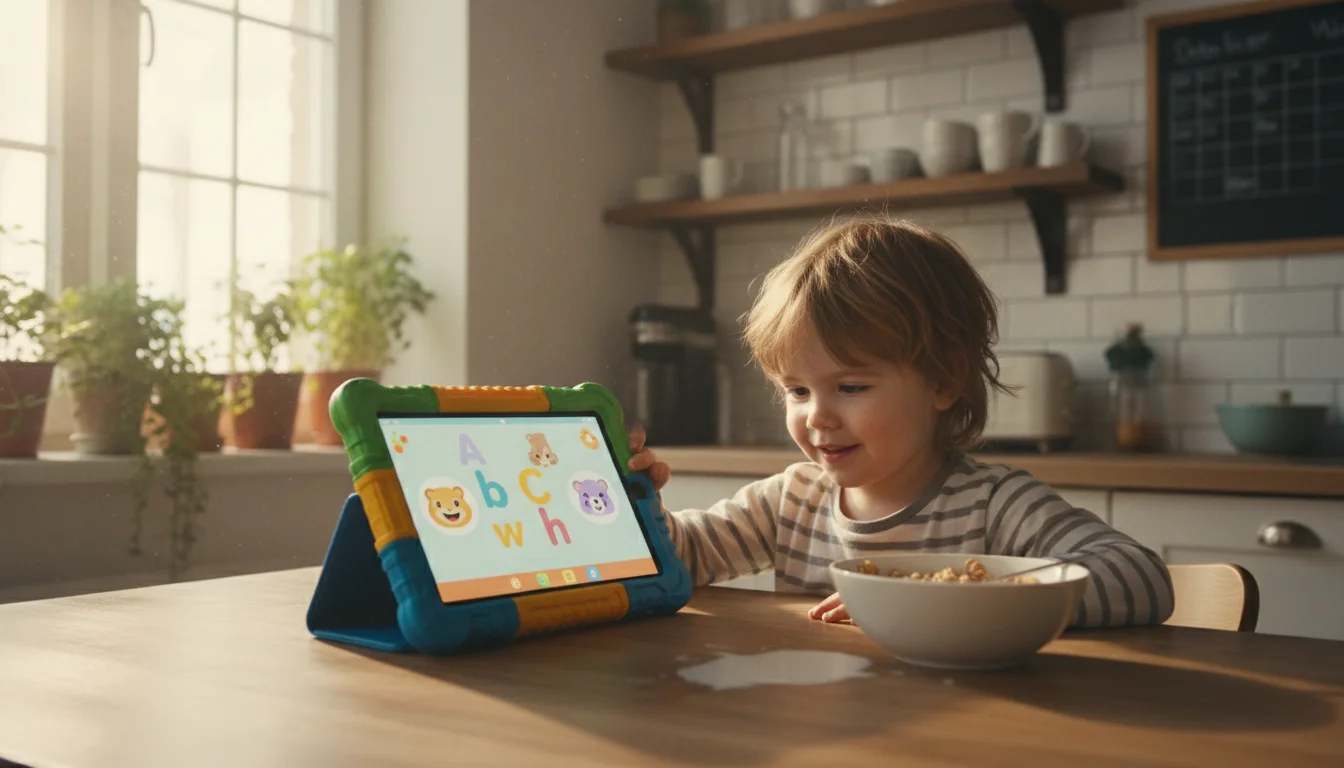
Turn It Into a Learning Station
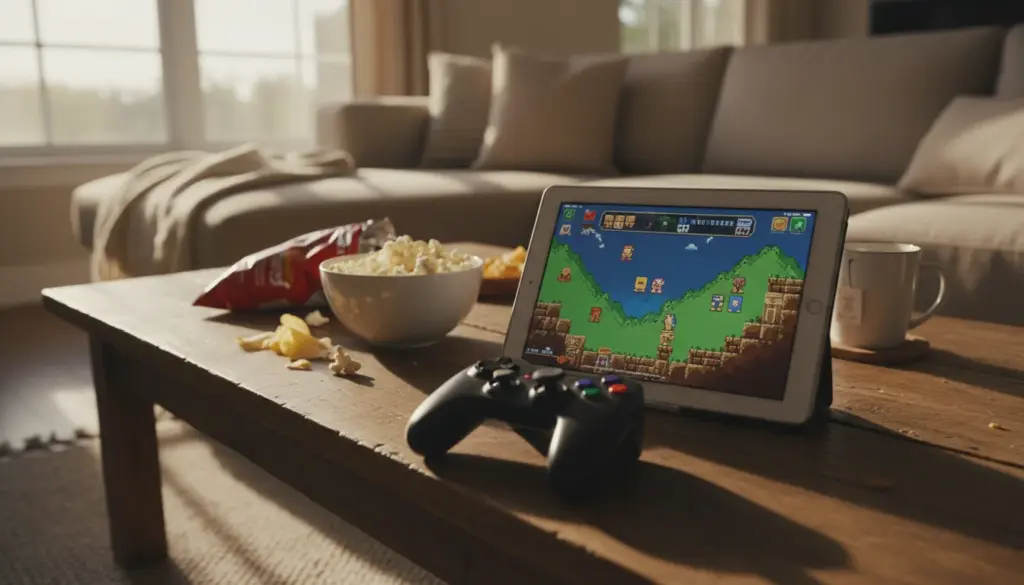
An old iPad running iOS 12 or an Android tablet on version 8 can still handle  Khan Academy Kids and ScratchJr. PBS Kids Games needs iOS 15.6, so it won’t run on the oldest iPads, but it works fine on anything from an iPad Air 2 forward. These aren’t watered-down apps. My 5-year-old asks to use Khan Academy the way other kids ask for YouTube, and I’m not going to question it.
The real advantage of using an old tablet instead of your phone is that you control exactly what’s on it. No work emails to accidentally delete. No texts for the kids to read. Just a small library of apps you’ve chosen for them and nothing else.
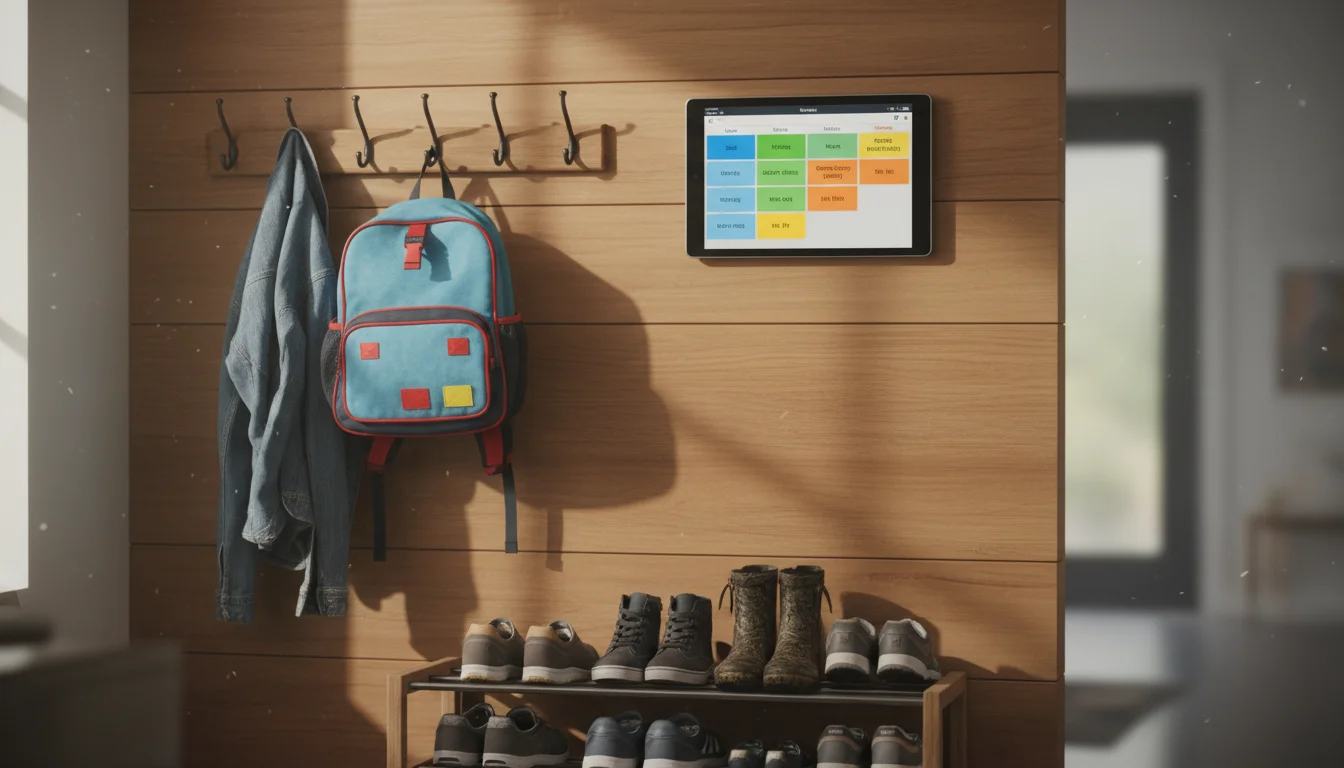
Run Your Family’s Entire Schedule
This is where most people don’t think to go, and honestly it’s what changed our house the most.
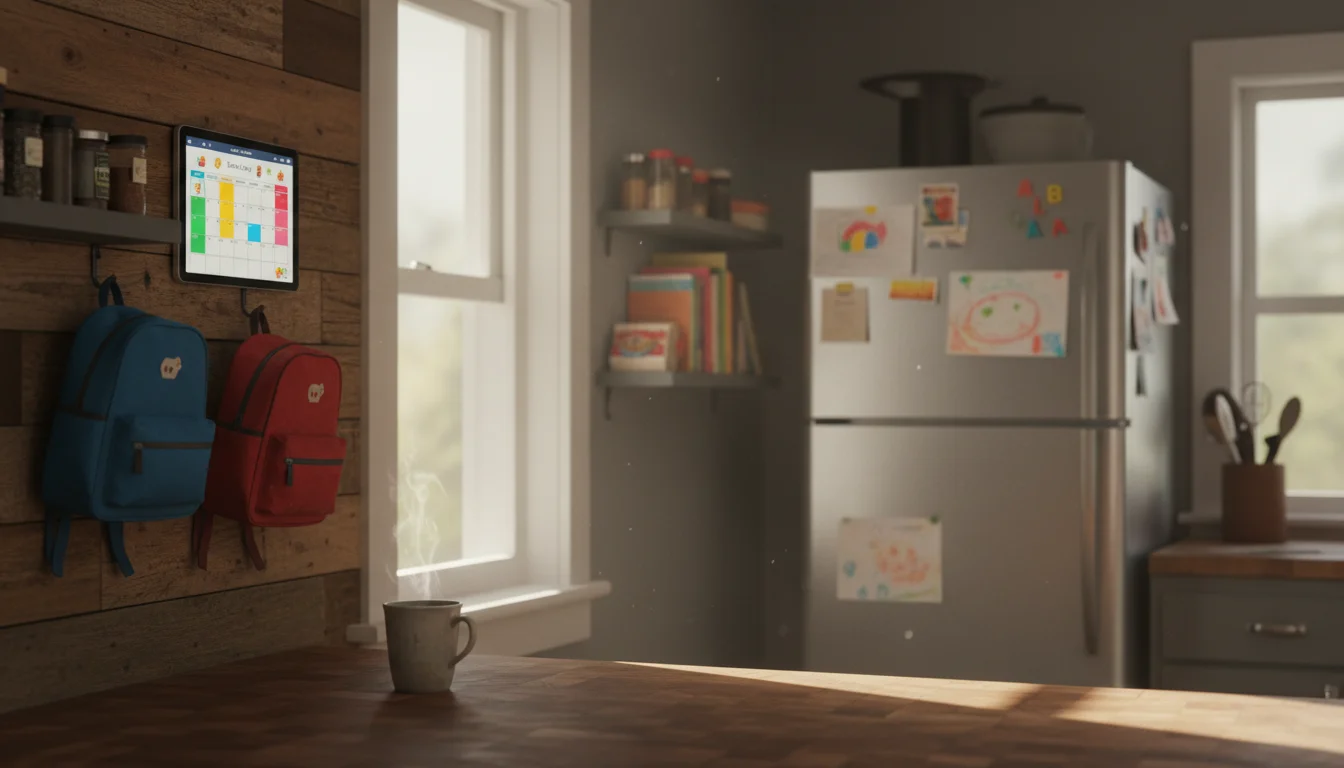
Mount that old tablet on a wall – the kitchen or the hallway, wherever everyone passes – and it becomes the one place your family actually looks for what’s happening today. We started with a shared family calendar and kept adding from there.
Now we have a morning routine board so I’m not yelling “shoes! teeth! backpack!” on repeat every day. The kids check the tablet, see what’s left on their list, and (most of the time) just do it. We added an after-school board for homework, chores, and evening plans, and a weekly family check-in every Sunday that takes 15 minutes and keeps the whole week from falling apart.
The tablet on the wall replaced the paper chore charts, the whiteboard we kept forgetting to update, and about half the arguments about whose turn it is to feed the dog.
Each setup took maybe 30 minutes, and the payoff has been enormous.
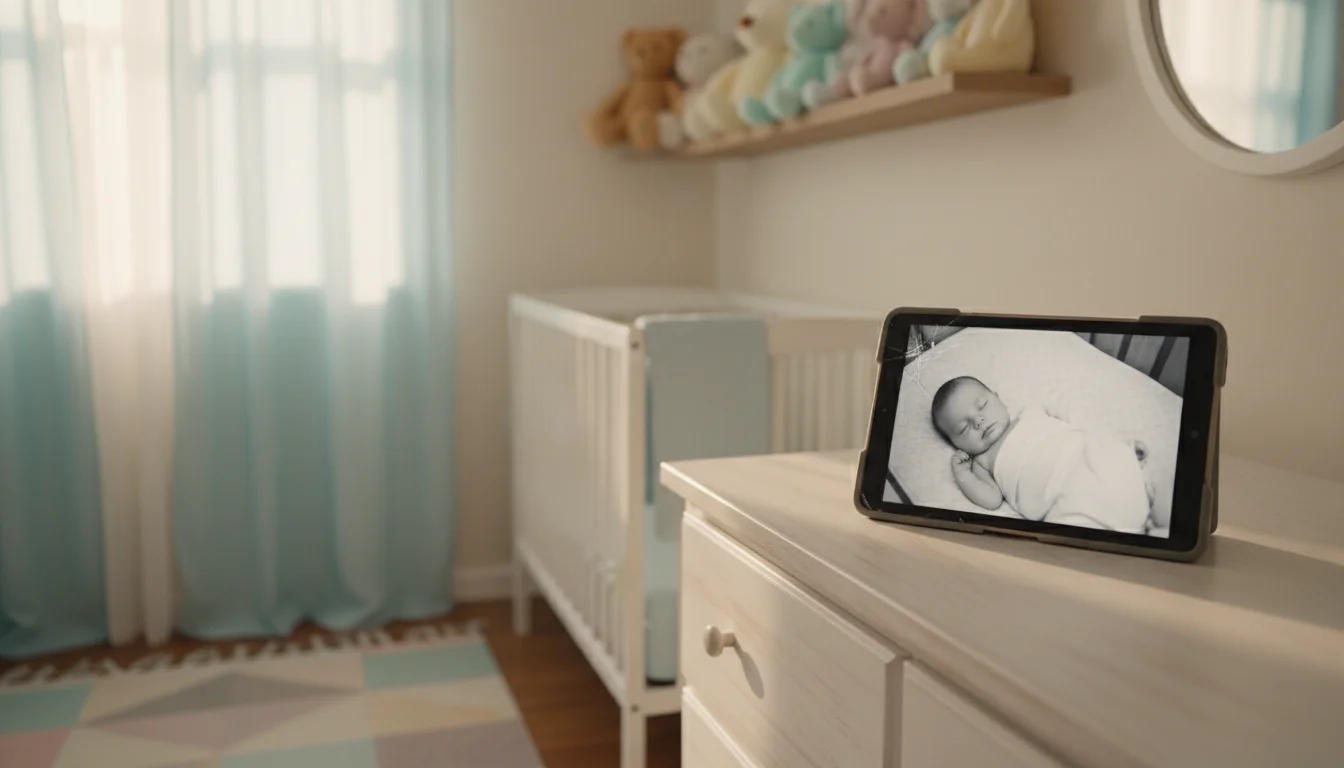
Use It as a Baby Monitor
If you still have a little one napping, an old tablet propped up in the nursery works as a surprisingly decent baby monitor.  Alfred Camera is free and turns any old phone or tablet into a live video feed you can watch from your own device.
It’s not a replacement for a dedicated monitor if you need night vision or cry detection. But for naptime when you’re downstairs and just want to glance at the screen? It works. And it costs nothing.
Set One Up for Grandparents
This one gets overlooked. If your parents or in-laws struggle with technology but you want them to video call the kids or see family photos, an old tablet is the perfect solution. Strip it down to the basics – big icons, simple apps, no clutter – and suddenly they have a device that does exactly three things well.
We did this for Mark’s parents and it took an afternoon. They use it for FaceTime, a shared photo album, and the weather. That’s it. They love it. Our grandparent setup guide walks through the whole process, including the conversation about what they actually want it to do (which is the part most people skip).
Make It Kid-Safe First
Before handing any old tablet to your kids, spend 20 minutes making it safe. Factory reset it, set up a child account, enable Screen Time or  Google Family Link, and put it in a case that can survive being dropped on tile. I learned this the hard way when my oldest somehow bought $14 worth of in-app gems before I’d turned off purchases.
Our kid-proofing guide covers the full setup for both iPads and Android tablets. The short version: wipe it, lock it down, then add what you want on it. Not the other way around.
Which Old Tablets Still Work
Not every old tablet is worth the effort. Here’s the quick version:
| Platform | Minimum OS | Still-good examples |
|---|---|---|
| iPad | iOS 12 | iPad Air 2 (2014), iPad mini 4 (2015), and everything newer |
| Android tablet | Android 8 (Oreo) | Samsung Galaxy Tab A (2018+), most 2018-era tablets |
| Amazon Fire tablet | Fire OS 6 (2019+) | Fire 7, Fire HD 8, Fire HD 10 |
iPads older than the Air 2 are too limited for most apps. Not sure what you have? Check Settings > General > About.
Older Android tablets tend to have weaker screens and processors, but they’ll still run calendar and routine board apps fine.
Amazon Fire tablets are solid for kids specifically. They’re cheap, durable, and  Amazon Kids+ ($5.99/month with Prime) gives you a curated library without needing to hunt for individual apps. Our Kindle Fire uses guide has more on these.
If you want to see what apps still work on older devices, we keep an updated list. And if you’re looking for good options that won’t cost anything, we have a free apps roundup too.
Frequently Asked Questions
What age should a child have their own tablet?
There’s no universal answer, but most families I know start around age 4-5 with supervised use and move to more independent use by 7-8. The advantage of an old tablet is that you can control it completely. A 3-year-old with Guided Access locked to one app is very different from a 10-year-old with full internet access.
Can an old iPad still run kids’ apps?
Yes, if it’s on iOS 12 or newer. Khan Academy Kids, ScratchJr, and many educational apps still support iOS 12. Some, like PBS Kids Games, need iOS 15.6 or later. Others like YouTube Kids now require iOS 16, so they won’t install on older devices. The best educational apps tend to maintain wider compatibility.
Is an old tablet safe to use as a baby monitor?
For daytime naps when you just want a video feed, yes. Apps like Alfred Camera work well for this. For overnight monitoring where you need reliable alerts, night vision, or temperature sensing, a dedicated baby monitor is still the better choice. We cover this in detail in our baby monitor guide.