
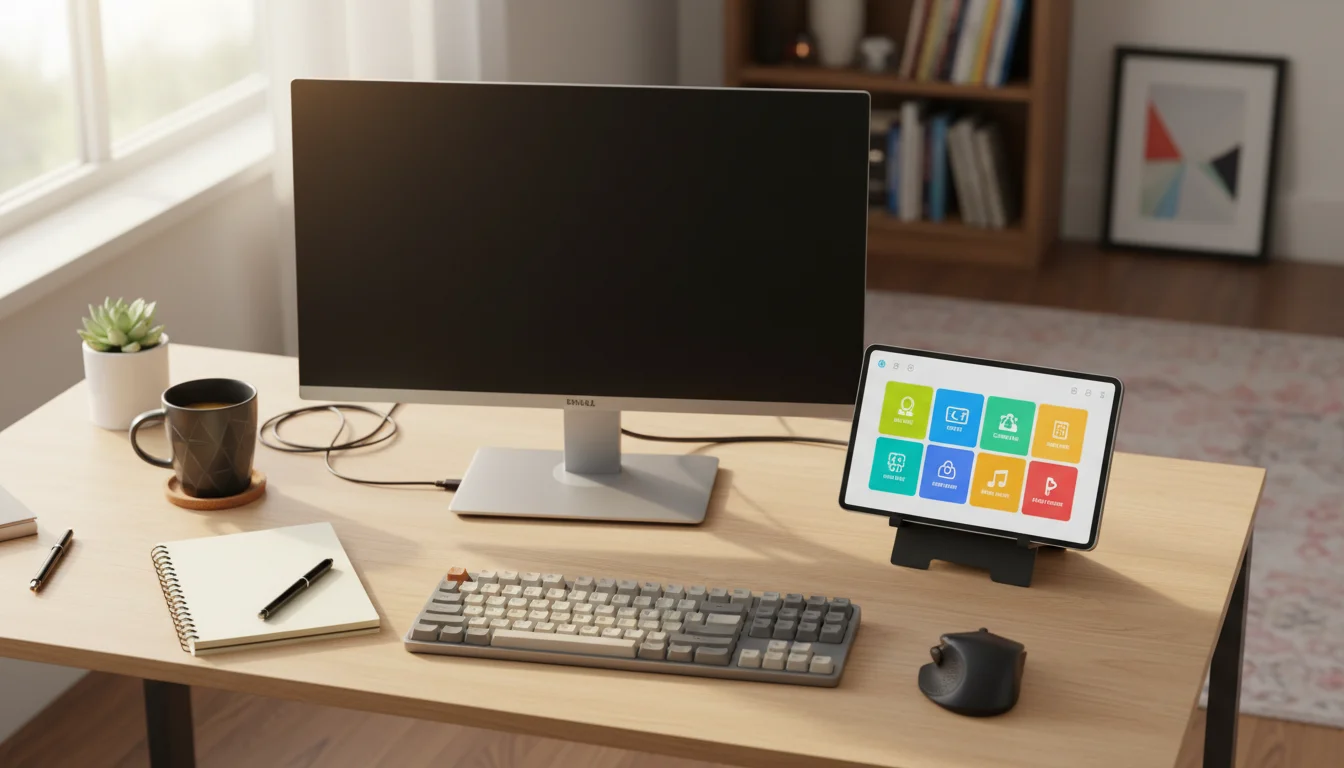
You Already Own a Stream Deck
An Elgato Stream Deck costs $55 for the mini and $150 for the full-size version. It gives you programmable buttons that launch apps, trigger shortcuts, control OBS scenes, and automate repetitive tasks. Content creators love them. Productivity nerds love them. Gamers love them.
You know what else has a touch screen with programmable buttons? That old iPad sitting in your kitchen drawer.
With the right app, an old tablet becomes a wireless macro pad you can customize for anything – not just streaming. One tap to dim the living room lights. Another to start your work playlist. A button that opens Zoom, mutes your mic, and switches your webcam. Mark set one up on his desk using our old Galaxy Tab A, and I’ll admit I was skeptical until I saw how fast he could switch between meetings with a single tap.
Which Apps Actually Work on Old Tablets
This is where most articles get it wrong. They’ll recommend five apps without mentioning that half of them require iOS 16 or Android 10. If you’re running an iPad on iOS 12-15 or an Android tablet on Android 8-11, your options are narrower. But they exist, and some are genuinely good.
| App | iPad | Android | Price | Min OS | Best For |
|---|---|---|---|---|---|
 Touch Portal Touch Portal |
Yes | Yes | Free (Pro $13.99) | iOS 12+ / Android 5+ | All-around best option |
 Deckboard Deckboard |
No | Yes | Free (Pro $4.99) | Android 4.4+ | Free and open source |
 Macro Deck Macro Deck |
No | Yes | Free | Android 5+ | Windows-only desks |
| WebDeck | Any browser | Any browser | Free | Any | Very old tablets |
Elgato’s own  Stream Deck Mobile app exists too, but it requires iOS 15+ and Android 10+. That rules out most old tablets entirely. Skip it.
Touch Portal: The One to Start With
If you only try one option, make it Touch Portal. It runs on both iPad and Android, works with macOS, Windows, and Linux on the desktop side, and the developers have explicitly said they care about keeping old device support alive. That’s rare.
The free version gives you a 4×2 grid and two pages of buttons. That’s 16 buttons total. Enough to control media playback, switch OBS scenes, launch apps, and trigger a handful of keyboard shortcuts.
The Pro upgrade is $13.99, one time. No subscription. That gets you unlimited pages, up to 110 buttons per page, and support for sliders and other advanced controls. Compare that to Elgato’s Stream Deck Mobile, which charges a monthly subscription for more than 6 buttons.
Setting It Up
- Download the Touch Portal desktop app on your PC or Mac.
- Install Touch Portal on your tablet from the App Store (iPad) or
 Play Store (Android).
 - Make sure both devices are on the same Wi-Fi network.
- Open the desktop app first, then the tablet app. It should find the desktop automatically. If not, enter the IP address manually.
- Start adding buttons. Each button gets an action: keyboard shortcut, launch application, HTTP request, or plugin-specific commands.
The interface is straightforward. You design buttons on the desktop, and they show up on the tablet. Drag, drop, assign an action, done. You can add icons, change colors, and organize by pages.
One thing to know: Wi-Fi latency adds a small delay between tapping and the action firing. On a good home network, it’s barely noticeable. On a congested one with a dozen smart devices, you might feel 100-200ms of lag. Not a problem for launching apps or toggling lights, but noticeable if you’re switching OBS scenes mid-stream.
Deckboard: Free and Open Source (Android Only)
If you have an old Android tablet and don’t want to spend anything, Deckboard is the answer. It’s open source, the free version is usable (3×4 grid, with ads), and the pro version is $4.99.
The catch: no iOS support at all. If you have an old iPad, skip to Touch Portal above.
Deckboard connects to a Windows or Linux desktop app. Setup is similar to Touch Portal – install both apps, connect via Wi-Fi or USB, and start assigning buttons. The button editor is simpler, but it covers the basics: keyboard shortcuts, launch apps, run scripts, and media controls.
For an old Galaxy Tab or Fire tablet that’s been sitting around doing nothing, Deckboard gives it a purpose in about ten minutes.
WebDeck: When Your Tablet Is Really Old
What if your tablet is too old for Touch Portal or Deckboard? If it can open a web browser,  WebDeck might still work. It’s a Python app that runs on your PC and serves a control panel to any device with a browser. No app installation on the tablet at all.
This is the most DIY option. You download the Windows app, run it, and open the URL in your tablet’s browser. The interface is functional but not as polished as Touch Portal. Still, if you’re working with an iPad 3 on iOS 9 or a Galaxy Tab from 2015, this might be your only option that actually loads.
Beyond Streaming: What Your Tablet Deck Can Actually Do

Most stream deck guides focus on OBS and Twitch. But the best use for an old tablet as a macro pad probably isn’t streaming at all. Here’s what actually makes sense for a household:
Home office productivity. One button to open your email client, another to join your recurring Zoom meeting, a third to start your focus timer. Mark has a page of buttons just for switching between his work tools – terminal, Slack, browser, IDE – without touching the keyboard.
Smart home control. If you already have smart lights, a thermostat, or smart plugs, Touch Portal can send HTTP requests to their APIs. One tap to set “movie mode” (dim lights, turn on the TV, close the blinds). It’s like a smart home control panel but with customizable buttons instead of a dashboard app.
Music and media. Dedicated buttons for play/pause, skip, volume, and playlist selection. Works whether you’re using Spotify on your computer, a Plex media server, or just the system volume controls.
Meeting controls. Mute, unmute, camera on/off, screen share, leave meeting. If you’ve ever fumbled for the mute button during a Zoom call while your three-year-old walked in, you understand the appeal of a big, obvious “MUTE” button within arm’s reach.
Tips for a Reliable Setup
An old tablet as a stream deck works best when it’s set up once and forgotten about. A few things that help:
Keep it plugged in. Battery management matters less here than for a wall-mounted display since you’re probably using it at a desk. But if the tablet lives on a stand or dock next to your monitor, keeping it on a slow charger means it’s always ready.
Use Wi-Fi, not cellular. Make sure the tablet connects to the same network as your desktop. A 5GHz band works better than 2.4GHz for lower latency, but most old tablets only support 2.4GHz. That’s fine for button presses.
Lock the screen to the app. On iPad, use Guided Access (Settings > Accessibility > Guided Access) to lock the tablet to Touch Portal. On Android, use Screen Pinning (Settings > Security > Screen Pinning). This prevents accidental exits and keeps the tablet focused on one job.
Disable notifications. Turn on Do Not Disturb and disable all notification banners. You don’t want a software update popup covering your buttons during a meeting.
If you want a complete walkthrough on keeping an old tablet running reliably in always-on mode, our settings guide for always-on displays covers everything from screen timeout to auto-brightness.
Is It Worth It?
If you’re a full-time content creator streaming daily, buy the real Stream Deck. The hardware buttons, the tactile feedback, the zero-latency response – that stuff matters when it’s your job.
But if you’re someone who wants quick-access buttons for work calls, smart home shortcuts, or media controls, and you already have an old tablet in a drawer? Set up Touch Portal. It takes fifteen minutes, costs nothing, and that old Galaxy Tab finally has a reason to exist again.
Even if you decide it’s not for you, the tablet goes right back in the drawer. But my guess is it won’t. Once you have a row of one-tap shortcuts next to your keyboard, you’ll wonder how you worked without them. Our full list of ideas for old iPads and Android tablets has more options if you want to explore what else that old device can do.


