Before You Panic
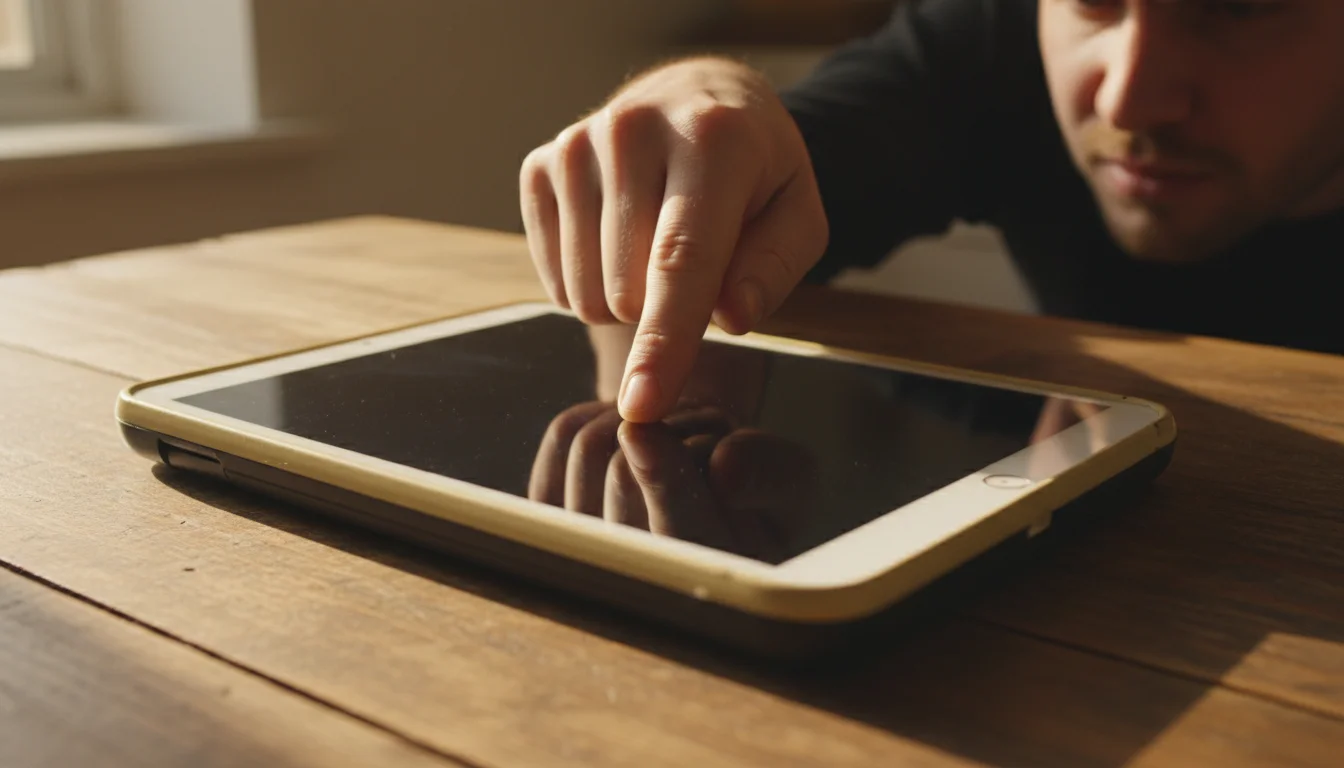
Your old tablet’s touch screen stopped responding. Maybe it happened suddenly, maybe it’s been getting worse for weeks. Either way, you’re tapping and nothing’s happening.
Good news: most of the time, this isn’t a dead screen. Old tablets develop touch issues for predictable reasons, and the fix is often simpler than you’d expect. I’ll walk you through what to try, starting with the easiest fixes. If none of them work, I’ll be honest about that too.
The Quick Fixes (Try These First)
These take under a minute each. Start here before doing anything drastic.
Clean the screen. Seriously. Old tablets accumulate a film of oils, dust, and kid fingerprints that can interfere with the digitizer (the layer that detects your touch). Wipe it down with a slightly damp microfiber cloth. Not a paper towel, not your shirt sleeve.
Remove the screen protector. If your tablet has a screen protector that’s been on for years, peel it off. Old protectors develop air bubbles, lift at the edges, and lose conductivity. I’ve seen tablets go from "barely responsive" to "perfectly fine" just by removing a worn-out screen protector.
Remove the case. Some cases press against the edges of the screen, especially if they’ve warped over time. Take the case off completely and test.
Dry your hands. Wet or sweaty fingers register differently on capacitive screens. Also make sure the screen itself is dry.
Check if it’s plugged in. This is a weird one, but some old tablets develop touch issues while charging – especially with third-party chargers. If the screen acts up while plugged in but works fine on battery, the charger is likely sending electrical noise through the cable. Try a different charger or unplug it.
Force Restart
If the screen froze completely and nothing responds at all, force restart the tablet. This is different from a normal restart because it works even when the screen is unresponsive.
iPad with a Home button: Hold the Home button and the Power button at the same time for about 10 seconds, until you see the Apple logo. Then let go.
iPad without a Home button: Press and quickly release the Volume Up button, then press and quickly release the Volume Down button, then press and hold the Power button until the Apple logo appears.
Android tablets: Hold the Power button and Volume Down button together for 10-15 seconds. The exact combination varies by manufacturer, but Power + Volume Down works for Samsung, Lenovo, and most others.
This fixes the majority of "frozen screen" situations. If the tablet restarts and touch works normally, it was probably a software hang. If it happens repeatedly, read the software fixes section below.
When Only Part of the Screen Works
If you can tap in some areas but not others, that’s a different problem than a completely dead screen. Partial touch failure on old tablets usually means one of two things:
The digitizer is degrading. The touch-sensitive layer is bonded to the glass. Over years of use, the connections between the digitizer and the logic board can weaken, especially near the edges. If the dead zone is along one edge of the screen, this is likely the cause. Unfortunately, there’s no software fix for physical degradation.
Something is pressing on the screen. A warped case, a screen protector with bubbles, or even a hairline crack you can’t see can create dead zones. Remove everything from the screen and test bare.
Test it systematically. On iPad, go to Settings, General, Accessibility (or Settings, Accessibility on newer iOS), then tap Touch, then Assistive Touch, and turn it on. This gives you a floating button you can drag around the screen to find exactly where touch works and where it doesn’t. On Android, enable Developer Options and turn on "Show touches" to see where your taps register.
If the dead zone is small and consistent (like a strip along one edge), you can sometimes work around it by rotating the screen orientation. A dead zone on the bottom in portrait mode becomes a dead zone on the side in landscape – which might be usable depending on what you’re doing with the tablet.
Software Fixes That Actually Help
If the touch screen works intermittently or feels laggy rather than completely dead, the problem might be software.
Free up storage. When an old tablet runs out of storage, everything gets sluggish – including touch response. Go to Settings, General, iPad Storage (or Settings, Storage on Android). If you’re above 90% capacity, delete old apps, photos, and downloads. On old iPads, clearing Safari cache alone can free up a surprising amount of space.
Check for a software update. I know – your old tablet probably can’t update to the latest OS. But there might be a minor update within your current version. Go to Settings, General, Software Update. If iOS 12.5.8 or a similar patch is available, install it. These patches sometimes include touch responsiveness fixes.
Reset all settings (not the whole tablet). On iPad running iOS 15+: Settings, General, Transfer or Reset iPad, Reset, Reset All Settings. On older iOS (12-14): Settings, General, Reset, Reset All Settings. This doesn’t delete your apps or data. It resets system preferences like display, accessibility, and touch calibration to factory defaults. Sometimes this fixes touch issues caused by corrupted settings. On Android: Settings, General Management, Reset, Reset Settings.
Factory reset as a last resort. If nothing else works and you suspect it’s software, a full factory reset is the nuclear option. Our reset guide walks through the process step by step. Back up anything you care about first – this wipes everything.
The Hardware Reality for Old Tablets
Here’s what the other "10 fixes" articles won’t tell you: old tablets develop touch problems because the hardware is physically wearing out.
The digitizer in your iPad or Android tablet is a thin layer of conductive material bonded to the glass. After 8-10 years, that layer degrades. The flex cable connecting the digitizer to the main board can develop micro-fractures from years of heating and cooling. The adhesive holding the layers together can weaken, especially if the tablet has been kept in hot environments (like a car dashboard or a sunny windowsill).
None of this is fixable with a software update or a force restart. If your tablet is from 2014 and the touch screen is failing, you’re probably looking at hardware end-of-life.
Is screen replacement worth it? For most old tablets, no. A screen replacement on an old iPad costs $100-200, which is more than the tablet is worth. The exception: if you have an iPad Air 2 or newer with a cracked screen (not touch degradation), a third-party repair shop might do it for $80-120. But for touch digitizer failure on anything older, the economics don’t work.
When to Stop Trying (and What to Do Instead)
If you’ve tried everything above and the touch screen still doesn’t work, it’s time to accept it. But "broken touch screen" doesn’t mean "useless tablet."
Use it without touch. If the screen displays fine but touch is dead, you can connect a Bluetooth mouse or keyboard. On iPad (iOS 13+), go to Settings, Accessibility, Touch, AssistiveTouch, and enable it with a connected pointer device. On Android, plug in a USB mouse with an OTG adapter. Now you can navigate the tablet with a cursor instead of touch. This is genuinely useful for turning it into a photo frame or a dedicated display where you rarely need to interact with the screen.
If it’s too far gone, we have a whole guide on what to do with a broken tablet – some options don’t even need a working screen.
And if you’re dealing with other issues beyond just the touch screen, our broader troubleshooting guide covers everything from tablets that won’t turn on to ones that are just unbearably slow. Sometimes speeding up the tablet fixes what feels like a touch problem but is actually just extreme lag.
Quick Fix Checklist
- Clean the screen with a damp microfiber cloth
- Remove any screen protector and case
- Check if the issue happens only while charging
- Force restart (Home + Power on iPad, Power + Volume Down on Android)
- Free up storage if above 90%
- Check for available software updates
- Reset all settings (keeps your data)
- Factory reset (last resort – back up first)
- If nothing works: connect a Bluetooth mouse, or repurpose the tablet for a use that doesn’t need touch
The touch screen is usually the first thing to go on old tablets. If yours is still partially working, get whatever use you can out of it now. Set it up as a display, a photo frame, or a music player – something that doesn’t need constant tapping. You’ll get more life out of it that way than fighting a losing battle with a dying digitizer.