You Already Have a Calendar Problem
Every family I know has the same issue. One person – usually mom – keeps the entire schedule in her head. Soccer practice at 4. Dentist on Thursday. Parent-teacher conference next Tuesday that got mentioned once in a text three weeks ago.
Everyone else asks. “What are we doing Saturday?” “Do we have anything tonight?” “I didn’t know about that.”
You’ve tried fixes. A paper calendar on the fridge that nobody updates after January. A shared Google Calendar that your partner opened once and never looked at again. Group texts that get buried under memes and grocery requests.
The problem isn’t the tool. It’s the system. A shared calendar works when three things are true: everyone can see it without effort, everyone can add to it from their phone, and there’s a regular moment where the family actually looks at it together.
Here’s how we set ours up. It took about 30 minutes on a Sunday afternoon, and it’s been running for over a year.
Pick the Right Calendar Service
This matters less than you think. The best calendar is the one your family will actually use, and that usually means the one that’s already on their phones.
If everyone has iPhones and iPads: Use  Apple Calendar. It’s already installed, it syncs through iCloud automatically, and there’s zero setup friction. Your family members don’t need to download anything or create new accounts.
If you’re a mix of iPhone and Android (most families): Use  Google Calendar. It works on every platform, the web version runs on any old tablet’s browser, and sharing is straightforward. Google Calendar’s app requires iOS 17+ now, which means it won’t install on older iPads – but calendar.google.com in Safari works perfectly on iOS 12 and up.
If you already have a system that half-works: Keep it. Don’t start over. The problem probably isn’t the platform – it’s how you’re using it. Read the rest of this guide and apply the sharing and habit steps to what you’ve got.
Create a Shared Calendar (Not Just Share Yours)
This is the step most families skip, and it’s why their shared calendar fails.
Sharing your personal calendar gives everyone visibility into everything – your work meetings, your coffee with a friend, that embarrassing appointment you’d rather keep private. People hesitate to add things because it feels like someone else’s space. And the calendar gets cluttered with events that aren’t relevant to the whole family.
Instead, create a new calendar called “Family” (or “The Wards” or whatever feels right). This calendar has one purpose: events that affect more than one person.
In Google Calendar:
- On your computer, click the “+” next to “Other calendars” in the left sidebar
- Click “Create new calendar”
- Name it “Family” and save
- Click the three dots next to the new calendar, then “Settings and sharing”
- Under “Share with specific people,” add each family member’s email
- Set their permission to “Make changes to events” – not just “See all event details”
In Apple Calendar:
- Open Calendar on your iPhone
- Tap “Calendars” at the bottom
- Tap “Add Calendar” and name it “Family”
- Tap the new calendar, then “Add Person”
- Add each family member by name or email
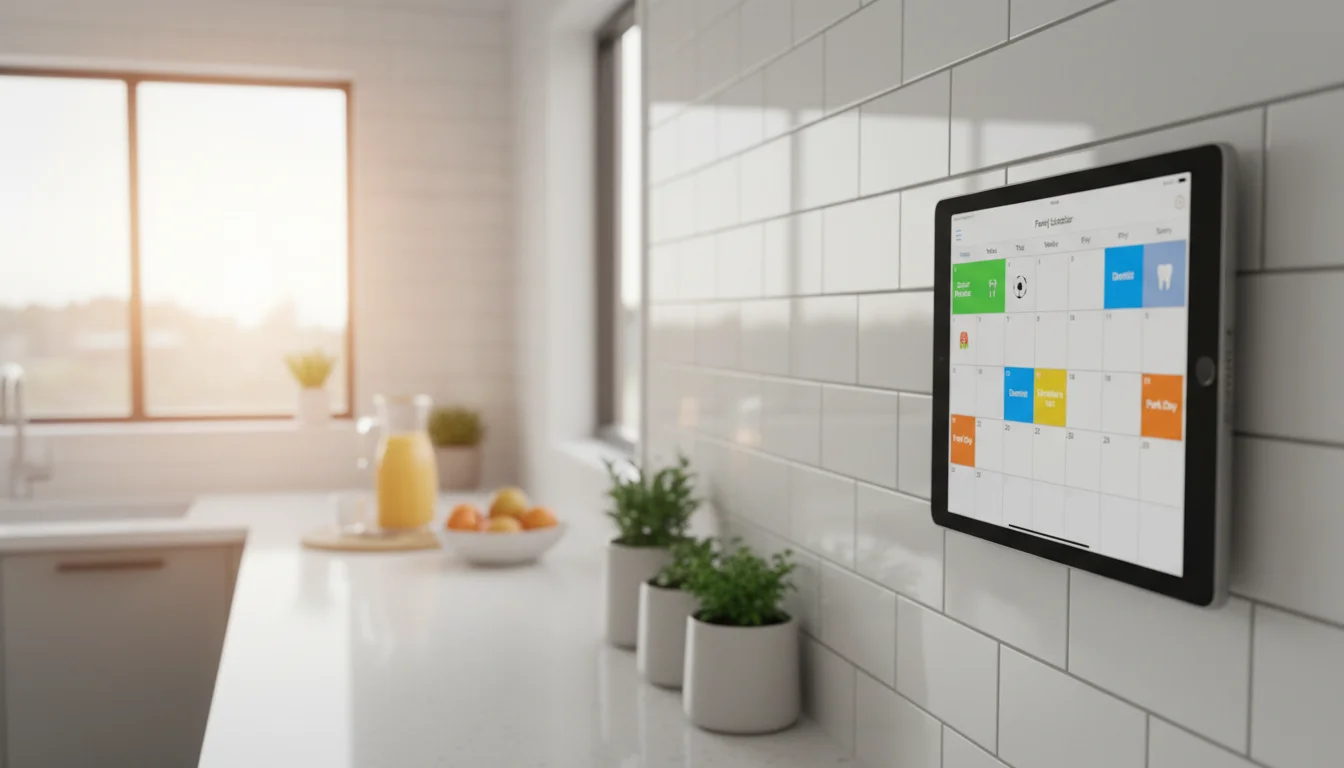
Each person keeps their own personal calendar too. The family calendar just sits alongside it. When someone looks at the kitchen tablet or their phone, they see both – their own stuff and the family stuff, in different colors.
Decide What Goes on the Family Calendar
This sounds obvious, but have the conversation. Ours follows one rule: if it affects someone else’s schedule, it goes on the family calendar. Everything else stays personal.
Family calendar:
- Kids’ activities (soccer, piano, playdates)
- School events (conferences, half days, picture day)
- Family commitments (dinner with grandparents, birthday parties)
- Appointments that need a driver (dentist, orthodontist)
- Household logistics (plumber coming Tuesday, car inspection)
Personal calendar:
- Work meetings
- Your own social plans
- Gym classes, book clubs, personal appointments
- Anything that doesn’t require someone else to adjust
The line will be different for every family. The point is to agree on it once so nobody’s guessing whether to add something.
Get Everyone Adding Events
The shared calendar only works if more than one person adds to it. Here’s what actually worked for us.
Make it the default. When someone mentions an event out loud – “the school emailed about a bake sale” – the response is “put it on the calendar.” Every time. After two weeks, it becomes automatic.
Lower the friction. On iPhone, you can set the Family calendar as the default for new events (Settings > Calendar > Default Calendar). On Android, open Google Calendar > Settings > General > Default calendar. Now when anyone creates an event quickly, it goes to the right place.
Include the details that matter. Not just “Soccer” at 4pm. Include the location so the address is tappable. Add which kid it’s for if you have more than one. Note if someone needs a ride. “Ella soccer – Westport Fields, needs pickup at 5:30” is a useful calendar event. “Soccer” is not.
Don’t police it. If someone adds a personal event to the family calendar by mistake, just move it. Making someone feel bad about using the calendar wrong is the fastest way to make them stop using it entirely.
Put It on the Wall
A shared calendar that lives only on phones has the same problem as the old system – nobody checks it until they need something. The fix is making it visible without anyone having to do anything.
An old iPad or Android tablet on the kitchen counter or hallway wall, showing the family calendar at all times, changes the dynamic completely. Instead of asking “what are we doing tonight?” everyone just glances at the screen on their way past.
Our calendar display setup guide covers the tablet side in detail – which apps to use, how to keep the screen on, and where to mount it. The best calendar apps for old tablets compares what actually installs on older devices. And if you want a polished look with weather and photos alongside your calendar,  DAKboard (free tier) combines everything on one screen.
The tablet is the display layer. Everything you set up above – the shared calendar, the permissions, the family events – is what makes it useful.
The Sunday Look-Ahead (15 Minutes That Save the Week)
This is the habit that holds everything together. Every Sunday after dinner, we pull up the calendar on the kitchen tablet and walk through the week. It takes maybe 10-15 minutes.
What we cover:
- What’s happening each day this week (activities, appointments, events)
- Who needs to be where and who’s driving
- Any schedule conflicts to sort out now instead of Tuesday morning
- Meals that need planning around busy nights (our meal planning system ties into this)
- Anything missing – “didn’t you say Ella has a birthday party Saturday?”
What we skip:
- Turning it into a family meeting
- Spending more than 15 minutes
- Making the 3-year-old sit still for the whole thing (she wanders off after two minutes and that’s fine)
The older kids have started checking the tablet on their own before school. That was the moment I knew the system was working – not because I told them to look at it, but because the information was there and they wanted it.
When It Falls Apart (and How to Fix It)
It will fall apart. Someone will forget to add events for two weeks. A busy month will skip the Sunday review. Your partner will say “I just texted you about it” instead of adding it to the calendar.
This is normal. The system doesn’t need to be perfect to be useful. Even a half-maintained shared calendar is better than one person holding everything in their head.
When it drifts, the fix is simple: do the Sunday look-ahead. That one habit resets everything. You’ll spot the gaps, add the missing events, and get back on track. No lectures, no guilt, just 15 minutes with the calendar on the screen.
The kitchen tablet helps here too. When the calendar is physically visible on the wall, it’s harder to forget about. You walk past it making coffee and see that Thursday is empty – so you add the thing you’ve been meaning to add. The visibility does the reminding for you.
If your family runs on a calendar system that everyone trusts, the tablet on the wall is the thing that makes it effortless. And the next time someone asks “what are we doing this weekend?” you can just point.