Photos That Show Up Without Anyone Doing Anything
The best part of using an old tablet as a photo frame isn’t the screen quality or the app selection. It’s the cloud connection.
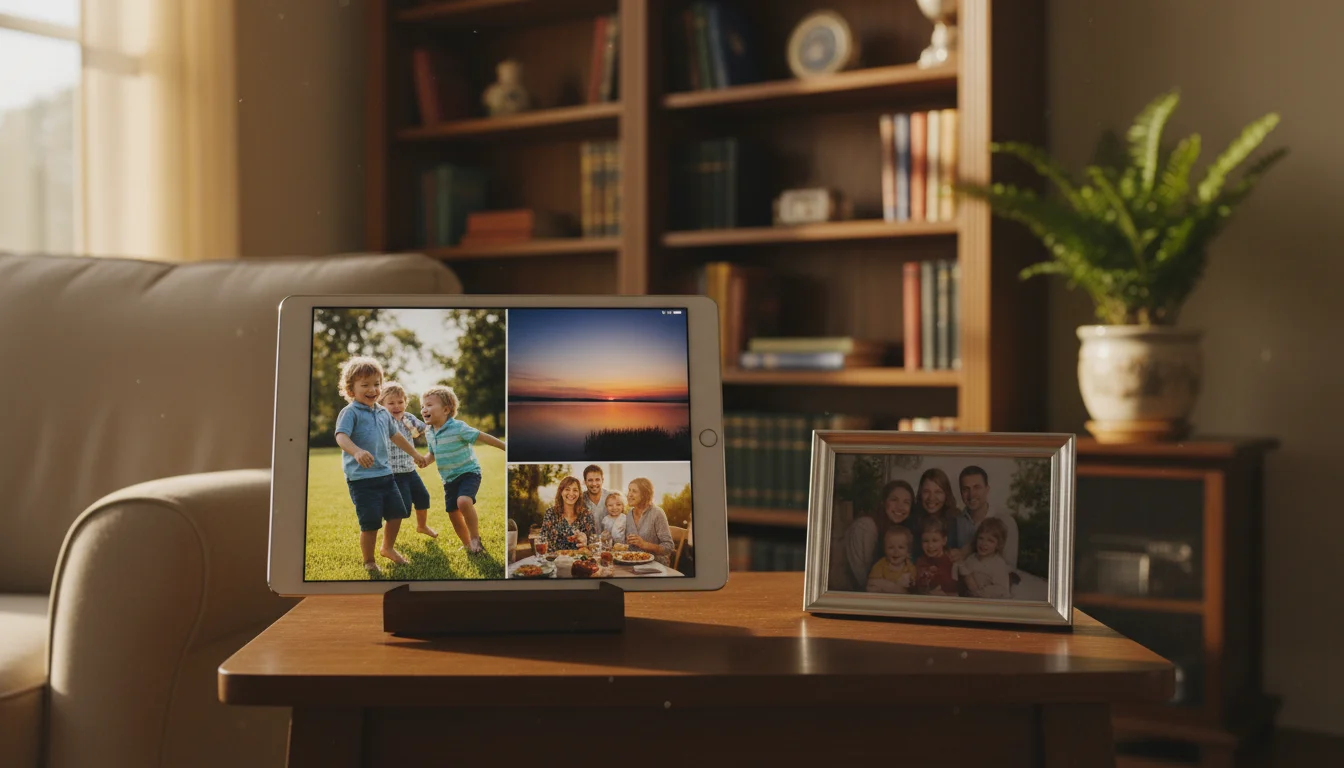
Set it up right and every family member’s photos appear on the tablet automatically. Mom takes a picture of the kids at soccer practice. Dad snaps one at the science fair. Grandma gets a candid at Sunday dinner. Within an hour, they’re all rotating on the kitchen counter.
Nobody has to email photos. Nobody has to share anything manually. Nobody has to remember to do anything. You take photos the way you always do, and the tablet does the rest.
Here’s how to set that up, depending on which platform your family uses.
Google Photos (Best for Mixed Families)
If your family uses a mix of iPhones and Android phones – which most families do – Google Photos is the obvious choice. It works on both platforms, the sharing is simple, and the free tier stores plenty for a photo frame.
Setting Up the Shared Album
On your phone (the organizer):
- Open Google Photos
- Tap Library > New album
- Name it something obvious like "Family Photos"
- Tap Share and add family members by email or phone number
- Turn on Collaborative so everyone can add photos
On the tablet:
- Sign in to Google Photos with the same account (or the account you shared the album with)
- The shared album appears under Sharing
- Set up a slideshow from this album (open the album, tap first photo, three-dot menu > Slideshow)
The Automatic Way
Google Photos has a feature called Partner Sharing that’s even better for couples. Go to Settings > Partner Sharing and select your partner’s account. You can automatically share all photos, or just photos of specific people (like the kids). The photos appear in both accounts without either person doing anything.
For a family of more than two, a shared album with Collaborative turned on is the better approach. Up to 20,000 photos per shared album, and anyone in the family can contribute.
Making It Hands-Free
The part that matters: nobody should have to manually add photos to the album. Here’s how to automate it.
Option 1 – Live Album: When creating the album, tap Select people & pets instead of picking individual photos. Google Photos uses face recognition to automatically add new photos of the people you selected. Take a photo of the kids, and it lands in the album on its own.
Option 2 – Manual with reminders: If you’d rather control what goes in, just tell family members to share photos to the album directly. In Google Photos, when viewing any photo, tap Share > pick the album name. Takes two taps.
Live Albums are the set-it-and-forget-it option. Most families start there.
iCloud Shared Photo Library (Apple Families)
If everyone in your family has an iPhone, iCloud Shared Photo Library is the most seamless option. Apple introduced this in iOS 16, and it’s designed for exactly this use case.
How It Works
You create one shared library that up to six family members contribute to. Photos can be shared automatically based on who’s in them, where they were taken, or when. The tablet pulls from this shared library for its slideshow.
Setting It Up
On each family member’s iPhone (iOS 16 or later):
- Settings > Photos > Shared Library
- Choose which existing photos to add (you can start with just new photos)
- Turn on Share Automatically > Share When With People to auto-share photos taken when family members are nearby
On the iPad photo frame:
- Go to Settings > Photos > Shared Library
- Join the same shared library
- Set up the slideshow to pull from the shared library
The Catch
iCloud Shared Photo Library requires iOS 16 or later. If your photo frame tablet is an old iPad stuck on iOS 15 or earlier, it can’t access the Shared Library feature. Use iCloud Shared Albums instead (the older sharing feature, which works back to iOS 8).
With Shared Albums, each family member manually adds photos. It’s one extra step, but it works on any iPad that still connects to iCloud.
Amazon Photos (Fire Tablet Families)
If your photo frame is a Fire tablet – and Amazon has sold enough of them that this is common – Amazon Photos Family Vault is the built-in option.
With any Prime membership, you get unlimited full-resolution photo storage. The Family Vault lets you invite up to five people to share that storage. Everyone’s photos go into one place, and the Fire tablet can display them all.
Setting It Up
- On the Fire tablet, open Amazon Photos (preinstalled)
- On your phone, install the Amazon Photos app and enable auto-save
- In the app, go to Family Vault and invite family members
- Everyone’s photos sync to the vault automatically
- On the Fire tablet, open Amazon Photos and start a slideshow from the Family Vault
The advantage: if you’re already paying for Prime, this costs nothing extra. The resolution is unlimited (Google Photos compresses free uploads). And Fire tablets work with Amazon Photos out of the box.
Setting Up at Grandma’s House
This is where shared photo frames really shine. A tablet at the grandparents’ house that automatically shows new photos of the kids is one of those projects that generates a genuinely disproportionate amount of joy.
The Setup Checklist
- Pick the platform before you visit. If grandma has an iPhone, use iCloud. If she doesn’t, use Google Photos (create a Google account for her if needed). Don’t try to explain the difference – just pick one and set it up.
- Connect to Wi-Fi and make sure it auto-connects. Write the Wi-Fi password on a piece of tape on the back of the tablet.
- Set up the photo app and connect it to the shared album or library.
- Install a stay-awake app or configure the screen saver so the photos display automatically when the tablet is charging.
- Turn off all notifications. Settings > Notifications > turn everything off. Grandma doesn’t need Duolingo reminders interrupting sunset photos.
- Set the brightness. Auto-brightness usually works, but if the room is dark, set it to 40% manually.
- Plug it in permanently. Use a charging cable and a stand. The tablet lives on the shelf now.
Reducing Tech Support Calls
The tablet should require zero interaction. If it does its job, grandma never touches it. Photos just appear.
A few things that prevent problems:
- Disable software updates. A forced update can break the slideshow setup or change the interface. Settings > General > Software Update > turn off automatic updates.
- Use Guided Access (iPad) or Screen Pinning (Android) to lock the tablet to the photo app. This prevents accidental navigation to unfamiliar screens.
- Leave a one-page instruction sheet taped to the back: "If the photos stop, press the home button and tap the Photos icon." That’s usually enough.
Our grandparent tablet setup guide has the full walkthrough for getting any old tablet ready for a non-technical user.
Privacy: What to Think About
Shared photo albums mean your family photos live on a server. For most families, this is fine – you’re already using Google Photos or iCloud for personal backups. But a few things to consider:
Who can add photos: In a collaborative album, anyone invited can add photos. If you invite extended family, think about whether you want everyone’s vacation photos mixed in with daily family shots. You can always create a smaller album for just the immediate family.
Who can see photos: Shared albums are visible to everyone invited. If you take a photo of a permission slip with your address on it, or a screenshot with personal information, it could end up on the frame. Most auto-sharing features let you review before sharing.
Face recognition: Google Photos Live Albums use face recognition to auto-add photos. This works well, but it means Google is analyzing every photo you take. If that matters to your family, use manual sharing instead.
Location data: Photos contain GPS coordinates in their metadata. This isn’t visible on the tablet display, but it’s stored in the shared album. Google and Apple strip this from shared links, but it remains accessible to album members.
None of this is a reason to avoid shared photo frames. Just be aware that a shared album is a shared album – treat it like a family group chat where everyone can see everything.
Which Platform Should You Pick?
Google Photos if your family uses a mix of iPhones and Android phones. The cross-platform support is unmatched. Live Albums make sharing automatic.
iCloud Shared Photo Library if everyone has an iPhone and the tablet is a recent iPad (iOS 16+). The integration is deeper and the sharing is more automatic than Google’s equivalent.
iCloud Shared Albums if everyone has an iPhone but the iPad is older (iOS 8-15). Less automatic, but it works on much older hardware.
Amazon Photos Family Vault if the tablet is a Fire tablet and you have Prime. Unlimited storage, zero additional cost, works out of the box.
It Starts With One Album
You don’t need to get the whole family set up at once. Create one shared album. Add your partner. Start sharing photos of the kids. Set up the old tablet on the kitchen counter.
Within a week, someone will walk past and stop to look at a photo they didn’t know was taken. Then they’ll ask how to add their own photos. Then grandma will want one at her house.
That’s how it works. The tablet just sits there, quietly cycling through moments you’d otherwise forget you captured. And every time you glance at it while making dinner, you’re glad it’s there.