The Weather Display You Already Own
Dedicated weather displays cost $100 to $300. They show temperature, forecast, maybe radar. Your old Samsung Galaxy Tab in the drawer does all of that and more, for free, using apps and websites that already exist.
If you’ve seen our iPad weather station guide, this is the Android version. And honestly, Android tablets are easier for this particular job. The Developer Options menu gives you a true always-on screen while charging. Google Play has more weather apps that still support older devices than Apple’s App Store does. And  Fully Kiosk Browser turns any weather website into a locked-down kiosk display with no jailbreaking, no workarounds.
If yours is an Amazon Fire tablet, we have a specific Fire tablet weather station guide – the setup is a bit different because of Fire OS limitations.
Which Android Tablets Work
Any Android tablet running Android 8 (Oreo) or newer will work. That covers most tablets from 2017 onward.
Works great:
- Samsung Galaxy Tab A (2019+) or Tab S series – reliable, good screen brightness
- Lenovo Tab M8 or M10 – budget tablets that handle weather apps without issues
- Google Pixel Tablet – overkill for this, but if you have one collecting dust, sure
- Any tablet on Android 9-12 with at least 1.5 GB RAM
Works, but slow:
- Tablets on Android 8 with 1 GB RAM – apps load, but expect delays
- Older Samsung Galaxy Tab 4 or Tab E models – browser-only approach is best
Don’t bother:
- Anything below Android 7 – most weather apps won’t install, and browsers struggle with modern websites
- Tablets with cracked screens or dead WiFi – our guide for tablets that don’t work covers what to do with those
To check your Android version: Settings > About Tablet > Android Version. If you see 8.0 or higher, you’re good.
Quick Setup: Weather in 2 Minutes
The simplest approach, no app install needed:
- Open Chrome and go to wunderground.com (Weather Underground)
- Set your location
- Bookmark it or tap Menu > Add to Home Screen
- Go to Settings > Display > Screen Timeout and set it to the maximum your tablet allows
That’s a working weather station. Weather Underground is the best choice for this because it pulls data from personal weather stations near you, so the temperature and conditions are genuinely local – not an estimate from an airport 10 miles (16 km) away.
Alternatives:  Windy.com looks better if you want animated radar maps.
  Weather.gov is no-frills but loads fast on slow tablets.
The screen timeout is the one annoyance. Most Android tablets max out at 10 or 30 minutes before the screen dims. You’ll need to tap it to wake it back up. If you want true always-on, keep reading.
Best Weather Apps from Google Play
The browser works, but a dedicated app looks better and updates more reliably in the background. Here are the ones worth installing, all available on Google Play for Android 8+.
Weather Underground (Free)
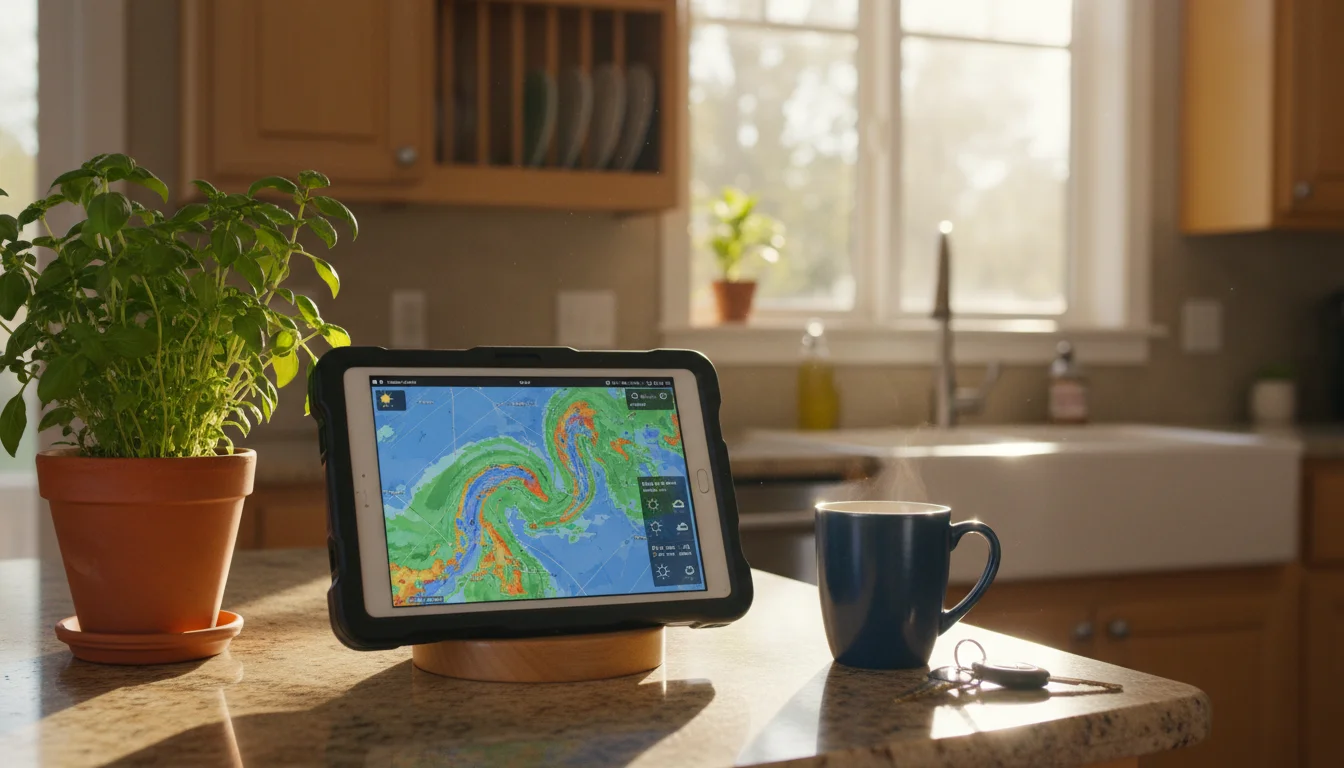
 Weather Underground is still the best for hyperlocal accuracy. It pulls data from over 250,000 personal weather stations, which means the temperature it shows is from a few blocks away, not a regional estimate. The radar view is great for an always-on display – you can see rain moving toward you in real time.
The app is ad-supported. The ads are annoying on a phone, less so on a tablet that just sits on the counter showing radar.
Windy (Free)
Windy shows animated weather maps that look like what TV meteorologists use. Wind patterns, precipitation, temperature layers, all moving. On a 10-inch tablet on the wall, it genuinely looks impressive.
The app requires Android 8.0+, same as most current weather apps. It’s free with optional premium features most people don’t need for a wall display.
Weawow (Free, No Ads)
Weawow is the sleeper pick. Free, no ads at all, customizable layouts, and it uses community-submitted weather photos as backgrounds. The 4.9-star rating on Google Play isn’t an accident. For an always-on tablet display, the clean layout without ad banners makes a real difference.
Works on Android 5.0+, so it runs on just about any tablet you’d dig out of a drawer. Our weather apps roundup has a detailed breakdown of what Weawow can and can’t do on older devices.
YoWindow (Free / $5.99 Premium)
YoWindow shows weather as an animated landscape that changes in real time. If it’s raining outside, it rains in the animation. Snowing? Snow. It’s a living weather painting, which sounds gimmicky but actually looks great mounted on a wall.
The free version works fine. Premium removes ads and adds a few data sources.
WhatWeather (Free)
WhatWeather was specifically built for turning old Android phones and tablets into weather stations. It keeps the screen on, auto-updates, and supports multiple weather data providers. It’s not the prettiest app, but it’s designed for exactly this use case.
The Always-On Problem (and How to Fix It)
This is the part that trips people up. You set up a beautiful weather display, walk away for 30 minutes, and the screen goes dark. Android’s screen timeout is designed to save battery. On a phone, that’s great. On a wall-mounted weather station, it’s the opposite of what you want.
Three fixes, from simplest to most polished:
Developer Options: Stay Awake While Charging
Free, no apps needed, works on every Android tablet.
- Go to Settings > About Tablet
- Tap Build Number seven times (this enables Developer Options)
- Go back to Settings > System > Developer Options
- Turn on Stay Awake (labeled “Screen will never sleep while charging”)
- Plug in the tablet
Done. As long as it’s plugged in, the screen stays on. The catch: this keeps the screen on for everything, not just your weather app. If someone exits Chrome, the screen stays on wherever they end up.
Fully Kiosk Browser: The Real Solution
Fully Kiosk Browser does three things that matter for a weather station:
- Keeps the screen on without Developer Options
- Locks the tablet to a single app or website (so nobody accidentally closes your weather display)
- Motion detection – the screen turns off when nobody’s in the room and wakes up when someone walks past (uses the front camera)
Set it up:
- Install Fully Kiosk Browser from Google Play
- Enter your weather URL (wunderground.com, windy.com, or whatever you chose)
- Enable Keep Screen On and Motion Detection in settings
- Optional: enable Kiosk Mode to lock the tablet to just the weather display
The free version handles all of this. The Plus license ($10.99 per device, one-time) adds remote management if you want to change settings from your phone. We used the same setup for our Android tablet calendar display and it works just as well for weather.
Screen Burn-In Prevention
Any LCD screen showing the same image for months will eventually show faint ghost images. Reduce the risk:
- Lower brightness to 30-40%. This is the single most effective thing you can do.
- Use Fully Kiosk’s screensaver to show a black screen or dim after 5 minutes of no motion.
- Rotate content. If your weather app has a slideshow or multiple views, let it cycle.
OLED tablets (some newer Samsung Galaxy Tabs) are more susceptible to burn-in than LCD. If yours is OLED, the motion detection approach in Fully Kiosk Browser is worth the setup effort.
Connect a Real Weather Station
Everything above shows forecast data from weather services. It’s the same information you’d see on your phone, just bigger and always visible. If you want to see what’s actually happening in your backyard right now – the exact temperature on your patio, the humidity in your garden, whether it’s actually raining at your house – you need a personal weather station.
These aren’t as expensive or complicated as they sound.
 Ambient Weather WS-2902 (~$200) is the most popular home weather station. It measures temperature, humidity, wind speed, rainfall, UV index, and barometric pressure. The sensor mounts outside; data syncs to the Ambient Weather app and their website. Open ambientweather.net on your tablet and you have a professional-looking dashboard showing data from your own yard.
Ecowitt sells individual sensors much cheaper if you just want a basic reading. The entry-level WN31 thermo-hygrometer is $10.99, the outdoor WN32 is $13.99, and mid-tier multi-channel sensors run $20-25. Most sensors need an Ecowitt gateway (the GW1200 is around $30) to publish data to the phone and tablet apps, so budget for that too. Their app and website work the same way – data from your sensor displayed on your tablet.
 WeatherFlow Tempest (around $350) is the premium option. It’s a single sensor that measures everything, it’s solar-powered, and the Tempest app is genuinely well-designed for a tablet display.
All three publish data to Weather Underground, which means any weather station in your neighborhood contributes to the hyperlocal accuracy on the free wunderground.com display. You don’t need to buy one to benefit from this.
Where to Put It
Kitchen counter is the most common spot. Prop the tablet on a stand, plug it in, done. You glance at it while making coffee or packing lunches.
Hallway wall near the front door is the other popular choice. Check the forecast on your way out. Mount it at eye level with an adhesive tablet mount – no drilling needed. Our guide to tablet mounts and stands covers the options.
Bedside table works too – the weather forecast is a better thing to look at first thing in the morning than your phone’s notification chaos.
Wherever you put it, keep it plugged in. Old tablet batteries drain fast, and the point of a weather station is that it’s always on, always showing something useful. If the tablet’s running slow, the speed-up guide is worth 10 minutes before you start.
A $0 weather display that shows radar, forecast, and – if you go further – your own backyard conditions. All from a tablet that was doing nothing in a drawer. If you’re looking for more projects for that tablet, our old Android tablet ideas hub has a dozen more.