The four changes that make an old Android tablet noticeably faster: disable the manufacturer apps you never open, set the three animation scales in Developer options to 0.5x, replace the home screen with a light launcher, and put background apps to sleep. Ten minutes, all in Settings, nothing to buy. If the tablet still crawls after that, a factory reset with only the apps you actually need is the last fix that works.
What none of it changes is the RAM, and the RAM is why yours is slow.
If yours won’t turn on at all, or apps won’t download or install, those are separate problems with separate fixes. This page is about a tablet that works, just slowly.
Find Your Tablet First
Old Android tablets are slow because 1-2 GB of RAM is trying to run apps written for phones with 6-8 GB. When memory fills up, which on these tablets is almost immediately, Android kills apps in the background and reloads them when you switch back. That’s the stutter and the blank screens. Free storage has almost nothing to do with it.
How much any fix helps depends on what you’re holding. These are the tablets I see in people’s drawers most often:
| Tablet | RAM | Last official Android | Settings look like |
|---|---|---|---|
| Galaxy Tab A 7.0 (2016) | 1.5 GB | 5.1 | TouchWiz |
| Galaxy Tab E 9.6 (2015) | 1.5 GB | 4.4 (some US models got 7.1) | TouchWiz |
| Galaxy Tab A 10.1 (2016) | 2 GB | 8.1 | Samsung Experience |
| Galaxy Tab A 8.0 (2019) | 2 GB | 11 | One UI 3 |
| Galaxy Tab A 10.1 (2019) | 2-3 GB | 11 | One UI 3 |
| Galaxy Tab A7 10.4 (2020) | 3-4 GB | 12 | One UI 4 |
| Galaxy Tab S2 (2015) | 3 GB | 7.0 | Samsung Experience |
| Galaxy Tab S3 (2017) | 4 GB | 9 | One UI 1 |
| Nexus 7 (2012) | 1 GB | 5.1 | Stock Android |
| Nexus 7 (2013) | 2 GB | 6.0 | Stock Android |
| Fire HD 8 (2018) | 1.5 GB | Fire OS 6 (Android 7.1) | Fire OS |
| Fire HD 10 (2019) | 2 GB | Fire OS 7 (Android 9) | Fire OS |
To check yours, look in Settings > About tablet (on a Samsung, About tablet > Software information; on a Fire, Device Options > About Fire Tablet). Samsung’s skin version tells you the Android version too: One UI 1 is Android 9, One UI 2 is 10, One UI 3 is 11, One UI 4 is 12. Anything before One UI is Android 8.1 or older.
At 1-1.5 GB, every fix below matters and you should do all of them. At 3-4 GB (Tab S2, Tab S3, Tab A7), RAM is less of a wall, and most of the lag you feel is bloat and animation.
Disable the Apps You Never Asked For
This is the single biggest win on a Samsung. A Galaxy Tab ships with Samsung Internet, Samsung Notes, Galaxy Store, Bixby, Samsung Members, Samsung Health and more, and each one runs background services whether you open it or not. You can’t uninstall most of them, but you can disable them, which stops them running and rolls back their updates.
- One UI and Samsung Experience (Android 7 and later on a Samsung): Settings > Apps, tap the app, tap Disable.
- TouchWiz (Android 6 and earlier, so most Tab E models and the Tab A 7.0): Settings > Applications > Application manager, tap the app, tap Disable (some older builds say Turn off).
- Nexus 7 and Lenovo or other stock-Android tablets: Settings > Apps (Android 8-11: Settings > Apps & notifications > See all apps), tap the app, Disable. There’s less to remove here, but carrier and Lenovo extras still add up.
- Fire tablets: Fire OS greys out Disable for nearly every Amazon app. What you can turn off is the content the home screen keeps pulling in: switch off recommendations under Settings > Apps & Notifications > Amazon App Settings > Home Screens > Recommendations, and turn off Alexa Hands-Free in Settings > Alexa on models that have it.
Good candidates: the manufacturer browser if you use Chrome, Bixby, any second app store, Samsung Health and Members, and the preinstalled Facebook or Netflix stubs. On a 2 GB Galaxy Tab, disabling eight to ten of these can free 200-400 MB of RAM, which is a lot when the whole tablet has 2,000.
Cut the Animations in Developer Options
Animations don’t slow the processor, but on a tablet that’s already behind, every half-second fade is a half-second you wait. Turning them down is the change you notice first.
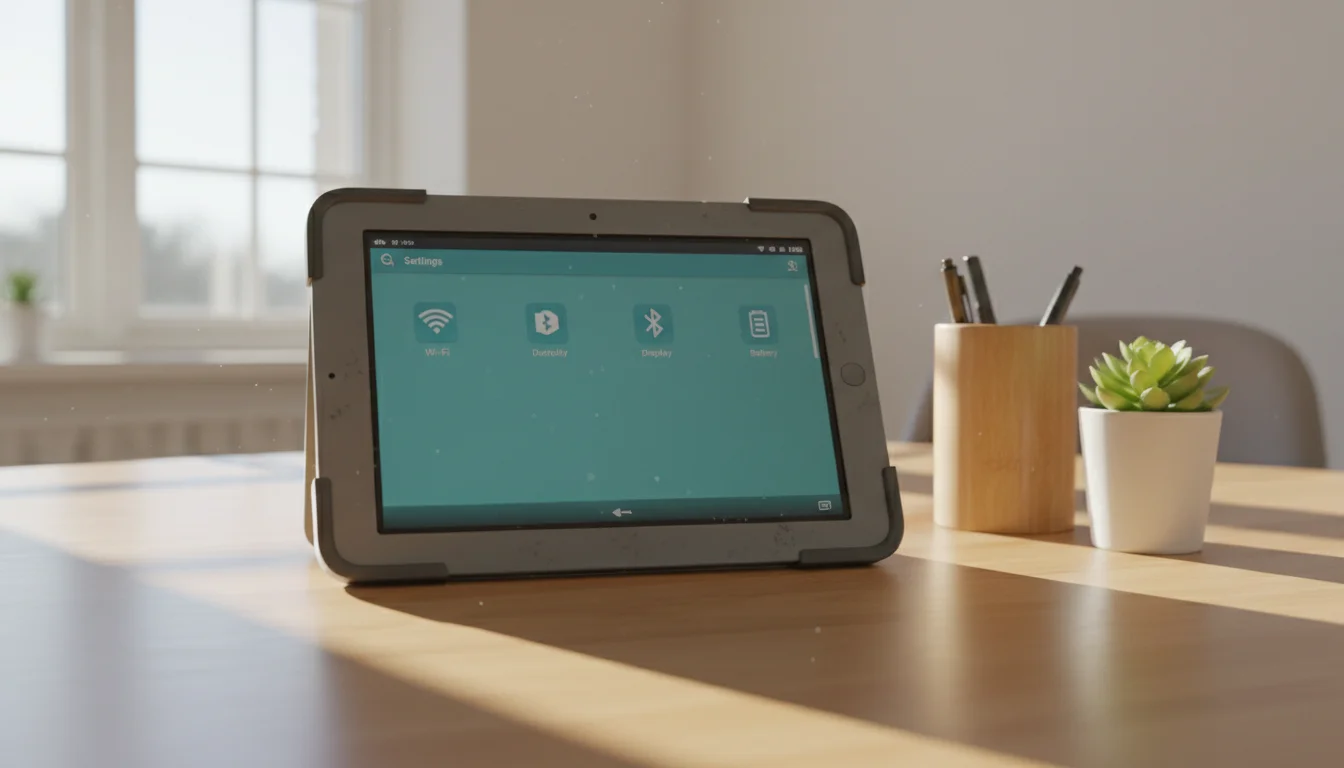
Unlock Developer options by tapping the build number seven times:
- Samsung, any version: Settings > About tablet > Software information > Build number (TouchWiz may call it About device). Developer options then appears at the bottom of the main Settings list.
- Stock Android 5-7 (Nexus 7): Settings > About tablet > Build number. Developer options appears just above About tablet.
- Stock Android 8.0-8.1: Settings > System > About tablet > Build number, then Settings > System > Developer options.
- Stock Android 9-11: Settings > About tablet > Build number, then Settings > System > Advanced > Developer options.
- Stock Android 12 and later: Settings > About tablet > Build number, then Settings > System > Developer options.
- Fire tablets: Settings > Device Options > About Fire Tablet, tap Serial Number seven times. Developer Options appears under Device Options.
Inside Developer options, scroll to the Drawing section and set Window animation scale, Transition animation scale and Animator duration scale to 0.5x. Off is faster still, but some apps look broken without any transition, so 0.5x is where I’d start.
On a 1 GB or 1.5 GB tablet (Nexus 7 2012, Tab A 7.0, Fire HD 8 2018), one more setting in the same menu is worth trying: Background process limit, set to At most 2 processes. It stops apps you’ve left from holding memory. The tradeoff is that messaging and email apps won’t notify you until you open them, and the setting resets every time the tablet restarts. On a tablet you use for one or two things, that’s fine.
Swap the Launcher (If Your Android Version Allows It)
The home screen on a Samsung loads widgets, a news panel and usage tracking, all of it in the background. A lighter launcher helps, but the current ones have Android version floors, so this is where your tablet’s version matters:
 Lawnchair: free, open source, looks like stock Android. Needs Android 8.0 or later, so it works on the Tab A 10.1 (2016) and everything newer in the table above. A few extras, like the Smartspacer feed, need Android 10.
 Olauncher: a text-only list of apps with almost no resource use. Needs Android 7.0 or later, which makes it the only one of these that runs on a Tab S2. Good for a tablet you’re turning into a single-purpose device anyway.
 Nova Launcher: the old favorite, still smooth, Android 8.0 or later. The free version now shows ads since Instabridge bought it, the founder left in 2025, and a January 2026 update added Facebook and Google ad trackers, so I’d try Lawnchair first.
To switch: on One UI, Settings > Apps > Choose default apps > Home app. On stock Android 12 and later, Settings > Apps > Default apps > Home app (Android 8-11: Settings > Apps & notifications > Advanced > Default apps > Home app).
Two exceptions. Tablets stuck on Android 6 or earlier (both Nexus 7s, the Tab A 7.0, most Tab E models) can’t install any of these three, so the disabling and animation steps carry the load there. And Fire tablets don’t offer a default home app setting at all, so you’re on Amazon’s launcher unless you go down the sideloading route.
Put Background Apps to Sleep
Restricting an app’s background activity keeps it from loading into RAM to check for updates you didn’t ask for. Weather, news, shopping and social apps are the usual culprits. Where to find it depends on version:
- One UI 1-2 (Android 9-10, so Tab S3): Settings > Device care > Battery > App power management > Sleeping apps, then add apps.
- One UI 3 and 4 (Android 11-12, so Tab A 2019 and Tab A7): Settings > Battery and device care > Battery > Background usage limits > Sleeping apps (or Deep sleeping apps for ones you never need notifications from).
- Stock Android 9-11: Settings > Apps & notifications > See all apps, tap the app, Battery > Background restriction. On Android 12 and later, it’s Settings > Apps, tap the app, Battery > Restricted.
- Android 8 and earlier: there’s no per-app switch, which is part of why disabling apps and the Background process limit above matter more on these tablets.
While you’re in Settings > Accounts, turn off auto-sync for any Samsung or Google accounts you don’t use on this tablet. Mark caught that the old “Background data” toggle some guides recommend only limits cellular data, so on a Wi-Fi-only tablet it does nothing for speed.
Use Lite Apps Where They Still Exist
Google built Android Go, a trimmed version of Android, for phones with 2 GB of RAM or less. You can’t install Android Go itself on a tablet you already own, but some of the lighter apps made for it run on any Android version they support, and so do a few lite versions from other companies:
- Facebook Lite instead of the full Facebook app, which is one of the heaviest things you can put on a 2 GB tablet.
- Files by Google for clearing junk files, instead of a “cleaner” app that sits in memory.
Several lite apps are gone. YouTube Go and Messenger Lite were both shut down, so don’t go hunting for an old APK. For  YouTube on a 1-2 GB tablet, try the website in the browser; on Android 7 and earlier, the browser is your only option anyway, since the YouTube app now needs Android 8.
If It’s Still Slow: Factory Reset
After years of use, a factory reset wipes out app data and leftover services that pile up. It’s the one fix on this list that sometimes feels like a different tablet.
Back up photos and anything else you want first. Then:
- One UI and Samsung Experience: Settings > General management > Reset > Factory data reset.
- TouchWiz (Android 6 and earlier): Settings > Backup and reset > Factory data reset.
- Stock Android 8 and later: Settings > System > Reset options > Erase all data. On a Nexus 7, it’s Settings > Backup & reset > Factory data reset.
- Fire tablets: Settings > Device Options > Reset to Factory Defaults.
Afterward, do the steps above before you reinstall anything, then install only what the tablet will actually do. Our full walkthrough for resetting Android tablets covers the hard reset when you’ve forgotten the password, and the Google account lock that catches people out after a reset.
What to Skip on an Old Android Tablet
- RAM booster and cleaner apps. They kill background processes that Android immediately restarts, and the booster itself takes up memory to do it.
- Samsung’s RAM Plus, on the One UI 4 and later tablets that have it, borrows storage as pretend memory. On slow eMMC storage it doesn’t make things faster, and some owners find switching it off in Settings > Battery and device care > Memory smooths things out. Try it both ways.
- Custom ROMs as a speed fix. LineageOS can give a Tab S2 or Nexus 7 a newer Android, but newer Android uses more memory, not less. Install one for app compatibility, not speed.
A Faster Tablet Needs a Job
If there’s an old iPad in the same drawer, the fixes are different there, and our speed-up guide for old iPads covers them. For anything beyond slowness, the tablet troubleshooting guide is the place to start.
A 2 GB tablet running one app full screen feels fine. The same tablet trying to be email, browser, YouTube and Facebook all at once never will. That’s the real reason most of these end up as a calendar on the wall or a photo frame, and our old Android tablet ideas list more jobs that suit them. Give it one of those, and the Galaxy Tab that took four seconds to open Chrome becomes the thing on the counter that just shows the week, every time anyone looks.