The $3,000 Problem a $0 Tablet Can Solve
Aftermarket Android Auto head units cost $200-600. Factory-installed ones from the dealer can run over $1,000. And if your car doesn’t have a touchscreen at all, you’re looking at a full dash retrofit.
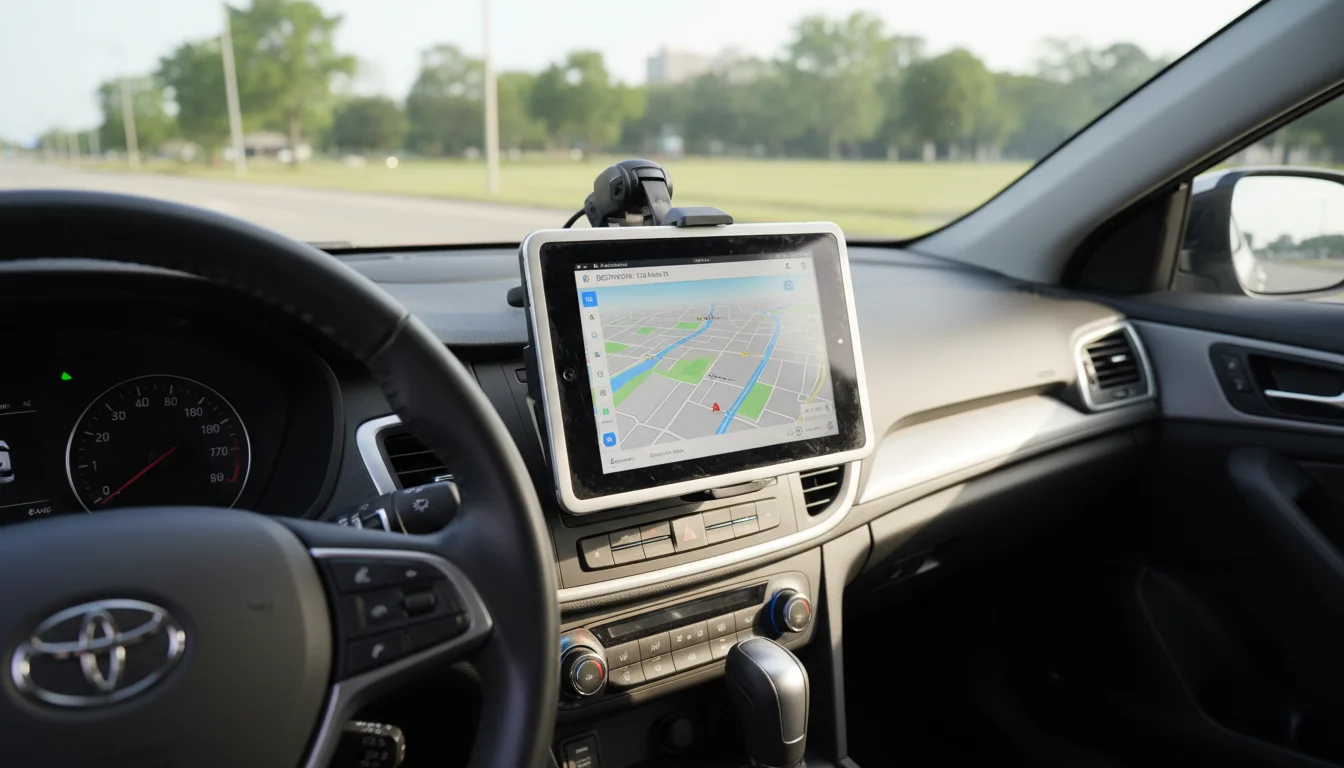
Or you could grab that old Android tablet from the drawer, spend $5 on an app, and have a working Android Auto display in your car by this afternoon.
It’s not a perfect replacement for a dedicated head unit. But it’s shockingly close, and it costs almost nothing if you already have the tablet.
What You Need
An Android tablet. The app that makes this work ( Headunit Reloaded) runs on Android 5.0 and up (per current Play Store listing), so nearly any old Android tablet qualifies. A 7-inch or 8-inch screen is ideal for dashboard mounting. 10-inch tablets work in trucks and SUVs but can be awkward to position in a sedan.
For the best experience, aim for at least 2GB of RAM and Android 6.0 or higher. HUR technically runs on Android 5.0, but video decoding performance improves a lot on 6.0+. If you have a Samsung Galaxy Tab A, Tab E, or a Fire tablet with Google Play sideloaded, you’re in good shape. Tablets with 1GB of RAM will work but expect some lag in the Android Auto interface. If you don’t have anything spare in the drawer, a  Fire HD 8 or a
  used tablet from eBay at around $30-50 is cheaper than a single dinner out and dedicates cleanly to this job.
8-inch screen fits most dashboards, sideload Play Store, run HUR, and you're driving with Android Auto for less than the aftermarket head unit's shipping charge.
Check price on Amazon →An Android phone. Your phone does all the actual processing. GPS, music streaming, messaging, Google Maps. The tablet is just the display and touchscreen. Your phone needs to support Android Auto (Android 9.0+ as of late 2025, or Android 10+ where it’s built in).
A USB cable or WiFi. You can connect via USB (more reliable) or wirelessly (more convenient). For wireless, you’ll need to set up the tablet as a WiFi hotspot.
A car mount. Dashboard, windshield, CD slot, or vent mount. A headrest mount is the easiest option if your car doesn’t have a good dashboard spot – it clips to the front seat headrest posts and hangs the tablet at rear-passenger eye level, so it doubles as an entertainment screen for the kids on longer drives. For a driver-facing setup, our mounts and stands guide has recommendations, though car-specific mounts are a bit different from home setups.
Power. A car charger with enough amperage to keep the tablet running while connected. A standard 2.4A USB car charger works fine. For USB connections, you’ll want an OTG adapter with a pass-through charging port so the tablet can charge while simultaneously connecting to your phone.
iPads won’t work for this. Android Auto is an Android-only system. If you have an old iPad, check out our car entertainment ideas for alternatives.
Setting Up Headunit Reloaded
 Headunit Reloaded (HUR) is the app that makes this whole thing work. It costs about $5 and it’s the only reliable option for turning a tablet into an Android Auto receiver.
What it does: HUR tricks your phone into thinking the tablet is a car’s Android Auto head unit. Your phone handles all the processing, and the tablet displays the Android Auto interface and accepts touch input. Navigation, music, calls, messages – all right there on the bigger screen.
Wired Setup (Recommended First)
Start with USB. It’s more reliable and helps you confirm everything works before trying wireless.
- Install HUR on the tablet from the Play Store.
- Enable Developer Options on your phone: Settings > About Phone > tap “Build Number” 7 times.
- Enable Developer Options in Android Auto on your phone: Open Android Auto settings, tap “Version and permission info” at the bottom 10 times, then tap the three-dot menu and select “Developer Settings.” Enable “Unknown Sources.”
- Connect phone to tablet with a USB data cable (not a charge-only cable). Use a USB-OTG adapter on the tablet end if needed.
- Open HUR on the tablet. It should detect your phone and launch the Android Auto interface.
If it connects, you’ll see the familiar Android Auto home screen on your tablet. Google Maps, your music app, phone, and messages all accessible from the big screen.
Wireless Setup
Wireless is cleaner (no cable running between phone and tablet) but requires a bit more setup.
- On the tablet: Go to Settings > Network > Hotspot & Tethering and enable the WiFi hotspot. Set a name and password you’ll remember.
- On your phone: Connect to the tablet’s hotspot.
- Install WiFi Launcher (free) on your phone from the Play Store. This handles the wireless Android Auto handshake.
- Open HUR on the tablet, then launch WiFi Launcher on the phone.
- The phone should connect wirelessly to the tablet and display Android Auto.
Wireless can be less stable on older tablets with weak WiFi radios. If you get frequent disconnections, stick with USB.
Getting Audio to Your Car Speakers
The tablet has a screen and touch input, but you probably want audio coming through your car speakers, not the tablet’s tiny built-in ones. You have a few options.
Bluetooth is the easiest if your car stereo supports it. Pair the tablet to your car stereo, and audio routes through the car speakers automatically. This works independently of the phone-to-tablet connection, so you can run HUR over USB and still get Bluetooth audio.
AUX cable from the tablet’s headphone jack to your stereo’s AUX input. Simple, reliable, no pairing hassle. If your tablet has a 3.5mm jack (most older ones do), this is the most reliable option.
FM transmitter plugged into the tablet’s headphone jack. This broadcasts to an empty FM frequency your car radio picks up. Audio quality isn’t amazing, but it works in any car with a radio. You can find decent ones for $10-15.
USB audio through the car stereo, if your head unit has a USB input. Not all cars support this, and you’ll need a separate USB connection from the one running Android Auto, so this gets cable-heavy.
Mark tried all four in his car and settled on the AUX cable. “Bluetooth kept reconnecting to the phone instead of the tablet,” he said. Fair enough.
Troubleshooting Common Issues
A few things will probably trip you up the first time. They tripped us up too.
“Android Auto has stopped” or won’t connect. Make sure Developer Options and Unknown Sources are enabled in Android Auto on your phone (Step 3 in the wired setup above). This is the most common issue, and it’s easy to miss because Android Auto hides developer settings behind a tap sequence.
Audio plays through the phone, not the tablet. Android Auto sometimes routes audio to the phone speaker by default. In HUR settings on the tablet, check “Audio Focus” and make sure media audio is set to output through the tablet (or your connected car audio). On some phones, you also need to disable “Play media on phone speaker” in Android Auto settings.
Bluetooth phone calls conflict with HUR. If the tablet is paired to the car stereo for audio and your phone is also paired for calls, they can fight over Bluetooth. The simplest fix: use the phone for calls over its own Bluetooth connection, and route only media audio from the tablet to the car stereo. HUR’s call functionality works through the phone anyway.
Wireless connection drops frequently. Older tablets have weaker WiFi radios that struggle to maintain a hotspot connection while also running HUR. First, make sure nothing else is connected to the tablet’s hotspot. If that doesn’t help, switch to USB. It’s more reliable anyway.
Touch response is slow or laggy. This is usually a RAM issue. Close all other apps on the tablet, and in HUR settings, try lowering the video resolution. Going from 1080p to 720p makes a noticeable difference on tablets with 1-2GB of RAM.
Mounting It in Your Car
The mounting challenge is different from wall-mounting at home. Vibration, temperature swings, and sun glare all matter.
CD slot mounts work well for 7-8 inch tablets and keep the screen at a natural eye level. Most cars still have CD players nobody uses. Cellet makes CD slot tablet mounts in the $15-25 range.
Dashboard mounts with suction cups or adhesive bases give you positioning flexibility. Get one with a strong arm and locking joints. A cheap mount that wobbles on every bump gets annoying fast.
Vent mounts are best for smaller tablets (7 inch). Larger tablets are too heavy for most vent clips and will fall off.
Custom brackets. Some people 3D-print or fabricate brackets to flush-mount a tablet where the factory radio used to be. This looks the cleanest but requires removing the stock radio and measuring carefully. Car-specific forums (like Wrangler TJ Forum, E90Post) often have templates for popular models.
Handling Power and Heat
Two things will kill this setup if you don’t plan for them.
Power drain. Running Android Auto, GPS, and screen brightness at maximum drains the tablet battery fast. You need the tablet plugged into a car charger at all times while driving. For USB setups, use an OTG adapter with pass-through power (sometimes called an OTG Y-cable) so the tablet charges while connected to your phone. Without this, your phone will actually drain the tablet’s battery through the USB connection.
Heat. A tablet sitting on a dashboard in direct sunlight can overheat quickly, especially in summer. If possible, mount it in a spot that gets some shade from the dashboard overhang or sun visor. Some people tint the windshield above the mount area. In extreme heat, the tablet may throttle or shut down. This is a real limitation in hot climates. If you’re in Arizona or Texas, consider a vent mount so the AC helps cool the tablet.
For more on keeping old tablets healthy while plugged in, read our battery safety guide.
What Works and What Doesn’t
Works great:
- Google Maps navigation on a big screen
- Music playback (Spotify, YouTube Music, Podcast apps)
- Voice commands through the phone’s microphone
- Reading and replying to messages via voice
Works but isn’t perfect:
- Call quality depends on your phone’s microphone and speaker, not the tablet
- The Auto interface can lag on very old tablets (Android 5-6 era) since video decoding is happening in real time
- Wireless connections occasionally drop, especially with older WiFi chips
Doesn’t work:
- No camera integration (you can’t connect a backup camera to the tablet the way you can with a real head unit)
- CarPlay users are out of luck. HUR is Android-only on both ends. If you have an old iPad instead, there are still ways to make it useful in the car.
A note on Waze: Waze does work with Android Auto on HUR, but you need to keep Waze running on your phone for it to show up on the tablet. It’s not as seamless as Google Maps, which launches directly, but it gets the job done if you prefer Waze’s routing.
Going Further
Once the basic Android Auto setup is working, there are a couple of extras worth knowing about.
OBD2 engine data. If you plug a $15 Bluetooth OBD2 adapter into your car’s diagnostic port, you can run an app like Torque Pro on your phone and see live engine data (RPM, coolant temp, fuel economy, trouble codes) right on the tablet through Android Auto. The plugin that makes this work (aa-torque) isn’t on the Play Store – you need to sideload the APK from its  GitHub page. It’s open-source and still maintained, but sideloading means it won’t auto-update. Mark set this up on a weekend and now checks his fuel economy on every drive. I mostly ignore it, but he seems happy.
Auto-launch with Tasker. If you use Tasker on the tablet, you can automate the whole routine: when the tablet detects your car’s Bluetooth (or gets plugged into power), it launches HUR automatically. When Bluetooth disconnects, it sleeps the screen. This turns the tablet into a true plug-and-play head unit. Setting up Tasker profiles is a bit fiddly if you’ve never used it, but there are guides on XDA Forums for exactly this use case.
What about alternatives to HUR? You might see mentions of screen mirroring apps or standalone car launcher apps like AutoMate. Screen mirroring shows your phone screen on the tablet, but it’s not Android Auto – you don’t get the simplified driving interface, voice controls, or auto-reply to messages. Car launcher apps make the tablet look like a head unit but don’t connect to your phone’s Android Auto at all. HUR is the only app that actually runs the real Android Auto protocol on the tablet. For $4.99, it’s hard to argue with.
Is It Worth Doing?
If you have a car without Android Auto and an old Android tablet collecting dust, this is one of the best repurposing projects you can do. Five dollars for HUR, a car mount you might already have, and 30 minutes of setup. The result is a functional Android Auto display that makes long drives and daily commutes significantly more useful.
It’s not as polished as a $400 aftermarket head unit. The wireless connection can be flaky. The tablet might overheat in July. But the next time you’re driving somewhere unfamiliar and Google Maps is right there on a big screen calling out turns, you’ll forget the whole thing cost $5 and a Saturday afternoon.
Android Auto is one of the more creative tablet repurposing projects out there. For even more, browse our old Android tablet ideas for a dozen more projects like this one.