“This App Requires iOS 16 or Later”
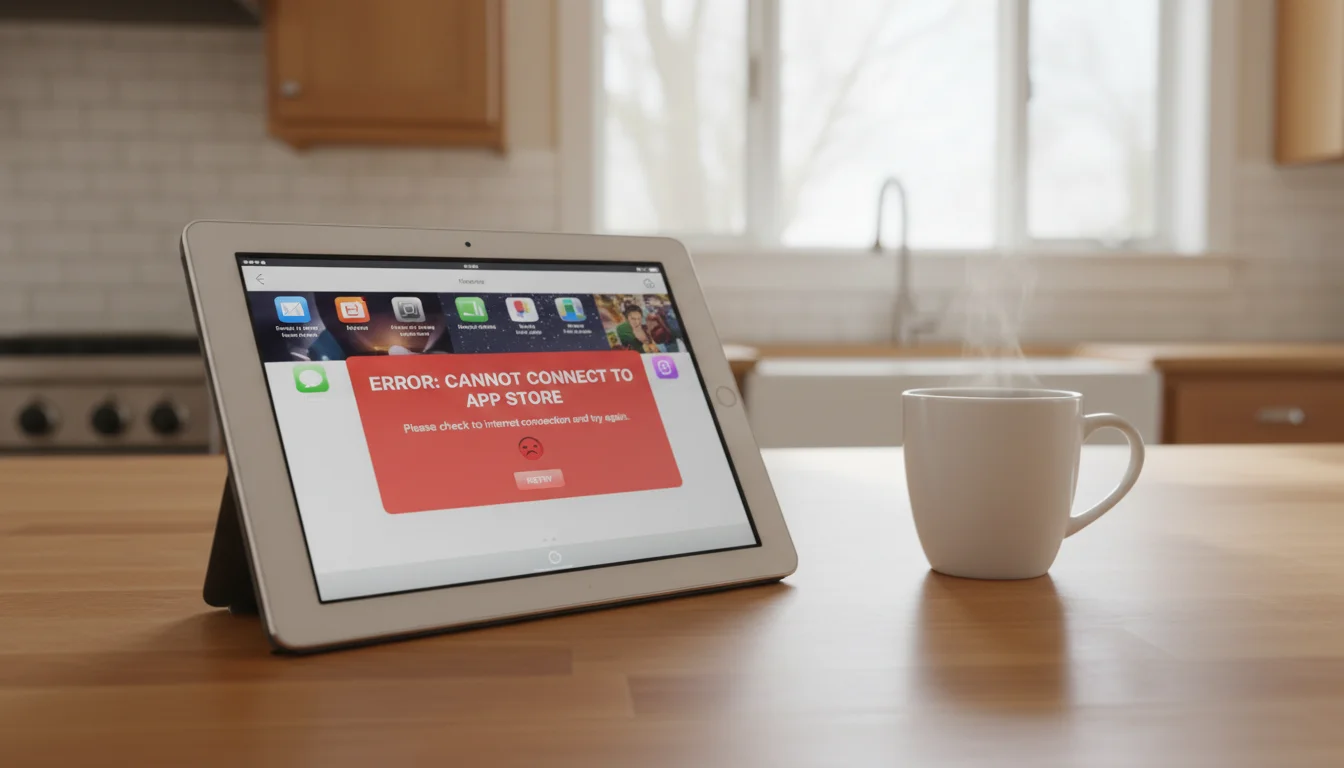
You open the App Store, search for an app, tap Get, and see a message that feels like a door slamming: “This app requires iOS 16 or later.” Your iPad is on iOS 12. Or 15. Or 10. You can’t update to iOS 16 because Apple dropped your iPad from the update list. So you’re stuck. Right? (Not sure which iOS version your iPad maxes out at? Find your model first.)
Not exactly. There are three different reasons your old iPad won’t download apps, and each one has a different fix. Let’s figure out which one you’re dealing with. (If you’re setting up an iPad from scratch and just want a clean walkthrough of getting your first apps loaded, the setup-side guide on how to download apps on an old iPad is the friendlier version of the same territory.)
Quick answer: If the App Store says “requires iOS 16” (or similar), go to your Purchased tab and download the last compatible version – Apple keeps older versions on their servers. If apps just hang or won’t install, you’re probably out of storage or have a stuck download. Each fix takes under five minutes.
Reason 1: The App Needs a Newer iOS Version
This is the most common problem, and the one with the least obvious solution.
When a developer updates their app to require iOS 16, the current version disappears from search results on your iOS 12 iPad. It looks like the app doesn’t exist. But Apple keeps older versions on their servers, and there’s a way to get them.
The “last compatible version” trick:
- Open the App Store on your old iPad
- Search for the app you want
- If it doesn’t show up in search, open the App Store on a newer iPhone, iPad, or iPod touch and “purchase” the free app there first using the same Apple ID
- On your old iPad, go to the App Store → your profile icon → Purchased
- Find the app in your purchase history and tap the download icon
- You’ll see a popup: “The current version of this app is not compatible with your iPad. Would you like to download the last compatible version?”
- Tap Download
That’s it. Apple will install the last version that worked on your iOS version. It won’t be the latest version with all the newest features, but it works.
The catch: This only works if the app once had a version compatible with your iOS. If the app launched after Apple dropped support for your iPad’s iOS version, there’s no older version to download. And some apps removed their older iOS support entirely, so even the trick won’t find a match.
For apps you previously downloaded: If you already downloaded the app at some point in the past (even years ago), it’s in your purchase history. Skip step 3 and go straight to the Purchased tab. Apple remembers.
Reason 2: You’re Out of Storage
This one’s sneaky. The App Store doesn’t always give you a clear “not enough storage” error. Sometimes the download just hangs, the progress circle spins forever, and nothing installs.
Check your storage: Settings > General > iPad Storage (or Settings > General > Storage & iCloud Usage on iOS 10 and earlier).
If you’re under 1 GB of free space, that’s your problem. Old iPads came with 16 GB or 32 GB, and the operating system itself takes up several gigabytes. Photos, old apps you forgot about, and cached data eat the rest. (For context: even a current-generation  Fire HD 8 ships with 32 GB standard for around $100, often on sale for $55-65, which is where the 16 GB iPad’s storage limits start to feel especially cramped.)
Quick ways to free space:
- Delete apps you don’t use. Long-press an app icon and tap Delete. The biggest space hogs are usually games and social media apps.
- Clear Safari data. Settings > Safari > Clear History and Website Data. On an old iPad, this can free hundreds of megabytes.
- Offload photos. If you have years of photos, move them to a computer or cloud service, then delete from the iPad.
- Check “Other” storage. Sometimes a failed iOS update leaves behind a multi-gigabyte download file. Go to Settings > General > iPad Storage and look for a large “iOS Update” entry you can delete.
Once you’re back above 2-3 GB free, try the download again.
Reason 3: Something Else Is Blocking the Download
If the app is compatible with your iOS version and you have storage space, but it still won’t download, work through these:
Sign out and back into your Apple ID. On iOS 12-13: go to Settings > iTunes & App Store > tap your Apple ID > Sign Out. On iOS 14-15: go to Settings > [your name] > Media & Purchases > Sign Out. Wait a moment, then sign back in. This resets a stuck login session that sometimes blocks downloads.
Check restrictions. Go to Settings > Screen Time > Content & Privacy Restrictions > iTunes & App Store Purchases > Installing Apps (set to Allow). This applies to iOS 12 and newer – Apple moved restrictions into Screen Time starting with iOS 12.
Fix your date and time. This sounds bizarre, but it’s a real thing. If your iPad’s date and time are wrong, the App Store can refuse downloads because the security certificates don’t match. Settings > General > Date & Time > Set Automatically.
Restart the iPad. Hold the power button, slide to power off, wait 30 seconds, turn it back on. This clears whatever process was stuck.
Reset network settings. On iOS 12-14: Settings > General > Reset > Reset Network Settings. On iOS 15: Settings > General > Transfer or Reset iPad > Reset > Reset Network Settings. You’ll need to re-enter your Wi-Fi password, but this fixes connectivity issues between your iPad and Apple’s servers. Only do this if the other steps didn’t work.
When the App Just Doesn’t Exist for Your iPad
Sometimes there’s no compatible version and no workaround. The app was built for newer hardware and never supported your iOS version. When that happens, you have two options.
Find an alternative. Most popular apps have competitors that still support older iOS versions. We keep a list of apps that still work on old iPads and Android tablets – it’s organized by what you actually want to do (kitchen display, photo frame, kids’ apps, etc.) rather than by app name.
Use the web version. Many services that dropped their old iOS app still work fine in Safari. YouTube, Gmail, and Google Calendar are all accessible through the browser.  Netflix works in Safari too, but only on iPadOS 14 or newer. It’s not as smooth as a native app, but it works. Bookmark the page, add it to your home screen (Share > Add to Home Screen), and it behaves like an app.
When It’s Every App, Not Just One
If you’re hitting app compatibility walls on every other download, that’s a sign your iPad’s iOS version is falling behind the ecosystem. It doesn’t mean the iPad is useless. It means you need to pick your battles.
Focus on a specific purpose. An old iPad that tries to be a general-purpose tablet will frustrate you. An old iPad dedicated to one job – a kitchen display, a photo frame, an alarm clock, a weather station – can run for years on a handful of apps that still work.
Find the right apps for that one job, install them, and stop fighting the App Store. That’s when the old iPad stops being annoying and starts being useful. And if the app you actually need won’t run at all, a  lightly used tablet on eBay for $30-50 is often less trouble than another afternoon of workarounds.
Common Questions
Can I still download apps on an iPad running iOS 9 or iOS 10? Yes, but only apps that once supported those versions. Use the “last compatible version” trick described above. Your options shrink significantly on iOS 9 or 10 – many “last compatible” builds are old enough that they no longer connect to their servers properly (YouTube is a common example). Utility apps like weather, clocks, and basic photo viewers tend to hold up better than streaming services.
Why does the App Store show no results when I search for an app? If a developer set their minimum iOS requirement above your iPad’s version, the app won’t appear in search results at all. It’s not gone – it’s just hidden from your device. “Purchase” it on a newer device using the same Apple ID, then download from your Purchased tab on the old iPad.
Will downloaded apps still get updates? The last compatible version is the final update your iPad will receive for that app. It won’t get new features or security patches beyond that point. For apps that handle sensitive data (banking, email), consider using the web version in Safari instead.
My iPad is stuck on “Waiting…” or “Loading…” after tapping Download. What do I do? Tap the app icon to pause the download, then tap again to resume. If that doesn’t work, delete the half-downloaded app (long-press > Delete), restart your iPad, and try again. Also check that you have at least 2-3 GB of free storage – the App Store sometimes doesn’t warn you when space is low.
If app downloads aren’t the only problem you’re running into, our tablet troubleshooting guide covers everything from WiFi drops to tablets that won’t turn on.