If your old iPad says “Incorrect Password” or “Unable to join the network” on a password you know is right, your router is almost certainly set to WPA3, and your iPad can’t speak it. Apple lists WPA3 support starting with the 2017 iPad (5th generation). The iPad Air 2 and iPad mini 4 run iPadOS 15 and still can’t use it, and everything older never could.
The fix takes five minutes:
- Log into your router and change the WiFi security mode to WPA2/WPA3 mixed (some routers call it “WPA2/WPA3 Transitional”).
- If the iPad still won’t join, change it to WPA2 Personal with AES encryption.
- On the iPad, go to Settings > Wi-Fi, tap the blue (i) next to your network, tap Forget This Network, and join again.
That’s the whole answer for most people. If it didn’t work for you, the rest of this page goes model by model, because a 2012 iPad 4 on iOS 10 and a 2017 iPad on iPadOS 16 fail in different ways, and the Settings menus aren’t even in the same places.
Find Your iPad First
Not sure which one you have? Flip it over and read the model number (A1395, A1474 and so on) off the back, then match it in our how old is my iPad guide.
| iPad | Year | Final iOS / iPadOS | WiFi standard | WPA3? |
|---|---|---|---|---|
| iPad (1st gen) | 2010 | iOS 5.1.1 | 802.11n (Wi-Fi 4) | No |
| iPad 2, iPad 3, iPad mini 1 | 2011-2012 | iOS 9.3.5 (9.3.6 on some cellular models) | 802.11n | No |
| iPad 4 | 2012 | iOS 10.3.3 (10.3.4 cellular) | 802.11n | No |
| iPad Air 1, iPad mini 2, iPad mini 3 | 2013-2014 | iOS 12.5.8 | 802.11n with MIMO | No |
| iPad Air 2, iPad mini 4 | 2014-2015 | iPadOS 15 | 802.11ac (Wi-Fi 5) | No |
| iPad (5th gen) | 2017 | iPadOS 16 | 802.11ac | Yes |
| iPad (6th gen) | 2018 | iPadOS 17 | 802.11ac | Yes |
| iPad (7th gen) | 2019 | iPadOS 18 | 802.11ac | Yes |
Every one of these does both 2.4GHz and 5GHz. None of them do Wi-Fi 6 (802.11ax). That last part matters more than it sounds, and I’ll get to it below.
The Router Settings That Lock Out Old iPads
You change these on the router, not the iPad. Type the router’s address (usually 192.168.1.1 or 192.168.0.1, or whatever is printed on its sticker) into a browser on your phone or laptop. Mesh systems like eero and Google Nest Wifi only show these settings in their phone apps. The brand-by-brand menu paths are the same whether the stubborn device is an iPad or a Samsung, so rather than repeat them here, use the list in our Android tablet WiFi fix and come back.
Security mode
Apple’s own router recommendation is WPA3 Personal for security, or WPA2/WPA3 Transitional “for compatibility with older devices.” Transitional is the one you want. Your newer phones keep using WPA3 and the old iPad falls back to WPA2.
On some routers, mixed mode still locks out the oldest iPads. The usual culprit is a setting called Protected Management Frames (PMF, sometimes labeled 802.11w). If it’s set to Required, change it to Optional or Capable. If your router doesn’t show that setting, or the iPad still fails, go to plain WPA2 Personal (AES). WPA2 with a long password is still fine for a home network.
Two settings to avoid: anything with TKIP in the name (Apple lists it as a weak setting), and plain WPA or WEP. Those don’t help old iPads connect. They just make the network worse for everything else.
Wireless mode on each band
This is the one the generic guides miss. Newer routers sometimes offer a “Wi-Fi 6 only,” “802.11ax only,” or “ac/ax” mode on the 5GHz band. The iPad Air 1 and everything older are 802.11n devices. With 802.11n switched off, the 5GHz network vanishes for them. They can still see the 2.4GHz side, which is why the iPad seems to connect but crawls.
Set each band’s mode to a mixed option that includes n (often written “802.11b/g/n” for 2.4GHz and “802.11a/n/ac/ax” for 5GHz). Apple also recommends a 20MHz channel width on 2.4GHz, which is gentler on old radios than the 40MHz some routers default to.
One network name or two
Apple’s recommendation is a single network name across all bands, and for newer devices that’s right. For an old iPad that keeps failing on 5GHz, splitting the bands is a good test. Give 2.4GHz its own name (“HomeWiFi-2G”) and join the iPad to that one. If it’s stable there, leave it. 2.4GHz is slower but goes through walls better, and a calendar or recipe page doesn’t need the speed.
If your router won’t split the bands, look for “Smart Connect” or “band steering” and turn it off.
DHCP lease time
Apple recommends an 8-hour DHCP lease for home networks. Some ISP routers ship with leases of an hour or less, which means the iPad has to renegotiate its address constantly. An 8-hour lease is the setting to aim for.
If you’re using an iPhone hotspot
Same WPA3 problem, different place. On an iPhone 12 or later, go to Settings > Personal Hotspot and turn on Maximize Compatibility. That switches the hotspot to 2.4GHz and WPA2, which an iPad 2 or iPad Air 1 can actually join.
Fixes on the iPad Itself, by iOS Version
Apple moved these menus around between iOS 9 and iPadOS 15. Check your version in Settings > General > About first, then use the matching path.
Forget and rejoin. Same on every version: Settings > Wi-Fi, tap (i), Forget This Network. Do this after every router change, because the iPad caches the old security handshake.
Renew the lease. On iOS 11 and later, Settings > Wi-Fi > (i) > Renew Lease. On iOS 9 and 10 (iPad 2, 3, 4, mini 1), the (i) screen has DHCP, BootP and Static tabs. Stay on DHCP and tap Renew Lease at the bottom.
Change DNS. This fixes “connected but nothing loads,” not “won’t connect.” On iOS 11 and later, tap (i), then Configure DNS > Manual, and add 1.1.1.1 and 8.8.8.8. On iOS 9 and 10, there’s no Configure DNS screen. Tap into the DNS field on the DHCP tab and type 1.1.1.1, 8.8.8.8 directly.
Turn off Private Wi-Fi Address (iPadOS 14 and later only). The iPad Air 2, mini 4 and iPad 5th gen onward give each network a made-up MAC address. If your router uses MAC filtering, parental controls, or a reserved IP for the iPad, it may not recognize the iPad and block it or hand it a different address. Tap (i) and switch Private Wi-Fi Address off for your home network (on iPadOS 18 it’s a menu; pick Off). Older iPads don’t have this setting and don’t need it.
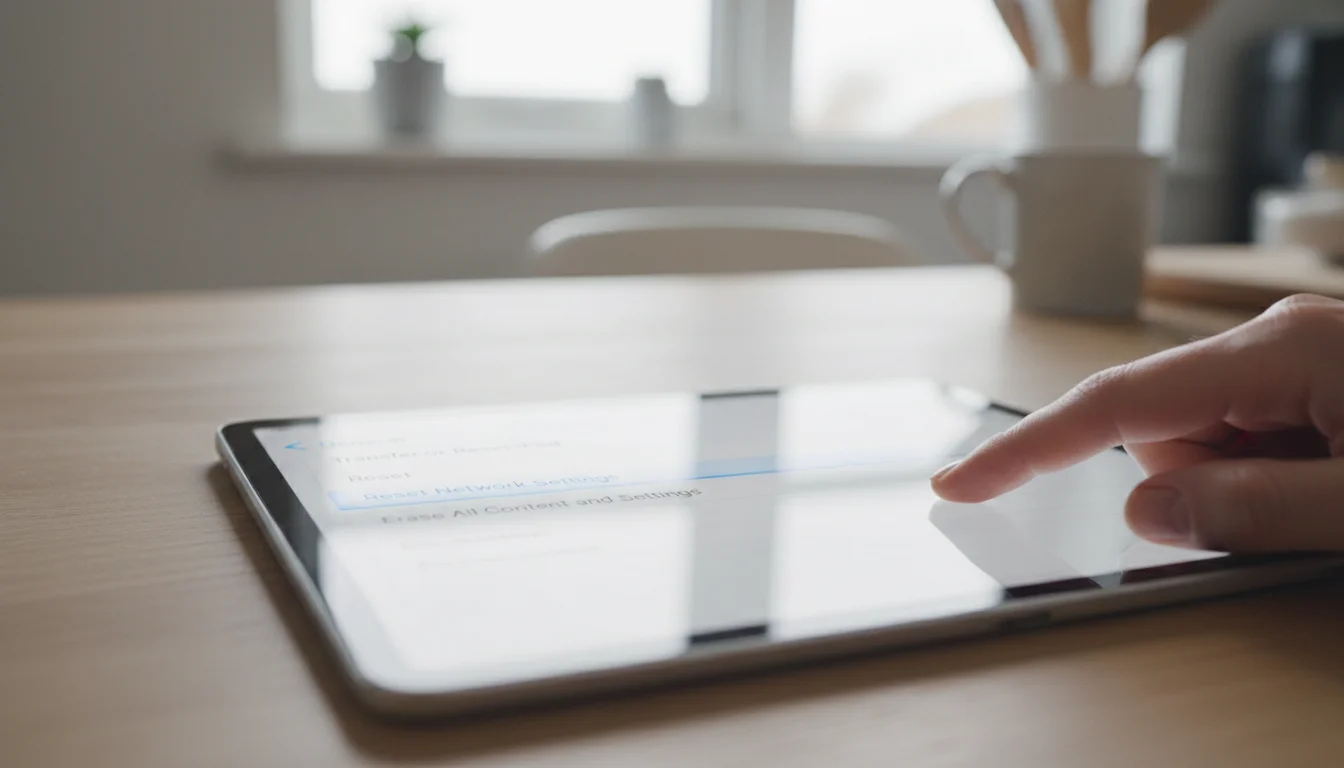
Reset network settings. The last resort on the iPad side. It wipes every saved WiFi network and password, plus VPN settings.
- iOS 12 and earlier, and iPadOS 13 and 14: Settings > General > Reset > Reset Network Settings
- iPadOS 15 and later: Settings > General > Transfer or Reset iPad > Reset > Reset Network Settings
Connected to WiFi, but Safari Won’t Load Pages
If you’re on an iPad 2, iPad 3 or iPad mini 1 and the WiFi icon is solid but Safari says it “cannot establish a secure connection,” the WiFi is fine. iOS 9 doesn’t trust the root certificate Let’s Encrypt has used since its older one expired in September 2021, and a big chunk of the web uses Let’s Encrypt. Your iPad is connected. It just refuses to believe the websites are who they say they are.
Test it by loading a site that works on old devices, like apple.com. If that opens and others don’t, no router setting will fix it. Our Safari crashes guide covers what still works in a browser that old, and what to do when your iPad is too old to update covers the bigger picture.
If Your iPad Keeps Dropping WiFi
If it joins fine but falls off later, figure out whether the screen was on when it happened.
It drops when the screen locks
That’s iOS saving battery, and it reconnects when you wake it. For normal use you’ll never notice. For a wall-mounted kitchen display it means the dashboard goes offline every time the screen dims.
Turn off auto-lock. On iOS 10 and later it’s Settings > Display & Brightness > Auto-Lock > Never. On iOS 9 (iPad 2, 3, mini 1) it’s Settings > General > Auto-Lock > Never. Our always-on settings guide covers the battery side of leaving the screen on all day.
It drops while the screen is on
That points back at the router. Check the DHCP lease and the wireless mode settings above first. Then look at the router’s firmware page for an update, because some firmware versions have had bugs with older Apple devices that only show up as random drops. If the iPad is mounted two rooms away, also look at the signal bars: the iPad 2, 3, 4 and mini 1 have a single-stream radio (MIMO arrived with the iPad Air), so they get less out of a weak signal, and one bar of 5GHz is worse than three bars of 2.4GHz.
When It’s the iPad’s Hardware
If you’ve changed the router settings, reset network settings, and the iPad still shows one bar standing next to the router, or the Wi-Fi switch in Settings is grayed out, the WiFi hardware is probably failing. It’s more common on iPads that have been dropped or got wet.
A quick test: turn on a phone hotspot with Maximize Compatibility on and hold the phone right next to the iPad. If it can’t hold that connection either, it’s not your router.
There’s no software fix for a dead WiFi chip. A used iPad Air 2 or iPad (5th gen) on  eBay runs about $60 to $120 depending on condition. If you’re buying one specifically to avoid this problem, get the 5th gen: it’s the oldest iPad that supports WPA3, so your router’s defaults stop being an issue.
If WiFi isn’t the only thing acting up, our old tablet troubleshooting guide covers the rest, from boot loops to apps that won’t install.
The next time you walk past the iPad on the wall, the calendar will actually be there.