Your kid needs a coloring app. Or your mom wants to try that meditation thing her friend keeps talking about. Or you just handed the old iPad down to the 5-year-old and want Khan Academy on it before bedtime. You tap Get, and up comes the wall: “This app requires iOS 16 or later.” Your iPad is on iOS 12. Or 15. Or 10.
Most articles at this point tell you to grab your other iPhone, tap a few things, come back. That’s fine if you own an iPhone. If you don’t – the old iPad is your only Apple device, or the only one that’s actually yours – this is the version that works, and there’s more than one way in.
First, know what you’re working with
There are two very different flavors of “won’t download,” and the fix is different for each.
The one this article is about: the App Store shows the “requires iOS 16” message, or the Get button is greyed out, or the version listed is one your iPad can’t run. That’s a compatibility problem, and there are ways around it.
The other one: the app is compatible, but the download hangs, or the icon appears dimmed on the home screen forever, or Get bounces you to an error. That’s a storage, network, or account issue, and I wrote up the fixes in Old iPad Won’t Download Apps? Do This First. Different article, different fix. Come back here when it’s a version issue.
If you’re not sure what iPad you have or what iOS it maxes out at, find your model first. Everything below assumes you’ve got an iOS version between roughly 9 and 15, which covers every iPad Apple has ever sold that can’t run current iPadOS.
The direct method: check the Purchased tab first
Before you do anything fancy, do this. It takes 30 seconds and works surprisingly often.
- On the old iPad, open the App Store.
- Tap your profile picture in the top-right corner.
- Tap Purchased. On some iOS versions this is under “My Purchases” or a family member’s name if Family Sharing is set up.
- Scroll or search for the app you want. If it’s there, tap the cloud-download icon next to it.
If the app has ever been installed on any device signed into your Apple ID, it lives in Purchased permanently. And when you tap the download button on an old iPad, iOS will offer you the “last compatible version” – the newest release Apple’s servers still keep for your iOS. You’ll see a popup that says something like “The current version of this app is not compatible with your iPad. Would you like to download the last compatible version?” Tap Download. It installs the older version, and it usually works.
This is Apple’s own mechanism. It’s not a hack, it’s not a workaround, and the older version is signed and safe. The catch is that the app has to already be in your Purchased list. If you’ve never touched it before, you’ll see nothing there to download, and you’ll need the next method.
On very old iPads (iOS 9 to 11), you sometimes get the same offer just by searching for the app and tapping Get, even if you’ve never had it before. It’s inconsistent. Try it, and if the popup doesn’t appear, move on.
If it’s not in Purchased: the two-minute borrow trick
This is the “without another iPhone” answer. You need any modern Apple device with an App Store for about two minutes. Any friend’s iPhone, a spouse’s iPad, a Mac at your kitchen counter, a coworker’s phone while you’re waiting for coffee. It doesn’t have to be yours.
The idea is simple. You sign into your Apple ID on that device just long enough to tap Get on the app, which permanently adds it to your Purchased list. Then you sign out. Nothing else changes on their device. No apps get transferred, no photos sync, no messages appear.
Step by step:
- On the modern device, open Settings > [their name at the top] > Media & Purchases (on a Mac, open the App Store and use the sidebar). Tap Sign Out. This signs out their Apple ID for the App Store only, not their iCloud.
- Sign in with your Apple ID and password. If two-factor prompts hit their phone, that’s normal – handle it.
- Open the App Store on their device and search for the app you want. Tap Get. It’ll install on their device, which is fine. Let it finish.
- Sign out. In the same Settings menu, tap your name and Sign Out. Then have them sign back in with their own Apple ID.
- Optionally, delete the app off their device. Long-press the icon, tap Remove App, Delete App. It stays in your Purchased list on Apple’s servers regardless.
- Back on your old iPad: App Store > Profile > Purchased > find the app > tap the cloud download. Take the “last compatible version” offer when it appears.
The app is now on your old iPad. The whole thing takes maybe two minutes on the borrowed device plus one minute on the iPad. Nobody has to lend you their device long enough to worry about it.
If the app was free, cost is zero. If it was paid, you’ll be charged on your card when you tap Get on the borrowed device – that’s expected, and the app is now yours forever, downloadable to any of your devices including this iPad.
If you don’t own an iPhone: Family Sharing
Here’s the case this section is for. The old iPad is your only Apple device, or at least the only Apple device you personally own. You don’t have an iPhone. Every other guide starts with “on your modern iPhone, tap Get” and has already lost you. This is the way through.
Family Sharing lets your old iPad install apps that anyone in your Apple Family has bought, without you ever touching their device. Once you’re in the group, the shared library shows up right inside the App Store on the iPad. You don’t need an iPhone of your own – you need one person in your household with a modern iPhone, iPad, or Mac to invite you in, once.
If your spouse, partner, or an adult child has a modern Apple device:
- Ask them to open Settings > (their name) > Family Sharing on their device, tap Add Member, and send the invite to your Apple ID.
- On your old iPad, open Settings and tap your Apple ID name at the top. Accept the invitation there. If nothing appears, ask them to resend it – occasionally the first one gets lost.
- Back in the App Store, tap your profile picture > Purchased, then at the top switch from My Purchases to the family member’s name.
- Find the app you want, tap the cloud-download icon, and take the “last compatible version” offer when the popup appears.
That’s the whole thing. Their apps show up as yours to install. When they later buy Kindle, a coloring app, or a meditation subscription, it lands in the shared library and you can pull it to the iPad from the same screen. You never need to hand the iPad over or touch their device again.
Apple treats a family member’s purchase as yours for install purposes, which means paid apps come down for free once they’re on the family library. If your partner already has Paprika or the coloring app the kids like, this can be the fastest path of all.
If nobody in your household has a modern Apple device:
Family Sharing can’t rescue this one on its own. You can technically create a family group from an old iPad, but the point of doing that is to install apps someone else has already bought – if nobody in your circle has a Purchased history to share, the group is empty and there’s nothing new to pull down. The honest paths from here, in order:
- Try the Purchased tab on your own Apple ID again. If any app you want has ever been on that Apple ID – even years ago, on a device you no longer own – the last-compatible-version offer usually appears when you tap the cloud icon. This catches more than people expect.
- Borrow any modern Apple device for two minutes. It doesn’t have to be an iPhone. A friend’s iPhone, a Mac at the library, a coworker’s iPad, a neighbor’s phone – anything with a current App Store works. The two-minute borrow trick above walks through the steps.
- Web versions of the apps you want. The next section covers which of the big apps have browser equivalents that work fine on an old iPad in Safari. Not every app has one, but most of the ones a household actually uses do.
When the App Store just can’t help
Some apps have no compatible version at all. They launched in 2020 and dropped support for anything under iOS 15. The last-compatible-version offer will simply not appear, because there isn’t one for your iPad.
You have three honest options.
Use the web version in Safari. Almost every mainstream app has a browser equivalent that works fine on an old iPad. Gmail,  YouTube, Google Docs and Sheets,
  Google Photos, WhatsApp Web, ChatGPT, Reddit, most news sites, Kindle’s read.amazon.com,
  Netflix at netflix.com. Add a website to your home screen (Safari share sheet > Add to Home Screen) and it opens like an app. It’s not as smooth as native, but it works.
Try a specialized alternative. If Kindle’s iOS app won’t install (it now requires iOS 17), Apple Books is built-in and reads EPUB and PDF files without needing anything from the App Store. If YouTube’s app won’t run, YouTube in Safari does. If Netflix cut off iOS 17 and below, the netflix.com web player still streams in Safari on many older iPads. There’s usually a workable path if you’re willing to change apps.
Sideloading and third-party stores (AltStore, jailbreak methods, older iTunes 12.6.3 on a Mac) exist and work, but they’re a full evening of setup, need a computer, and aren’t something I’d hand to a grandparent or lean on for a kid’s iPad. Not recommended for the audience of this article. Mentioned here so you know it exists if you want to search further.
What’s worth loading first
Once the App Store cooperates, here’s what actually installs and works well on hand-me-down iPads. Priorities depend on who’s using it.
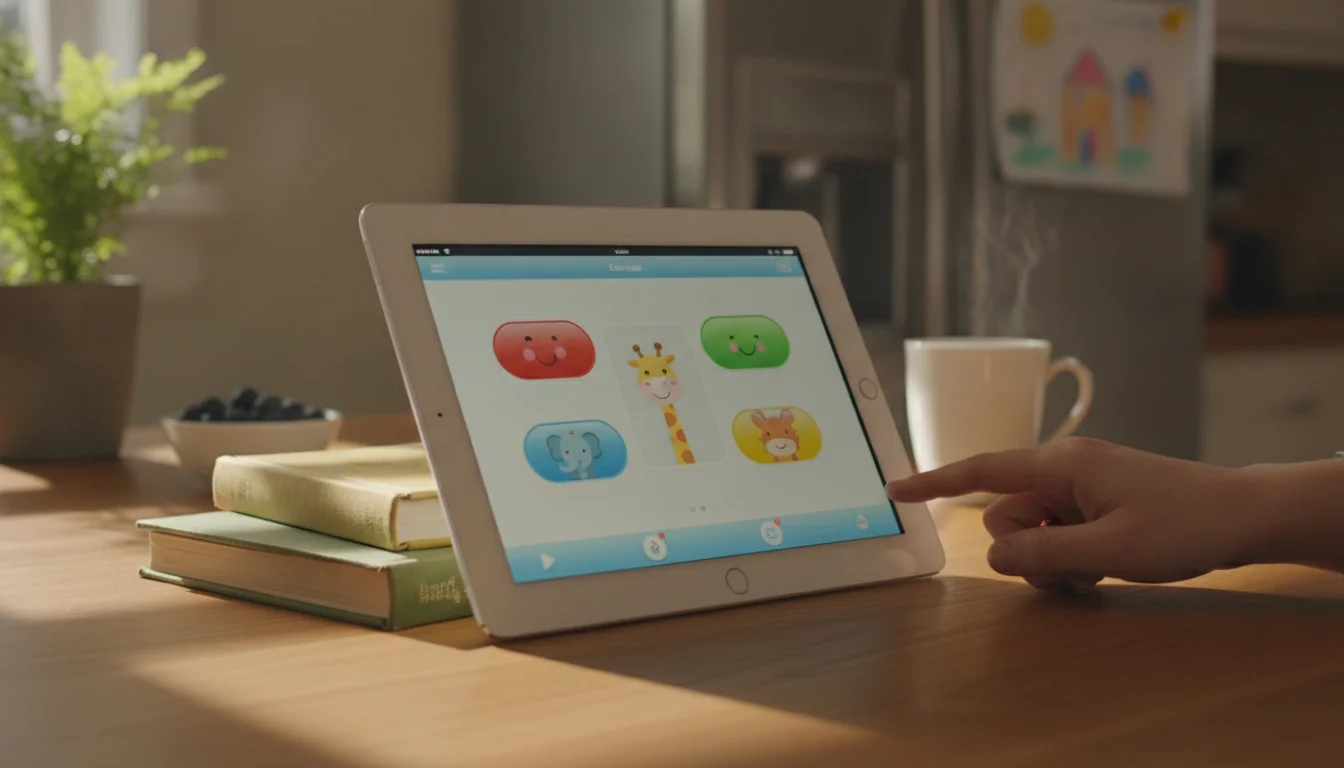
For a kid:  Khan Academy Kids is my first install every time. Free, no ads, no in-app purchases, actually good, and it still supports iOS 12. If you’re setting up an iPad specifically for a child, the best learning apps roundup covers the rest of what I’d add. Before you hand it over, walk through how to kid-proof the iPad so they don’t accidentally buy an in-app expansion pack while you’re making dinner.
For a grandparent or older relative: Apple’s built-in apps do most of the work.  FaceTime, Safari, Photos, Books, and Mail come pre-installed and work on every iPad Apple still keeps alive with iOS 12.5.8 updates. Paprika at $5 for a lifetime recipe app is worth the money if they cook. The setup guide for grandparents walks through the specifics.
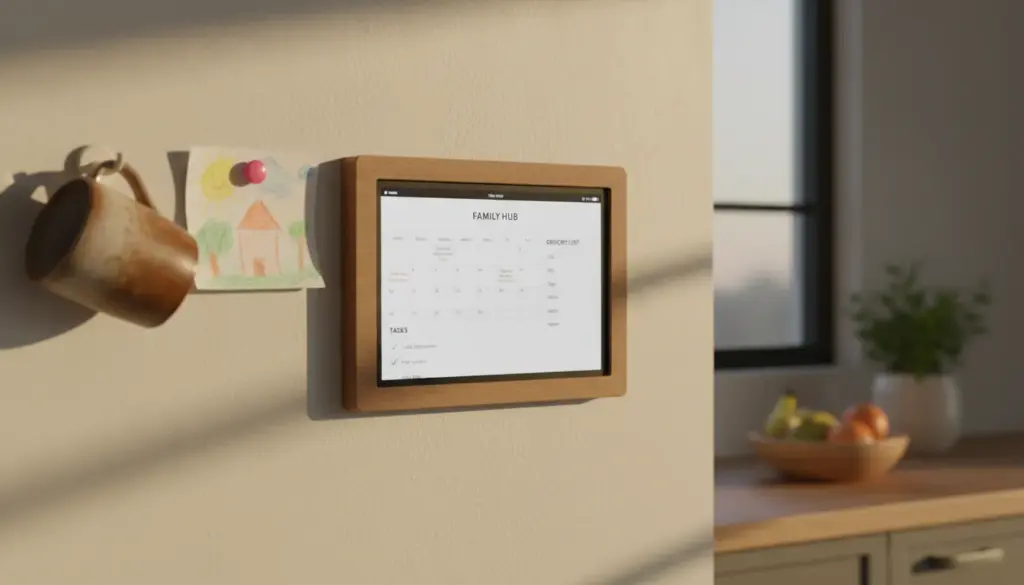
For the kitchen or a household display: Music, timer, calendar, a photo slideshow.  Apple Music runs on the built-in Music app on every iPad, and the streaming works fine on the old ones. Photos does the slideshow. If you want a rotating list of what still installs on the oldest iPads Apple still supports, the iOS 12.5.8 supported apps list is what I keep updated. For a broader roundup across iOS 12-15 iPads and Android tablets, apps that still work on old tablets has more coverage.
When to accept the wall
Some iPads really are done. If the last-compatible-version trick, the borrow method, Family Sharing, and web apps all fail for what you want the iPad to actually do, that’s an honest answer. It doesn’t mean the iPad is useless. It means it’s not the right device for that use case. If the tablet is also stuck at boot or failing to charge, work through the what to do with an old tablet that doesn’t work anymore checklist before you give up entirely – sometimes the App Store issue is downstream of a bigger problem.
The things you can still do with a too-old-to-update iPad piece covers repurpose ideas: kitchen display, photo frame, kids’ Netflix-in-the-back-seat travel device, white-noise machine, security camera, dashboard. None of those need current apps. All of them turn a drawer iPad into something the household actually uses.
If none of that appeals either, selling the old iPad is a fine option. A 2014 iPad Air 2 still fetches $60 to $100 on Swappa and eBay. That money buys a bunch of the coloring app and a lot of milk.
The one thing not to do is leave it in the drawer. Batteries degrade whether or not you use them. An iPad in a kitchen, on a wall, plugged in and running a coloring app for the kids, is worth more than the same iPad three years from now sitting in the same drawer with a swollen battery.