The App Store Doesn’t Warn You
You hand your kid the old iPad, open the App Store, search for that learning app everyone recommends, tap Install, and get the message: “This app requires iOS 17 or later.” Your iPad maxes out at iOS 15. The app won’t install. Your kid is standing there watching. Great start.
Every “best educational apps for kids” list on the internet assumes you’re running a current iPad or a recent Android tablet. Nobody mentions that Duolingo now needs iOS 17, or that SplashLearn wants 4 GB of RAM that your 2016 tablet doesn’t have.
This list is different. Every app here has been checked against real OS requirements, so you know before you download whether it’ll actually work on the old tablet you pulled out of a drawer.
Check Your Tablet First
Before you install anything, you need to know what you’re working with.
On iPad: Go to Settings > General > About and check the Software Version number. If you’re not sure which iPad model you have, our guide on how to figure out how old your iPad is walks you through it in 30 seconds.
On Android: Go to Settings > About Tablet and look for Android Version.
Here’s the rough breakdown of what you can run:
- iOS 12-14 (iPad Air 1, iPad mini 2/3, iPad 5th gen): Limited selection, but the best free app on this list works here
- iOS 15-16 (iPad Air 2, iPad mini 4, iPad 6th/7th gen): Most good options available
- iOS 17+ (iPad 7th gen and newer): Everything works, but your tablet isn’t really “old” anymore
- Android 5-7: Very limited, mostly browser-based options
- Android 8+: Most apps work fine
The Compatibility Table
This is the reference you’ll come back to. Every app tested, with real minimum requirements.
| App | Min iOS | Min Android | Cost | Ages | Offline? |
|---|---|---|---|---|---|
 Khan Academy Kids Khan Academy Kids |
iOS 12 | Android 6.0 | Free | 2-8 | Partial |
| Starfall Learn to Read |
iOS 12 | Android 5.0 | Free (basic) | 3-7 | No |
| Endless Alphabet |
iOS 12 | Android 7.0 | $8.99 | 2-6 | Yes |
| ABCmouse |
iOS 13 | Android 8.0 | $14.99/mo | 2-8 | Partial |
| Toca Boca World |
iOS 13 | Android 7.0 | Free + IAP | 4-9 | Yes |
| PBS Kids Games |
iOS 15.6 | Android 5.0 | Free | 2-8 | No |
| Duolingo |
iOS 17 | Android 10.0 | Free (basic) | 6+ | Partial |
| SplashLearn |
iOS 15 | Android 8.0 | Free (basic) | 4-10 | No |
If your iPad is on iOS 12-14, your realistic options are the top three rows. That sounds limiting until you realise the top row is genuinely the best free educational app available.
The Free Apps Worth Installing First
Start here. If you install nothing else, install these.
Khan Academy Kids (iOS 12+, Android 6.0+) – Free
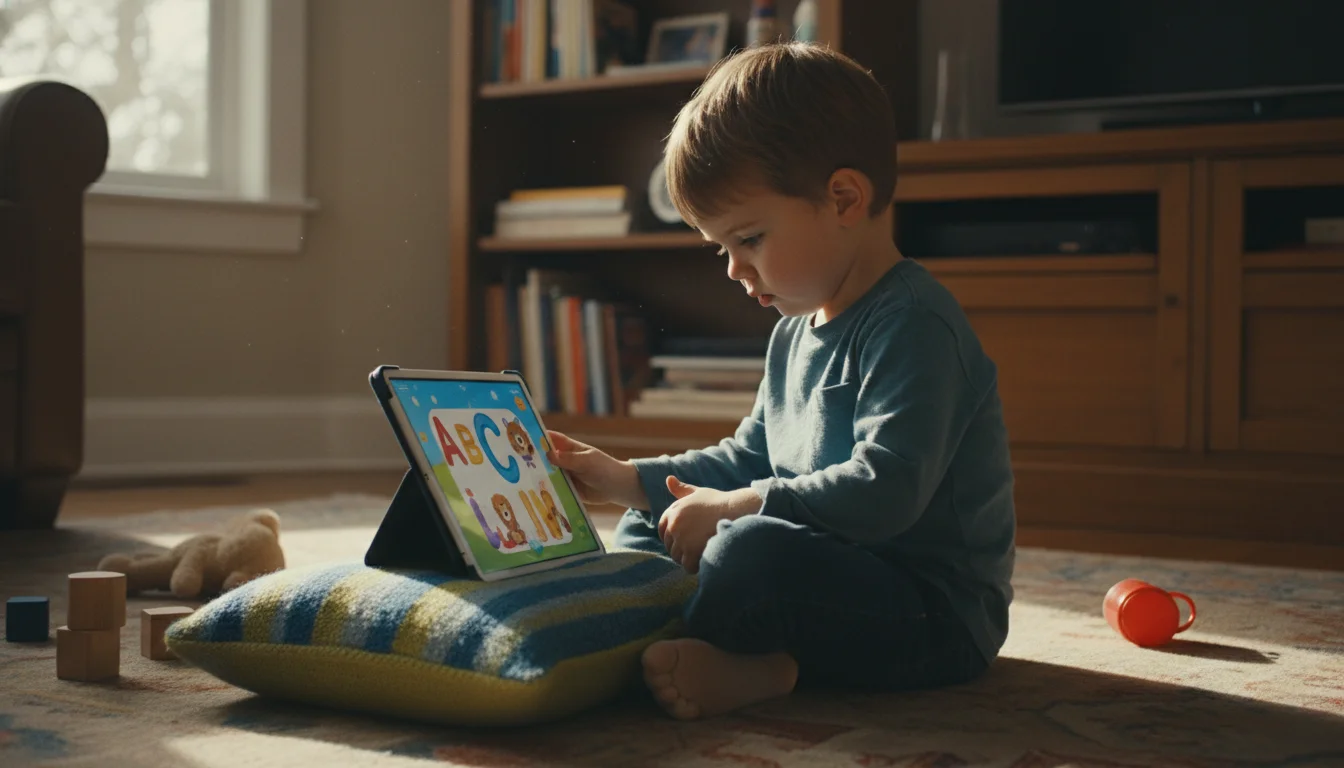
This is the one. If you install only one learning app, make it Khan Academy Kids. It’s completely free, no ads, no subscriptions, no “ask your parents to upgrade” prompts mid-lesson. It covers reading, maths, logic, and social-emotional learning for ages 2-8.
The reason it tops this list isn’t just the price. It runs on iOS 12, which means it works on an iPad Air from 2013. That’s more than a decade old. Most apps dropped iOS 12 support years ago. Khan Academy Kids kept it, and the app still runs smoothly on old hardware.
My 5-year-old has used this almost daily for a year. She went from not recognising letters to reading short sentences, and I didn’t pay a penny for it. The 3-year-old likes the drawing activities and the animated stories, even if she’s technically too young for the curriculum.
PBS Kids Games (iOS 15.6+, Android 5.0+) – Free
No ads. No in-app purchases. No account required. That alone puts PBS Kids Games in a different category from most “free” apps. The games tie into PBS shows like Curious George and Daniel Tiger, so if your kid already watches them, the app feels familiar.
The catch: iOS 15.6 means you need at least an iPad Air 2 (2014). If your iPad is older than that, PBS Kids won’t install. On Android, it’s more forgiving at Android 5.0+.
Starfall Learn to Read (iOS 12+, Android 5.0+) – Free (basic)
Starfall has been around since 2002, which in app years makes it ancient. The free version covers phonics basics and early reading. The full membership ($35/year for home use) opens up maths and more reading levels. It runs on iOS 12, keeping it accessible on old hardware.
It’s not flashy. The graphics look like they belong in 2015. But the phonics method is solid, and my oldest used it when he was 5. Sometimes boring-looking apps are the ones kids actually stick with because there’s less to distract them.
The Paid Apps That Are Actually Worth It
Not every paid app justifies the cost on an old tablet. These do.
Endless Alphabet (iOS 12+, Android 7.0+) – $8.99 one-time
One payment. No subscription. No ads. Endless Alphabet teaches vocabulary through animated puzzles where kids drag letters into words and then watch a short animated clip explaining the word. My kids loved “cooperate” (two monsters trying to move a couch through a door). It’s genuinely funny, which is rare for educational apps.
It runs on iOS 12. The one-time price is refreshing in a world of $14.99/month subscriptions. If your kid is 2-6 and you want a premium app without ongoing costs, this is the one.
ABCmouse (iOS 13+, Android 8.0+) – $14.99/mo or $45/yr
ABCmouse is the big comprehensive option. Full curriculum from pre-K to 2nd grade covering reading, maths, science, and art. It’s basically a structured learning programme disguised as a game, with a progression system that keeps kids moving forward.
The subscription price stings, but the 30-day free trial lets you test it without committing. If your kid is the type who likes structure and earning rewards, ABCmouse will hold their attention longer than most apps. If they prefer open-ended play, look at Toca Boca instead.
Needs iOS 13, so iPad mini 2 and the original iPad Air won’t work. iPad Air 2 and newer are fine.
Toca Boca World (iOS 13+, Android 7.0+) – Free + in-app purchases
Toca Boca isn’t a traditional learning app. There are no quizzes, no letter tracing, no maths drills. It’s an open-ended sandbox where kids build worlds, create characters, and make up stories. The learning is in the creativity, the problem-solving, and the fact that your kid is doing something imaginative instead of watching YouTube.
The base app is free with a few locations. Additional locations cost $1-4 each, and they add up. Set a budget before you hand over the tablet. My 8-year-old has spent more hours in Toca Boca World than any “real” educational app, and I’ve watched him create genuinely elaborate storylines.
Needs iOS 13, so the oldest iPads are out.
Apps That Won’t Work on Old Tablets
Saving you the frustration of downloading, waiting, failing, and explaining to a disappointed child.
Duolingo (iOS 17+, Android 10.0+)
Duolingo bumped its iOS requirement to 17, which means you need at least an iPad 7th generation (2019). If your iPad is genuinely old, Duolingo won’t install. This catches a lot of parents off guard because Duolingo is usually the first app people think of for language learning.
Workaround: Duolingo works in Safari at duolingo.com. It’s not as polished as the app, but it works on any iPad that can run a modern browser. For an old iPad that lives on a shelf as a learning station, this is a reasonable alternative.
SplashLearn (iOS 15+, 4 GB RAM required)
SplashLearn’s iOS requirement is only 15, but the 4 GB RAM minimum rules out most old iPads. Even the iPad Air 2 only has 2 GB. Unless your “old” tablet is from 2018 or later, SplashLearn will either refuse to install or run so slowly your kid gives up.
What My Kids Actually Use vs. What I Installed
I installed nine educational apps on the kitchen iPad. Here’s what actually gets used, in honest order:
- Khan Academy Kids – the 5-year-old asks for it by name
- Toca Boca World – the 8-year-old’s default, sometimes shared with the 5-year-old
- Endless Alphabet – the 3-year-old drags letters around and watches the animations on repeat
- PBS Kids Games – used when someone mentions Daniel Tiger, otherwise forgotten
Everything else was opened once and ignored. The apps my kids actually use have one thing in common: they load fast and don’t make them wait through tutorials or account setup screens. Old tablets are already slow. An app that adds loading time on top of that gets abandoned.
Setting It Up So They Don’t Delete Everything
Once you’ve installed the apps, lock it down. Kids will find the Settings app. Kids will accidentally delete things. Kids will somehow enable VoiceOver and then not know how to turn it off.
Our full guide to making an old tablet kid-proof covers parental controls, Guided Access, and restricted profiles. The short version: on iPad, turn on Guided Access (Settings > Accessibility > Guided Access on iOS 13+, or Settings > General > Accessibility > Guided Access on iOS 12) to lock the tablet into one app at a time. On Android, use a restricted user profile or a third-party launcher like  Google Family Link.
And accept the reality: some screen time will be entertainment. That’s fine. The goal isn’t zero fun. It’s that the default, easy-to-reach apps are educational, and the tablet earns its keep instead of collecting dust. If you want help picking which apps beyond learning are still worth installing, our full compatibility list covers everything from weather to recipes. And for more ways to make old tablets useful for the whole family, our kids and family ideas hub has the full rundown.
If the old tablet is struggling with even these apps, it might need a tune-up first. Check our guide on fixing apps that won’t download or speeding up a slow old iPad before giving up on it.