Why an Old Android Tablet Is Perfect for Kids
Kids will drop it. They will smear yogurt on it. They will somehow install fourteen apps while you’re answering the doorbell. This isn’t pessimism. It’s lived experience with an 8-year-old, a 5-year-old, and a 3-year-old.
Which is exactly why the old tablet in the drawer is the right device for the job. When the 5-year-old drops it on the kitchen tile, nobody panics. It was already retired. If it breaks, you shrug and pull out the next one. (And if you’re a household like mine, there’s always a next one.)
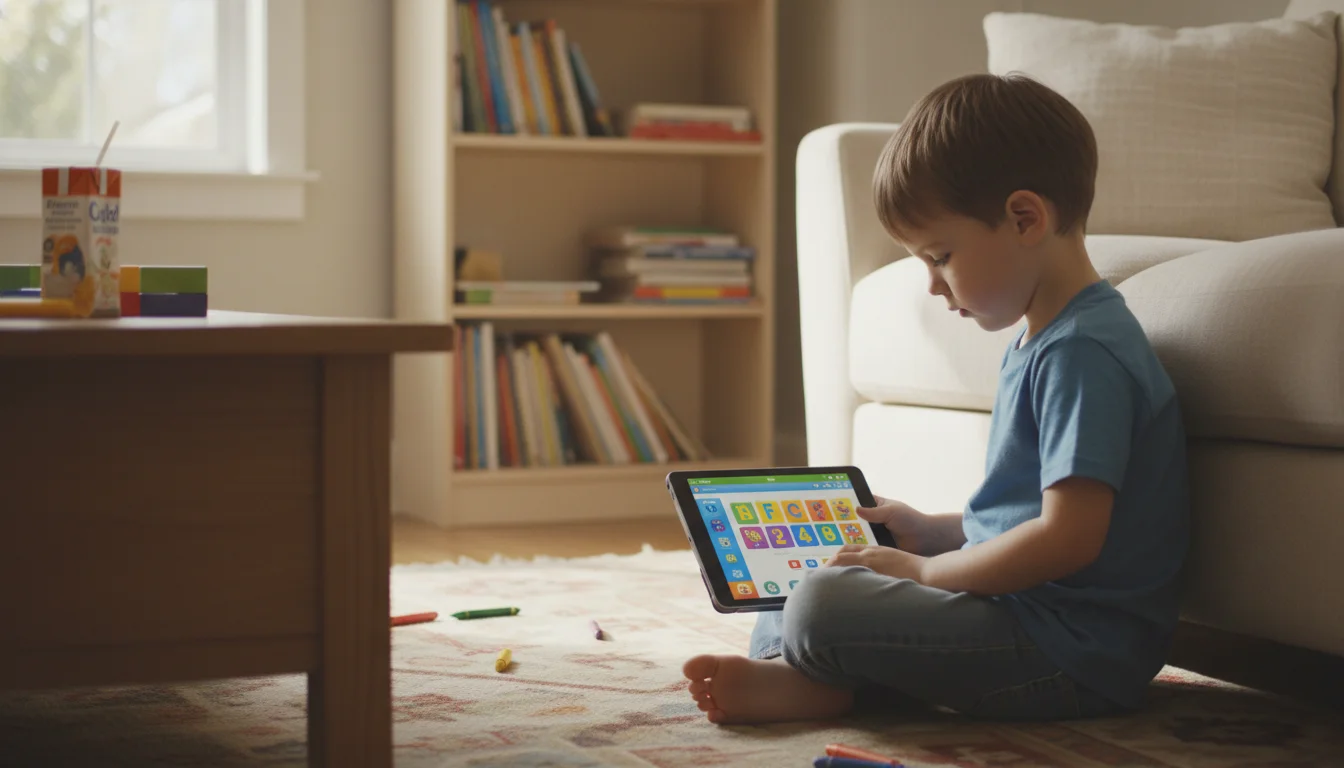
But “old” doesn’t mean “useless.” An Android tablet from 2018 still runs Khan Academy Kids,  PBS Kids, and dozens of solid educational apps. The screen works. The speakers work. For a kid learning to read or count to 100, it’s more than enough. If it feels sluggish, a quick factory reset and cleanup usually brings it back to life.
And here’s where Android tablets have a real advantage over old iPads: app compatibility. Where an iPad stuck on iOS 12 can’t run half the popular kids’ apps anymore, even an Android tablet running Android 8 or 9 can still install nearly everything on this list. No “this app requires a newer version” frustration.
Setting Up Parental Controls First
Before you hand the tablet over, spend 10 minutes on this. You’ll thank yourself later.
Google Family Link (The Main Tool)
Google Family Link is free and it’s the best option for old Android tablets. It officially supports child devices on Android 7.0 and up (with limited support back to 5.0), so most old tablets in the drawer still qualify.
Setup on your phone:
- Install Family Link on your phone (Android or iPhone)
- Create a Google account for your child (or add an existing one)
- Follow the prompts to link the child’s account to yours
Setup on the tablet:
- Factory reset the tablet (Settings > System > Reset Options > Erase All Data)
- During the fresh setup, sign in with your child’s Google account
- Android detects it’s a child account and walks you through Family Link settings
What you can control:
- Approve or block every app download
- Set daily screen time limits (e.g., 1 hour on weekdays, 2 on weekends)
- Schedule a “bedtime” when the tablet locks
- See which apps they’re using and for how long
- Lock the device remotely from your phone
The initial setup takes about 15 minutes. After that, management happens entirely from your phone.
App Pinning (The Quick Lock)
If you just want to lock the tablet to a single app so your toddler can’t escape to YouTube:
- Settings > Security > App Pinning > Turn On
- Open the app you want
- Tap the Recent Apps button, then tap the pin icon on the app
- The tablet is now locked to that one app
To unpin, hold Back and Recent Apps together. This is the fastest solution for the 3-year-old. One app, no escape.
For a deeper walkthrough of physical protection, cases, and screen protectors, see our complete guide to kid-proofing an old tablet.
Best Educational Apps for Old Android Tablets
Android has a real advantage here. Most of these apps still support Android 5 through 7, while their iOS versions have moved on to iOS 15 or newer. A few popular ones need more current Android – NASA needs Android 10, Duolingo now needs Android 12 – but the core learning apps like Khan Academy Kids, ScratchJr, and Prodigy Math run on much older devices. We cover every app in detail in our kids’ learning app compatibility roundup.
Reading & Literacy
Khan Academy Kids (Free)
The one I’d start with. Reading, writing, math, social-emotional learning. Ages 2-8. Completely free, no ads, no subscriptions. If you install one educational app, make it this one. My kids actually ask to use it, which says something. Requires Android 6.0+.
Homer (Free trial, then $7.99/month)
Personalized reading program for ages 2-8. Adjusts to your child’s level. The stories and phonics lessons are genuinely engaging. Requires Android 5.0+.
Epic! (Free with limited access, $9.99/month Unlimited or $11.99/month Family)
Digital library with 40,000+ children’s books. Read-to-me audio for younger kids. Great for families that burn through library books faster than they can return them. The annual Unlimited plan is $79.99/year if you’d rather not deal with monthly billing. Requires Android 7.0+.
Math
Prodigy Math (Free, optional premium)
Turns math into an adventure game. Grades 1-8. The free version includes all the educational content – premium just adds cosmetic game features. This is one of those apps where kids don’t realize they’re doing math homework. Requires Android 5.0+.
Todo Math (Free with premium)
For younger kids, ages 3-8. Number recognition, counting, basic operations. Very visual and tactile – good for pre-readers who aren’t ready for text-heavy apps.
Science & Exploration
Tinybop apps (Explorer’s Pass, $9.99/year after a 7-day free trial)
Interactive science apps for kids. On Android, the Explorer’s Pass bundle includes The Human Body, Skyscrapers, Homes, The Earth, Simple Machines, Weather, and Mammals (added in 2026). No reading required – kids discover through touching and exploring. My 5-year-old spent 20 minutes learning how weather systems work. I’m not sure I could have kept her attention that long with a book.
NASA App (Free)
For older kids (8+). Real NASA images, mission updates, ISS tracking. Requires Android 10+, so this one needs a relatively recent tablet. If your kid is into space, it’s worth it.
Coding
ScratchJr (Free)
Visual programming for ages 5-7. Kids make characters move, jump, and interact by snapping together colorful blocks. Created by MIT. It teaches programming thinking without requiring reading. Requires Android 5.0+.
ScratchJr is the standout here. For older kids who outgrow it,  Kodable offers a more structured curriculum – but it’s iOS only, so it won’t work on the Android tablet.
Languages
Duolingo (Free with ads, $10-13/month for Super)
Spanish, French, Mandarin, and 30+ other languages. The gamification keeps kids (and adults) coming back. Requires Android 12+, so most 2020-era and older tablets are out – sideloading an older APK from APKMirror is the fallback on Android 10-11. The iOS version requires iOS 17, which cuts off even more old devices.
Age-Specific Setups
Toddlers (2-4)
- Use app pinning to lock to one app at a time
- Install Khan Academy Kids and PBS Kids
- Set daily time limit to 30-60 minutes via Family Link
- Disable all purchase capability
- Get a chunky case with a handle (see kid-proofing guide)
- Put the tablet away when time is up – don’t leave it accessible
At this age, the tablet is basically a supervised activity, like coloring or Play-Doh. One app, fixed time, put it away.
Early Elementary (5-7)
- Multiple educational apps on the home screen
- Family Link limits: 1-2 hours per day
- Add ScratchJr for coding, Duolingo for language (if the tablet runs Android 12+)
- Allow some creative apps (drawing, music)
- Home screen organization: learning apps on page 1, creative on page 2
- Consider pairing with a visual timer for transitions
This is the age where it actually works. They’re old enough to navigate between apps but young enough that parental controls actually work.
Upper Elementary (8-10)
- More freedom with educational apps
- Epic for reading, Prodigy for math
- Allow supervised web browsing for school projects
- Introduce responsibility: “You manage your time, but the tablet goes away if it becomes a problem”
- The bedtime routine display works well at this age too – structure without nagging
The YouTube Problem
Every parent’s concern: “They’ll just watch YouTube instead of learning.”
Fair. Here’s what works.
Option 1: Remove YouTube entirely. Just uninstall it. If they need a specific educational video, watch it together on your phone. This is what I do for the 3-year-old’s tablet.
Option 2: Use YouTube Kids instead. Set it to the appropriate age group. It’s not perfect – some strange content slips through – but it’s dramatically better than unrestricted YouTube. Family Link also lets you approve or block YouTube Kids specifically.
Option 3: Block the browser. If your kids are resourceful enough to find youtube.com in Chrome, disable Chrome through Family Link and don’t install any other browser.
The honest truth: some screen time will be entertainment. That’s fine. The goal isn’t zero fun. It’s making sure the default, easy-to-reach apps are educational, and entertainment requires a little more effort.
Making It Durable
Kids are rough on devices. Before handing it over:
A rugged case ($10-20). Get a chunky, drop-proof case with a handle. Amazon has dozens. The thick EVA foam cases are practically indestructible for normal kid use, and the handles make it easy for small hands to carry.
A screen protector ($6-8). Tempered glass screen protectors handle sticky fingers, stylus abuse, and whatever that mysterious residue is.
Don’t stress about it breaking. It’s an old tablet. The case and screen protector are your insurance. If it breaks beyond repair, you recycle it and grab the next one from the drawer.
Quick Setup Checklist
- Factory reset the tablet and sign in with a child Google account (15 min)
- Set up Family Link on your phone and configure limits (10 min)
- Install 3-5 educational apps for your child’s age (10 min)
- Uninstall YouTube, Chrome, and any other apps you don’t want them in
- Organize the home screen – learning apps front and center
- Put on a rugged case and screen protector
- Set daily time limits and a bedtime lock
- Hand it over
Total setup time: about 30 minutes. Total cost: $0-20 for a case and screen protector. That old Android tablet goes from collecting dust to being the kids’ favorite learning tool. And if your family also has an old iPad lying around, we have an iPad version of this guide too.
Have a second old tablet with no kid claiming it yet? It makes a solid naptime baby monitor, a video calling station for grandparents, or a family message board in the hallway. More ideas in our guide to old tablets for the whole family.