The Photo Frame Nobody Had to Buy
Somewhere in your house there’s an old Galaxy Tab, a Lenovo tablet, or some off-brand Android slate that hasn’t been touched in a year. It’s too slow for browsing, the battery doesn’t last an hour, and nobody wants it.
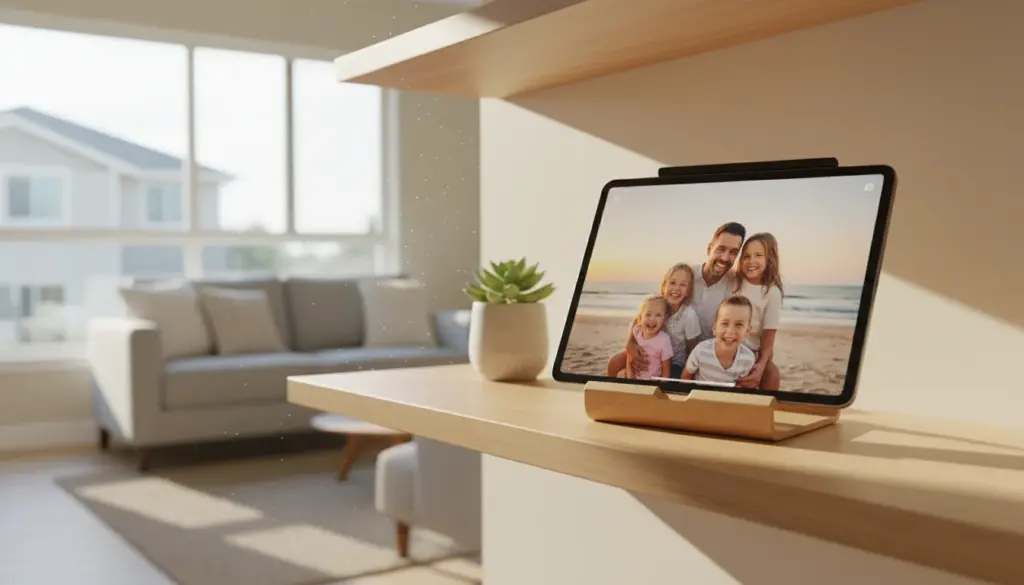
But the screen still works. The Wi-Fi still connects. And that’s all you need for a digital photo frame that’s better than anything you’d find at Best Buy for $150.
Android tablets actually have an advantage over iPads here.  Google Photos ambient mode, home screen widgets, and apps like Fotoo give you more control over how your photos display. And because Android lets you customize basically everything, you can build a photo frame that looks and works exactly the way you want.
The 5-Minute Setup: Google Photos
If you just want this working right now, here’s the fastest path.
- Open Google Photos (preinstalled on most Android tablets, or download it from the Play Store)
- Sign in with your Google account
- Tap your profile picture > Photos settings > Memories and make sure your preferred albums are selected
- Go to Settings > Display > Screen timeout and set it to 30 minutes (or the maximum your tablet offers)
- Open Google Photos, pick an album, tap the first photo, then tap the three-dot menu > Slideshow
That’s a working photo frame. Photos from the album rotate automatically. On a tablet propped on a shelf with a charging cable, this is genuinely all most people need.
The limitation: Google Photos’ built-in slideshow stops when the screen times out. For a true always-on display, you need either a stay-awake app or a dedicated photo frame app (both covered below).
Better: Android Screen Saver Mode
Most Android tablets have a built-in screen saver feature that Google designed specifically for this use case. It’s called “Screen saver” (or “Daydream” on older Android versions).
- Go to Settings > Display > Screen saver
- Select Photos or Photo Frame (the name varies by manufacturer)
- Tap the gear icon to choose which Google Photos albums to display
- Set “When to start” to While charging or While docked
Now plug in the tablet and wait for the screen timeout. Instead of going black, it launches a full-screen photo slideshow that pulls from your Google Photos library. New photos you take on your phone appear automatically.
This is the cleanest setup because it’s built into Android. No extra apps, no configuration beyond those four steps. Samsung tablets, Lenovo tablets, and most other brands all support it.
Best Photo Frame Apps for Android
If you want more control – specific albums, transition effects, motion detection, or a clock overlay – a dedicated app does more than the built-in options.
Fotoo (Free / $20 Premium)
Fotoo is the best dedicated photo frame app on Android. It connects to Google Photos, Dropbox, OneDrive, and local storage. The feature that sells it: motion detection. The screen dims when nobody’s nearby and brightens when someone walks past. On a wall-mounted tablet, this saves power and looks polished.
The free version does everything you need. The $20 premium removes the small Fotoo logo and adds scheduled on/off times. We’ve tested a few alternatives and most have been pulled from the Play Store over time, so Fotoo is the clear winner in this category.
Dakboard (Free / $6/month)
If you want weather, calendar, and photos on one screen,  DAKboard turns your tablet into a full dashboard. Open it in the browser, no app needed. The free tier shows one screen with photos, weather, and a calendar. It works on any Android tablet because it’s just a web page.
We cover more options in our complete photo frame guide series, including setup tips for different tablet brands.
The Widget Approach (No App Needed)
Android’s home screen widgets give you something iPads can’t match: a photo frame built right into the home screen alongside other useful information.
Google Photos widget: Add it to your home screen and it rotates through your photos automatically. Pair it with a weather widget and a clock, and your tablet becomes a photo frame that also shows the time and forecast.
How to set it up:
- Long-press the home screen > Widgets
- Find Google Photos > drag the Your memories or People & pets widget to the screen
- Resize it to fill most of the display
- Add a small clock widget in one corner if you want
This isn’t a full-screen slideshow, but it’s useful in a different way. One glance shows you a photo, the weather, and the time. For a kitchen counter tablet, that’s often more practical than a pure photo display.
Samsung Tablets: Extra Features
Samsung Galaxy Tabs have a few photo frame features other Android tablets don’t.
Samsung Gallery slideshow: Open the Gallery app, pick an album, tap the three-dot menu > Slideshow. Samsung’s slideshow lets you pick transition effects and speed, and it runs in full screen.
One UI Lock Screen: On newer Samsung tablets (One UI 5+), you can set the lock screen to cycle through photos from Samsung Gallery. The tablet shows photos whenever you pick it up or plug it in, without opening any app.
Routine automation: Samsung’s Routines (under Settings > Modes and Routines) can trigger specific apps when the tablet starts charging. Set it to open Fotoo or Google Photos slideshow whenever you plug it in – the tablet becomes a photo frame the moment it touches the charging cable.
Amazon Fire Tablets
Fire tablets run a modified version of Android, and they have one major advantage for photos: Amazon Photos gives you unlimited full-resolution photo storage with Prime.
If you have Prime, the setup is almost instant:
- Open Amazon Photos (preinstalled)
- Enable auto-save on your phone’s Amazon Photos app
- On the Fire tablet, open Amazon Photos > select an album > tap Slideshow
Your phone photos sync to the cloud and appear on the Fire tablet automatically. No Google account needed, no sideloading, nothing to configure beyond turning on auto-save.
Fire tablets also have Show Mode (Settings > Show Mode on supported models), which turns the tablet into an Echo Show-like display that includes a rotating photo screensaver.
For more Fire tablet ideas beyond photo frames, our Kindle Fire uses guide covers 12 practical options.
Always-On Display Settings
A photo frame that goes dark every 30 minutes isn’t much of a photo frame. Here’s how to keep the screen on.
Screen timeout (all Android): Settings > Display > Screen timeout. Set it to the maximum. On most tablets, that’s 30 minutes. Not ideal, but it’s a start.
Stay Alive app: After finding the screen timeout too short, install Stay Alive! from the Play Store. It overrides the screen timeout for specific apps. Set it to keep the screen on while Fotoo or Google Photos is running.
Fully Kiosk Browser (best for wall mounts): If you’re mounting the tablet on a wall and want it locked to a single display,  Fully Kiosk Browser (around $8 one-time) is the most reliable option. It prevents anyone from accidentally navigating away, auto-refreshes, and includes motion-activated screen dimming. Point it at a DAKboard page or a Google Photos album, and it stays there indefinitely.
Brightness: Turn it down to 30-40% for a shelf display. Auto-brightness works too, but manual control gives you a more consistent look. Lower brightness also reduces heat and extends the screen’s life.
Mounting and Power
Android tablets are lighter than iPads, which gives you more options for wall mounting.
A tablet stand on the counter or shelf is the simplest approach – $8-15 for a good adjustable one. For wall mounting, adhesive command strips handle most Android tablets under 12 oz (340g). A magnetic mount works well if you attach a metal plate to the back of the tablet.
Keep the tablet plugged in at all times. Old batteries drain fast, and a photo frame that dies every few hours isn’t useful. A right-angle USB cable keeps the cord tidy against the wall.
Our guide to tablet mounts and stands has specific recommendations for different budgets and mounting situations.
One thing to plan for with any always-on setup: check the battery periodically. Old lithium batteries kept at 100% charge and warm can swell over time. Our tablet battery safety guide covers what to watch for and when to unplug.
Quick Reference
| Method | Best For | Needs App? | Always-On? |
|---|---|---|---|
| Google Photos slideshow | Quick setup | No | No (screen times out) |
| Android screen saver | Clean, automatic | No | Yes (while charging) |
| Fotoo | Full-featured display | Yes (free) | Yes (with Stay Alive) |
| Widgets on home screen | Photos + info at a glance | No | With screen timeout override |
| Fully Kiosk + DAKboard | Wall-mounted dashboard | Yes (~$8) | Yes |
| Amazon Photos (Fire) | Fire tablet owners with Prime | No | With Show Mode |
Start With What’s Already There
If you’re not sure which approach to use, start with the Android screen saver. It’s built in, it pulls from Google Photos automatically, and it starts running whenever you plug the tablet in. No apps, no configuration beyond choosing which albums to show.
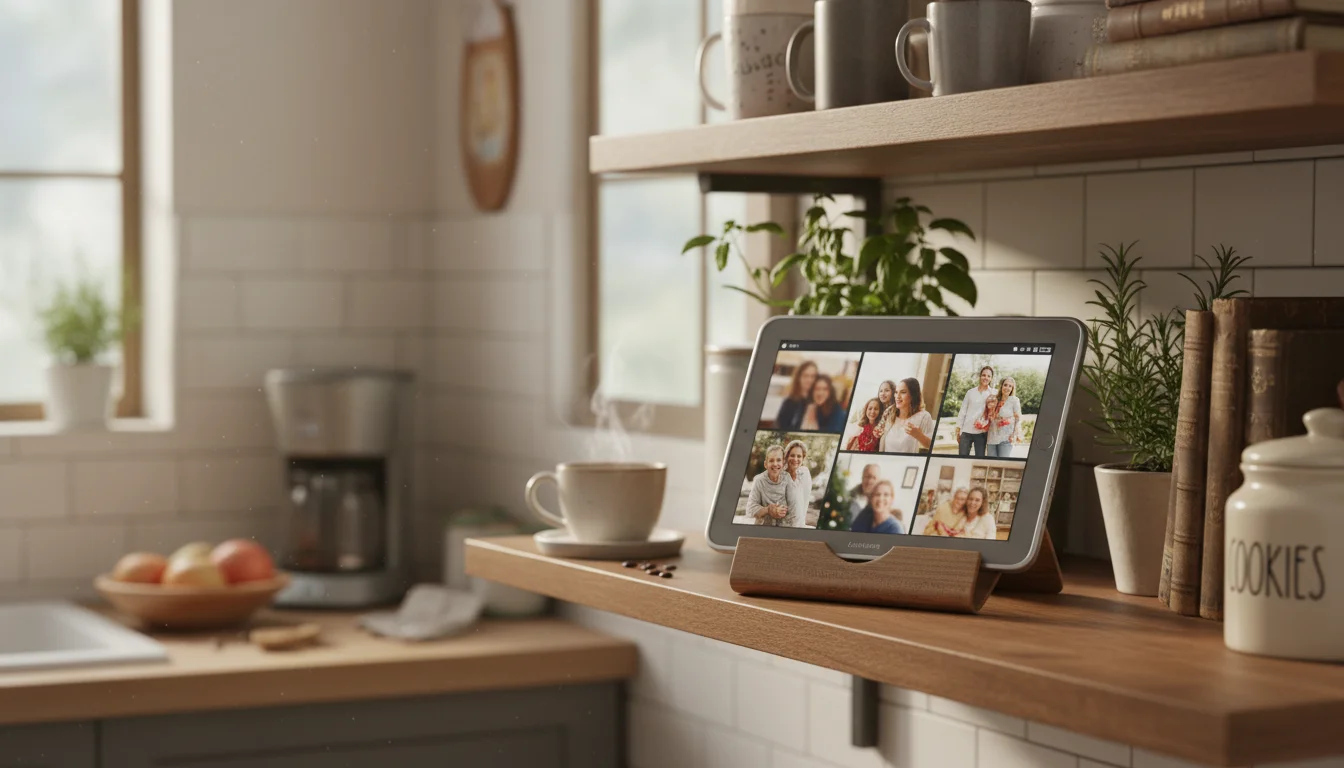
Prop the tablet on the kitchen counter next to the coffee maker. Within a week, you’ll catch yourself pausing to look at photos you forgot you took. That vacation from two years ago. The kids being silly at the park. The dog doing something ridiculous.
That’s the point. Your old tablet already has a beautiful screen. Your photos are already in the cloud. The only thing missing was putting them together.
For the complete setup walkthrough covering iPads and all tablets, see our main photo frame guide.