The “Requires iOS 17” Problem
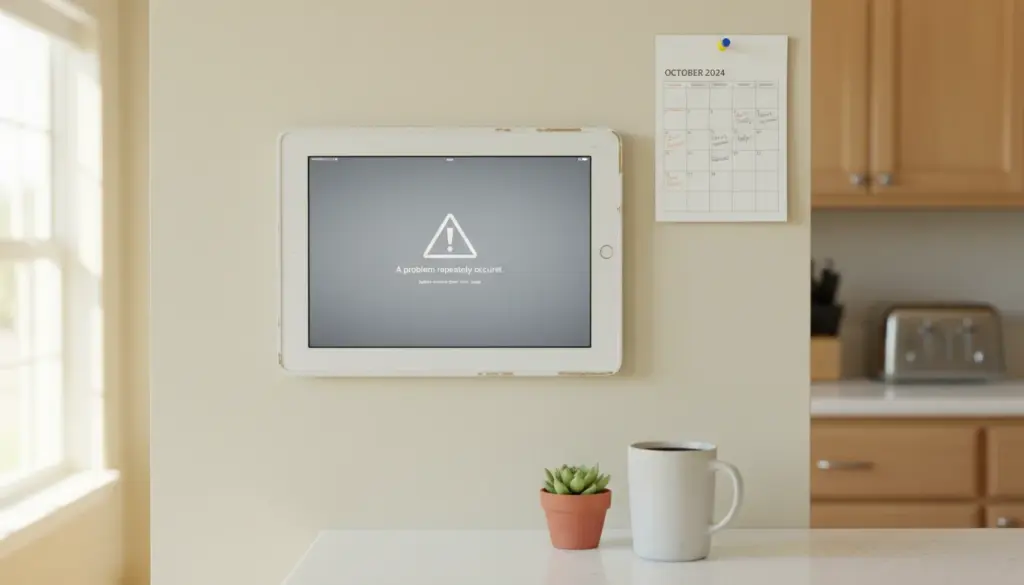
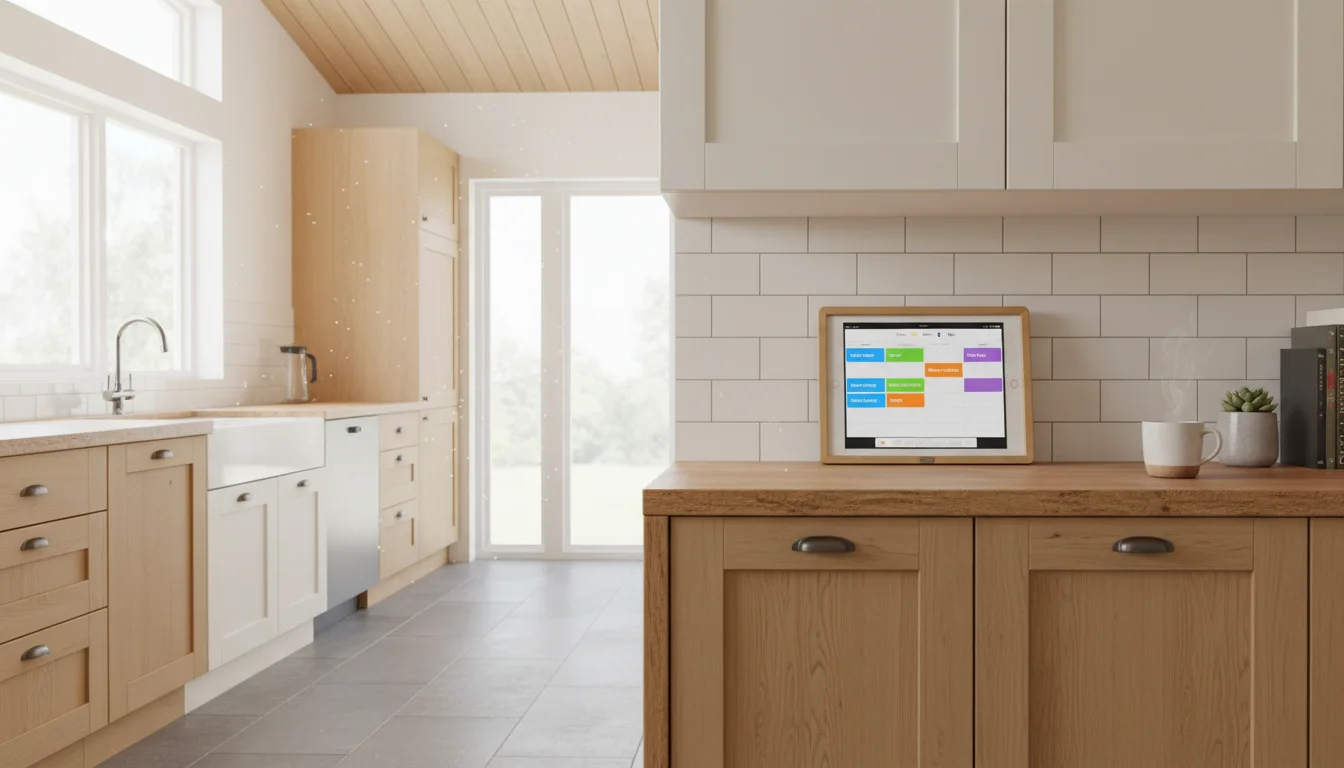
You had a simple plan. Download a calendar app, put your old iPad on the wall, and finally have a family calendar everyone can see. Then you opened the App Store and hit the wall: “This app requires iOS 17.0 or later.”
Your iPad is on iOS 15. Maybe iOS 13. It’s not going any higher.
Nobody tells you this until you’ve already tried: Google Calendar, Fantastical, TimeTree, Cozi – they’ve all bumped their minimum to iOS 17 in the past year or two. The apps everyone recommends in those “best calendar apps” roundups? Half of them won’t even install on your tablet.
So I went through every calendar app I could find and checked which ones actually work on older iPads (iOS 12-15) and Android tablets (Android 8-11). Some are native apps. Some are browser-based. All of them run on the tablets people actually have sitting in their drawers.
The Ones That Still Work on Old iPads
Apple Calendar (Built-In, Free)
It’s already on your iPad. No download, no compatibility check, no subscription. Apple Calendar comes with every version of iOS, and it syncs with Google Calendar, iCloud, and Outlook through the Settings app.
Why it’s a solid choice for a wall display:
- Add your Google Calendar account in Settings > Passwords & Accounts > Add Account > Google, and your events show up automatically
- Landscape mode in Day or Week view is clean and readable from across the room
- Color-coded calendars work well (different colors per family member)
- It’s fast, even on older hardware
The catch: No widgets for the lock screen on older iOS, and no always-on display mode. You’ll need to set Auto-Lock to Never (Settings > Display & Brightness > Auto-Lock) to keep the screen on. The calendar display setup guide walks through this step by step.
FamilyWall (iOS 13+, Free with Premium Option)
 FamilyWall is one of the few family-oriented calendar apps that still supports iOS 13. If your iPad is running iOS 13, 14, or 15, this one installs and works.
It’s built for families specifically. Shared calendar, grocery lists, to-do lists, and a family locator (which you can ignore for the wall display). Each family member gets a color-coded column, and the week view gives you that at-a-glance picture of who’s doing what.
Free tier: Shared calendar, to-do lists, and a family journal. Covers the basics. Premium ($5/month): Adds meal planning, budget tracking, and iCloud/Google Calendar sync. The Google Calendar sync is the main reason to upgrade if your family already lives in Google Calendar.
Honest take: The interface is a little dated and the app clearly wants you to go premium. But for an always-on wall display showing this week’s family schedule, the free tier does the job.
Google Calendar in Safari (Any iOS, Free)
This is the sleeper pick. Open Safari, go to  calendar.google.com, log in, and bookmark it to your home screen. Works on any iPad, any iOS version, because it’s just a website.
The web version gives you Day, Week, Month, and Schedule views. Schedule view is the easiest to read from across the room. You can see multiple calendars overlaid with color coding, add events, and everything syncs instantly because it’s just Google Calendar.
Setup in 2 minutes:
- Open Safari > go to calendar.google.com > log in
- Switch to Schedule or Day view
- Tap Share > Add to Home Screen
- Set Auto-Lock to Never
The downsides: no push notifications (but you don’t need them on a wall display), and the web interface can feel cramped on smaller screens. On a full-size iPad, it looks great. On an iPad mini, you might want to zoom in.
The Ones That Work on Old Android Tablets
Android tablets running 8 through 11 actually have better options than old iPads, because Google hasn’t been as aggressive about dropping older OS support on its own platform.
Google Calendar App (Pre-Installed, Free)
If your Android tablet came with Google apps (most do), Google Calendar is already there. The Android version still runs on much older devices than the iOS version requires.
The widget is the real winner here. The Google Calendar widget shows your upcoming events right on the home screen without even opening an app. On a wall-mounted tablet, set the widget to fill the screen and you’ve got an always-on calendar display.
DigiCal (Android, Free with $5 Pro)
DigiCal is an underrated calendar app with a clean look and seven different widget styles. Month view, week view, agenda, text list – you pick whatever is most readable on your specific tablet.
It syncs with Google Calendar, Outlook, and Exchange. The free version shows small ads. DigiCal+ ($5 one-time) removes them and adds dark theme options. For $5 one-time instead of yet another subscription, that’s a fair deal.
Works on Android 5.0 and up, so any old Android tablet from the last decade will run it.
Business Calendar 2 (Android, Free with Premium)
Business Calendar 2 sounds like it’s for corporate types, but the family features are surprisingly good. Drag-and-drop event editing, multiple calendar overlays, and more widget options than you’ll know what to do with.
The free version handles basic calendar display fine. Premium ($6/year) adds features like event templates and color themes. The widget customization is where it shines for a wall display – you can set exactly how many days to show, text size, and which calendars appear.
CalenGoo (Android, $6 One-Time)
CalenGoo is the deep-customization pick. Thirty-one widgets. Not a typo. If you want complete control over exactly how your calendar looks on the home screen, CalenGoo is for that person.
It syncs with Google Calendar and is aimed at people who found the Google Calendar app too limiting. The learning curve is steeper, but once you dial in your preferred widget layout, it stays that way. $6 one-time purchase, no subscription.
Browser-Based Options (Work on Everything)
These don’t care what OS you’re running. If your tablet has a web browser, they work.
DAKboard (Free, or $5-10/Month)
 DAKboard is the go-to for people who want a dashboard-style display with their calendar front and center, plus weather, photos, and news alongside it.
Free tier: One pre-built screen, syncs with two calendars. Shows a calendar on a photo background with weather. Small watermark. For a family calendar display, this covers the basics.
Essential ($6/month, $5/month yearly): Two custom screens, unlimited calendar syncs, no watermark, faster refresh rates. This is the tier most families will want if the free version feels limiting.
Plus ($10/month, $8/month yearly): Three custom screens, everything in Essential, plus extra integrations.
Setup: Create a free account on dakboard.com, connect your Google or Apple Calendar, set your location for weather, and open the dashboard URL in your tablet’s browser. That’s it.
DAKboard is worth a special mention because it was designed specifically for always-on displays. The layout is optimized to be readable from across the room, which most calendar apps aren’t thinking about.
We cover DAKboard setup in detail in the family calendar display guide.
Google Calendar Web (Any Browser, Free)
Already covered above for iPad, but worth repeating: calendar.google.com works on any tablet’s browser. It’s free, it syncs instantly, and it’s the same calendar everyone already uses on their phones. Open it in Chrome or Safari, bookmark to home screen, done.
What About These Other Apps?
A few apps that keep showing up in “best calendar app” lists but won’t work for your old tablet:
| App | Minimum iOS | Minimum Android | Old Tablet Verdict |
|---|---|---|---|
| Fantastical | iOS 17.6 | N/A | Won’t install on iOS 12-16 |
| TimeTree | iOS 17.0 | Android 10 | Won’t install on most old tablets |
| Cozi | iOS 17.0 | Android 8+ | Won’t install on old iPads, works on Android |
| Google Calendar app | iOS 17.0 | Android varies | Won’t install on old iPads |
| Any.do | iOS 16.0 | Android 8+ | Won’t install on iOS 12-15, works on Android |
If you see these recommended elsewhere and try to install them, now you know why the App Store says no. The browser-based alternatives genuinely work better anyway for a wall-mounted display.
Quick Comparison: What to Pick
| If you have… | Best choice | Cost | Setup time |
|---|---|---|---|
| Old iPad, want simplicity | Apple Calendar (built-in) | Free | 5 min |
| Old iPad, want a dashboard | DAKboard in Safari | Free-$6/mo | 10 min |
| Old iPad (iOS 13+), family-focused | FamilyWall | Free-$5/mo | 10 min |
| Old Android tablet | Google Calendar widget | Free | 3 min |
| Old Android, want customization | DigiCal or CalenGoo | $5-6 one-time | 15 min |
| Any tablet, want calendar + weather | DAKboard | Free-$6/mo | 10 min |
Getting It on the Wall
Once you’ve picked your app, the next step is turning that tablet into an actual wall display. Set Auto-Lock to Never, plug it in, and stick it somewhere the whole family walks past. The full calendar display setup guide covers mounting, positioning, and the night settings that keep a glowing screen from lighting up your hallway at 2 AM.
If you’re on Android and want even more app options, our free apps guide has a broader list of what still runs on older devices. And if you’re not sure your tablet is worth the effort, the speed-up guide for iPads or Android tablets can help you figure out whether the hardware is up to it.