The $30 Weather Station You Already Own
Amazon Fire tablets are the most common “drawer tablets” out there. They’re cheap, they were everywhere for a few years, and they end up forgotten once the kids move on or a newer one shows up. But that old Fire HD 8 or Fire 7? It makes a perfectly good always-on weather display.
The catch with Fire tablets is the Amazon ecosystem. Fire OS is Android underneath, but the default app store is Amazon’s, not Google Play. That limits your weather app options compared to a standard Android tablet. The good news: you can work around it, and even without sideloading Google Play, there are enough options to get a solid weather station running.
Which Fire Tablets Work (and Which Don’t)
Not every Fire tablet is worth the effort.
Works well:
- Fire HD 8 (2018 or newer, 8th gen+) – enough screen space, decent performance
- Fire HD 10 (any generation) – the best Fire tablet for a weather display, period. Big screen, fast enough
- Fire 7 (2019 or newer, 9th gen+) – small screen but functional
Barely works:
- Fire 7 (2017, 7th gen) – sluggish, low RAM, but it’ll do in a pinch
- Fire HD 8 (2017, 7th gen) – same story
Don’t bother:
- Fire (2015, 5th gen) or older – too slow, Fire OS too outdated, most apps won’t install
- Original Kindle Fire (2011-2012) – recycle it. Our guide for tablets that don’t work covers your options.
To check your model, go to Settings > Device Options > About Fire Tablet. You’ll see the model name and Fire OS version. If you’re on Fire OS 6 or newer, you’re in good shape.
Weather Apps from the Amazon Appstore
You don’t need to sideload anything to get weather on a Fire tablet. The Amazon Appstore has a few solid options.
Weather Channel
The  Weather Channel app is available on the Amazon Appstore and works on most Fire tablets. You get forecasts, radar, severe weather alerts, and the usual hourly/daily breakdowns. It’s ad-supported but functional.
For a weather station, the main issue is the same one you’d have on any device: the app likes to drift to news articles and video content instead of staying on the forecast screen.
AccuWeather
AccuWeather is also on the Amazon Appstore. The MinuteCast feature (hyperlocal precipitation predictions for the next two hours) is genuinely useful, and the interface is cleaner than Weather Channel on a tablet.
Amazon Silk Browser + Windy.com
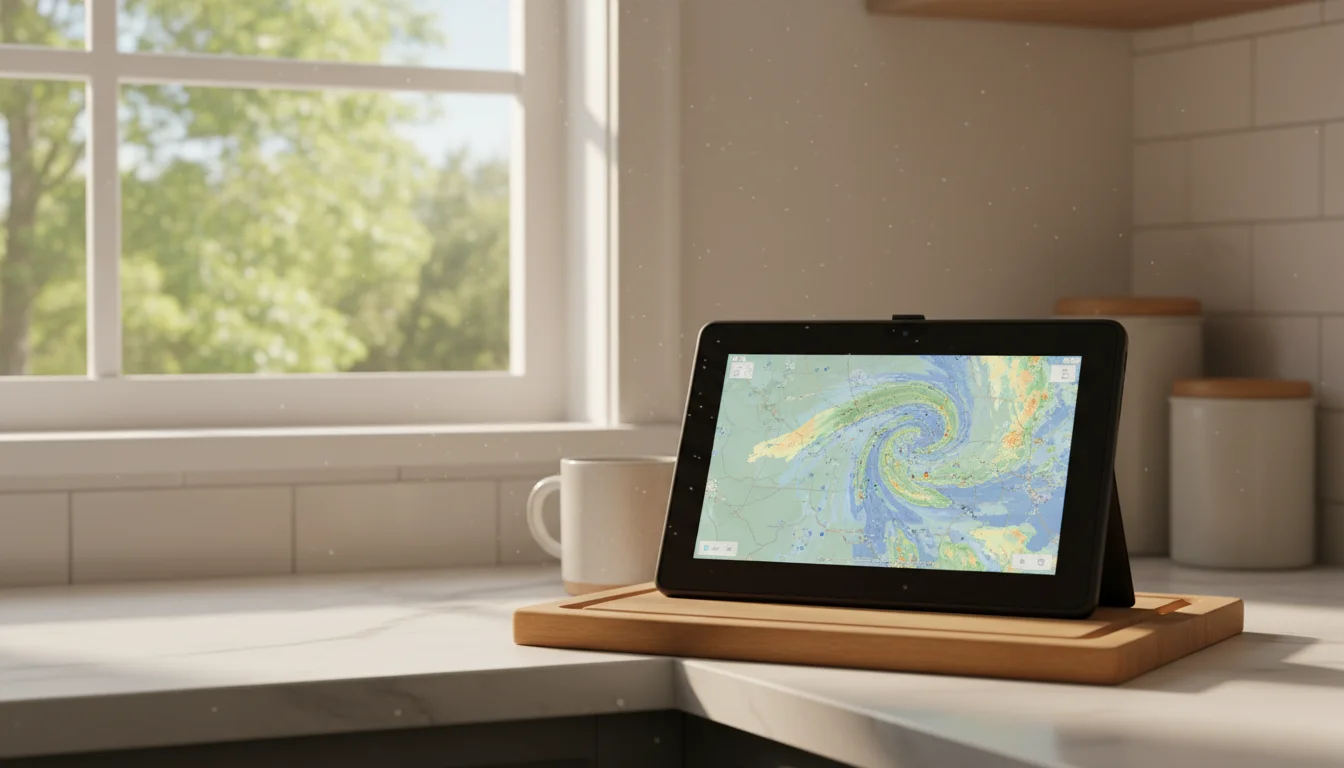
Here’s the simplest setup: open the Silk browser, go to  Windy.com, and bookmark it. Add it to the home screen. You now have a beautiful radar-style weather display that works regardless of which Fire tablet you have.
Windy.com looks especially good on a Fire HD 10. The radar maps fill the screen, it auto-updates, and you can customize which data layer you see (temperature, wind, rain, pressure). No app install needed.
Sideloading Google Play (The Unlock)
If you’re willing to spend 15 minutes on setup, sideloading the Google Play Store onto a Fire tablet opens up every Android weather app. This is the move that changes a Fire tablet from “limited” to “basically a regular Android tablet.”
The process involves downloading four APK files and installing them in a specific order:
- Google Account Manager
- Google Services Framework
- Google Play Services
- Google Play Store
The specific APK versions depend on your Fire OS version. The best source for current instructions is the  XDA Fire Tablet forum, where community members keep updated guides for each model.
Once Google Play is running, you can install any of these (all covered in our weather apps roundup):
 Weawow – free, ad-free, customizable, 4.9 stars. Best overall pick.
- YoWindow – animated weather landscape, great for wall displays
- Today Weather – clean and information-dense
Our Kindle Fire uses guide has more details on the sideloading process and what else you can do once Google Play is running.
Always-On Display Settings
Fire tablets don’t have a built-in “always on” display mode, but you can get close.
Screen timeout: Go to Settings > Display > Screen Timeout and set it to the maximum (30 minutes on most models). Every 30 minutes, the screen will dim and you’ll need to tap it. Not perfect, but workable.
Stay-alive apps: After sideloading Google Play, install “Stay Alive!” or “Caffeine” – small apps that prevent the screen from sleeping while a specific app is open. This gives you a true always-on display.
Show Mode (Fire HD 8/10 only): Some Fire tablets have a Show Mode that turns them into an Echo Show-like device. Go to Settings > Show Mode and turn it on. The weather widget in Show Mode displays current conditions, though it’s basic. The advantage: the screen stays on automatically.
Brightness: Turn it down to 30-40% for a wall-mounted tablet. This reduces screen burn-in risk, uses less power, and won’t blind you in a dark hallway.
Mounting and Power
Fire tablets are lighter than iPads, which gives you more mounting options.
A simple tablet stand on the kitchen counter is the easiest approach. Amazon sells stands specifically designed for Fire tablets, and any adjustable tablet stand that fits your screen size works. We have a full guide to tablet mounts and stands with picks for different budgets.
For wall mounting, adhesive strips or a magnetic mount work well given the lighter weight. Just make sure the charging cable reaches an outlet. You want this plugged in at all times – old Fire tablet batteries drain fast.
One thing specific to Fire tablets: the charging port location varies by model. Some are on the bottom, some on the side. Check yours before you commit to a mount orientation. A right-angle USB cable solves most awkward cord situations.
Is It Worth It?
A Fire tablet makes a solid weather station with minimal effort. Open Windy.com in the browser, prop it on the counter, plug it in. That’s a 2-minute setup for a weather display that shows radar, forecasts, and conditions at a glance.
If you sideload Google Play and install Weawow, you get a cleaner, more customizable experience. That’s a 20-minute project.
Either way, it beats spending $100+ on a dedicated weather display that does less. Your old Fire tablet already has a screen, WiFi, and a browser. Put them to work.
For the complete weather station setup guide – including tips that apply to all tablets – see our main weather station article.