The Screen Your Phone Isn’t Big Enough to Be
You’re 40 miles into a stretch of nothing in Arizona, the phone mount is buzzing loose over every cattle guard, and the map on your 6-inch screen has three tiny highway numbers on top of each other. You know which turn is coming because you looked at it fifteen minutes ago and now you’re driving off the memory.
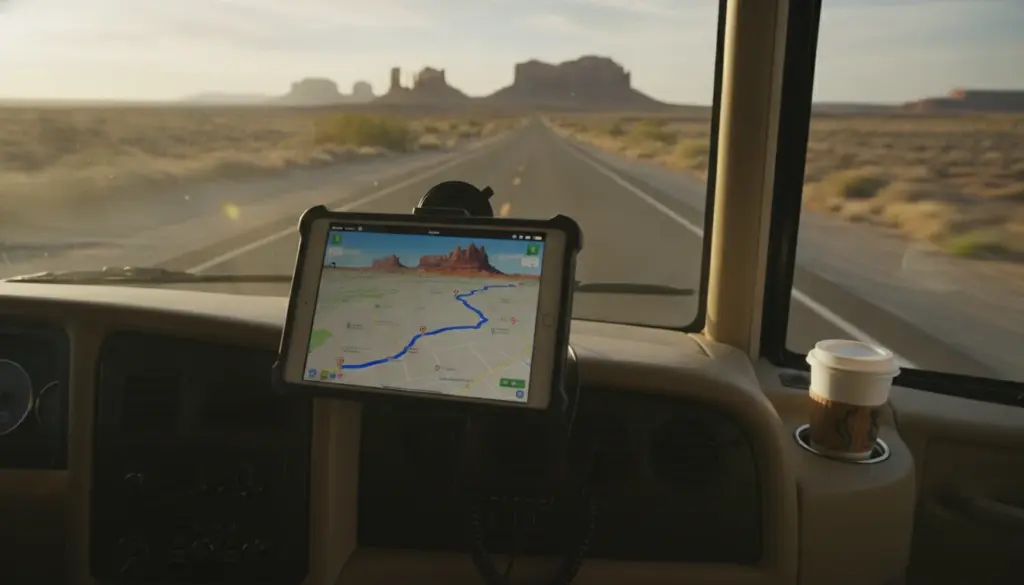
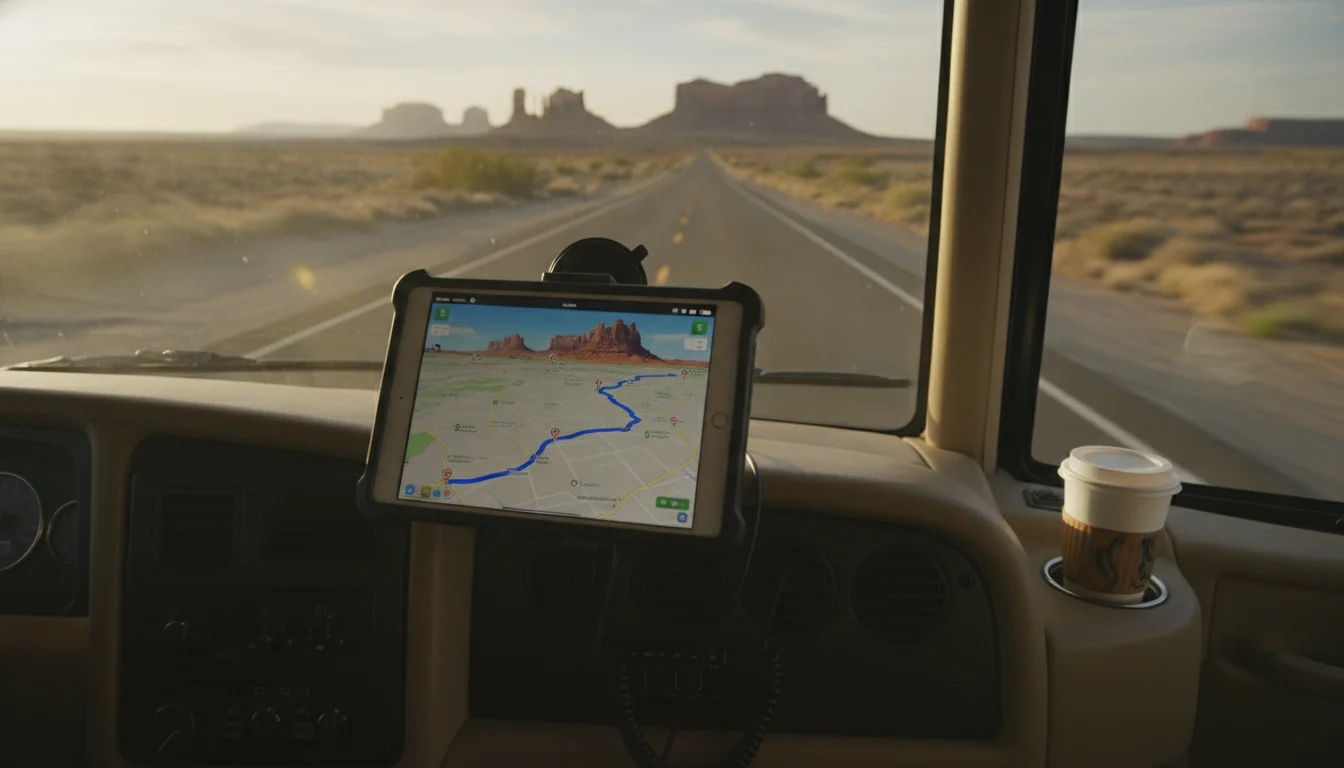
An old iPad on the dash fixes that. A 9.7-inch or 10.2-inch screen shows you the whole route, the exit ramp, and the next fuel stop without pinching. It doesn’t take phone calls. And you don’t have to hand your phone to your co-driver every time you want to check something.
This is a different job from the iPad you mount on the headrest for the kids. This one lives up front, in the driver’s line of sight, and its whole purpose is helping whoever’s behind the wheel.
What This Setup Is (And Isn’t)
It is: a big-screen dashboard for maps, campground info, weather, trip logs, and, if you rig it right, a rear-view camera feed. Something you glance at the way you’d glance at a factory infotainment screen.
It isn’t: a replacement for CarPlay. Apple has never let the iPad talk to your vehicle’s stereo the way an iPhone does, and no jailbreak workaround is worth the trouble on an aging device. We covered that in detail here if you want the full “no, and here’s why.”
The RV context matters. You’ve got space on the dash that a passenger car doesn’t. You’ve got 12V power a foot away from the wheel. And the trips are long enough that a dedicated screen actually pays for itself, versus draining your phone battery for eight hours.
The Wi-Fi vs. Cellular iPad Problem
Check which iPad you have before you plan anything. This is the first thing that trips people up.
Wi-Fi-only iPads have no GPS chip. They guess position from nearby Wi-Fi networks, and otherwise they’re blind. On a highway in Wyoming that’s most of the day. To use one as a nav screen, tether it to your phone’s hotspot; the location still comes from your phone.
Cellular iPads have real GPS hardware. They’ll show your position anywhere with a sky view, even with no active data plan and no cell signal. Look for a SIM tray on the side, or a plastic RF window on the back near the top edge. If you’re picking between two old iPads for this job, always pick the cellular one.
Navigation: What Runs on What
Old iOS has cut a lot of iPads out of the current App Store versions of the big nav apps. Here’s the honest state of things.
 Apple Maps is the workhorse. It’s pre-installed on every iPad, works on every iOS version back to iOS 10, and handles turn-by-turn fine over a data connection. Offline maps landed in iOS 17, though, so if your iPad is stuck at iPadOS 15 or 16 (which covers most of the “old” range), you can’t pre-download tiles. You need a live connection to load the map.
 Google Maps has offline areas, which is the feature that actually matters out west. The current app needs iOS 16, which cuts out iPad Air 2 and earlier. On those older iPads, maps.google.com in Safari still works over a hotspot, but it’s the online-only web version.
 Waze is great for real-time hazard and speed-trap alerts on interstate stretches. It also now requires iOS 16 (iPadOS 15.8.5 is the ceiling for iPad Air 2), and it has no offline mode. Waze is a “there’s a signal” tool.
The practical shape of this for an old iPad: plan your route on Wi-Fi at the campground the night before. Open Google Maps, search your destination, and download the offline area covering your day’s drive (profile picture > Offline maps > Select your own map). If you’re on Apple Maps, screenshot the route overview and cache the destination so it’s the last thing loaded. Sounds fussy. It’s what makes the difference between a working nav screen and a black rectangle at 6,000 feet with no bars.
Trip Planning and Campground Apps
The navigation apps get you between points. The trip apps decide what the points are. iOS floors vary here, and it’s worth checking each app on the App Store the day you install. iOverlander and GasBuddy run on iPad Air 2 and every newer iPad. Campendium and AllStays now need iPad 5th gen or newer, so on an iPad Air 2, only iOverlander and GasBuddy from this list will install.
- Campendium and iOverlander are the two campground-database apps I hear come up in every RV forum thread. Reviews, cell coverage notes at each site, and boondocking spots.
- AllStays Camp & RV is a subscription option ($34.99/yr, with monthly and quarterly tiers available) that a lot of full-timers still swear by. Filters by big-rig accessibility, dump station location, propane, low-clearance warnings. Pre-2022 buyers may still have their original paid version.
- GasBuddy for fuel prices, especially with anything that drinks like a Class A does.
Load these on the iPad while you have Wi-Fi at the RV park. They cache the data you actually need offline, then you can consult them from the driver’s seat without pulling your phone out.
The Backup Camera Question
A lot of older RVs don’t have a rear-view camera at all, or they have a factory one wired to a monochrome screen that’s useless in daylight. This is where an iPad on the dash can earn its keep as more than a nav display.
Cheap wireless backup cameras with iPad apps work well enough at parking-lot speeds. Look for ones that advertise iOS compatibility explicitly (the App Store listing tells you the current iOS floor). Setup is: camera mounted at the rear, powered off the reverse light circuit or a 12V tap, broadcasting a Wi-Fi signal the iPad joins. The app shows the feed.
Two honest caveats. They’re a supplement, not a legal substitute where a real backup camera is required. And the wireless signal on the cheap units gets flaky over 25 feet – a problem on a 40-foot Class A, where a wired system with a dedicated 7-inch monitor is the right answer, and the iPad stays a nav-and-trip tool up front.
Mounting and Power
You have more freedom than you would in a passenger car. Use it.
The mount. A RAM Mount X-Grip on a suction cup or ball-adapter base is the RV standard for a reason: it holds up over years of bumps and heat, the ball-and-socket lets you angle the screen without loosening anything, and the sizes cover everything from an iPad mini to a full 12.9-inch Pro. Tackform makes a similar system that’s usually cheaper. Whatever you pick, mount it low enough that it doesn’t obstruct your view of the road, and angled so you can glance at it without taking your eyes off the highway for more than a second.
Power. RVs have 12V USB ports scattered around the cab, or you can use a cigarette-lighter adapter. Get a charger with at least 12W (2.4A at 5V) output; an underpowered charger will just barely keep the screen alive while the battery slowly drains during navigation. Use a real Apple-certified Lightning cable, six feet long, and route it out of the way of the pedals.
Heat. This is the one that ruins old iPads faster than anything else. A dash-mounted tablet in direct sun in July, in the desert, will overheat and dim the screen within an hour. If the temperature warning appears, the iPad shuts off until it cools. Two things help: angle the AC vents toward the dash, and pop up a small sun shade over the tablet when you’re stopped for lunch. Never leave the iPad on the dash when you’re parked and away from the RV. The tablet battery safety notes apply double in a hot cab.
When the Rig Is Parked
Sitting at the campsite, that same iPad becomes something else. This is where the RV setup pulls ahead of a passenger car – you’ve got time, you’ve got a shore-power hookup, and the iPad is right there.
- Music through the RV stereo. Bluetooth to the head unit or a 3.5mm cable, and the iPad is your dedicated music player. The old iPad as a music controller guide has the full app compatibility breakdown for older iOS.
 Apple Music works on every iPad.
  Spotify needs iOS 16.1, so check yours.
 - Downloaded movies for a rainy night. Netflix, Disney+, and Prime Video all let you download shows for offline viewing while you had Wi-Fi. On an iPad the App Store won’t currently install on,
 Plex from a home media server (played back off downloaded content synced before the trip) is the fallback, along with anything already in your Videos app.
 - Weather for tomorrow’s drive. A stationary iPad with a weather app open is a useful thing to look at while you’re eating breakfast, especially before a mountain crossing. The iPad weather station setup works fine in an RV kitchen and gives you the elevation-aware forecast you’ll want.
What Doesn’t Work
A few things sound good and aren’t:
- Wi-Fi-only iPads don’t magically get GPS from a Lightning-to-USB-C adapter. No external GPS accessory plays nicely with modern iPadOS anymore. Tether to your phone or use a cellular iPad.
- Streaming while driving in dead zones. No app cleverness fixes zero bars. Download at the campground.
- Steering-wheel or dashboard integration. The iPad won’t talk to your car stereo controls, won’t feed nav directions to the instrument cluster, and won’t take Siri commands routed through the vehicle’s mic. It’s a display.
If those are dealbreakers, a modern iPhone plus an aftermarket head unit with CarPlay is probably the answer. If you already own the iPad, this is a genuinely useful second life for it.
Quick Checklist
- Confirm your iPad model and whether it’s cellular. Cellular is better; Wi-Fi-only works if you’ll always have your phone hotspot on.
- Get a proper dash mount ($30-60 for RAM Mount or Tackform).
- Install a 12V USB charger and a 6-foot Lightning cable ($15-20).
- On Wi-Fi at home, download offline maps for your route, and install Campendium or iOverlander plus your preferred nav app.
- Set Auto-Lock to Never while driving. Change it back when you’re done, or the iPad will drain overnight.
- Turn on Do Not Disturb so a family group text doesn’t cover the map.
- Pop up a sun shade at lunch, and never leave it on the dash when you park.
That old iPad in the drawer will spend more time actually earning its keep on the dash of an RV than it ever did as a Netflix couch tablet. And your phone stays in your pocket, quietly holding its charge for whatever you actually need it for.
Not every old tablet ends up on a dashboard. Browse the full list of things to do with an old iPad for the other 20 or so working setups.