The Update That Never Comes
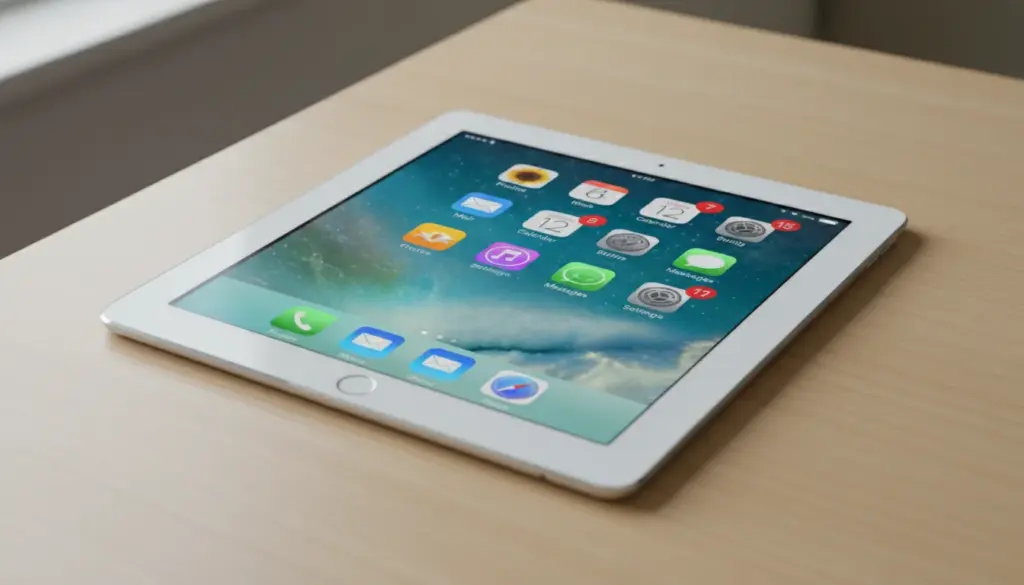
You opened Settings, tapped General, tapped Software Update, and saw the words nobody wants to see: “iPadOS is up to date.” But it’s not. You know a newer version exists. Your iPad just can’t run it.
This is the moment most people shove the iPad back in the drawer. “It’s obsolete,” they think. “It can’t do anything anymore.”
That’s wrong. But understanding why requires knowing what the update cutoff actually means – and what it doesn’t.
What iOS Version Is Your iPad Stuck On?
Here’s the ceiling for every older iPad:
| iPad Model | Maximum iOS Version | Year Released |
|---|---|---|
| iPad 2, iPad 3, iPad mini 1 | iOS 9.3.6 | 2011-2012 |
| iPad 4 | iOS 10.3.4 | 2012 |
| iPad Air 1, iPad mini 2/3 | iOS 12.5.8 | 2013-2014 |
| iPad Air 2, iPad mini 4 | iPadOS 15.8.7 | 2014-2015 |
| iPad 5th gen (2017) | iPadOS 16.7.15 | 2017 |
| iPad 6th gen (2018)+ | iPadOS 17+ | 2018+ |
If your iPad is an Air 2 or newer, you’re in better shape than you think. iOS 15 still supports most apps that matter. If you’re on an iPad Air 1 or older, the situation is tighter – but not hopeless.
If you’re not sure which iPad you have, our guide to identifying your iPad model will tell you in about 30 seconds. Otherwise, check yours: Settings, General, About, Software Version.
What Actually Stops Working
When Apple drops software support for your iPad, three things happen gradually – not all at once.
Apps disappear from the App Store. Developers update their apps to require newer iOS versions. When that happens, the app vanishes from your search results. You can’t install it. This is the most visible and frustrating part. (There are workarounds – see our guide to downloading apps on old iPads.)
Security patches stop. Apple occasionally pushes security-only updates for older iOS versions (that’s what iOS 12.5.8 was), but eventually those stop too. Your iPad becomes vulnerable to known exploits. For a device connected to your home Wi-Fi showing a weather dashboard, the practical risk is low. For banking or email, it matters more.
Web browsing degrades. Safari on old iOS versions can’t handle newer web standards. Some sites break. Some load slowly. HTTPS certificates eventually expire in ways old Safari can’t validate. This gets worse over time.
What Still Works Fine
Here’s the part nobody talks about: most of what makes an iPad useful for a home display still works perfectly on old iOS versions.
Wi-Fi works. Your iPad still connects to your router and stays connected. (If it doesn’t, that’s usually a router compatibility issue, not an iOS limitation.)
The screen works. A 2013 iPad Air still has a 2048×1536 Retina display. That resolution hasn’t gotten worse because Apple stopped sending updates.
Photos display. The built-in Photos app works on every iOS version ever shipped. If you want a digital photo frame, the screen quality is better than anything you can buy for under $200.
Browsers still load most pages. Not all pages, and not always gracefully, but weather.gov, Google Calendar’s web interface, and most utility sites still work.
The hardware is fine. The processor, speakers, cameras (if you need them), and Bluetooth all work exactly as they did the day you bought it.
The “Download an Older Version” Trick
When you try to install an app from the App Store that requires a newer iOS, you’ll sometimes see a popup: “Download an older version of this app?”
Always say yes. The older version might be missing recent features, but for a single-purpose display, that rarely matters. Google Photos, YouTube, Spotify, and many other major apps have older versions available this way.
This trick works because Apple keeps old app binaries on their servers even after developers push newer versions. It doesn’t work for every app – some developers delete old builds – but it works for enough that it’s worth trying every time.
On Android, you have even more options. APKMirror hosts older versions of Android apps that you can install directly. If your tablet’s Play Store says “this app isn’t compatible with your device,” search APKMirror for the app name and your Android version.
What You Can’t Fix
Let’s be honest about the limitations.
You can’t force a newer iOS version onto old hardware. There are jailbreak tools that claim to do this. They don’t work the way you’d hope. They can install newer UI elements but can’t upgrade the processor or RAM. And they void any remaining stability your iPad has.
You can’t make new apps support old iOS.  Netflix now requires iOS 17, so your iPad Air 1 on iOS 12 simply can’t run it. No workaround exists. The older version trick only works if one is available on Apple’s servers.
You can’t stop the slow degradation of web compatibility. Safari on iOS 12 handles fewer websites every year. This is a one-way process.
You can’t get security patches forever. Eventually, known vulnerabilities go unpatched. Don’t use an unsupported iPad for anything involving passwords, banking, or sensitive data.
The Real Answer: Use It for What It’s Good At
An iPad that can’t update is an iPad that can’t be a general-purpose tablet anymore. But it can absolutely be a single-purpose display.
The whole reason this site exists is because old tablets are genuinely more useful doing one thing all day than they ever were trying to do everything. Your iPad doesn’t need the latest iOS to:
- Show the family calendar – Google Calendar’s web interface works in Safari on iOS 12+
- Display family photos – the built-in Photos app works on every iPad ever made
- Show the weather – weather.gov loads in any browser
- Run recipes in the kitchen – Paprika still supports iOS 12
- Be a bedside clock – clock apps are among the least demanding
For a complete list of what apps work on which iOS version, see our app compatibility guide.
The Decision
Your iPad stopped getting updates. That means Apple decided the hardware can’t handle the newer software. They’re probably right about that – newer iOS versions on borderline hardware run terribly anyway.
But “can’t run iOS 18” and “can’t do anything useful” are completely different statements. The screen still works. The Wi-Fi still works. The apps it can run, it runs fine.
Prop it on a stand, plug it in, open one app, and let it do that one thing all day. That’s more useful than 90% of the devices people buy on purpose.
If yours won’t turn on at all, check our charging troubleshooting guide first – the fix is usually simpler than you’d think. If it’s truly too far gone – stuck on iOS 9, cracked screen, swollen battery – we have a guide for what to do with it. And if you’re dealing with multiple problems at once, our tablet troubleshooting guide covers everything from WiFi issues to boot loops. But try the one-app approach first. Most people are surprised how well it works.