"Your Device Isn’t Compatible With This Version"
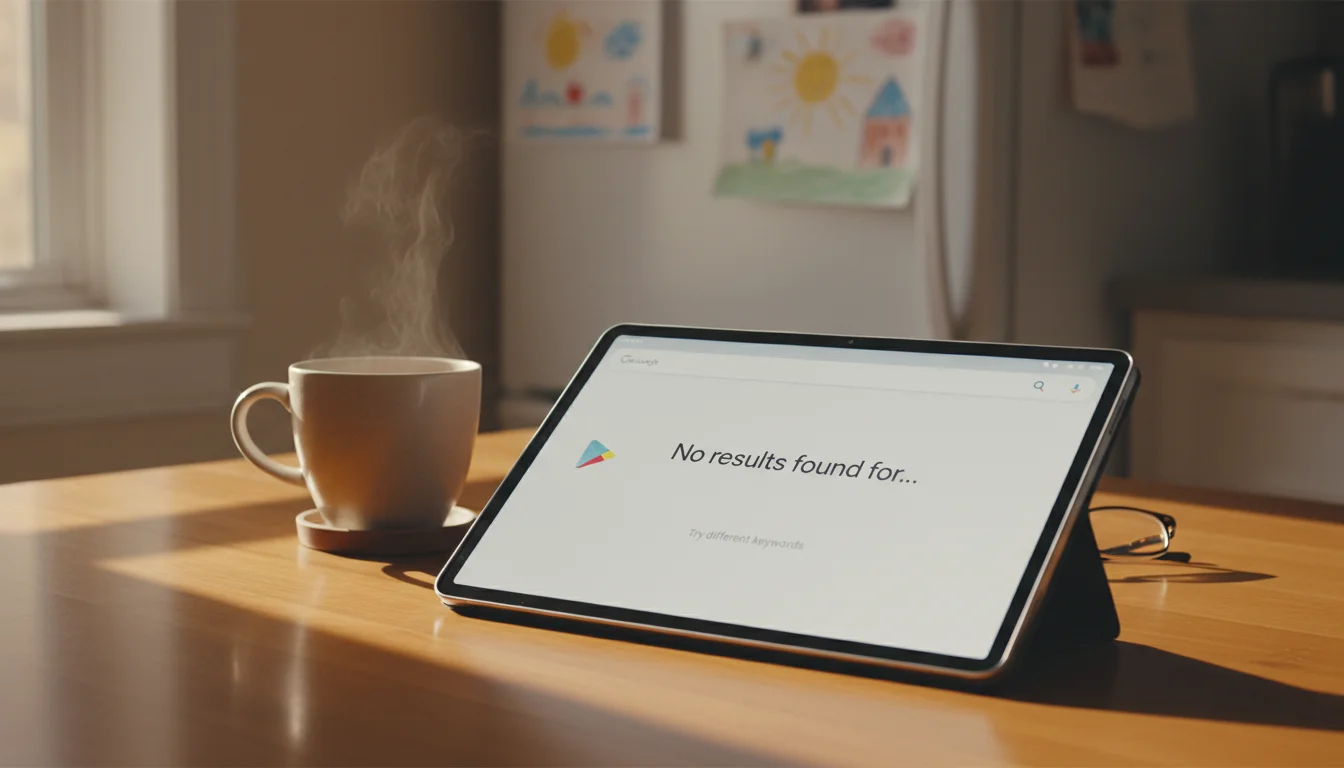
You tap Install on an app in the Play Store, and instead of a progress bar, you get a message: "Your device isn’t compatible with this version." Or worse, the app doesn’t show up in search at all. You know it exists because you can see it on your phone. But on your old Galaxy Tab or Lenovo tablet? Gone.
My husband factory-reset an old Samsung tablet for the kids last year. Fresh start, right? Except when he tried to install their apps, half of them were invisible in the Play Store. The other half said they were incompatible. Nothing about the tablet had changed since it worked fine six months earlier.
There are four different reasons your old Android tablet won’t download apps, and the fix depends on which one you’re dealing with.
Reason 1: Your Android Version Is Too Old
This is the most common problem, and the one getting worse every year.
App developers choose a minimum Android version their app supports. When they drop Android 9, for example, their app vanishes from the Play Store on your Android 9 tablet. It doesn’t say "this app dropped support for your device." The app just disappears from search results, like it never existed.
Google accelerates this. Every August, Google requires Play Store apps to target a newer API level. In August 2025, apps had to target Android 14. By August 2026, they’ll need to target Android 16. Apps that don’t comply get hidden from newer devices, and developers who do comply tend to raise their minimum supported version at the same time. The net effect: your old tablet loses access to more apps every year.
How to check your Android version: Settings > About Tablet > Android Version. If you’re on Android 8 or 9, you’re hitting the wall right now. Android 10-11 still has decent app support, but the window is closing.
The APKMirror Workaround
Unlike Apple’s App Store, Google doesn’t offer a "download the last compatible version" button. But Android lets you install apps from outside the Play Store, and that’s where APKMirror comes in.
APKMirror is a trusted repository of Android app files (APKs) – they verify signatures to make sure files haven’t been tampered with. Here’s how to find and install an older version that works on your tablet:
-
Find your tablet’s specs. Go to Settings > About Tablet. Note your Android version and processor type. If processor isn’t listed, install CPU-Z from the Play Store (it still works on most old devices) or search your tablet model online.
-
Go to APKMirror.com in your tablet’s browser. Search for the app you want.
-
Look at the "All Versions" list. Each version shows a minimum Android requirement. Find the newest version that supports your Android version.
-
Pick the right variant. This is where most people get tripped up. APKMirror lists multiple files per version:
- armeabi-v7a (or just "arm") – for older 32-bit tablets. Most old tablets use this.
- arm64-v8a – for newer 64-bit tablets (most Android 8+ devices).
- x86 – rare, mostly old Intel-based tablets.
- nodpi or universal – works on any screen density. Pick this if available.
- If you see .apks or .xapk files, you’ll need Split APKs Installer (SAI) to install them.
-
Enable installation from unknown sources. Settings > Apps > Special App Access > Install Unknown Apps. Select your browser and toggle it on.
-
Download and install. Open the downloaded file and tap Install.
The catch: Older app versions don’t get security updates. Banking apps and anything handling sensitive data should only come from the Play Store. For a weather widget or recipe app on a kitchen tablet, an older version is fine.
Which Android Versions Are Hitting the Wall
| Android Version | Released | App Support Status (2026) |
|---|---|---|
| 7 or earlier | 2016 or earlier | Most apps dropped. Very limited options. |
| 8 (Oreo) | 2017 | Losing apps fast. Many popular apps already gone. |
| 9 (Pie) | 2018 | Narrowing quickly. Major apps still work, but new ones won’t install. |
| 10 | 2019 | Decent support. Starting to see some drops. |
| 11 | 2020 | Good support. Most apps still work. |
| 12+ | 2021+ | Full support. |
Reason 2: Google Play Services Is Broken
This is the factory-reset trap, and it’s what hit us.
When you factory reset an old tablet, it restores the original version of Google Play Services that shipped with the device. That version is years out of date. Modern Play Store needs current Play Services to function, and current Play Services needs a minimum Android version to install. If your tablet can’t run the latest Play Services, the Play Store partially breaks: apps fail to download, searches return errors, or you see "RPC:S-7:AEC-7."
Fix 1: Let Play Services update itself. Connect to WiFi and leave the tablet plugged in for 15-20 minutes. Google Play Services updates silently in the background. If it’s going to update, it usually happens within that window.
Fix 2: Manually update Play Services.
- Open your browser and go to APKMirror.com
- Search for "Google Play Services"
- Find the latest version that lists your Android version as compatible
- Download the correct variant for your processor (same arm/arm64 choice as above)
- Install it
Fix 3: Remove and re-add your Google account. Settings > Accounts > Google > tap your account > Remove Account. Restart the tablet. Then go to Settings > Accounts > Add Account > Google and sign back in. This forces a fresh authentication handshake with Google’s servers.
Fix 4: Clear Play Store data. Settings > Apps > Google Play Store > Storage > Clear Data. Also do this for Google Play Services and Download Manager. Then restart.
Reason 3: You’re Out of Storage
This one’s sneaky. The Play Store doesn’t always tell you clearly that storage is the problem. The download might start, hang at some percentage, then fail with a generic error. Or the Install button just doesn’t respond.
Check your storage: Settings > Storage. If you’re under 1 GB free, that’s likely the issue.
Old Android tablets shipped with 8 GB or 16 GB of internal storage. The OS takes several gigabytes, cached data piles up, and apps you forgot about eat the rest.
Quick fixes:
- Uninstall apps you don’t use. Settings > Apps > tap the app > Uninstall. Sort by size if your device supports it.
- Clear cached data. On Android 7 and earlier: Settings > Storage > Cached Data > OK clears all app caches at once. On Android 8+, that bulk option was removed – go to Settings > Apps, tap each app, then Storage > Clear Cache.
- Move photos and videos. Transfer them to a computer or cloud service, then delete from the tablet.
- Check for stuck downloads. Open the Files app and look in the Downloads folder. Failed APK downloads and old files pile up there.
- Move apps to SD card (if your tablet has a slot). Settings > Apps > tap an app > Storage > Change > SD Card. Not every app supports this, but it helps.
Reason 4: The App Doesn’t Exist for Your Device
Some apps are excluded from certain tablets entirely – not because of Android version, but because of hardware, screen size, or regional availability. The developer decided their app doesn’t work well on tablet screens, or on devices without a specific sensor, or in your country.
This is separate from the version problem. Even if your Android is current enough, the Play Store just won’t show the app.
How to tell: Search for the app on a phone (or in a desktop browser at play.google.com). If the app page says "This app is not available for any of your devices" when your tablet is listed, it’s a device exclusion, not a version issue.
Workaround: APKMirror doesn’t enforce device restrictions. Download the APK directly, and it’ll usually install fine. The developer excluded your device from the Play Store listing, but the app itself often runs without issues.
If Nothing Works
When you’ve tried everything and the app you need simply won’t run on your Android version, you still have options.
Amazon Appstore. Some apps available on Amazon’s store aren’t filtered the same way as Google Play. It’s worth checking, especially if you have a Fire tablet (which uses Amazon’s store by default). Fire tablet owners already know this ecosystem.
F-Droid. An open-source app store with apps that tend to support older Android versions longer. Good for utilities, file managers, and basic tools. Not great for mainstream apps.
Web apps. YouTube, Gmail, Google Calendar, and most Google services work in Chrome or Firefox even on old Android. Bookmark them, add them to your home screen (Menu > Add to Home Screen), and they work like apps without the version restrictions.
Know when it’s time. If every app you need has dropped your Android version, the tablet isn’t useless – it just can’t be a general-purpose device anymore. Pick one job for it. A digital photo frame that runs on one app. A weather display that uses a web dashboard. A kitchen timer that needs nothing from the Play Store. Dedicated purpose, dedicated mount, done.
For more ideas on what an old Android tablet can still do – even with app limitations – we have 15 practical suggestions and a full list of apps that still work on old tablets.
And if downloads aren’t your only problem (WiFi dropping, tablet running slow, or the thing won’t turn on at all), our troubleshooting hub covers the rest.