You just finished setting up your new iPad. You carefully transferred everything over, signed in to all your apps, and marveled at how fast everything feels compared to what you were using before. Great.
Now you’re staring at your old iPad on the kitchen counter and doing the mental math. Sell it for $60 on Facebook Marketplace? Shove it in the junk drawer with the tangled Lightning cables and the charging brick from 2014? Give it to a toddler and accept the consequences?
There’s a better option, and it doesn’t cost anything.
Don’t Factory Reset It Yet
Your first instinct might be to wipe the old iPad clean. Hold off. Before you reset anything, decide what you want to use it for, because some of those options are easier to set up while your stuff is still on it.
What you should do right now:
- Sign out of iCloud if you’re planning to hand it to a child or mount it on a wall. Go to Settings > [Your Name] > Sign Out. This keeps your personal data off the device without wiping it.
- Remove sensitive apps like banking, email, and anything with saved passwords.
- Leave the basics. Safari, the clock, the weather app, the calendar. These are all still useful and most of them work fine even on older iOS versions.
If you’re keeping it for yourself as a dedicated display or kitchen helper, you can skip this entirely and just rearrange the home screen.
Turn It Into Something Useful
An old iPad that’s too slow for daily use still has a perfectly good screen, speakers, and WiFi connection. That makes it excellent for single-purpose jobs that don’t need the latest processor.
A Kitchen Display
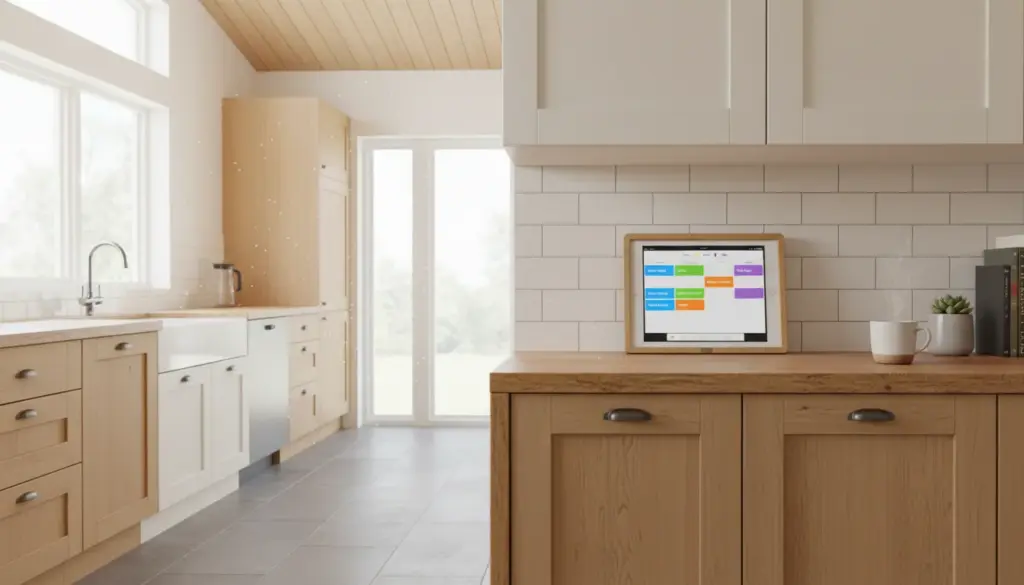
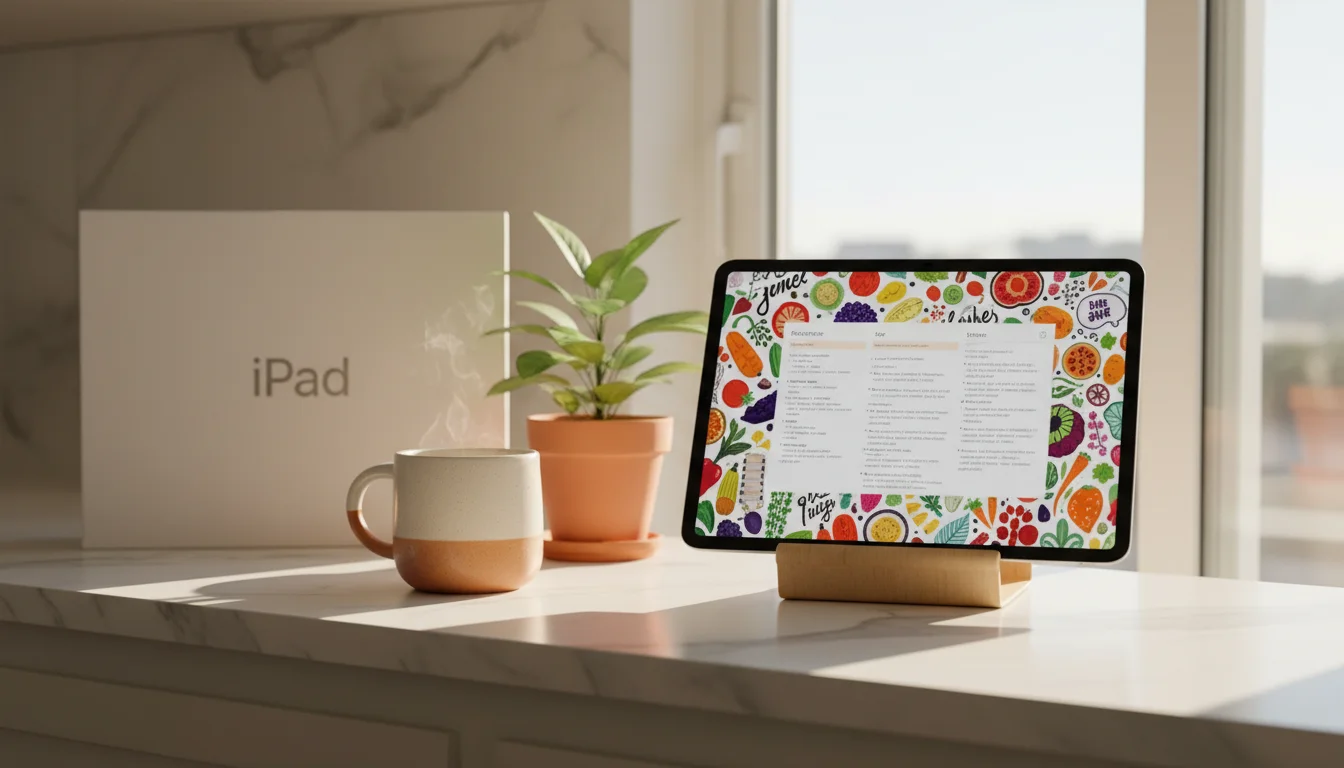
This is the one that got me hooked on repurposing old tablets. Mount it on the wall or prop it on a stand next to the stove, and suddenly you have a dedicated screen for recipes, timers, and grocery lists.
 Paprika Recipe Manager ($4.99) still runs on iOS 12 and does exactly what you need: paste a recipe URL, and it strips out the ads and life stories to show you just the ingredients and steps. Keep the screen on while you cook and your phone stays in your pocket.
We have a full guide on setting up a kitchen display if you want to go all-in with mounting, power management, and app recommendations.
A Digital Photo Frame
This might be the single best use for an old iPad. The screen quality on even a 2015-era iPad blows away those $100 dedicated photo frames, and you already own it.
For iPhones and iPads, the built-in Photos app can run a slideshow from any album. Set it up with a shared album and your whole family can add photos to it from their phones. Old Android tablets work well here too, and the screen quality gap between iPads and Android tablets matters most for photos.  Fotoo (free, $20 for Premium) connects to Google Photos, Dropbox, or a local folder and runs a beautiful slideshow with transitions and scheduling.
We wrote an entire guide on turning old tablets into photo frames, including how to set up shared family albums so grandparents see new photos automatically.
A Kids’ Tablet
This is the most common second life for old iPads, and honestly, it works great if you set it up properly. The trick is locking it down before handing it over.
Use Guided Access (built into every iPad, free) to lock the device to a single app. Triple-click the Home button to turn it on, and your kid can’t escape to Safari or start buying things.
Khan Academy Kids is free, works on iOS 12, and it’s legitimately good. My kids ask to use it, which is not something I can say about most educational apps. Load that plus a few other age-appropriate apps and you have a dedicated learning tablet that cost you nothing.
There’s a full walkthrough on kid-proofing an old tablet including screen time limits and what to do about apps that won’t install anymore.
A Weather and Info Display
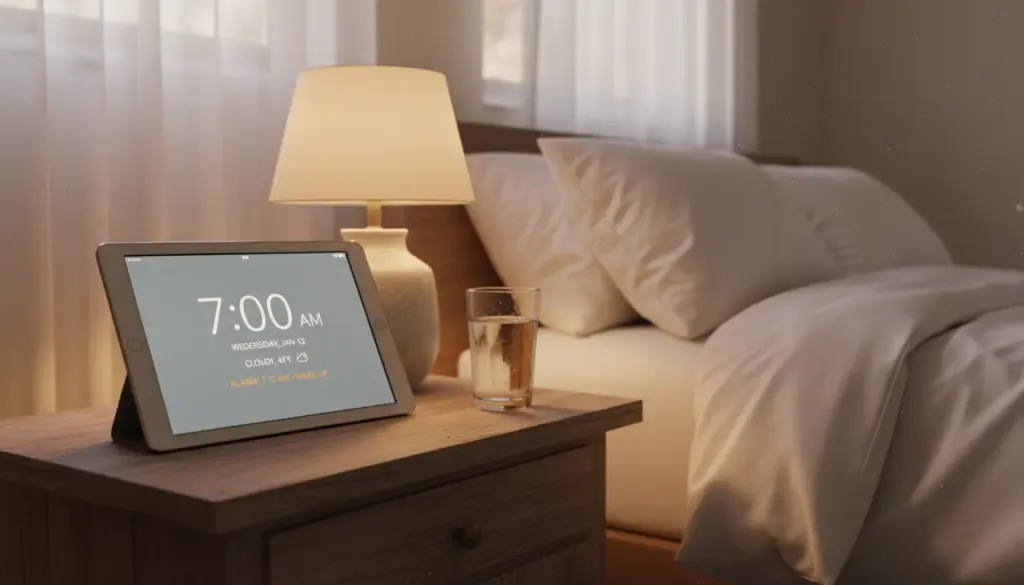
Prop it on your nightstand or mount it in the hallway, and set it to show the weather, your calendar, or the news. You glance at it on your way out the door instead of fumbling with your phone while holding a coffee and your kid’s backpack.
Safari actually handles this well on old iPads. A full-screen bookmark to  weather.gov or your favorite weather site costs nothing and loads fast. For something more polished, check out our roundup of weather apps that still work on old tablets.
On Android,  Fully Kiosk Browser (free, ~$8 for Plus) turns any tablet into a dedicated kiosk display with auto-launch, screen scheduling, and motion-activated wake.
A Family Message Board
Stick it on the fridge (there are magnetic mounts for this) and use a shared note or a simple app for family messages. “Soccer practice moved to 4.” “Leftovers in the bottom shelf.” “The dog ate something weird, keep an eye on him.”
It sounds simple because it is. A shared Apple Note or Google Keep document on a tablet that’s always visible beats a group text that everyone ignores. We have a full guide on setting this up.
A Smart Home Dashboard
If you’re already using  Home Assistant or Apple HomeKit, an old iPad makes a great wall-mounted control panel. The Home Assistant app needs iOS 16, but you can access the web dashboard through Safari on any iPad. HomeKit works natively on older iPads too.
This one’s more of a Weekend Tinkerer project. If that sounds fun, here’s our Home Assistant tablet dashboard guide.
What If It’s Too Old for Any of This?
If your iPad can’t run iOS 12 (we’re talking iPad 4th generation or earlier, roughly 2012 and older) then most apps genuinely won’t work anymore. Not sure which generation you have? Our guide on identifying your iPad model takes about 30 seconds. Safari still functions but struggles with modern websites.
At that point, you have a few honest options:
- Dedicated music player. Connect it to a Bluetooth speaker and load it up with downloaded music or podcasts. Even iOS 10 handles this fine.
- Sell it. Even ancient iPads fetch $20-40 on resale sites. Our guide on where to sell your old tablet covers the best options and whether it’s worth the effort.
- Recycle it. Apple’s trade-in program accepts any iPad for free recycling and sometimes gives store credit. Better than a landfill.
The Five-Minute Version
If you want to get your old iPad doing something useful today and figure out the details later, here’s the fastest path:
- Sign out of iCloud (Settings > [Your Name] > Sign Out)
- Delete your personal apps (banking, email, social media)
- Pick one job: photo frame, kitchen helper, or kids’ tablet
- Set it up and prop it on a stand somewhere visible
That’s it. You can always get fancier later with wall mounts, kiosk mode, and automation. But the old iPad that’s actually doing something is infinitely better than the one sitting in a drawer waiting for you to find the perfect setup.
Our complete setup guide walks through everything from first power-on to wall mounting if you want to do it properly. But honestly, start with a stand on the kitchen counter. You’ll be surprised how quickly it becomes part of the routine.