Why Old Tablets Make Great HA Panels
If you’re already running Home Assistant, you know the drill: pull out your phone, open the app, wait for it to load, tap the right room, then control the thing you wanted to control. It works, but it’s not exactly a “smart” home when you’re doing that ten times a day.
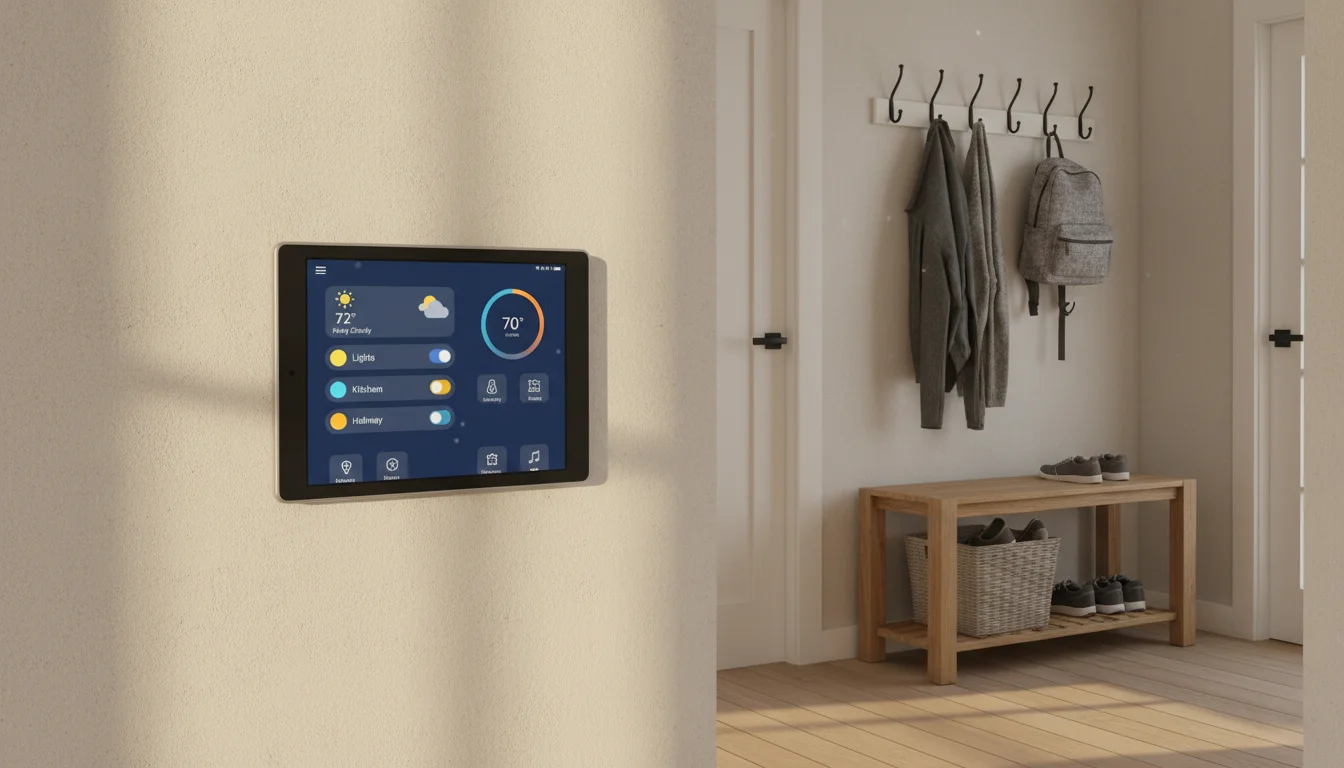
A tablet on the wall changes this completely. One glance at the hallway and you can see which lights are on, what the thermostat is set to, whether the garage door is open, and what the front door camera sees. No phone, no app launch, no hunting for the right dashboard. Just a screen that’s always there.
And you don’t need a new tablet for this. That old iPad or Galaxy Tab in the junk drawer? It’s more than capable.
What You Need Before You Start
A running Home Assistant server. This article doesn’t cover setting up Home Assistant itself. You need HA already running on a Raspberry Pi, old PC, NAS, or Home Assistant Yellow/Green. If you don’t have that yet, the  Home Assistant getting started guide is the place to start. If you just want a simple weather-and-calendar dashboard without Home Assistant, the smart-display setups linked below cover that.
An old tablet. Compatibility at a glance:
| Tablet OS | Companion app | Web dashboard (Safari/Chrome) | Kiosk browser (Fully Kiosk / Dashie) |
|---|---|---|---|
| iPadOS 12-15 | No | Yes | N/A (iOS) |
| iPadOS 16.4+ | Yes | Yes | N/A (iOS) |
| Android 5 | No | Yes | No (both need Android 6+) |
| Android 6+ | Yes | Yes | Yes |
| Fire OS (any) | Sideload the APK | Yes | Yes |
Any Amazon Fire tablet from the HD 8 forward works. Older Fire models are cheap enough to pick up used ($20-40) if you don’t already have one.
WiFi access. The tablet needs to be on the same network as your Home Assistant server (or you need remote access set up through  Nabu Casa or a reverse proxy).
Power. A wall-mounted dashboard needs to be plugged in permanently. Plan your cable routing before you pick a spot. For the panel itself, an  adhesive Koala Mount is what our own hallway dashboard uses – about $17, no holes in the drywall, and the cable tucks neatly behind it. The full wall-mounted tablet dashboard setup guide covers mount choice, cable routing, always-on lockdown, and the battery-bulge problem that trips up permanently-plugged setups.
Native App or Kiosk Browser: Which One
Three paths, and the first choice is really between two: the native Home Assistant companion app, or a browser-based kiosk (Fully Kiosk, Dashie, or Safari pinned to your HA URL). The third path – plain Safari or Chrome – is the fallback for tablets that are too old for either.
A native app loads faster, survives Wi-Fi dropouts more gracefully, handles notifications and sensor data back to HA, and generally feels like a built-in panel rather than a web page. A kiosk browser gives up some of that but adds the one feature a native app can’t: two-way control, where HA can wake the screen, dim it, run motion detection on the camera, and treat the tablet as another device in your home. The r/homeassistant threads where people argue native-first usually come down to this: they want the panel to feel like an appliance, not a browser left open. If you own all three (an iPad, an Android tablet, and a Fire tablet in a drawer), the right choice depends more on which tablet you want on the wall than on the software.
If the tablet is iPadOS 16.4+ or Android 6+ and you want simplest-possible setup, go companion app (Option 1). If it’s Android (any 6+) and you want screen control from HA, go kiosk browser (Option 2). If it’s an iPad on iOS 12-15 or any older Android, go browser-only (Option 3).
Option 1: Home Assistant Companion App
The official companion app is the simplest path if your tablet supports it.
For iPads (iPadOS 16.4+): Download  Home Assistant from the App Store. Sign in to your server, and you’re looking at your dashboard. The app supports background location tracking, notifications, and sensor data from the tablet itself. iPad Air 2 and iPad mini 4 (capped at iPadOS 15.8.x) can’t install the current app – either keep the older 2026.7.1 build via App Store Purchased history, or use the Safari method in Option 3 below.
For Android tablets (6.0+): Download from the  Play Store or sideload if your tablet doesn’t have Play Services (looking at you, Fire tablets). The Android app has the same core features plus a few extras like sending sensor data back to HA.
After signing in, set the app to open your preferred dashboard by default. In the companion app, go to Settings > Dashboards, select the dashboard you want, and tap “Set as default on this device.”
The one thing the companion app doesn’t do is let HA talk back to the tablet. If you want HA to wake the screen when motion fires, dim it after hours, or use the front camera for presence detection, you want a kiosk browser instead. That’s Option 2.
Making It Stay On
The companion app doesn’t lock the screen on its own – the tablet can time out, show notifications, or let someone accidentally navigate away. Our always-on display settings guide covers all of this: screen timeout, notifications off, Guided Access for iPad, Fully Kiosk for Android. Work through it once after you get the app running.
Option 2: Kiosk Browser (Android Only)
A kiosk browser is what turns a regular Android tablet into something that behaves like a built-in panel: locked to one URL, screen that wakes on motion, no accidental navigation, and HA can reach back to control it. Two choices here now, both of which run on Android 6+.
Fully Kiosk Browser
 Fully Kiosk Browser is the long-standing default. The free tier is fully functional for a wall dashboard; the one-time $10.99 PLUS license adds motion-activated wake, scheduling, and remote admin. The reason to choose it specifically for Home Assistant is the Fully Kiosk Browser integration – once installed in HA, Home Assistant can turn the screen on and off, restart the app, adjust volume, and use the front camera for room occupancy detection.
For the full Fully Kiosk setup – start URL, kiosk lockdown, motion detection, screen management – the always-on settings guide linked above covers it end to end.
Dashie (The Open-Source Alternative)
 Dashie went open-source in August 2026 and it’s genuinely interesting if you’ve been eyeing Fully Kiosk’s PLUS license and wondering why you’re paying for a browser. It’s free, AGPL-3.0, no account, no subscription, available from Google Play, the Amazon Appstore (Fire tablets), or direct sideload. Android 6.0+, same floor as Fully Kiosk.
What makes it worth considering: Dashie’s built-in REST API is backwards-compatible with the Fully Kiosk Browser HA integration. If you already have HA automations wired up to a Fully Kiosk tablet, they keep working after you swap in Dashie – same service calls, same sensors. On top of that, Dashie adds a photo screensaver (Immich-friendly), motion wake, “Hey Dashie” on-device voice control with STT and TTS, Frigate camera support, and Music Assistant integration out of the box.
The honest tradeoffs: Fully Kiosk has eight years of edge-case fixes behind it and the broader non-HA kiosk community uses it, so there’s more lore to draw on when something goes sideways. Dashie is HA-first, newer, and the voice feature in particular is young. If you’re setting up your first wall panel today and you don’t need the PLUS features, start with Dashie. If you already have Fully Kiosk running and nothing is broken, there’s no need to switch.
Fire Tablets as HA Panels
Amazon Fire tablets are the cheapest way into a wall-mounted HA dashboard. An older Fire HD 8 can be found for $20-40 (used or on sale) and runs either kiosk browser well. Fire tablets don’t have the Google Play Store, so install Fully Kiosk directly from the APK on their website, or grab Dashie from the Amazon Appstore (which Fire tablets do have) or sideload it. For more Fire tablet setup ideas, we have a dedicated article.
8-inch screen, cheap enough to dedicate to one HA dashboard and forget about it. Sideload a kiosk browser – Fully Kiosk's APK or Dashie from the Amazon Appstore – and it runs the same wall panel a $300 Android tablet does.
Check price on Amazon →Option 3: Browser-Only (Any Tablet)
If your tablet is too old for the companion app or Fully Kiosk, you can still use Home Assistant through the browser. This works on any tablet with a halfway-functional web browser, including iPads stuck on iOS 12.
Open Safari or Chrome, navigate to your HA server address, sign in, and bookmark the dashboard. Add it to your home screen for an app-like experience.
The downsides: no push notifications, no sensor data from the tablet, and the browser might reload after sitting idle. But for a “glance at the dashboard” panel, it works.
If you want the dashboard to automatically return to your HA URL after the kids wander away from it, a dedicated kiosk browser does this. Kiosk+ ($29.99 one-time, iOS 12+) locks the iPad to a single URL with an inactivity reset – if someone navigates away, it returns to your dashboard after your set timeout. On newer iPads (iOS 15.6+), Kiosker (free, $24.99/year) or Kiosker Pro ($39.99 one-time) adds motion detection so the screen wakes when you walk past, closer to what Fully Kiosk does on Android.
Building a Good Dashboard
A wall panel dashboard should be different from your phone dashboard. On a phone, you scroll through rooms and devices. On a wall panel, you glance.
Keep it to one screen. No scrolling. If it doesn’t fit on one screen, you have too much on it. Show the essentials for that room or area.
Use large tap targets. Wall panels get tapped by people walking past, often at arm’s length. Small buttons are frustrating. Use the grid card or custom button-card with large icons.
Show status, not just controls. Temperature, door/window status, who’s home, weather, time. A good dashboard is informational first, interactive second.
Install kiosk-mode. The  kiosk-mode custom component hides the Home Assistant header and sidebar, giving you a clean full-screen dashboard. Install via HACS.
Keeping It Running
Wall-mounted tablets have three enemies: battery bulge (yes, really – old batteries left on permanent charge swell), Wi-Fi drops, and dashboard-breaking updates. Our battery safety guide covers the smart-plug charge cycling that avoids the bulge; the Wi-Fi fix guide handles the connection problem. One HA-specific note: kiosk browsers (Fully Kiosk, Dashie) and the HA companion app all update regularly, and an update can occasionally break your dashboard layout. Set apps to auto-update overnight so you’re not troubleshooting a blank screen in the morning.
Is It Worth the Setup?
If you’re already a Home Assistant user, absolutely. The setup takes 30 minutes to an hour, and the result is a dedicated smart home control panel that cost you nothing (if you already had the tablet) or $20-40 (if you grab a used Fire tablet).
And once it’s up, you stop thinking about it. You just glance at the wall on your way past and know exactly what’s going on in the house.
Home Assistant dashboards are a favorite among tinkerers, and there’s plenty more where this came from. Explore our old iPad ideas page for the full list of tablet projects.