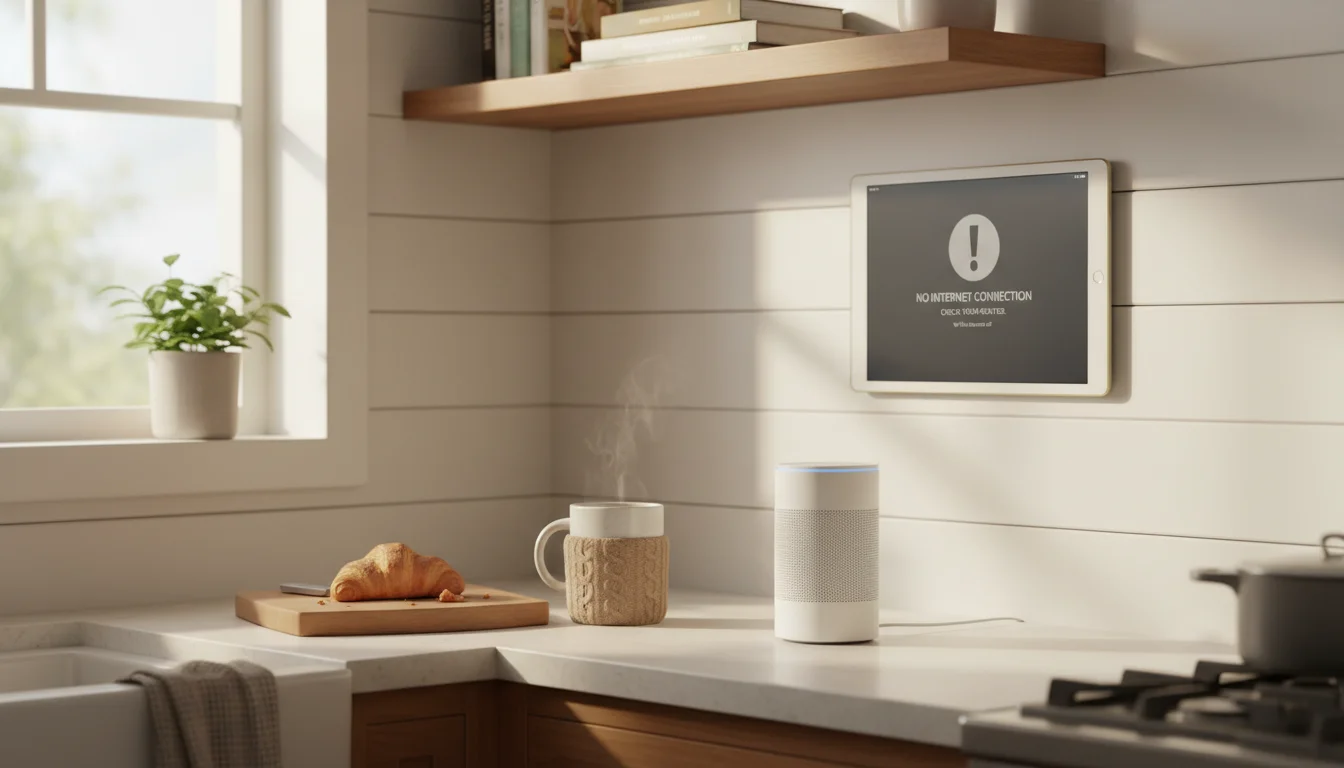
You know the password is right. You’ve typed it four times. You’ve triple-checked it against the sticker on the bottom of the router. And your old iPad just sits there, spinning, before telling you "Incorrect Password" or "Unable to Join Network." Meanwhile your phone connects instantly.
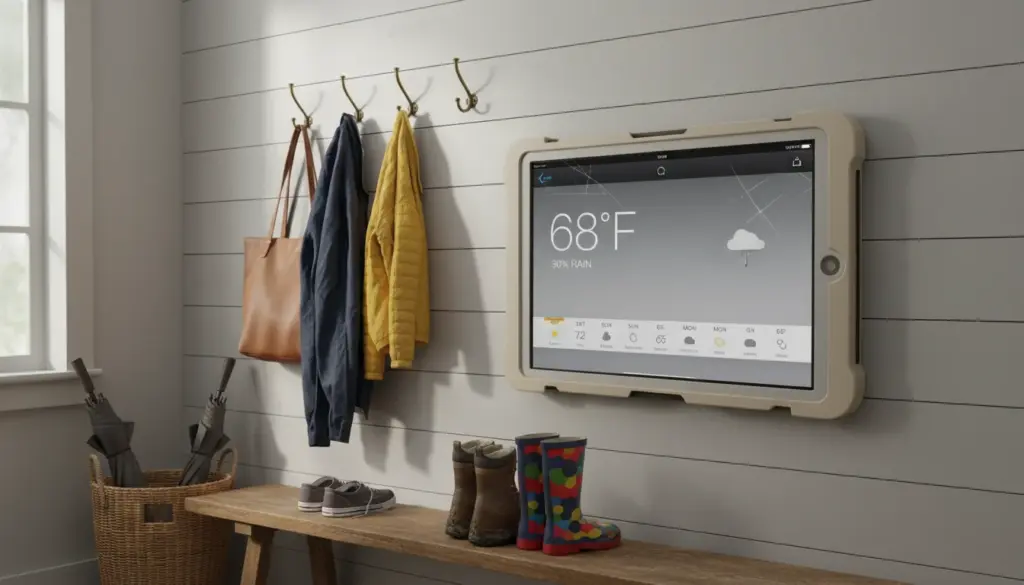
Or maybe it connects fine, works for a few hours, then silently drops the connection. You don’t notice until you walk past the kitchen display and see a blank screen where the family calendar should be.
If you have an Android tablet with this problem instead, the Android WiFi fix covers the same router issues but with Android-specific steps.
If you’ve already done the classic restart-router-and-pray routine and it didn’t stick, keep reading. The problem with old iPads and WiFi is different from what the generic troubleshooting guides tell you, and the fix is different too.
Your Router Probably Got Smarter Than Your iPad
Here’s the most common cause that nobody talks about in those "top 10 fixes" articles: your router was recently upgraded or replaced, and the new one uses WPA3 security.
WPA3 is the newest WiFi security standard. It’s been the default on most routers sold since 2020. It’s more secure, which is great for your newer devices. But iPads running iOS 12 or earlier don’t support it at all. iPads on iOS/iPadOS 13+ technically support WPA3, but only on iPad 5th gen (2017) and later hardware, and even then the support can be unreliable on older iPadOS versions.
So what happens is: you get a new router (or your ISP pushes a firmware update), WPA3 becomes the default, and your old iPad suddenly can’t connect. The password hasn’t changed. The network name hasn’t changed. But the security handshake your iPad tries to perform gets rejected, and iOS reports it as "Incorrect Password" because it doesn’t have a better error message for "I don’t speak this security protocol."
This is the fix for probably 60% of the old-iPad-won’t-connect cases people run into.
How to Fix It
Log into your router’s admin page (usually 192.168.1.1 or 192.168.0.1 in a browser – check the sticker on your router) and find the wireless security settings. Look for something labeled "Security Mode" or "Authentication."
Change it from WPA3 or WPA3/WPA2 to WPA2-PSK (AES). Some routers call this "WPA2 Personal."
A few things to know:
- WPA2 is still perfectly secure for a home network. You’re not making yourself vulnerable.
- If your router has separate settings for the 2.4GHz and 5GHz bands, change both.
- Some mesh systems (Eero, Google Wifi) bury this setting deep. Search "[your router brand] change WPA3 to WPA2" for the exact steps.
- After changing, you may need to forget the network on your iPad and rejoin from scratch.
If you can’t find the setting, or if your ISP-provided router locks it down, call your ISP and ask them to switch the WiFi security to WPA2. They can usually do it remotely.
The 2.4GHz vs 5GHz Problem
All iPads support both 2.4GHz and 5GHz bands. But older iPads often struggle with the wider 5GHz channel widths and newer band configurations that modern routers use – configurations that didn’t exist when those iPads were made.
If your router broadcasts a single network name for both bands (which most modern routers do), your iPad might keep trying to connect to the 5GHz band and failing.
The fix: If your router lets you split the bands into separate network names, create a dedicated 2.4GHz network (something like "HomeWiFi-2G") and connect your old iPad to that one. The 2.4GHz band is slower but it reaches further, passes through walls better, and is more compatible with older devices.
If you can’t split the bands, most routers have a "band steering" or "smart connect" option you can turn off. This stops the router from pushing devices toward 5GHz.
The Fixes You Can Do on the iPad Itself
If the router changes above don’t solve it, try these on the iPad. Do them in order – each one is more aggressive than the last.
Forget the network and rejoin. Go to Settings > Wi-Fi, tap the blue "i" icon next to your network, tap Forget This Network, then rejoin from scratch. This clears any cached authentication that might be stale.
Renew the DHCP lease. Same place – Settings > Wi-Fi > [your network] > (i) icon, scroll down and tap Renew Lease. This forces your iPad to request a fresh IP address from the router.
Set a manual DNS. Sometimes the DNS server your router assigns is slow or unreliable. Go to Settings > Wi-Fi > [your network] > Configure DNS, switch to Manual, and add 8.8.8.8 and 1.1.1.1 (Google and Cloudflare’s public DNS servers). This won’t fix connection issues, but it fixes the "connected but nothing loads" problem.
Reset network settings. This is the nuclear option for the iPad side. On iPadOS 15+, go to Settings > General > Transfer or Reset iPad > Reset > Reset Network Settings. On iOS 12-14, it’s Settings > General > Reset > Reset Network Settings. This erases all saved WiFi networks, VPN configurations, and Bluetooth pairings. You’ll need to re-enter every WiFi password. But it clears out any corrupted network configuration that might be causing problems.

If Your iPad Keeps Dropping WiFi
Connecting once isn’t the hard part for some people. The problem is that the iPad connects fine, works for a while, then drops the connection and won’t reconnect until you manually go into Settings and tap the network again.
This is usually one of two things.
WiFi Disconnects When the Screen Locks
iOS disconnects from WiFi when the iPad goes to sleep to save battery. For normal tablet use, this is fine – it reconnects when you wake it up. But if you’re using the iPad as an always-on display, this is a disaster. Your dashboard goes offline every time the screen dims.
The fix is to prevent the iPad from sleeping at all. Go to Settings > Display & Brightness > Auto-Lock and set it to Never. We cover this in detail in our always-on settings guide, including how to manage battery health when the screen never turns off.
WiFi Drops While the Screen Is On
If the iPad is awake and still dropping WiFi, the problem is usually router-side. Common causes:
- DHCP lease time too short. Some routers set leases to expire every few hours. When the lease expires, the iPad has to renegotiate, and sometimes it fails. Log into your router and increase the DHCP lease time to 24 hours or longer.
- Channel congestion. If you live in an apartment or dense neighborhood, the 2.4GHz band might be packed with competing signals. Download a WiFi analyzer app on your phone (WiFi Analyzer on Android, or use the built-in diagnostics on Mac) to see which channels are least congested, then manually set your router to use one of those channels.
- Router firmware bug. Some router firmware versions have known issues with older Apple devices. Check your router manufacturer’s support page for firmware updates.
When It’s Actually the iPad’s Hardware
Sometimes the WiFi antenna is just dying. This is more common in iPads that have been dropped, exposed to moisture, or are genuinely ancient (iPad 2, iPad 3rd gen era).
Signs that it’s hardware, not software:
- WiFi signal strength is consistently weak, even when you’re standing next to the router
- The iPad connects to some networks but not others, with no pattern you can explain
- Bluetooth also stopped working (the WiFi and Bluetooth share an antenna module)
- You’ve tried every software fix on this list and nothing sticks
If the WiFi chip is failing, there’s no software fix. But you’re not out of options. A used iPad Air 2 or iPad 5th generation can be found for $65-80, and either one runs circles around an iPad 3 for dashboard duty. Sometimes the smartest fix is a $50 upgrade rather than hours of troubleshooting a dying device.
Get It Connected and Keep It Connected
Once your iPad is back on WiFi, the goal is to keep it there. If you’re using it as a wall-mounted display or family dashboard, reliability matters more than speed. A few things that help long-term:
- Give it a static IP. In your router settings, assign a reserved IP address to your iPad’s MAC address. This prevents DHCP conflicts and makes the connection more stable.
- Keep it close to the router. WiFi signal degrades through walls and distance. If your iPad is mounted two rooms away from the router, a cheap WiFi extender ($30-50) in between makes a real difference.
- Set up auto-refresh. Even with rock-solid WiFi, web-based dashboards can get stale. We cover this in our Safari crashes guide – the same auto-refresh trick that prevents crashes also keeps your content fresh.
If WiFi wasn’t the only thing acting up, our tablet troubleshooting guide covers the other common problems old tablets run into – from boot loops to apps that won’t install.
The next time you walk past the iPad on the wall, the calendar will actually be there.