You Already Own a Security Camera (Sort Of)
That old tablet in the drawer has a camera, a microphone, WiFi, and a screen. It can record video, detect motion, and send you alerts when something moves. For certain jobs, that’s all you need.
I’m not going to pretend an old iPad is as good as a proper security camera. It’s not. But for keeping an eye on the garage while you’re upstairs, checking on the dog while you’re at work, or watching the backyard when the kids are playing – it’s genuinely useful. And it costs you nothing.
The catch is knowing when the old tablet makes sense and when you’re better off spending $30 on a Wyze Cam. So let’s be honest about both.
When This Actually Works (and When It Doesn’t)
An old tablet works well as a security camera when:
- It’s indoors. You’re not weatherproofing a Galaxy Tab. Inside the house, garage, or covered porch is where this makes sense.
- You have power nearby. Streaming video drains batteries fast. Plug it in. If you’re worried about leaving it plugged in all the time, that’s worth reading up on, but the short answer is: it’s fine for most tablets.
- Lighting is decent. Daytime monitoring, well-lit rooms, a garage with the lights on. Old tablet cameras struggle in the dark – more on that below.
- You want motion alerts, not 24/7 recording. Most free camera apps will ping your phone when something moves. That’s the real value.
It doesn’t work well when:
- You need night vision. Old tablet cameras produce grainy, nearly useless footage in low light. A $30 dedicated camera has infrared LEDs that see in total darkness. Your 2014 iPad does not.
- You need outdoor coverage. Rain, temperature swings, and direct sunlight will kill an old tablet fast.
- You need reliable 24/7 recording with cloud storage. That’s what dedicated cameras are built for.
- You want something discreet. A tablet propped on a shelf is not subtle.
If your main concern is front-door security or nighttime monitoring, skip this project and grab a  Wyze Cam for $30. But if you want a quick indoor camera for daytime use – keep reading.
The Best Security Camera Apps for Old Tablets
Alfred Camera (iOS + Android) – The One to Start With
 Alfred Camera is the clear winner here, and it’s what most people end up using. Over 70 million downloads, and for good reason: it turns any old phone or tablet into a motion-detecting security camera in about two minutes.
How it works: You install Alfred on two devices. The old tablet becomes the “Camera” device. Your current phone becomes the “Viewer” device. When the tablet detects motion, it records a clip and sends a push notification to your phone. You can also pull up the live feed anytime.
What you get free: Motion detection, motion alerts, live viewing, two-way audio (talk through the tablet’s speaker from your phone), low-light filter.
What costs money: Premium ($5.99/month or $29.99/year) adds HD recording, 14-day cloud storage, zoom, and an ad-free experience. The free tier doesn’t include cloud storage, but you still get motion alerts and live viewing, which is honestly enough for most people.
iOS requirement: iOS 14 or later. That means iPad Air 2 (2014) and newer. If your iPad is stuck on iOS 12 or 13, Alfred won’t install. Check what iOS version you’re on – if you’re not sure how old your iPad is, we have a guide for that.
Android: Works on Android 5.0 and up, which covers almost every old Android tablet still functioning.
IP Webcam (Android Only) – The Tinkerer’s Choice
 IP Webcam is less polished than Alfred but far more flexible. It turns your Android tablet into a network IP camera that you can access from any web browser on your local network. No second app required – just type the tablet’s IP address into your laptop’s browser and you’ve got a live feed.
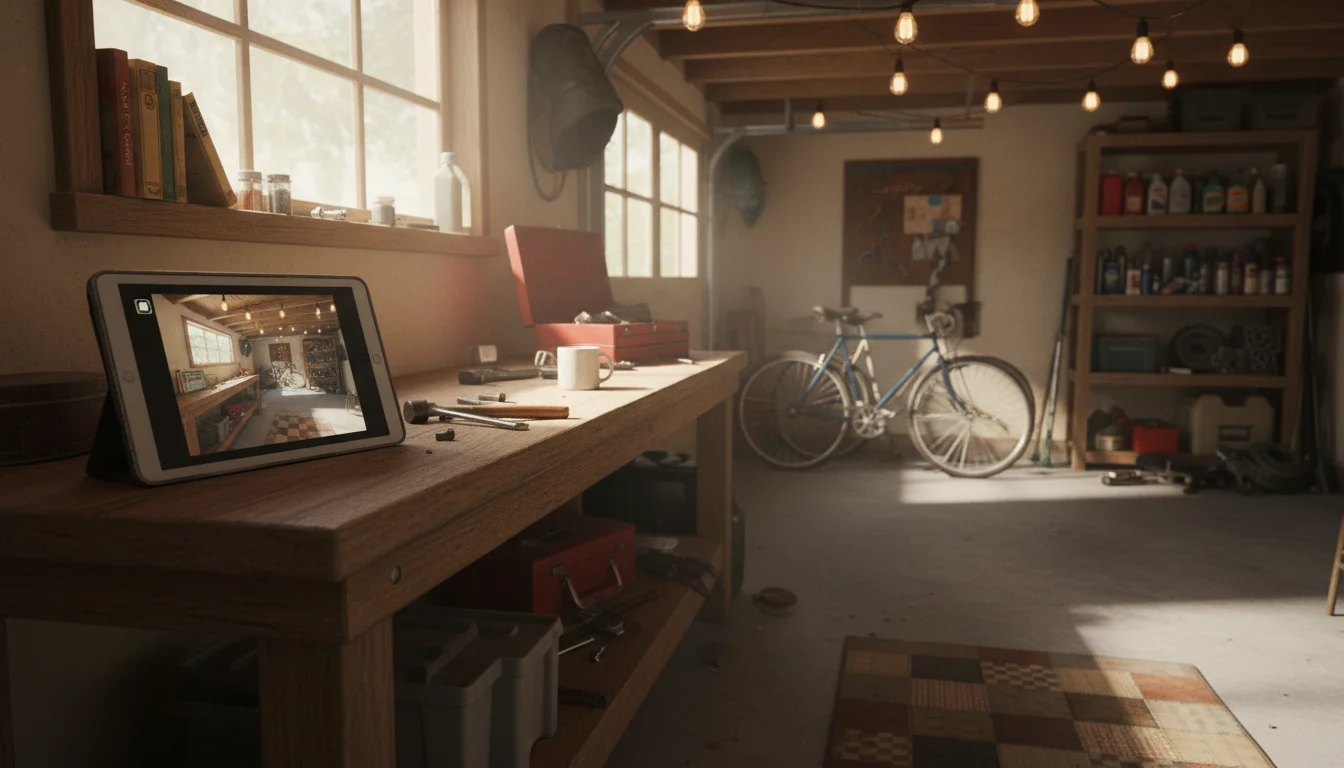
Mark set this up on our old Nexus 7 pointing at the garage workbench. It took maybe 10 minutes, and now he can check the feed from his laptop upstairs. The interface looks like it was designed in 2012 (because it was), but it works.
Best for: People who want to view the feed on a computer, integrate with home automation systems, or just prefer not to create another app account. It also works with Home Assistant if you’re already running that.
Free version: Fully functional with ads. Pro version is $4.99 (one-time).
iOS alternative: IP Webcam is Android-only. For iPads, stick with Alfred Camera or try AtHome Camera.
AtHome Camera (iOS + Android) – Solid Backup
 AtHome Camera does most of what Alfred does – motion detection, remote viewing, two-way audio, scheduled recording. The interface is slightly clunkier, but it works on older devices that can’t run Alfred.
Why you’d pick this over Alfred: It supports iOS 12, so if you have an older iPad (iPad Air 1, iPad mini 2, or iPad mini 3) that maxes out at iOS 12 and can’t run Alfred, AtHome is your best option. It also lets you schedule recording windows, which Alfred’s free tier doesn’t.
Setting It Up
This takes about five minutes with Alfred Camera. Other apps are similar.
- Install Alfred Camera on your old tablet and on your current phone. Sign in with the same Google or Apple account on both.
- On the old tablet, tap “Camera” when Alfred asks what this device is. Grant camera, microphone, and notification permissions.
- On your phone, tap “Viewer.” You should see the tablet’s camera feed immediately.
- Set auto-lock to Never. On iPad: Settings, Display & Brightness, Auto-Lock, Never. On Android: Settings, Display, Screen timeout, 30 minutes (or install a “Stay Alive” app for truly always-on).
- Plug it in. Streaming video will drain the battery in a few hours otherwise. Find a spot near an outlet.
- Position the tablet. Prop it on a shelf, lean it against a wall, or use a tablet stand to angle it where you want.
That’s it. When something moves in front of the tablet, you’ll get a notification on your phone.
The Honest Limitations
I’d rather you know this upfront than find out after you’ve spent 20 minutes setting everything up.
Camera quality is mediocre. Old tablets have 1.2MP to 5MP cameras. Your current phone has a 12MP or better camera. You’ll see that someone walked through the garage. You probably won’t read their face clearly from 15 feet (4.5 meters) away.
No night vision. This is the biggest gap. Dedicated security cameras have infrared LEDs that let them see in complete darkness. Old tablets have… a camera designed for FaceTime calls in a well-lit room. In low light, you’ll get a dark, noisy image that’s mostly useless. If your use case is “check the backyard at night,” this isn’t the right project.
Battery and heat. Running the camera and streaming video continuously makes old tablets warm. That’s worth being aware of, especially for tablets with aging batteries. Keep it plugged in, keep it ventilated, and don’t stuff it in a drawer or closed cabinet.
App compatibility. Not every old tablet can run every camera app. Alfred Camera needs iOS 14+. If your tablet is stuck on an older OS and you’re having trouble finding apps that still install, your options narrow. AtHome Camera supports iOS 12, which covers more old iPads.
Where to Put It
The best spots are indoors with good light and a power outlet nearby:
- Garage – point it at the door or workbench. Good lighting, easy to plug in, and you’ll know if someone’s rummaging through your stuff.
- Living room – check on pets while you’re at work. Motion alerts tell you when the dog gets on the couch (again).
- Baby’s room – for daytime naps. For dedicated nursery monitoring with more features like night mode, check our baby monitor guide.
- Home office or front hallway – see who’s at the door during the day.
- Vacation rental or cabin – temporary monitoring when you’re away. This is where old tablets really shine – you don’t need to buy and install a permanent camera for a place you visit twice a year.
Quick Setup Checklist
- Check your tablet’s OS version (Alfred needs iOS 14+ or Android 5+)
- Install Alfred Camera on the tablet and your phone
- Sign in with the same account on both devices
- Set the tablet as “Camera,” your phone as “Viewer”
- Set auto-lock to Never
- Plug it in near a power outlet
- Position it where you want to monitor
- Test it – walk in front of the camera and check for the motion alert on your phone
Total cost: $0. Setup time: 5 minutes. And you now have a security camera you didn’t have this morning, made from something that was doing absolutely nothing in a drawer.
If you already own Ring or Wyze cameras and want the tablet as a dedicated monitor for those feeds instead, that’s a different setup – check our security monitor guide.