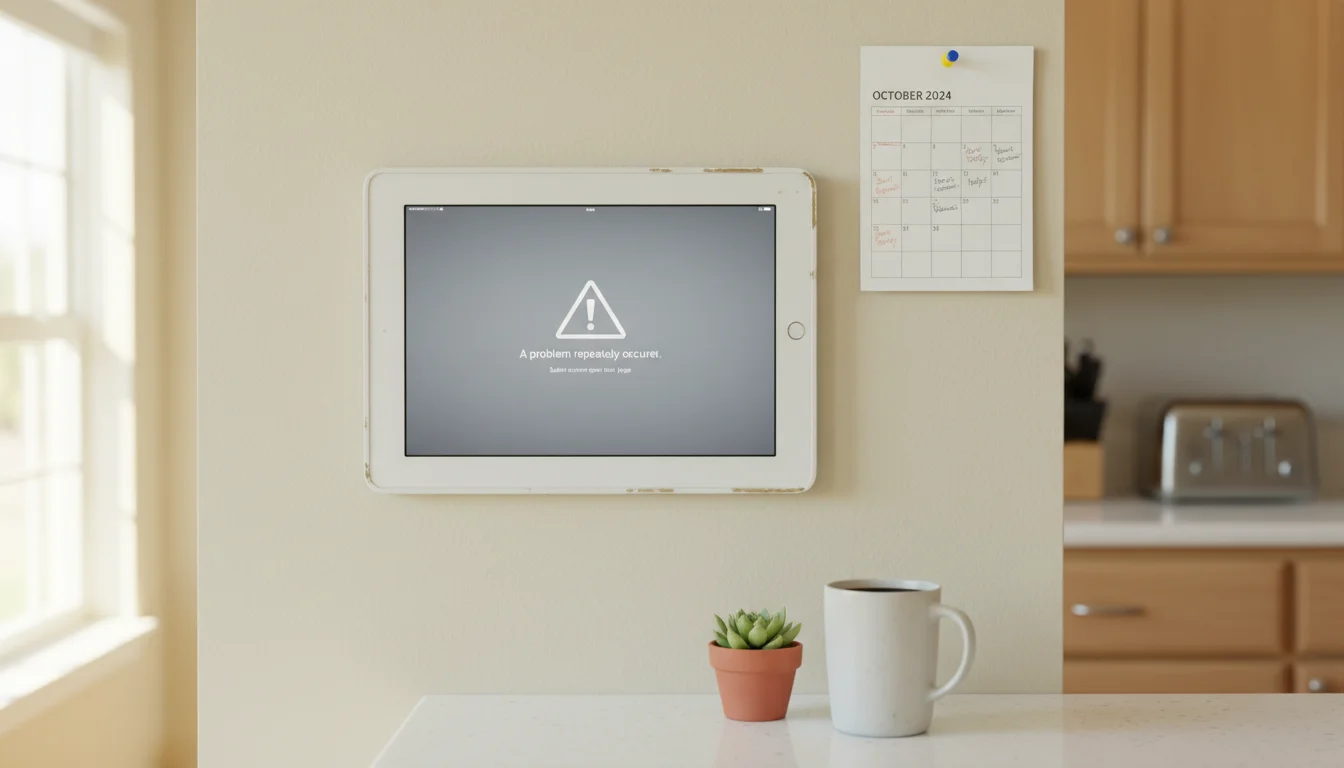
You walk past the iPad on the wall and there it is again – a gray screen with “A problem repeatedly occurred” staring back at you. The family calendar that’s supposed to be glanceable is now showing nothing. You tap reload, it comes back for a few hours, then crashes again.
If this is your life, you’re not alone, and the ten-article deep Google results telling you to “clear your cache and restart” aren’t going to fix it. It’s a deeper problem than that, and the fix is different from what those generic articles suggest.
Why Safari Keeps Crashing on Your Old iPad
Here’s what’s actually happening. Your old iPad – whether it’s an iPad Air 2, an iPad 5th gen, or an iPad mini 4 – has somewhere between 1 and 2 GB of RAM. That’s it. iOS doesn’t use swap memory like a Mac does. When Safari needs more memory than what’s available, it has two options: reload the page or crash.
When you’re browsing normally, this is fine. You load a page, read it, move on. Safari dumps the old page from memory and loads the new one. But when you’re using an iPad as an always-on display – showing the same web page for hours or days – something different happens.
Web pages leak memory. Slowly. JavaScript timers accumulate. Ad networks rotate banners and never clean up after themselves. Weather widgets poll for updates and stack up old data in memory. After a few hours, your 1.5 GB of RAM is full, and Safari gives up.
That’s why “clear cache and restart” works temporarily. You’re flushing the built-up memory. But the leak starts again immediately, and you’re back to the same crash within hours or days.
The Quick Fixes That Actually Help
Before getting into the real solution, here are a few things that help on their own. These won’t stop crashes permanently, but they reduce how often they happen.
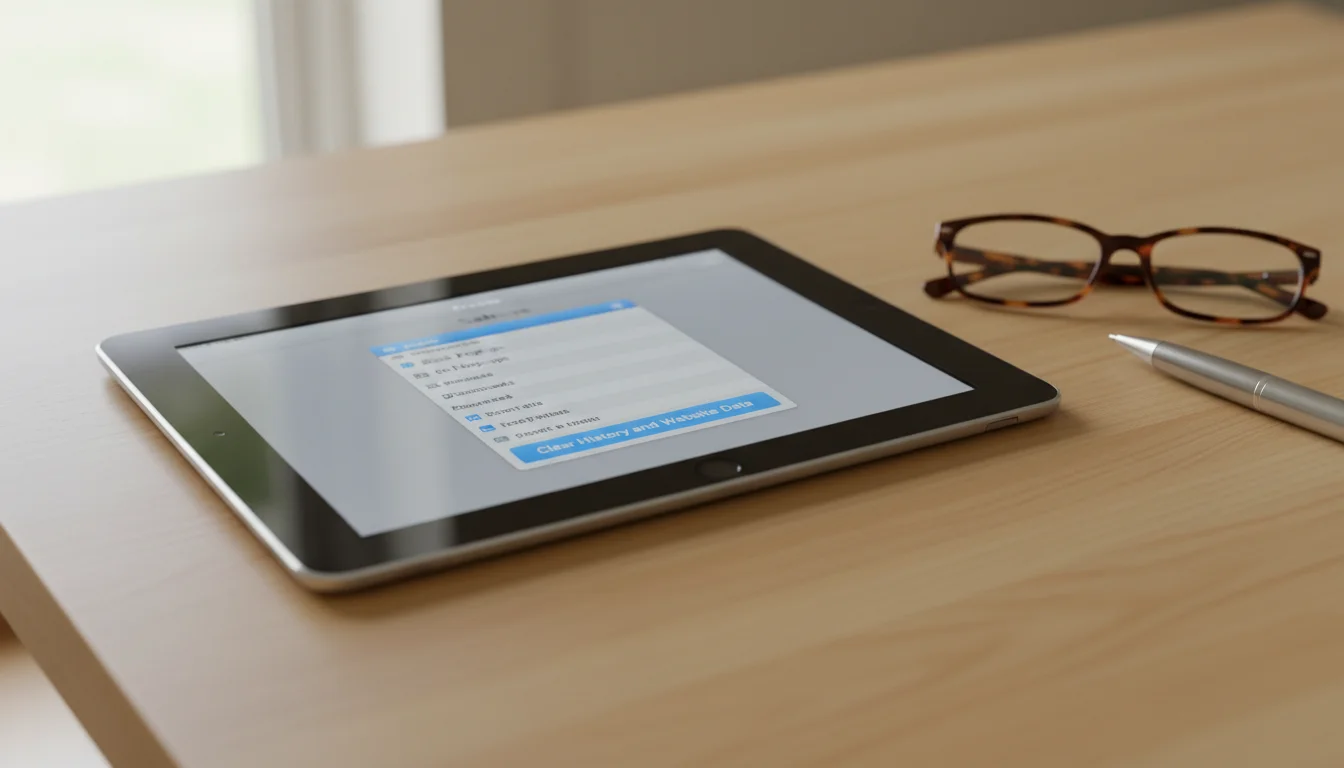
Clear website data – not just history, but all of it. Go to Settings → Safari → Advanced → Website Data → Remove All Website Data. This is more thorough than the basic “Clear History and Website Data” option.
Disable content blockers. This one’s counterintuitive. Ad blockers should help, right? Sometimes they don’t – certain content blockers conflict with specific sites and actually cause crashes. If you’re running one, try disabling it for a week and see if stability improves.
Close every other app. Even apps running in the background consume RAM. Double-press the Home button (or swipe up from the bottom on newer iPads), then swipe away everything except Safari.
The weekly hard restart. This is the single most reliable maintenance habit for always-on iPads. Once a week – Sunday night, Monday morning, whatever works – hold the power button, slide to shut down, wait ten seconds, turn it back on. This clears accumulated memory leaks that even force-quitting Safari doesn’t touch.
Set Up Auto-Refresh to Prevent Crashes
Here’s where most articles stop. They tell you to clear the cache and wish you luck. But the actual fix for an always-on display is to reload the page regularly before the memory leak gets bad enough to crash.
Option 1: Reload Timer (Safari Extension)
If your iPad runs iPadOS 16.4 or later, you can install  Reload Timer ($5.99) – a Safari extension that automatically refreshes the page on a schedule.
- Install from the App Store
- Open Settings → Safari → Extensions → Reload Timer and enable it
- In Safari, tap the extension icon (puzzle piece) and set your interval – every 30-60 minutes works well for dashboards
This is the simplest approach if your iPad supports it. If your iPad is on an older iPadOS version, skip to Option 2 or 3 below.
Option 2: The Meta-Refresh Trick
If you control the web page being displayed (a self-hosted dashboard, a Home Assistant panel, anything you can edit), add this line inside the <head> tag:
<meta http-equiv="refresh" content="3600">That tells Safari to reload the page every 3,600 seconds (one hour). No app needed, no extension, works on every version of iOS.
Option 3: A Bookmark Page
If you don’t control the target website but your iPad is too old for extensions, you can create a simple HTML file that loads your page inside a frame and auto-refreshes:
<!DOCTYPE html>
<html>
<head>
  <meta http-equiv="refresh" content="1800">
  <style>body { margin: 0; } iframe { width: 100%; height: 100vh; border: none; }</style>
</head>
<body>
  <iframe src="https://your-calendar-url-here"></iframe>
</body>
</html>
Host this on any free static site (GitHub Pages, Netlify) or even as a local file, and point Safari to it instead.
Guided Access: Lock It Down
Once Safari is refreshing automatically and staying stable, the next problem is that someone – kids, guests, a curious cat – taps the screen and navigates away. Or worse, closes the tab entirely.
Guided Access locks the iPad to a single app and disables most touch interactions.
- Go to Settings → Accessibility → Guided Access and turn it on
- Set a passcode (you’ll need this to exit)
- Open Safari and navigate to your dashboard page
- Triple-click the Home button (or Side button on newer iPads)
- Tap Options and disable the areas you don’t want interactive – you can even draw circles around parts of the screen to disable touch in those regions
- Tap Start
Now the iPad is locked to Safari. No swiping home, no Control Center, no accidental navigation. Combined with auto-refresh from the previous section, this gives you a stable kiosk that stays on the page you want.
To exit Guided Access, triple-click the Home button again and enter your passcode.
When Safari Isn’t the Answer
Sometimes the right fix isn’t fixing Safari at all. If you’re fighting constant crashes on an iPad running iOS 12 or 13, Safari’s memory management on those versions is genuinely worse, and no amount of auto-refreshing will fully solve it.
Kiosk Pro Lite (free, works on iPadOS 12.4+) is purpose-built for this. It loads a URL, stays on it, and reloads periodically. There’s a small watermark at the bottom, but for a kitchen display nobody’s looking at the edges. It works on even the oldest iPads we cover here.
Kiosker (free with 7-day trial, then $6.99/month or $24.99/year) is the premium option if you want extras. It has a screensaver that activates when the room is dark, motion detection to wake the screen when someone walks by, and more aggressive memory management than Safari. Requires iPadOS 15.6+.
And if you’re displaying something specific like a smart home dashboard or a calendar, check whether a native app exists. The Home Assistant Companion app and most calendar apps are far more stable than their web versions because they manage memory properly. ( DAKboard doesn’t have an iOS app, but its web dashboard in a kiosk browser like Kiosk Pro Lite works well.) We’ve got a full list of apps that still work on old tablets if you want options.
A Simple Maintenance Routine
You don’t need to babysit your wall iPad. Just build a small habit:
Weekly (pick a day, stick with it):
- Hard restart the iPad – power off, wait, power on
- If Safari has been flaky, clear website data from Settings
Monthly:
- Check for any available iOS updates (even old iPads occasionally get security patches)
- Glance at battery health – an always-plugged-in iPad needs a little attention
Set and forget:
- Auto-refresh running (extension, meta tag, or bookmark page)
- Guided Access enabled if the iPad is in a shared area
- Auto-Lock set to “Never” so the screen stays on
That’s it. Most crashes come from memory building up over days. If the page refreshes itself every hour and the iPad restarts once a week, you’ll almost never see that gray crash screen again.
Your iPad on the wall is doing a better job there than it was in the junk drawer. A little maintenance keeps it that way. And if you’re dealing with other issues beyond Safari crashes, our guide on what to do with a tablet that doesn’t work covers the full range of problems and fixes.