You tap Safari. You wait. The screen goes white. You wait some more. Eventually the page loads, but now you tap a link and the whole thing starts over. The iPad isn’t frozen – it’s just so slow that every interaction feels like a test of patience.
So you Google “speed up old iPad” and get twenty articles telling you to clear your cache, close background apps, and update to the latest iOS. You do all of that, and it’s maybe 5% faster for a day before going right back to the spinning wheel.
Here’s why: most of those guides are written for iPads that are two or three years old. Yours is five, six, maybe eight years old. The bottleneck is completely different, and so are the fixes that actually matter.
Why Your Old iPad Is Slow (It’s Not What You Think)
The iPad Air 2 has 2 GB of RAM. The iPad mini 4 has 2 GB. The original iPad Air and iPad mini 2 have 1 GB. That’s it. That’s what your iPad has to work with for everything – the operating system, Safari, whatever app is open, and anything running in the background.
For comparison, a current iPad has 6 GB or more. Your phone probably has a similar amount.
RAM is the working space where your iPad holds whatever it’s actively doing. When you open Safari and load a web page, that page lives in RAM. When you switch to another app, both apps try to stay in RAM. When there isn’t enough room, iOS starts killing apps in the background and reloading them from scratch when you switch back. That’s the stuttering and the reloading you’re seeing.
Storage space and cache have almost nothing to do with it. You could have 50 GB of free storage and your iPad would still be slow, because the bottleneck is RAM, not disk. Clearing your cache frees up a few megabytes of storage that your iPad wasn’t constrained by in the first place.
This is also why “update to the latest iOS” is bad advice for genuinely old iPads. Newer iOS versions use more RAM, have heavier visual effects, and run more background services. If your iPad shipped with iOS 10 and you updated it to iOS 15, you gave it a heavier operating system without giving it any extra hardware to run it on. There’s no going back, either – Apple doesn’t let you downgrade.
What Actually Helps
These are the changes that make a real, measurable difference on iPads with 1-2 GB of RAM. Do all of them.
Turn Off Background App Refresh
This is the single most impactful setting change. Background App Refresh lets apps update their content even when you’re not using them – checking email, refreshing social feeds, pulling weather data. Every one of those background tasks eats RAM and CPU time.
Go to Settings > General > Background App Refresh and turn it Off for everything. Yes, everything. Your apps will refresh when you actually open them. On a 2 GB iPad, this frees up enough RAM to make a noticeable difference in how responsive everything feels.
Reduce Motion and Transparency
iOS uses animations for everything – opening apps, switching between them, parallax effects on the home screen. These are pretty on a new iPad and painful on an old one.
Go to Settings > Accessibility > Motion and turn on Reduce Motion. Then go to Settings > Accessibility > Display & Text Size and turn on Reduce Transparency. The visual difference is subtle, but the performance difference is not. You’re telling iOS to skip the GPU-intensive effects that your old hardware struggles with.
Free Up Storage (But Not for the Reason You Think)
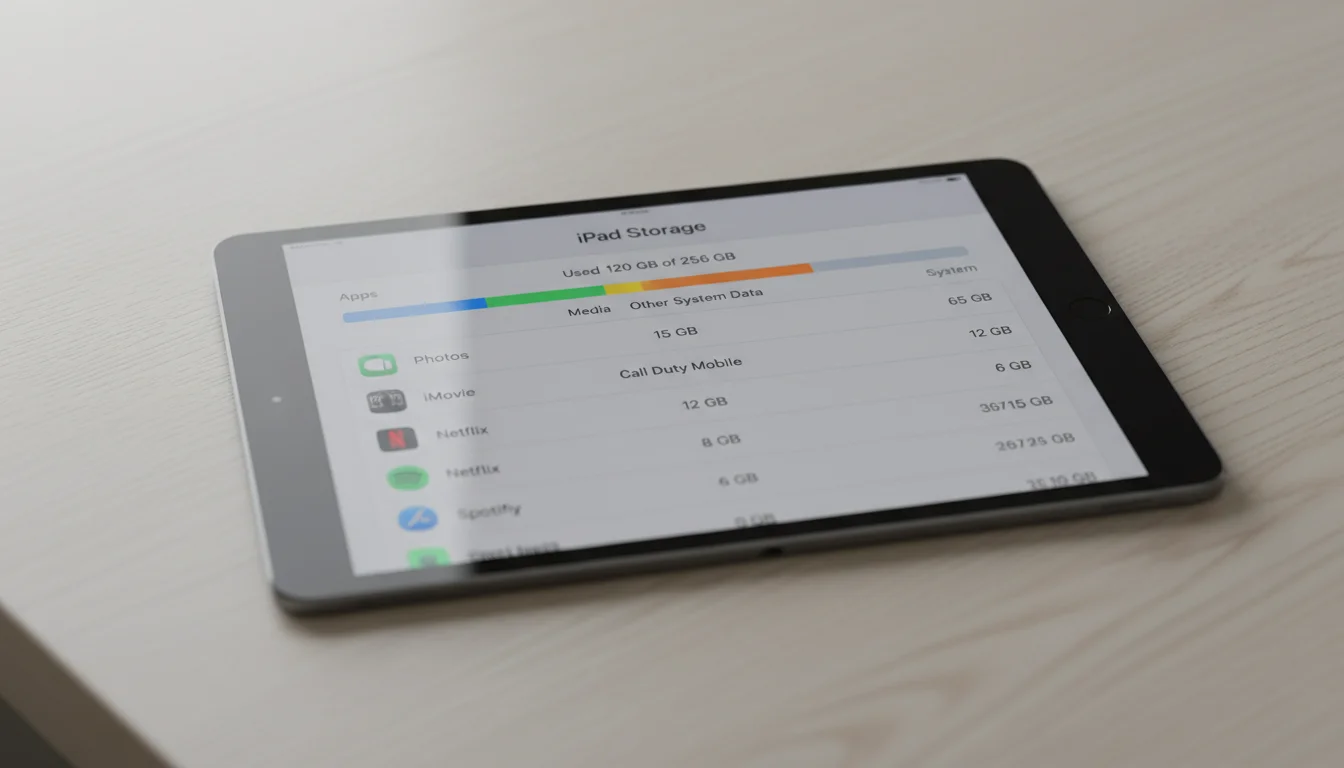
Clearing storage doesn’t directly make your iPad faster. But iOS needs some free space to manage temporary files, swap data, and handle updates. If your storage is 95% full, iOS starts doing desperate cleanup work in the background, which slows everything down.
Check Settings > General > iPad Storage. If you have less than 2-3 GB free, start deleting:
- Apps you haven’t opened in months (iOS shows “Last Used” dates in the storage list)
- Old photos and videos (move them to iCloud or a computer first)
- Podcast downloads and offline music
- Message attachments (Messages can quietly eat gigabytes)
You don’t need to get down to 50% free. Just give iOS enough breathing room – 3-5 GB is plenty.
Restart It (Seriously, Once a Week)
This one sounds too simple to matter, but it does. iOS accumulates memory leaks and background processes over time. If your iPad has been running for three weeks straight, a restart clears all of that out.
Hold the power button, slide to shut down, wait ten seconds, turn it back on. Do this once a week. It takes 90 seconds and it’s the single easiest maintenance habit you can build.
What Barely Helps (Despite What Every Article Says)
Let me save you some time on the advice that sounds good but doesn’t move the needle on truly old iPads.
Clearing Safari cache and website data. Frees up a tiny amount of storage. Does nothing for speed unless you’re out of storage entirely. Safari will just rebuild the cache as you browse.
Closing all background apps. This one is actually counterproductive. When you force-close an app by swiping it away, iOS has to reload it from scratch next time you open it. That takes more time and more RAM than just letting iOS manage app lifecycle on its own. Only force-close an app if it’s frozen or misbehaving.
Resetting all settings. This resets your preferences without deleting data. It helps if you’ve accumulated a lot of wonky settings over the years, but the speed improvement is marginal. You’ll spend more time reconfiguring everything than you’ll gain in performance.
Location Services cleanup. Turning off location services for apps you don’t use is good practice for privacy and battery life, but it barely affects speed.
Fixing Safari Specifically
Safari is where most people feel the slowness, because web pages in 2026 are heavier than they’ve ever been. A typical news site loads 5-10 MB of JavaScript, ads, and tracking scripts. On 1-2 GB of RAM, that’s a significant chunk.
Keep fewer tabs open. Each open Safari tab holds a web page in memory (or needs to reload it when you switch to it). If you have 15 tabs open, close the ones you’re not using. On a 2 GB iPad, three or four tabs is the practical limit before things start getting slow.
Use a content blocker. Install  AdGuard, a free Safari content blocker that works on iPadOS 13 and up (iPad Air 2, iPad mini 4, and anything newer). Blocking ads and trackers means less JavaScript running, less RAM used, and faster page loads. This makes a bigger difference than anything else for Safari performance. If your iPad is stuck on iOS 12 (iPad Air 1, iPad mini 2), most content blockers won’t install – AdGuard and the popular ones require iOS 13 – but you’ll still benefit from keeping fewer tabs open and using Reader Mode below.
Use Reader Mode for articles. On iOS 13 and up, tap the “aA” icon in Safari’s address bar and choose “Show Reader.” On iOS 12, look for the small horizontal-lines icon that appears at the left end of the address bar when Reader is available. Either way, it strips out all the visual clutter, ads, and heavy formatting, leaving just the text and images. It loads faster and uses a fraction of the RAM.
If Safari is crashing outright – not just slow, but actually showing error messages – we cover that separately in our Safari crashes guide. That’s a different problem with a different fix.
The Honest Answer: Stop Making It Do Everything
Here’s what none of the other “speed up your iPad” articles tell you: you can’t make a 1 GB iPad fast at everything. The hardware is what it is. No setting change is going to make your iPad Air feel like a current-gen iPad.
But you can make it fast at one thing.
An old iPad that’s trying to be a general-purpose tablet – email, Safari, games, video, social media – will always feel slow. An old iPad that’s doing one job – showing the family calendar, displaying the weather, running a recipe app – feels perfectly fine. One app, full screen, no multitasking. That’s what 1-2 GB of RAM can handle without breaking a sweat.
This is why so many people end up repurposing their old iPads as single-purpose displays. Not because they gave up on the iPad, but because they found the one job it can still do really well. A mounted iPad showing your family calendar in the hallway doesn’t need to be fast at everything. It needs to be fast at one thing, and it is.
If you want to go that route, our complete setup guide walks through the whole process – from choosing the right settings to picking a mount.
If your iPad isn’t just slow but actively misbehaving – stuck on the Apple logo or not charging at all – those are different problems with different fixes. Our tablet troubleshooting hub covers them all.
Got an old Android tablet instead? The fixes are different – here’s our Android speed-up guide.
But if you’re keeping the iPad as a general-use tablet, the settings changes above are the real ones. Do all of them, restart it weekly, and accept that it’s going to be a little slower than you’d like. It’s an old device doing its best with the hardware it has. That’s not a failure. It’s just physics.