Your Old iPad Is Getting a Second Life – Keep It Safe
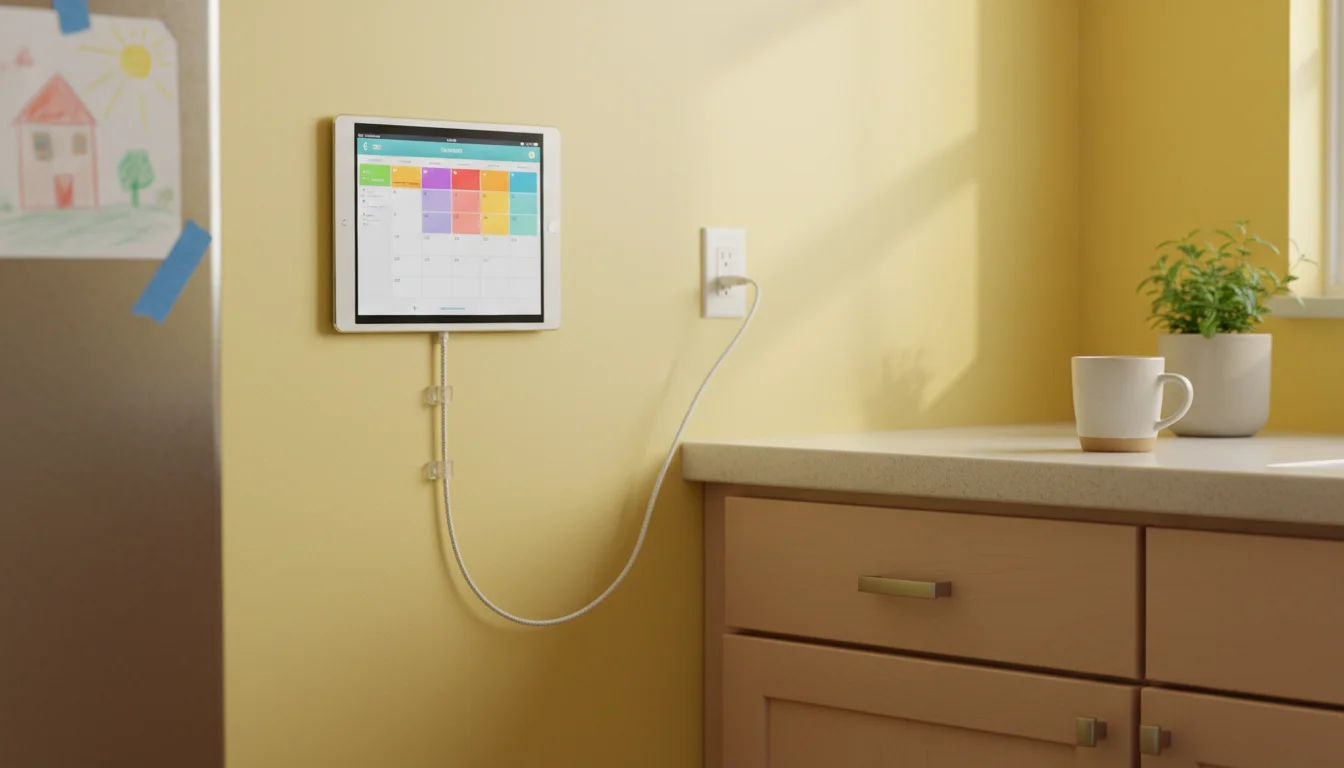
You pulled an old iPad out of a drawer, mounted it on the kitchen wall, and now it shows your calendar, the weather, and what’s for dinner. It’s plugged in 24/7 because the battery barely lasts an hour on its own. And at some point, you Googled “is it safe to leave my iPad plugged in all the time” and got ten different answers.
Short version: it’s almost certainly fine. But old lithium batteries do have quirks, and a couple of easy habits will keep your setup running safely for years. None of this is complicated – think of it as the equivalent of checking the smoke detector batteries. Boring, quick, worth doing.
Why Staying at 100% Is Hard on Old Batteries
Every lithium-ion battery has a comfort zone, and 100% charge isn’t it. Keeping a battery topped off at maximum voltage puts constant low-level stress on the chemistry inside. Over months and years, that stress causes the battery to degrade faster than it would with normal use.
Newer iPads (the M2 and M4 Pro models, plus the iPad Air M3, iPad mini A17 Pro, and the base iPad with the A16 chip) have a built-in 80% charge limit that handles this automatically. Your old iPad doesn’t. If it’s running iOS 15 or earlier, there’s no setting to cap the charge – it just sits at 100% whenever it’s plugged in.
Does that mean it’s dangerous? No. It means the battery will wear out faster than it otherwise would. For a tablet that’s already a few years old and doing real work as a kitchen display, that’s a perfectly acceptable trade-off. You’re not trying to maximize this battery’s lifespan for resale – you’re using the tablet for something genuinely useful. The goal is safety, not squeezing out every last charge cycle.
The $10 Smart Plug Fix
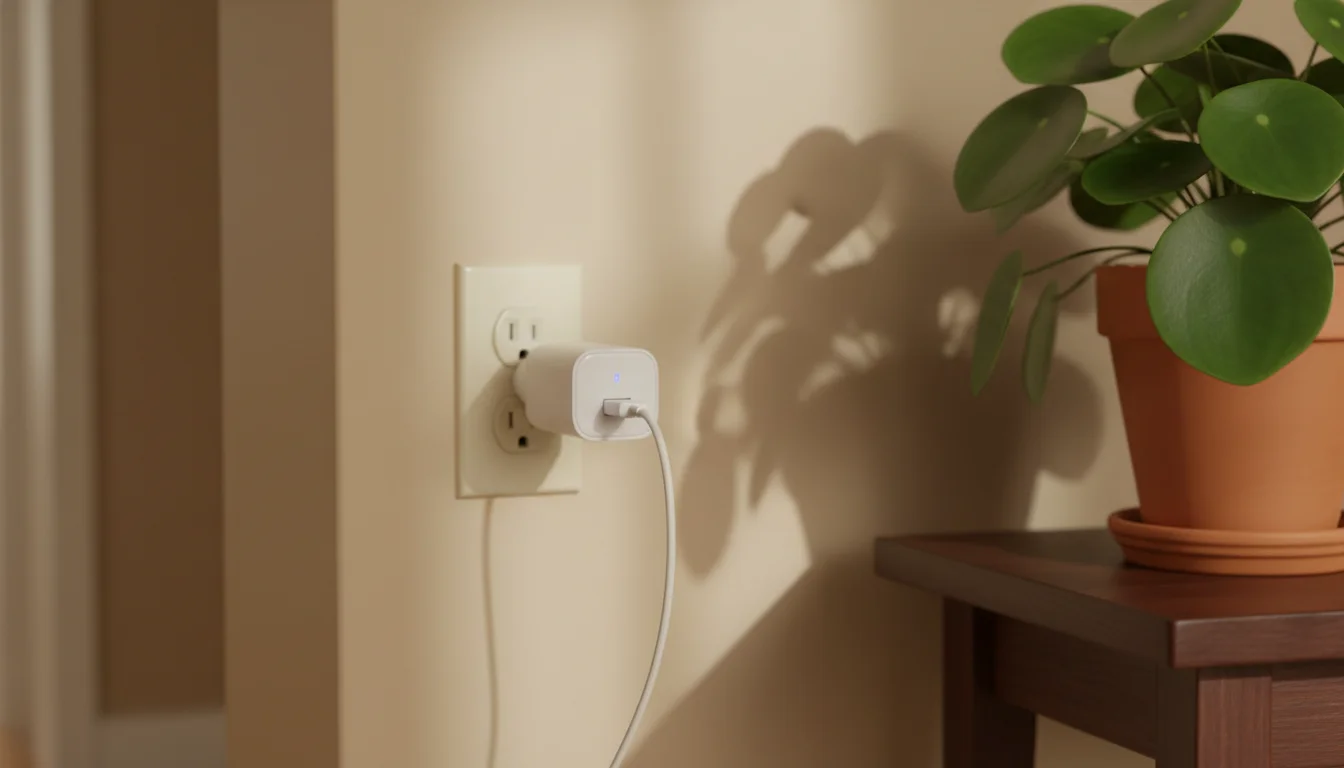
If you want to be a little more deliberate about it, the simplest approach is a smart plug on a schedule. No smart home hub required. No  Home Assistant. Just a plug that turns off and on by itself.
Here’s the setup:
- Plug your iPad charger into a smart plug (Amazon, TP-Link Kasa, and
 Wyze all make them for around $10)
 - Set a daily schedule in the plug’s app: power off at 11pm, power on at 6am
- That’s it
The iPad will discharge overnight – usually dropping to somewhere around 40-60% by morning depending on what’s running – and then charge back up when the plug switches on. This gives the battery regular breathing room without you having to think about it.
You don’t need to hit an exact 20-80% range. You don’t need to obsess over percentages. The point is that the battery isn’t sitting at 100% around the clock. Any regular discharge cycle is better than none.
If you don’t want to buy a smart plug, just unplug the charger once a week for a day. Same idea, manual version.
Android tablets work the same way. Some newer Samsung tablets have a “Protect battery” toggle in Settings → Battery and device care → Battery that caps charging at 85%. If yours has it, turn it on and skip the smart plug entirely.
How to Check Your Battery’s Health
On the newest iPads (M4 Pro, M3 Air, A17 Pro mini, A16 base model running iPadOS 17.4 or later), you can check battery health right in Settings → Battery → Battery Health. It shows you the maximum capacity as a percentage – 90% means your battery holds 90% of what it did when it was new. Mark flagged this one for me: Battery Health is model-dependent, not just an OS thing. If your iPad doesn’t have one of those newer chips, that screen simply won’t exist even if you’re on the latest software.
Your old iPad almost certainly doesn’t have it. Here’s how to check anyway:
On the iPad itself (iOS 15+): Go to Settings → Privacy → Analytics & Improvements → Analytics Data. (Apple renamed it to “Privacy & Security” in iOS 16, but on old iPads running iOS 15 it’s just “Privacy.”) Scroll down to a file that starts with “Analytics-” and look for MaximumCapacityPercent. It’s buried in there, but it’s the same number Apple would show you on a newer device.
From a Mac:  coconutBattery (free) shows battery health when you plug in the iPad via USB. You get maximum capacity, cycle count, and the design capacity – everything you need.
From a PC:  iMazing does the same thing. The free version shows battery health without needing to buy the full app.
For Android tablets: Settings → Battery → Battery Health on most devices. Samsung tablets show it under Settings → Battery and device care → Battery → More battery settings.
If your battery is at 80% capacity or above, it’s in good shape. Between 60-80%, it’s aging but still perfectly usable for a plugged-in display. Below 60%, keep a closer eye on it – the battery is wearing down and swelling risk increases over time.
Heat Makes Everything Worse
A lithium battery sitting at 100% charge will degrade slowly. A lithium battery sitting at 100% charge in a hot spot will degrade much faster. Heat is the thing to actually worry about.
Watch out for:
- Direct sunlight – a south-facing kitchen window will cook a wall-mounted iPad all afternoon
- Above a radiator or heating vent – not always obvious until you notice the tablet is warm to the touch
- Behind something – if the tablet is recessed into a wall or in a tight frame, heat has nowhere to go
- Near an oven – a kitchen display next to the stove gets more ambient heat than you’d expect
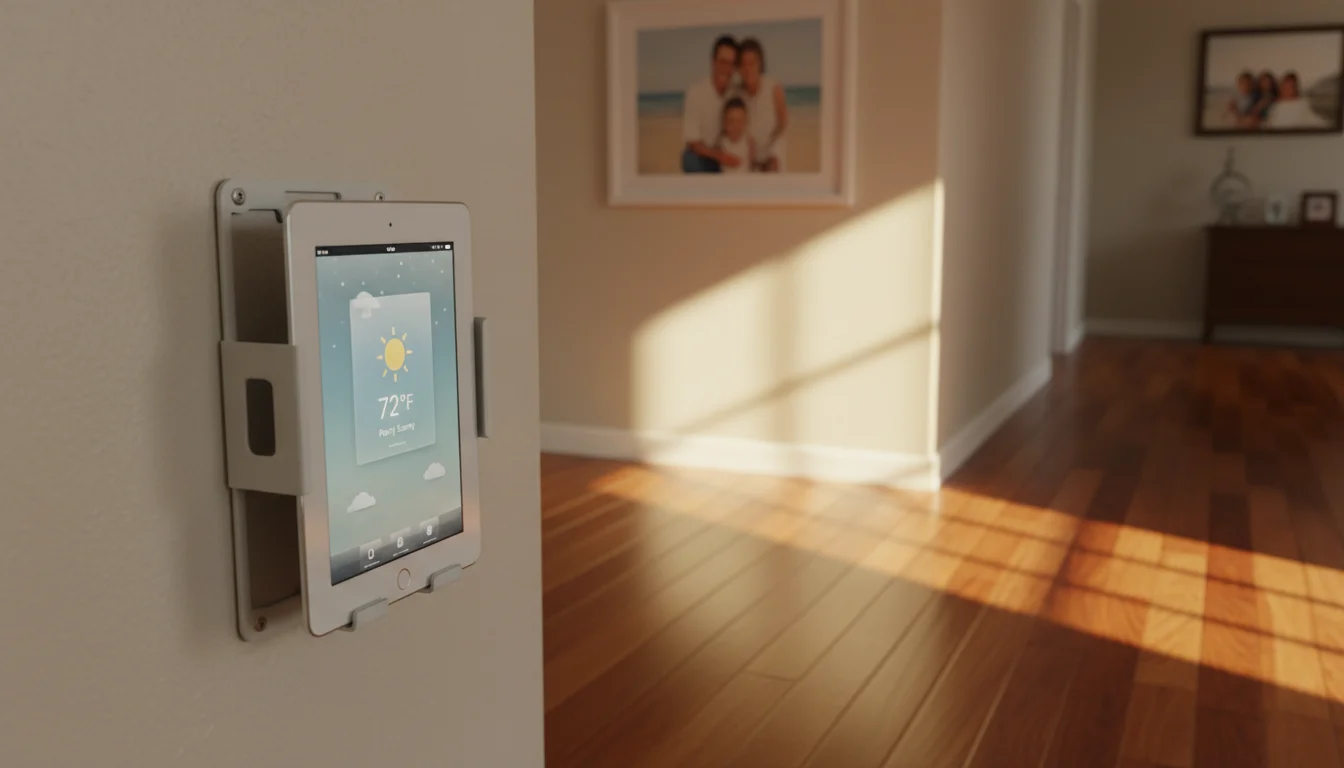
If your tablet feels warm when you touch the back, move it or improve the airflow. A wall mount with an open back is better than one that traps the tablet against the wall. A couple of inches of clearance makes a real difference.
The ideal spot is somewhere with decent air circulation, away from direct heat sources. Most hallways, kitchen side walls, and bedrooms are fine.
When to Take It Off the Wall
Here’s what actually matters – knowing the signs that a battery is done.
Stop charging immediately and remove it if you see:
- The screen is lifting away from the frame, even slightly
- The back of the case is bulging or warped
- The tablet won’t sit flat on a table anymore
- You feel a soft spot or unusual warmth in one area
These are signs of a swollen battery. It’s not an emergency in the “call 911” sense, but you shouldn’t keep charging it. Unplug it, power it down, and don’t put it in a closed drawer or bag. Take it to an Apple Store, a Best Buy, or your local electronics recycling center. They’ll handle the disposal properly.
Most old iPads will never swell. Millions of them sit plugged in on nightstands and kitchen counters around the world without incident. But it does happen occasionally, and knowing what to look for means you’ll catch it early if it does.
Signs your tablet is aging but still fine:
- Battery drains quickly when unplugged – that’s just wear, not a safety issue
- The tablet runs a little warm during charging – normal for old devices
- Maximum capacity is below 80% – it’s old, not broken
An old battery that holds less charge is not the same as a dangerous battery. The safety concern is physical deformation, not just reduced runtime.
A Practical Routine
You don’t need to stress about this. If you’ve put an old iPad on the wall and plugged it in, you’ve already given it a better second life than sitting in a drawer. A few small habits keep it safe:
- Glance at the back of the tablet when you’re cleaning nearby – is it flat? Is it warm? You’re done.
- If you want the battery to last longer, set up a smart plug on a schedule. Ten minutes, one time.
- Keep it out of direct sunlight and away from heat sources.
- Check battery health once or twice a year if you’re curious.
That iPad on your wall is doing more good there than it ever would in a junk drawer. A little attention is all it needs.
If you pulled an old iPad out and it won’t charge at all, that’s a different situation – start with the cable and port before assuming the battery is dead.