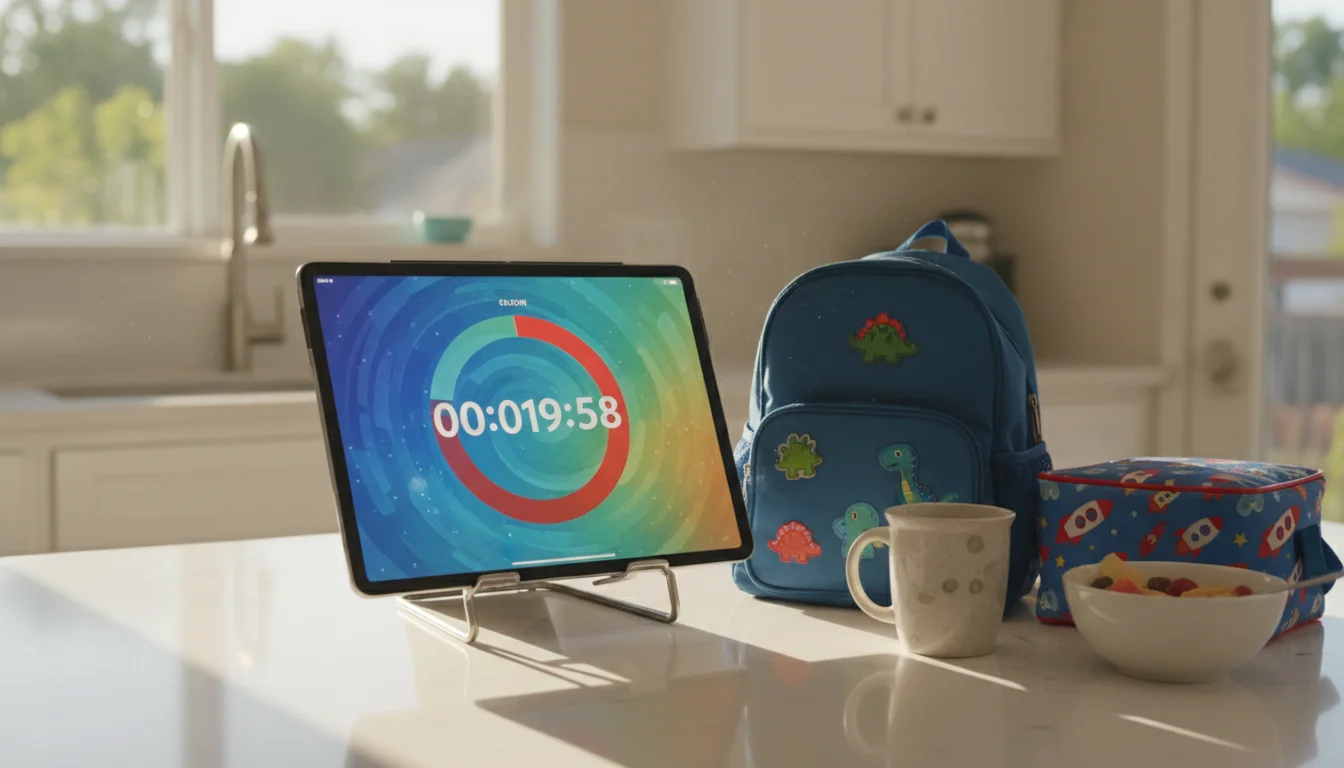
My three-year-old does not understand “five more minutes.” He understands a shrinking red circle. That is the entire case for a visual timer, and it changed how mornings work in our house.
I bought a Time Timer – the physical one, about $35 – and it worked great until my five-year-old knocked it off the counter. While I was looking at replacements, I remembered the old iPad sitting in a kitchen drawer. The screen was already cracked from a previous incident. Perfect candidate.
Turns out an old tablet makes a better visual timer than the dedicated gadget. Bigger screen, multiple timer apps to choose from, and you can mount it somewhere the kids can see but can’t easily grab. It’s one of the most practical ways to use an old tablet with kids. Here’s what I learned setting ours up.
Why a Visual Timer Works Better Than Saying “Five More Minutes”
Kids under seven or eight don’t have a reliable sense of how long five minutes actually is. A visual timer shows them. The colored section shrinks, the picture fills in, the little mouse eats the apple – whatever the metaphor, the kid can see time moving without needing to read a clock.
This isn’t just a parenting hack. Occupational therapists have used visual timers for years with kids who struggle with transitions, including children with ADHD and autism. The visual cue reduces anxiety because it’s predictable. The kid isn’t relying on you to announce when time is up. They can check for themselves.
What surprised me: it also reduced the arguments. When the timer runs out, the timer ran out. It’s not Mom being mean. It’s the red circle. Hard to negotiate with a red circle.
Why an Old Tablet Beats a Dedicated Timer
A physical visual timer like the  Time Timer does one thing well, but it costs $30-45 and it’s one more object on the counter. An old tablet you already own costs nothing and does more:
- Bigger screen. Most visual timer apps fill the whole display, so an old iPad or 10-inch Android tablet gives your kid a large, clear countdown they can see from across the room.
- Multiple apps. You can switch between a simple countdown for homework and a routine-based timer for mornings. A physical timer can’t do that.
- Mountable. Stick it on the wall or prop it on a shelf where it’s visible but out of reach. You probably have a tablet mount already, or can grab one for under $15.
- Lockable. With
 Guided Access on iPad or
  Fully Kiosk Browser on Android, you can lock the tablet to the timer app so nobody “accidentally” opens YouTube.
The catch is battery. If you’re keeping it plugged in and mounted, that’s fine. If it’s floating around the house, an old battery might not last long. For a dedicated timer station, plugged in is the way to go. Our guide on always-on display settings covers keeping the screen from dimming.
Best Visual Timer Apps for Old Tablets
I tested several. Here’s what actually works on older devices.
Time Timer (iOS)
The  Time Timer app is the digital version of the famous red-disc timer. Simple, clean, no distractions. You set a duration and the red section shrinks. That’s it.
- Price: Free (optional $9.95 in-app purchase for premium features)
- Requires: iOS 16+
- Best for: Straightforward countdown with no bells or whistles
The problem: it needs iOS 16, which means it won’t run on older iPads (anything before iPad 5th gen or iPad Air 2). If your old iPad is stuck on iOS 15 or earlier, skip this one.
Lil Planner (iOS and Android)
Lil Planner is part visual timer, part routine builder. You create a schedule with icons for each task – brush teeth, get dressed, eat breakfast – and each step has a built-in countdown. Kids check off activities as they go and earn stars.
- Price: Free with in-app purchases
- Requires: iOS 15.1+ / Android varies
- Best for: Morning and bedtime routines where multiple timed steps happen in sequence
This one shines for the morning routine board setup. The visual schedule plus timer combo means you’re not just counting down – you’re guiding them through a sequence.
Happy Kids Timer (iOS, Android, and Fire)
 Happy Kids Timer animates a cartoon kid doing each task as your real kid does it. Brush teeth? The cartoon kid brushes teeth. The timer ticks across the top of the screen.
- Price: Free with in-app purchases for extra tasks
- Requires: iOS 11+ / Android 5+
- Best for: Younger kids (3-6) who respond to animated characters
This is the most old-device-friendly option. iOS 11 support means it’ll run on iPads going back to iPad Air (first gen) and iPad mini 2. The main limitation: you can only set up one child profile in the free version.
Mouse Timer (iOS)
Mouse Timer shows a cute mouse eating apples as time passes. Simple concept, no ads, and kids find it genuinely entertaining to watch. When time is up, the mouse has eaten all the apples.
- Price: Free
- Requires: iOS 13+
- Best for: Short timers (teeth brushing, cleanup countdowns) for kids who need something engaging to watch
Visual Countdown Timer (iOS)
Visual Countdown Timer reveals a picture as the timer counts down. You can use built-in images or your own photos. My kids like setting a photo of the park as the reveal image for “when this picture appears, we leave for the park.”
- Price: Free with in-app purchases
- Requires: iOS 15.5+
- Best for: Making the end of the timer feel like a reward, not a punishment
Quick Comparison
| App | Price | iOS | Android | Best Age | Use Case |
|---|---|---|---|---|---|
| Time Timer | Free + $9.95 IAP | 16+ | No | All ages | Simple countdown |
| Lil Planner | Free + IAP | 15.1+ | Yes | 4-10 | Multi-step routines |
| Happy Kids Timer | Free + IAP | 11+ | 5+ | 3-6 | Animated routines |
| Mouse Timer | Free | 13+ | No | 3-6 | Short fun timers |
| Visual Countdown | Free + IAP | 15.5+ | No | 4-8 | Reward-based countdown |
If you’re working with a really old iPad (iOS 12-14), Happy Kids Timer is your safest bet – it supports iOS 11+. Mouse Timer needs iOS 13+, and the rest need iOS 15 or later. For anything stuck on iOS 12, Happy Kids Timer is the only solid option from this list.
For Android tablets, Happy Kids Timer is the standout. Lil Planner also has an Android version, but check the minimum OS version for your specific device.
Setting Up Your Timer Station
Once you’ve picked an app, the setup takes about ten minutes.
Step 1: Update what you can. Go to Settings > General > Software Update (iPad) or Settings > System > System update (Android) and install whatever’s available. Even if you can’t reach the latest OS, getting the newest version your device supports helps with app compatibility.
Step 2: Install and configure the app. Download your chosen timer app. Set up the routines or timer presets you’ll use most. I have three saved: a 10-minute morning routine countdown, a 25-minute homework block, and a 30-minute screen time timer.
Step 3: Lock it down. On iPad, turn on Guided Access (Settings > Accessibility > Guided Access on iOS 13+, or Settings > General > Accessibility on older versions). Triple-click the home button to lock the tablet to your timer app. On Android, Fully Kiosk Browser does the same thing and more. Our guide on kid-proofing an old tablet covers the full lockdown process.
Step 4: Mount or prop it. The timer needs to be visible from wherever the kid is doing the activity. Kitchen counter for morning routines. Desk for homework. Hallway for “get your shoes on” countdowns. A simple stand works, or wall-mount it if you want it permanent. Check our mount and stand recommendations for options under $20.
Step 5: Keep it plugged in. Old batteries drain fast, especially with the screen on. Use a long charging cable and keep it connected. If it’s wall-mounted, route the cable behind the mount.
Four Ways We Use Ours
Morning Transitions
The 8-year-old has 25 minutes from breakfast to backpack-on. The timer runs on the kitchen counter where she can see it from the table. No more “hurry up” from me – she checks the timer herself. This pairs well with a full morning routine board if you want the checklist alongside the timer.
Homework Blocks
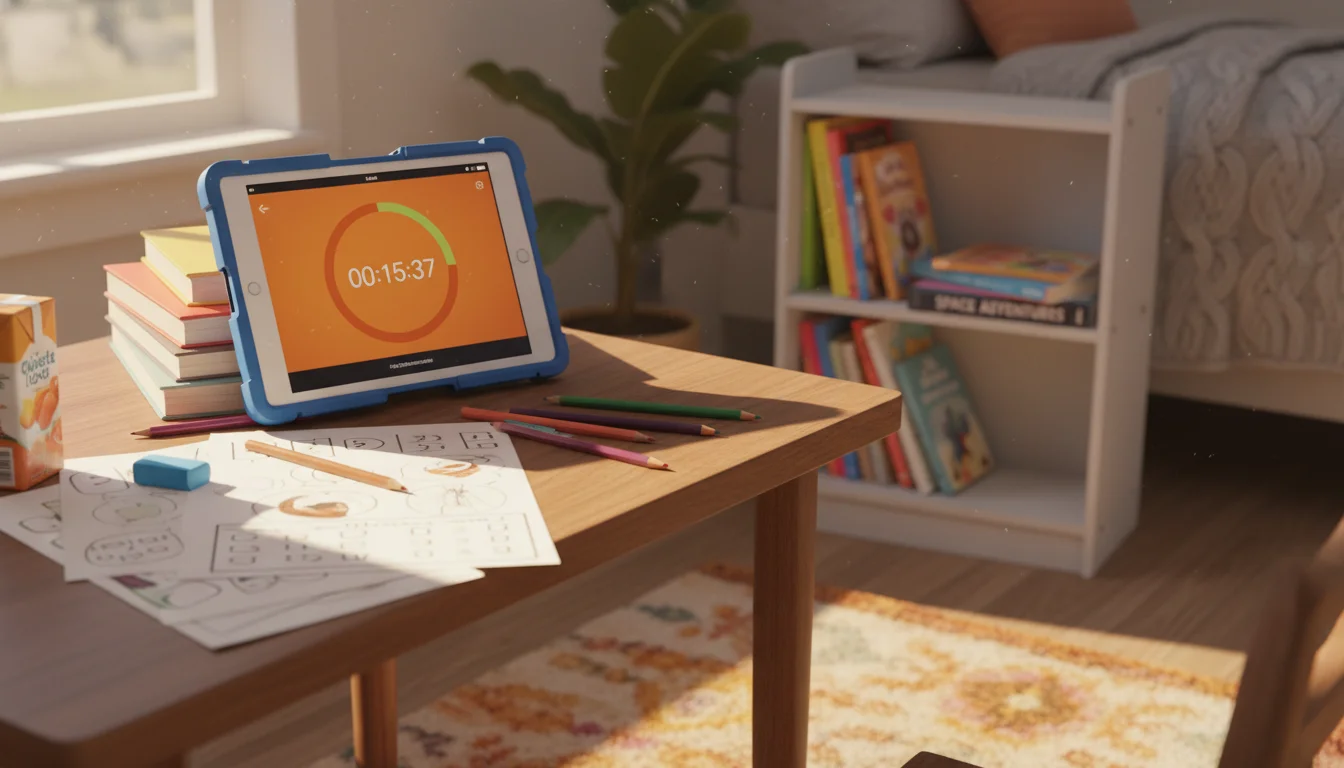
The Pomodoro idea, simplified for kids. Twenty-five minutes of focused work, five-minute break. The visual countdown helps my oldest stay on task because she can see exactly how much time is left. When the timer is done, she gets a real break – not a “just finish this page first” delay. If you’re setting up an after-school routine board, the timer slot fits right into the homework section.
Screen Time Countdowns
This is the one that solved the biggest daily argument. Thirty minutes of tablet time (on a different tablet – the timer stays on the old one). The countdown is visible right next to them. When it hits zero, screen time is over. No surprise, no negotiation, no “you didn’t warn me.” The timer warned them the entire time.
Bedtime Wind-Down
A 15-minute “get ready for bed” timer paired with a bedtime routine board. Pajamas, teeth, pick a book. The 5-year-old races the timer. The 3-year-old ignores it, but at least it gives me a concrete “timer’s done, into bed” moment instead of an open-ended bedtime drift.
A Few Things We Learned the Hard Way
Start with generous timers. If you think the morning routine takes 15 minutes, set it to 20. Let them succeed a few times before tightening it up. A timer that always runs out before they’re done just teaches them to ignore it.
Let the timer be the bad guy. The whole point is removing yourself from the role of nag. “I’m not saying stop – the timer is.” This only works if you actually stop when the timer stops. If you keep giving extensions, the timer loses its power.
Sound matters. Some apps have loud alarm sounds that startle younger kids. Test the end-of-timer sound before using it live. Mouse Timer’s gentle chime works. The default iOS alarm does not.
Don’t use it for everything. A timer for every single activity turns your house into a game show. Pick two or three daily friction points – the moments where transitions cause the most trouble – and use the timer there. Ours lives on morning routine and screen time. Bedtime is hit or miss.
The old iPad with the cracked screen now sits on the kitchen counter, propped in a $12 stand, running Happy Kids Timer from 7 AM until the bus comes. It cost nothing. It replaced a $35 gadget that broke. And for the first time, I’m not the one saying “five more minutes” – the shrinking red circle is.