See Your Cameras Without Picking Up Your Phone
If you have security cameras – Ring, Wyze, Nest, Arlo – you’re checking them on your phone. Which means unlocking, opening the app, waiting for the feed to load, then putting it away. Every time the dog barks. Every time you hear something outside.
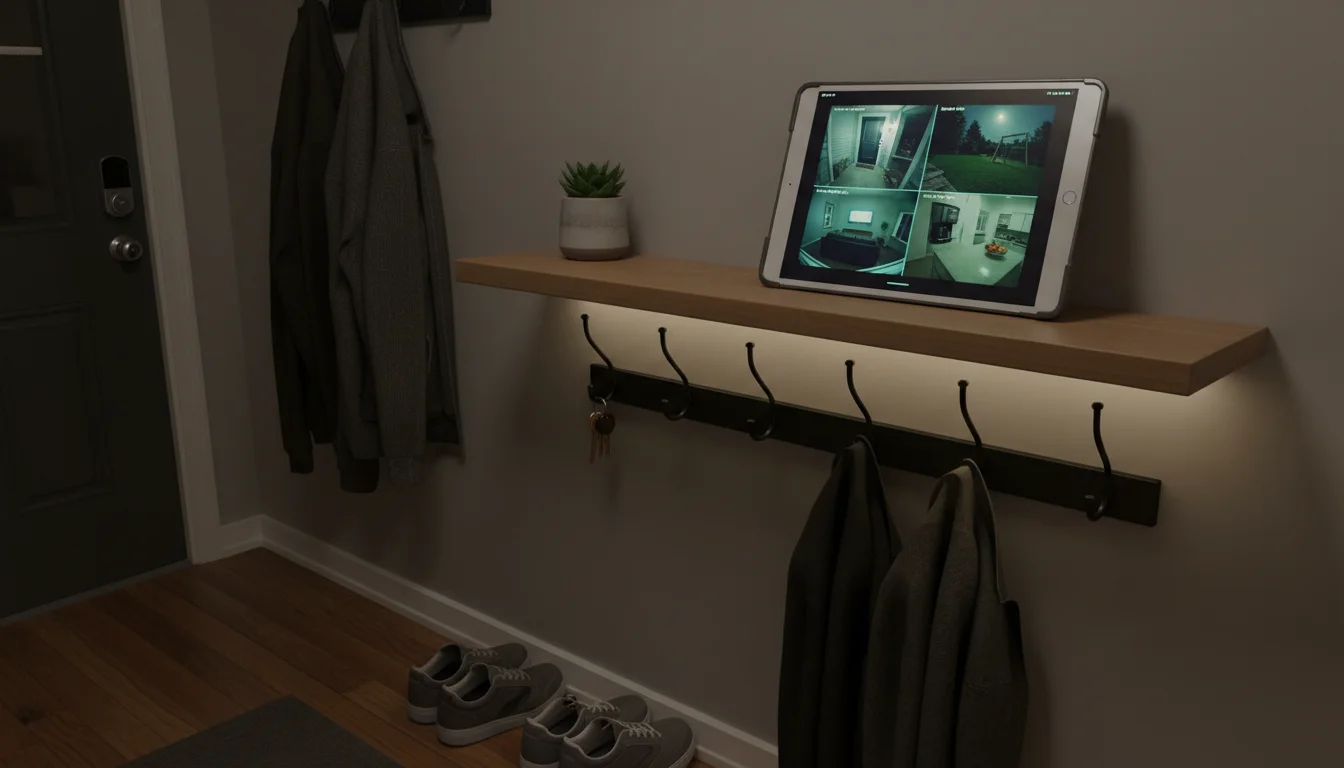
An old iPad on the kitchen counter, showing your camera feeds all the time, turns that into a glance. Front door, backyard, driveway – always visible. And if you don’t have cameras yet, the tablet itself can work as a security camera with the right app.
What You Can Set Up
Live Camera View
iOS reality check: Mark tested the camera apps, and the news is mixed for old iPads.  Ring now requires iOS 17. Wyze needs iOS 16. Google Home (for Nest cameras) requires iPadOS 17.4. Only Arlo (iOS 15) and the built-in
  Apple Home app (iPadOS 16.2+) still work on some older iPads. Android is mostly easier – Ring, Nest, and Arlo run on Android 9-10+. Wyze is the exception: it bumped its Play Store floor to Android 12L in July 2026, so tablets on Android 9-11 need a sideloaded older Wyze APK from APKMirror.
Ring (iOS 17+ or Android): Ring’s Dashboard view gives you thumbnails of every camera and doorbell at once, and you tap to go full-screen. It’s the most polished experience if you’re already in the Ring ecosystem. The catch: it needs iOS 17, which cuts out most old iPads entirely.
Wyze (iOS 16+ or Android 12L+): This is what we actually use. Two Wyze Cams – one on the front porch, one in the backyard – and the grid view shows both feeds side by side on an old iPad in the kitchen. At $30-54 a camera (the v3 has been discontinued, but the v4 is the current model) with no subscription required for live viewing, it’s hard to argue with the value. Needs iOS 16, so slightly better than Ring on older iPads but still not great.
Nest/Google (iPadOS 17.4+ or Android): If you already have Nest cameras, the Google Home app pulls in your feeds. The interface is clean but Google keeps rearranging it every few months, which gets old. Google Home needs iPadOS 17.4, so slightly newer than Ring’s iOS 17 floor.
Arlo (iOS 15+ or Android): The one that actually works on most old iPads. Arlo still supports iOS 15, so that iPad Air 2 in your drawer can run it. Simultaneous streams can make older hardware chug a bit, but for a single camera feed it’s solid.
Baby Monitor
This is one of the most practical uses. Put a Wyze Cam ($30-54 depending on model) in the nursery and leave the feed open on an old iPad in the kitchen. You can see your baby sleeping while you cook dinner. You can also skip the separate camera entirely and use the old tablet itself as the baby monitor.
Why it beats a traditional baby monitor:
- Better image quality (1080p vs. grainy baby monitor feeds)
- Night vision built into most cameras
- No range limit (it’s on Wi-Fi, not a proprietary radio)
- Two-way audio – talk through the camera if needed
- The camera costs $30, not $150+ for a “baby monitor” with the same features
Doorbell Monitor
If you have a Ring or Nest doorbell, keep the feed open on the kitchen iPad. When someone rings, you see who it is without getting up. The doorbell notification appears on the iPad, and you can speak through it. Just remember: Ring needs iOS 17 and Nest needs Google Home (iPadOS 17.4), so check your iPad’s iOS version first.
The Best Camera Apps for Always-On Monitoring
TinyCam Monitor Pro (Android, $4)
If you have an old Android tablet and cameras from different brands,  TinyCam is the app that ties them all together. It connects to pretty much any IP camera plus Ring, Nest, Wyze, and Arlo, so you’re not stuck with one manufacturer’s app. Mark set it up on our old Galaxy Tab with a grid of four cameras and it just runs – no fussing with it once it’s configured.
Apple Home (iPad, Free – iPadOS 16.2+)
If your cameras support HomeKit, the built-in Home app shows camera feeds natively. Clean interface, no extra app needed. Since February 2026, Apple requires iPadOS 16.2 or later for the Home app, so iPads stuck on iOS 15 or earlier are out of luck here. Supported cameras: Logitech Circle, Eufy, Eve, some Aqara models. If your old iPad can’t run Ring or Wyze, a HomeKit-compatible camera with the Home app is your most reliable option.
Camera-Specific Apps
For most people, the app from your camera manufacturer (Ring, Wyze, Nest, Arlo) works fine – as long as your iPad meets the iOS requirement. Open it, pull up the live view or dashboard, and leave it on-screen. On Android tablets, Ring, Nest, and Arlo run without the iOS-floor problems; Wyze’s Play Store build needs Android 12L, so older Android tablets need a sideloaded APK.
Performance on Old Tablets
Live video streaming is one of the more demanding things you can ask an old tablet to do. Here’s what to expect:
One camera feed: Any iPad from the iPad Air 1 (2013) onward handles a single 1080p camera feed fine.
Multiple simultaneous feeds: An iPad Air 2 or newer can handle 2-4 feeds. The original iPad Air and iPad mini 2 will struggle with more than one HD stream – feeds will be choppy or the app may crash.
Tip: If your tablet struggles with multiple streams, set the camera app to show thumbnails (low-resolution previews) of all cameras, and tap one to go full-screen when you need detail. This uses much less processing power than streaming all feeds simultaneously.
Setting It Up
- Install your camera app (Ring, Wyze, Google Home, etc.)
- Sign in with the same account as your phone
- Pull up the live view or dashboard
- Settings → Display & Brightness → Auto-Lock → Never (keep the feed visible)
- Turn off notifications for everything except the camera app (you want doorbell alerts but not spam)
- Set up Guided Access to lock the iPad to the camera app (optional – prevents accidental app switching)
Where to Put It
- Kitchen – visible while cooking, near enough to hear audio from cameras
- Nightstand – baby monitor view while sleeping (dim the screen at night)
- Home office – keep an eye on the front door while working
- Near the front door – see who’s approaching before opening
Privacy and Recording
What the iPad shows: Live camera feeds only. The iPad is just a display – recordings are handled by the camera’s cloud service (Ring, Wyze, etc.) or local storage.
If you share a household: Anyone who walks past the iPad can see the camera feeds. If you have cameras in private areas (bedrooms), consider whether you want those feeds on a shared display.
Legal note: Laws about recording vary by location. Interior cameras in shared/rental spaces and cameras pointed at neighbors’ property can be legally complicated. This isn’t legal advice – check your local laws if you’re unsure.
Quick Checklist
- Install your camera app on the old iPad
- Sign in with your camera account
- Open the live view or dashboard
- Set Auto-Lock to Never
- Turn off non-camera notifications
- Put on a stand or shelf where it’s visible
- Done – you now have a dedicated security monitor
Total cost: $0 (assuming you already have cameras). Setup time: 10 minutes. And you’ll stop reaching for your phone every time the dog barks at a squirrel.
A security monitor is one of the more practical tablet projects, and there are lots of others. Head over to our old iPad ideas page if you’ve got more than one tablet collecting dust.